Code view lets you inspect and edit the underlying HTML of an article directly in the Advanced WYSIWYG editor, giving you control over markup the visual editor cannot expose.
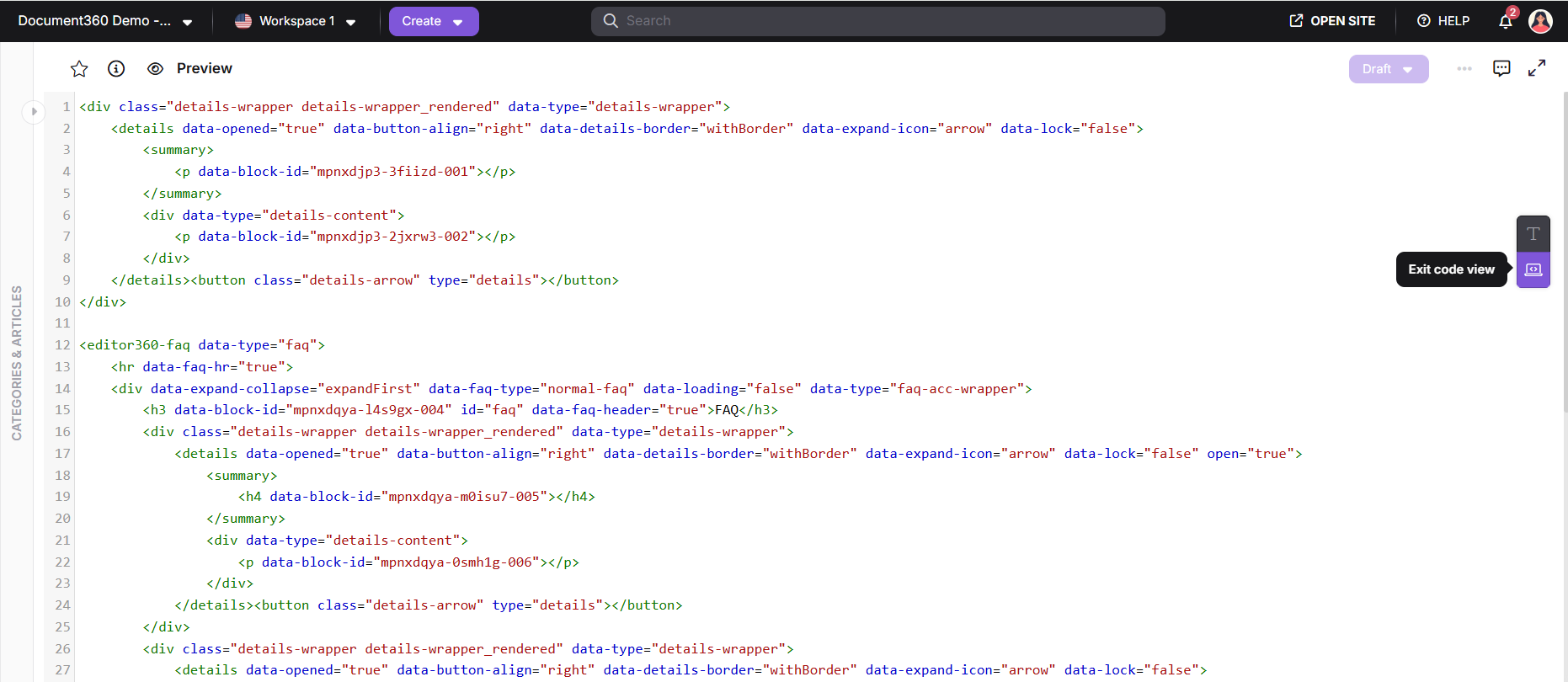
When can you use Code view
- Inject custom HTML elements the visual toolbar doesn't support
- Apply inline styles to specific elements
- Embed FontAwesome or other icon snippets
- Fix unsupported tag errors flagged by the editor
- Add symbols or icons into table cells
- Search within HTML using
Ctrl + F
Accessing Code view during collaborative editing
Code view is limited to one contributor per article at a time. If another contributor already has Code view open, you can't open it. You can continue editing the article in the visual editor while you wait.
If you're already using Code view and another contributor joins the article, you won't be able to switch back to the visual editor using the Code view toggle. To exit Code view, select Close near Workflow status, then reopen the article to continue editing.
Collaborative editing is rolled out in phases, so if you don’t see it yet, it’s on its way.
Automatic HTML formatting
The editor automatically standardizes indentation and spacing each time you open Code view. This only runs on entry — not on save or publish — and does not affect custom HTML or script blocks.
Searching in Code view
Use the built-in search to locate specific HTML elements or text within the code.
| Action | Shortcut |
|---|---|
| Open search | Ctrl + F |
| Next result | Enter |
| Previous result | Shift + Enter |
| Auto-indent / format code | Shift + Tab |
Saving changes
With Collaborative Editing enabled, manual save (Ctrl + S) from Code view is no longer supported. To save your changes, switch back to the visual editor — this automatically triggers a save. Once saved, you can preview the content on the KB site and proceed to publish as required.
Switching from Code view to the visual editor automatically triggers a save. Do not navigate away before switching back, as unsaved changes will be lost.
Unsupported HTML tags and attributes
The editor flags unsupported HTML tags and attributes instead of removing them, so you can review and correct them.
When does this happen?
- When switching an article from the WYSIWYG editor to the Advanced WYSIWYG editor, unsupported content is flagged automatically. Commonly used tags such as
<sup>,<a name="...">,<select>,<colgroup>, and<img>are handled automatically. These tags are ignored during wrapper addition and do not trigger a flag. - When you add unsupported tags or attributes directly in Code view, the editor flags them on parsing.
What the editor does
- Detects unsupported tags (e.g.,
<marquee>,<blink>) and attributes (e.g.,onmouseover,style="text-decoration:blink") - Marks flagged elements with tooltips and block highlights without disrupting surrounding content
- Blocks visual editing of flagged elements until resolved in Code view
Flagged elements can be modified, removed, or corrected directly in Code view.
Supported tag categories
Text formatting
- Abbreviations (
<abbr>) - Blockquote (
<blockquote>) - Headings (
<h1>–<h6>) - Paragraph (
<p>) - Subscript / Superscript (
<sub>,<sup>) - Inline code (
<code>)
Structure & media
- Images (
<img>) - Links (
<a>,<a id="...">,<a class="..." href="" target="_blank">) - Tables (
<table>,<tr>,<td>,<colgroup>) - Lists (
<ul>,<ol>,<li>) - Dividers (
<hr>) - Spans and divs with supported attributes
Inline formatting
- Bold, italic, underline (
<strong>,<em>,<u>) - Line break (
<br>) - Span (
<span>) - Anchor name (
<a name="...">) - Form select (
<select>)
Best practices
- Use Code view only when the visual editor cannot accomplish the task. Direct HTML editing increases the risk of introducing unsupported tags or broken markup.
- Check whether another contributor is already using Code view on the article before trying to open it yourself. It's limited to one contributor at a time, so you may need to wait or coordinate with them first.
- Stick to supported tags when writing or pasting HTML. Unsupported tags trigger flags and block visual editing of that section until corrected.
- Use
Shift + Tabto reformat code after making edits, keeping markup readable and easier to debug. - After making changes in Code view, switch back to the visual editor to save. Switching from Code view to the visual editor automatically triggers a save when Collaborative Editing is enabled.
- Resolve flagged elements promptly. Leaving them unresolved prevents visual editing of the affected block and can cause unexpected rendering issues on publish.**