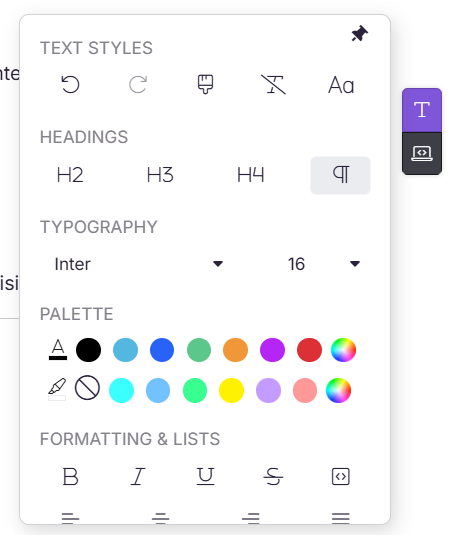
The Formatting tool panel in the Advanced WYSIWYG editor gives you control over the appearance and structure of your article content. It is organized into four sections:
- Text Styles – Undo, redo, apply formatting, and manage letter case.
- Headings – Apply heading levels H2, H3, and H4, or revert to paragraph style.
- Typography – Set the font family and font size for selected text.
- Palette – Apply text color or background color using preset or custom colors.
To access the Formatting tools panel, click the Format icon on the right side of the editor panel. You can pin the toolbar to keep it visible while editing.
When to use text elements
- Apply consistent heading levels to create a scannable structure that auto-generates the article's table of contents
- Use Format painter to quickly replicate styling across multiple sections without reapplying each format manually
- Use font color sparingly to highlight a critical term or key value within a paragraph
- Use background color to call out an important phrase inline without using a callout block
- Use Lettercase to switch between title case, uppercase, or lowercase without retyping content
Text Styles
The Text Styles section contains controls for managing formatting actions on selected text.
| Control | Description |
|---|---|
| Undo | Reverses the last action. |
| Redo | Reapplies the last undone action. |
| Format painter | Copies formatting from one section of text and applies it to another. The copied style is based on the first character of the selected source text. |
| Clear formatting | Removes all styling from selected text and reverts it to plain text. |
| Lettercase | Changes the letter case of the selected text. |
To use Format painter:
- Select the text whose formatting you want to copy.
- Click the Format painter icon or use the keyboard shortcut (
Alt + CorAlt + V). - Select the target text to apply the formatting.
To stop Format painter, click anywhere outside the editor, perform another action, or click the active Format painter icon again.
Press Ctrl + Z to undo applied formatting, or Alt + Shift + V to clear formatting from selected text.
Headings
The Headings section lets you apply structural hierarchy to your article content using heading levels H2, H3, and H4. You can also revert content back to the standard paragraph style.
| Option | Description |
|---|---|
| H2 | Applies a Heading 2 style — used for major sections. |
| H3 | Applies a Heading 3 style — used for subsections. |
| H4 | Applies a Heading 4 style — used for nested subsections. |
| ¶ (Paragraph) | Reverts the selected text back to the standard paragraph style. |
To apply a heading:
- Select the text you want to format.
- In the Text Elements panel, click H2, H3, or H4.
You can also apply headings using Markdown syntax directly in the editor — type ## for H2, ### for H3, #### for H4, ##### for H5, or ###### for H6 followed by a space. The syntax renders instantly when typed manually.
- H1 is reserved for the article title and is not available as an inline heading. Markdown heading syntax does not render when copied and pasted — it must be typed manually.
- H5 and H6 are available through Markdown syntax only and cannot be applied from the Headings panel.
Typography
The Typography section controls the font family and font size of selected text.
| Option | Description |
|---|---|
| Font family | Select the typeface for the selected text (default: Inter). |
| Font size | Adjust the size of selected text (range: 8 to 96). |
To change font or size:
- Select the text you want to update.
- In the Typography section, click the Font family dropdown and choose a typeface, or click the Font size dropdown and select a size.
To change the font across your entire knowledge base, go to Settings > Knowledge base site > Customize site and select a font from the Site font dropdown. Article-level font changes apply only to the selected text.
Palette
The Palette section lets you apply text color and background color to selected content using preset colors, a color picker, or a custom HEX code.
To apply text color:
- Select the text you want to color.
- In the Palette section, the first row of colors applies text color.
- Choose a color from the preset palette, use the color picker, or enter a HEX code.
To apply background color:
- Select the text.
- The second row of colors applies background color.
- Choose a color from the palette or enter a HEX code.
To remove an applied color, select the text and click the No color (strikethrough circle) icon.
Best Practices
- Apply heading levels in order — H2 before H3, H3 before H4. Skipping heading levels breaks document hierarchy and affects accessibility.
- Use Clear formatting after pasting content from external sources like Microsoft Word to remove inherited styles before applying your own.
- Limit custom colors to your brand palette for visual consistency across articles.
- Avoid using color as the only way to convey meaning — always pair it with text or another visual indicator for accessibility.
- Pin the Format toolbar for easier access when working on long articles.
FAQ
Can I change the default font for the entire knowledge base?
Yes. Go to Settings > Knowledge base site > Customize site and choose your preferred font from the Site font dropdown.
Does Format painter work across different articles?
No. Format painter applies formatting within the same article only.
Can I use a custom color not shown in the palette?
Yes. Click the color picker icon in the Palette section and either use the picker or enter a HEX code directly.