The Inline comments feature in Document360 lets team members add contextual feedback directly on selected text within an article, making the review and refinement process faster and more structured. Instead of discussing changes in separate threads, reviewers can highlight a specific passage and attach a comment to it, keeping feedback tied to the exact content it refers to.
When to use inline comments
Use inline comments when you want to give or collect precise, text-level feedback during the content review cycle. Common scenarios include:
- A subject matter expert needs to flag a specific sentence as inaccurate without editing the article directly.
- A team lead wants to suggest rewording on a particular paragraph before the article is published.
- Multiple reviewers are collaborating on a draft and need to track which sections have been addressed.
- You want to keep a record of resolved feedback even after the article goes live.
Before you begin
- The article must be open in the Advanced WYSIWYG editor. Inline comments are not available in the Markdown or standard WYSIWYG editors.
- To review an article without editing permissions, see Managing reviewer accounts.
Add inline comments to an article
-
Navigate to the desired article in the Knowledge base portal.
-
Confirm that the article is open in the Advanced WYSIWYG editor.
-
Select the text you want to comment on by clicking and dragging the cursor over it. A bubble menu appears.
-
Click the Comment () icon to open the comment box.
The comment icon appears only when the selected text does not overlap with an existing comment. To add a new comment, ensure the selected text is not already part of a previously commented section.
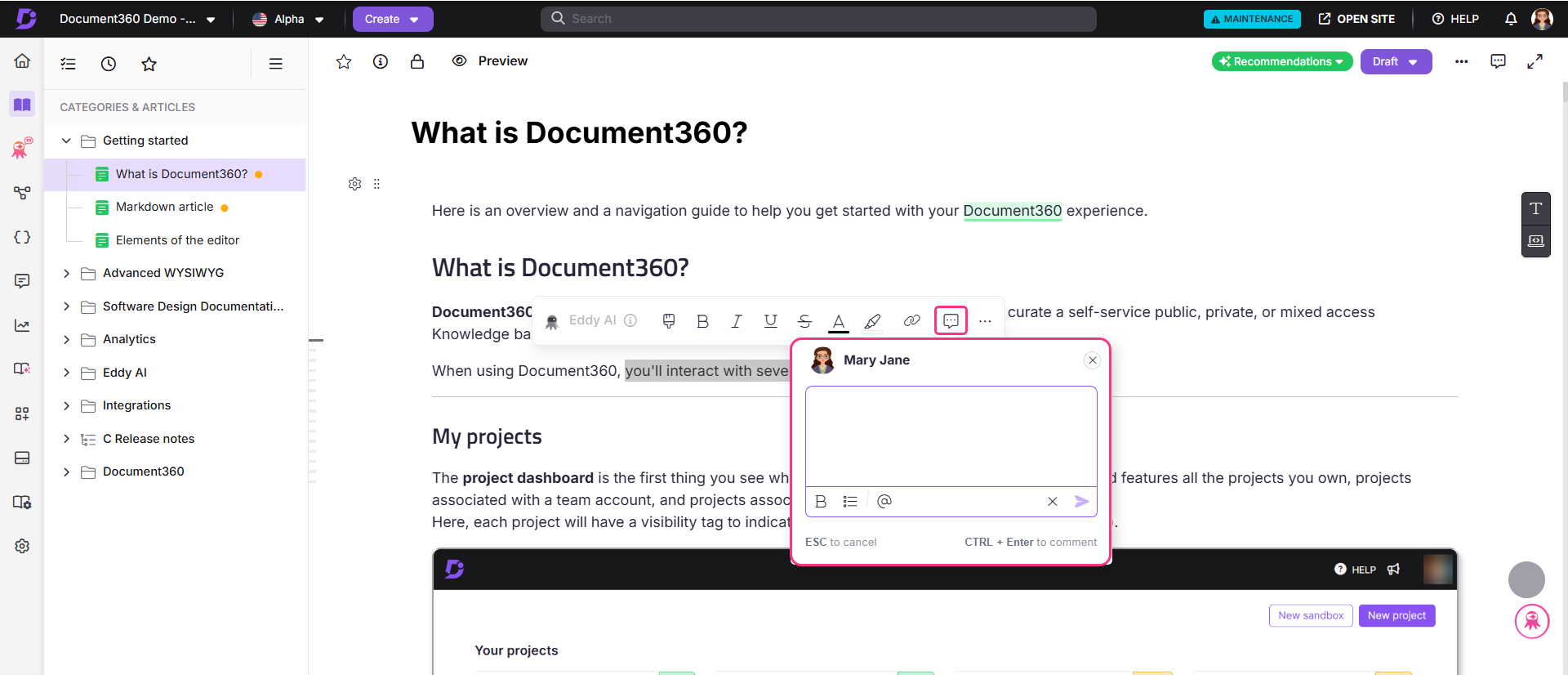
- Inside the comment box, you can:
- Enter your comment text.
- Use the @ symbol to mention another user in your project.
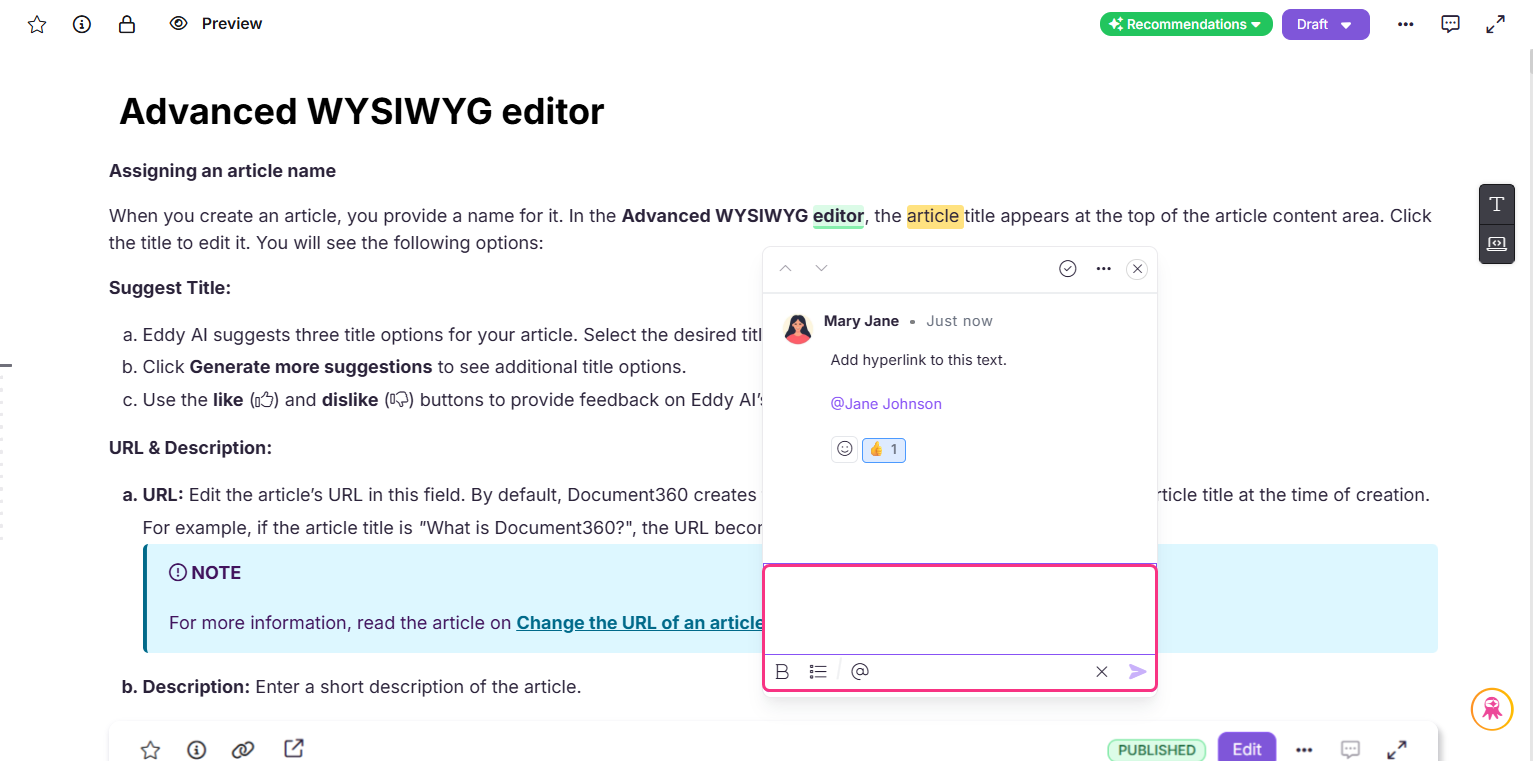
- Apply basic text formatting such as bold and lists. Comments are visually indicated by a yellow highlight on the selected text.
-
Click Send () or press Ctrl + Enter to post the inline comment.
-
To cancel without saving, click anywhere outside the comment box or press ESC.
If you type something in the comment box and then click outside it, a confirmation dialog appears asking whether you want to discard the changes.
Inline comments (both open and resolved) are retained even after an article is published. However, they are only visible when the article is open in Edit mode. Once published, the inline comments icon is disabled in the editor. To view or manage comments, you must open the article in the Knowledge base portal's editor.
Enable comment notifications
To ensure all contributors are notified when inline comments are added:
-
Navigate to Settings () in the left navigation bar of the Knowledge base portal.
-
In the left navigation pane, go to Knowledge base portal > Notifications.
-
Select the Notification mapping tab and scroll to the bottom to find the All comments notification toggle.
-
Turn on the All comments notification toggle.
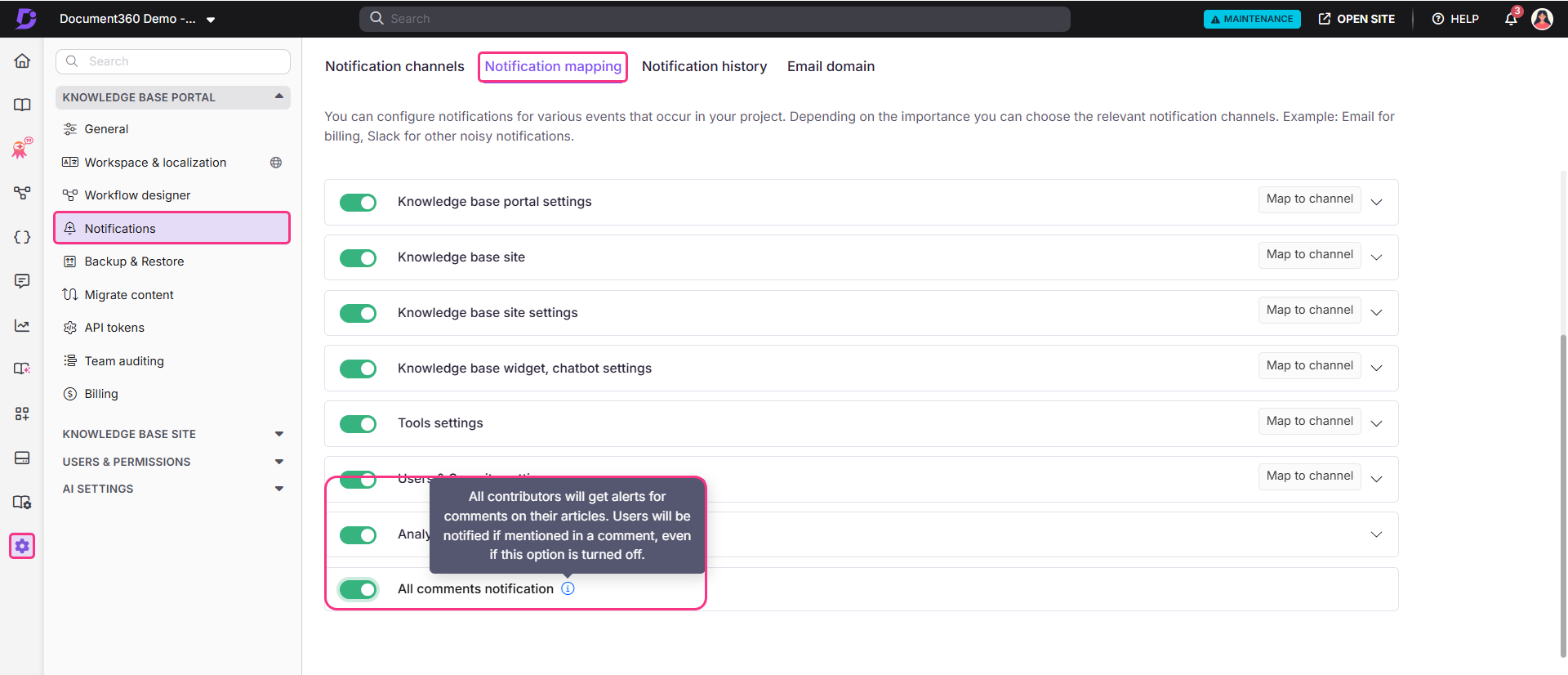
All contributors to the article will receive email notifications when inline comments are added after this toggle is turned on.
Manage comments in an article
Once inline comments exist on an article, you can take the following actions from the comments panel:
- View comment: Click the yellow-highlighted area in the article or the comment icon next to the article settings to open the comment thread.
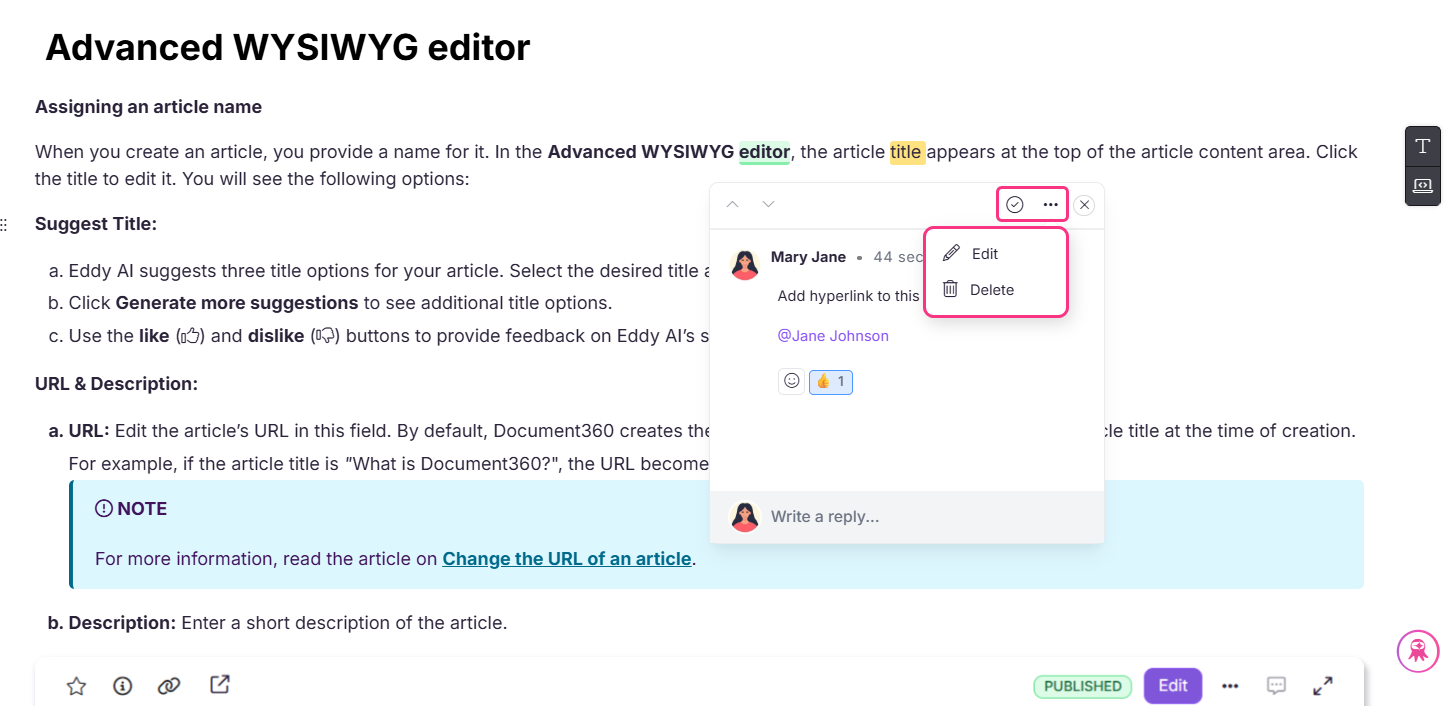
- Resolve comment: Click the () icon to resolve a comment. Users with a default role can resolve any comment, including those added by others. Admins and Owners can control this permission per role by enabling or disabling the Resolve comments setting in the role configuration.
- Edit or delete comment: Select the More () icon at the top of the comment box to edit or delete your comment. These actions are only available for comments you have added.
- Reply to comment: Use the Write a reply field to respond to another user's comment.
- Reopen comment: To continue a discussion on a resolved comment, select the More () icon and select Reopen.
During a collaborative editing session, inline comments update in real time. All contributors can see new comments, highlights, and resolved comments as soon as they happen. However, comment filters and the expanded or collapsed state of the comment dialog apply only to your view and do not affect other contributors.
Collaborative editing is rolled out in phases, so if you don’t see it yet, it’s on its way.
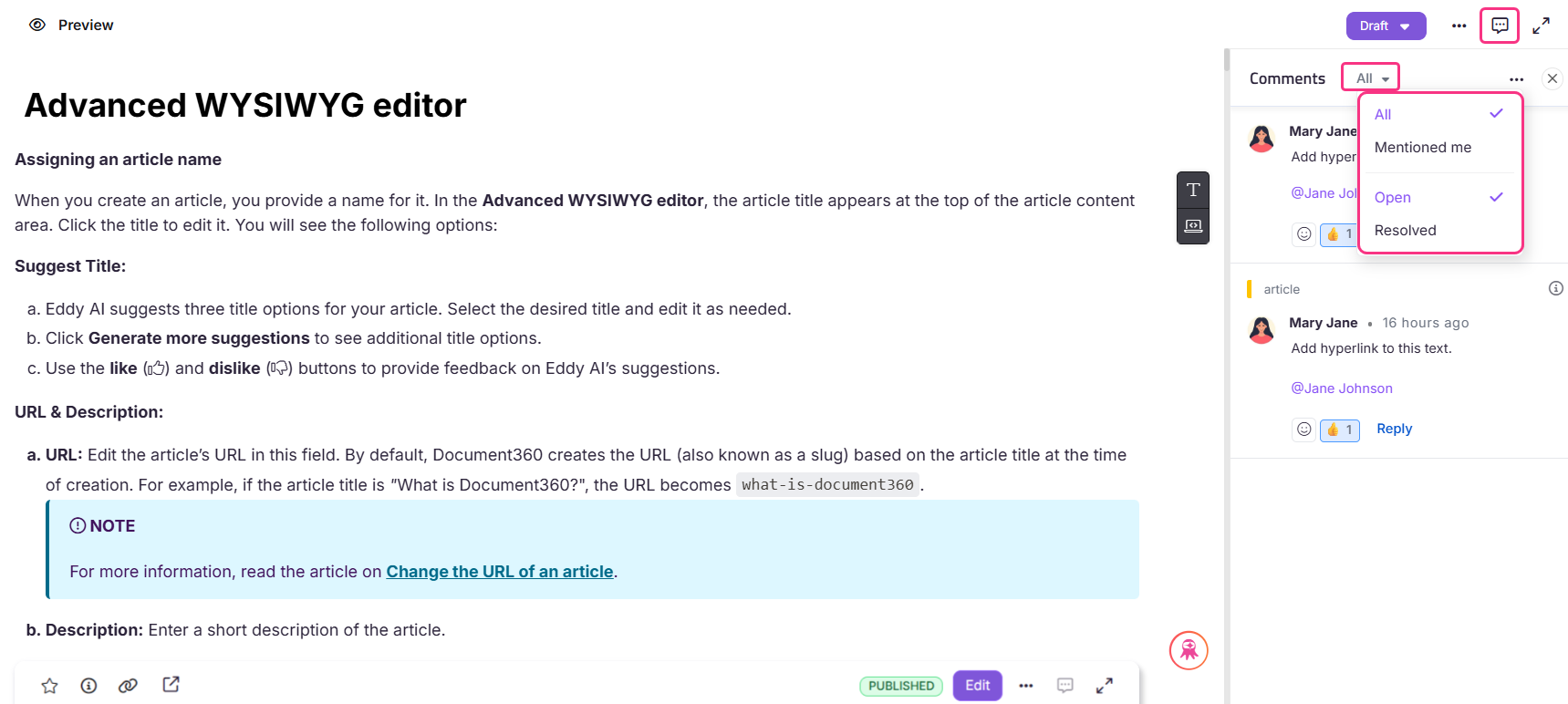
Filtering comments in the discussion section
In the discussion section, you can filter comments using the following options:
| Filter | Description |
|---|---|
| All comments | Displays all comments, including mentioned and resolved, except deleted ones. |
| Mentioned me | Shows only comments where you are mentioned. |
| Open | Displays all comments that have not been resolved. |
| Resolve | Shows only resolved comments. To revert, click the More () icon and select Reopen. |
Viewing inline comment activity in the Overview page
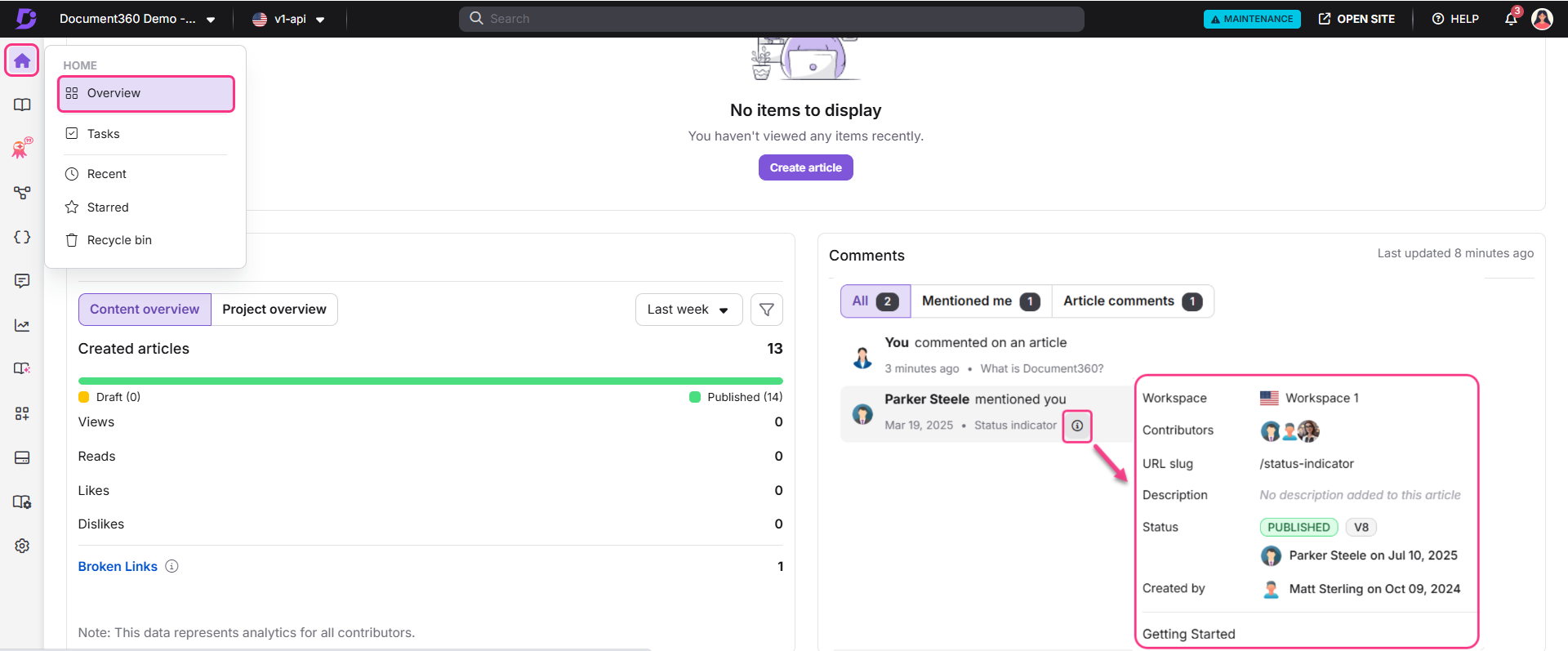
You can track inline comment activity without opening individual articles. The Comments card on your Overview page shows recent activity relevant to you, including:
- Comments added to articles you have contributed to.
- Comments where you are directly mentioned using @mention.
Each entry in the Comments card shows the article name and the last modified time. Clicking a comment takes you directly to the relevant article and comment thread. The card refreshes automatically every few minutes.
Best practices
- Use @mentions to assign ownership clearly. When a comment requires a specific person's input, tag them with @mention so they receive a notification and the comment appears in their Mentioned me filter.
- Reopen comments sparingly. Use the Reopen option only when additional discussion is truly needed. For new feedback on the same passage, consider adding a separate comment instead.
FAQ
How many replies can I add to an inline comment?
You can reply up to 20 times to a single inline comment.
What is the maximum number of inline comments I can add to an article version?
You can add up to 500 inline comments per article version.
Is there a character limit for the inline comment text box?
Yes, the inline comment text box has a maximum limit of 500 characters.
What happens to comments when copying content or cloning an article?
Comments are not carried over when content is copied or an article is cloned or replicated. Only the article content is transferred. Highlights, comment threads, and comment history from the original article are excluded from the clone.