The Labels - Full portal search page in Document360 lets you search for labels directly from the portal search bar and see exactly where each label is applied, across articles and page categories, without opening the Manage labels page.
When to use labels full portal search
- Locate a specific label quickly: search by keyword instead of scrolling through the full labels list.
- Audit label usage before making changes: review which articles or page categories depend on a label before editing, moving, or deleting it.
- Remove stale label references: clean up labels that are no longer relevant by selectively removing their references from content.
- Navigate directly to labeled content: jump to an article or page category from the references panel without leaving the search view.
How to search labels in the full portal search
- Click the Search () field in the top navigation bar.
The search overlay opens.NOTEPress the Escape key to close the search overlay without making a selection.
- From the Search all dropdown to the left of the search bar, select Labels.
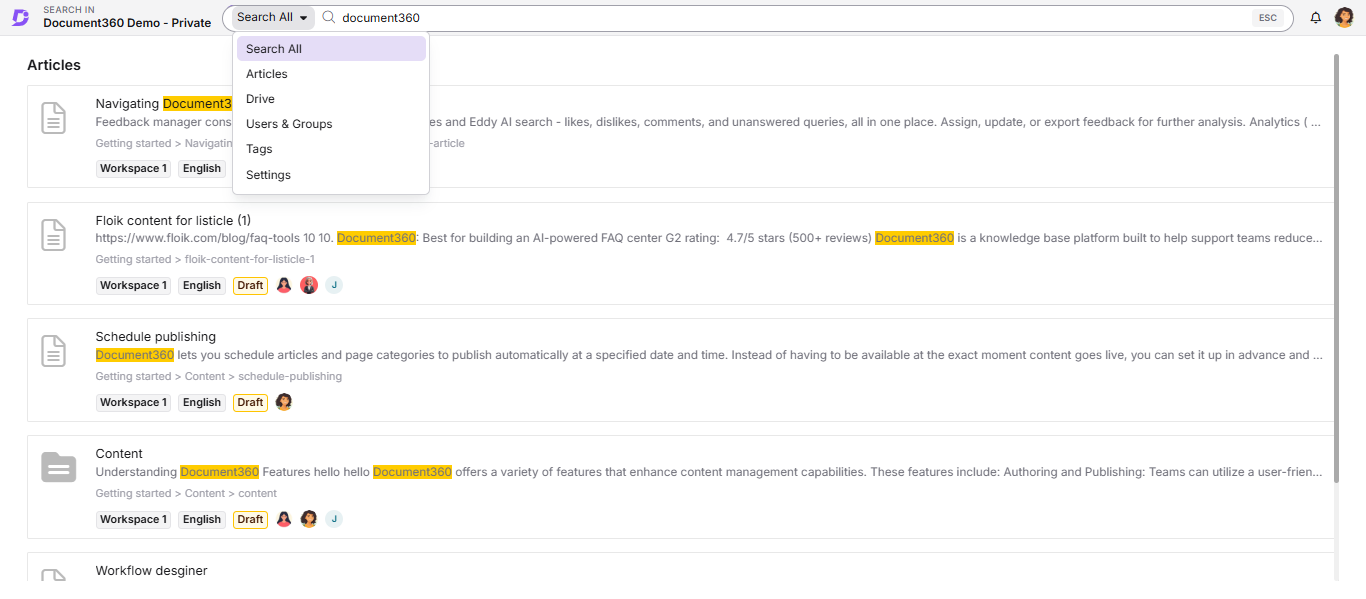
- Type your search keyword in the search bar.
The search results appear, displaying the following information for each matching label:Column Description Label name The name of the label as defined in the project Dependency in articles Number of articles that use this label Dependency in page categories Number of page categories that use this label - Click a label to open the Label references panel.
The panel shows a detailed breakdown of all content that references the selected label.
View label references
The Label references panel displays the following information:
| Field | Description |
|---|---|
| Label name | The name of the selected label |
| Search | Search for specific references by keyword |
| Remove from | Selection options for removing references: Select all, Articles, or Page categories |
| Title | The titles of the dependent articles and page categories |
| Contributor | The contributor associated with each dependency |
| Updated on | The date the article or page category was last updated |
- Click an article or page category title to open it directly in the documentation editor.
Remove label references
- Select the checkbox to the left of any article or page category whose reference you want to remove. To remove all references at once, select the top-level checkbox.
- Click Remove references at the bottom of the panel.
The selected references are removed from the label. - To close the panel without saving, click the X icon. To discard any unsaved selections, click Cancel.
Best practices
- Search before deleting a label: always check the reference count in search results before removing a label to avoid breaking content that references it.
- Review the Contributor column: when cleaning up references, contact the listed contributor before removing a label from their content to avoid unintended changes.
FAQ
Can I search for labels across multiple projects at once?
No. The Labels - Full portal search is scoped to the currently active knowledge base project version. To search labels in a different project version, switch to that version first.
What happens to an article when I remove a label reference from it?
Removing a label reference unlinks the label from that article or page category. The content itself is not deleted or modified. Only the label association is removed. The article remains published and accessible.