Managing article feedback in Document360 means reviewing reader-submitted likes, dislikes, and comments on your knowledge base articles, then assigning, updating, and resolving those feedback items as a team. The Feedback manager gives you the tools to triage feedback, track resolution progress with status labels, communicate internally through discussions, and notify readers when their concern has been addressed.
Respond to article feedback
-
Navigate to Feedback manager () in the left navigation bar on the Knowledge base portal.
-
Click Articles, then select the Feedback tab.
-
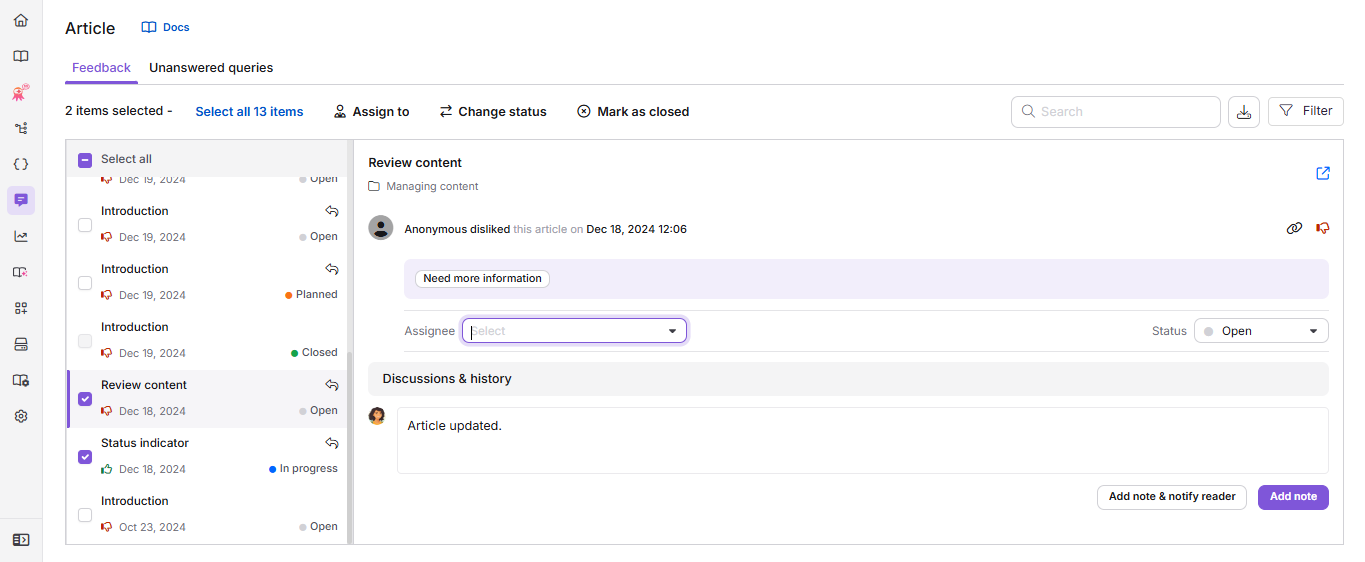
Select a feedback item from the list to open it in the detail panel.
-
Review the reader's comment. The article that received the feedback is shown at the top for reference.
-
If needed, select a team member from the Assignee dropdown to assign the feedback.
-
Type your response in the Discussions & history field, then choose how to save it:
- Click Add note to save it as an internal note that only your team can see.
- Click Add note & notify reader to save it and also email it to the reader. This option is only available if the reader selected Notify me about updates and provided their email when they submitted the feedback.
Either action just adds to the discussion. It doesn't change the feedback's status, so you can go back and forth with your team or the reader before deciding how to resolve it.
-
When you're ready to resolve the feedback, select a status from the Status dropdown:
| Status | Description |
|---|---|
| Open | Default status. The feedback has not yet been addressed. |
| Planned | The feedback has been reviewed and scheduled for future action. |
| In progress | A team member is actively working on addressing the feedback. |
| Complete | The feedback has been addressed. You can still add comments if needed. |
| Closed | The feedback is resolved and locked. No further changes can be made. |
Selecting Closed opens a confirmation popup, since closing a feedback item can't be undone. See more on Close feedback and notify readers below.
Close feedback and notify readers
When you set an individual feedback item's status to Closed, a confirmation popup is shown. The editable comment box in this popup is pre-filled with any note you've already added for that feedback item. If you haven't added one yet, you can type a closing note here before proceeding.
- Click Close feedback to close the item without notifying the reader.
- Click Close & notify reader to close the item and email your comment to the reader. If you leave the comment box empty, the reader is still notified that their feedback was closed, but the notification won't include any response text.
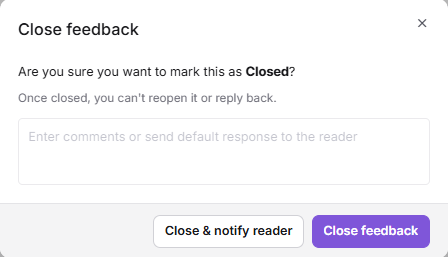
Once a feedback item is Closed, its Assignee and Status fields lock, and you can't reopen it, reply to it, or change its status.
Assign feedback and change status
To update the assignee or status of multiple feedback items at once:
- Select the checkboxes next to the feedback items you want to update. Only feedback with an Open, In progress, Planned and Complete status can be selected.
- From the toolbar above the list, click () Assign to, () Change status, or () Mark as closed, depending on what you want to do.
Clicking Assign to or Change status opens the Manage feedback pop-up:
- To assign the feedback, click the Assignee dropdown and select the desired team member. Use the search field to find a user by name.
- To update the status, click the Status dropdown and select the desired status: Open, Planned, In progress, or Complete.
- Click Update.
Clicking Mark as closed () opens a confirmation popup for the selected items with options based on the feedback selection. Click Close all feedback to close them without notifying readers, or Close & notify reader to also send your comment to each reader.
Manage article feedback from the Overview page
The Tasks card on the Overview page displays article feedback items assigned to you from the Feedback manager.
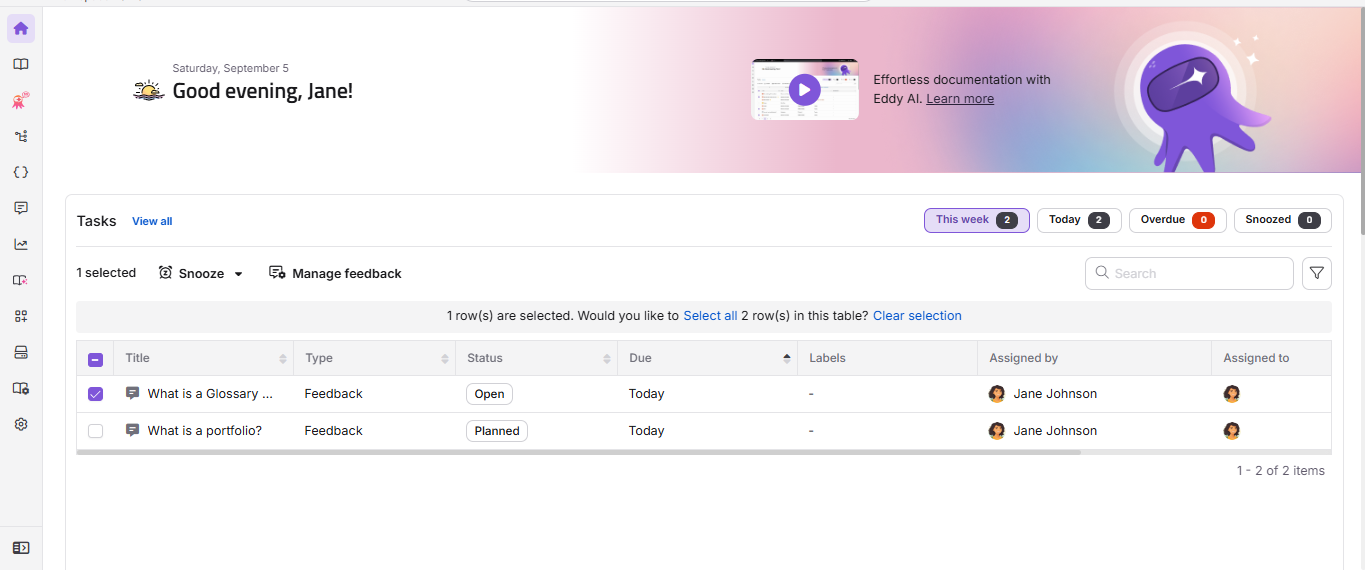
Each feedback task on the Tasks card displays the article title, task type, status, due date, and assignee. You can take the following quick actions by hovering over a task or selecting its checkbox:
- Snooze (): Temporarily postpone the task. Choose Tomorrow (9 AM), Next week (Monday, 9 AM), or a custom date and time.
- Manage feedback (): Assign the feedback to any user, set its status to Open, Planned, In progress, or Complete.
- Information (): Hover over a feedback item and click this icon to view details such as contributors, article status, URL, and description.
Clicking a feedback task on the Tasks card takes you directly to the corresponding item in the Feedback tab of the Feedback manager.
Export article feedback
- Navigate to the Feedback tab in the Article feedback manager.
- Use the filter options to narrow the list as needed.
- Click Export CSV ().
- Wait a few seconds. A Download icon appears next to the feedback list.
- Click the Download icon to save the file to your local storage.
Only the last 90 days of feedback data can be exported at a time.
Best practices
- Prioritize feedback marked as Dislike, especially those citing inaccurate information or unclear instructions, as these represent the most urgent content quality issues.
- Before marking feedback as Complete, verify that the article has been updated and the reader's concern is fully resolved.
- Use the Discussions & history field to document what action was taken, so the full context is visible to all team members.
- For feedback where the reader asked to be notified, use Add note & notify reader so they hear back directly. Use Add note for internal-only updates that don't need to reach the reader
- Review feedback assigned to you from the Tasks card on the Overview page daily to ensure nothing slips through.
- Use the assign and change status options to efficiently close out resolved feedback after a content sprint.
FAQ
What is the difference between "Complete" and "Closed" in the Feedback manager?
Complete indicates that the feedback has been fully addressed, but can still be moved back to Open if the issue resurfaces. Closed means all actions are finished and the feedback is locked permanently. For example, if a reader reports that a resolved issue is not fully fixed, the team can reopen a Complete item by setting it back to Open. Once an item is Closed, no further changes are possible.
How should I effectively manage and respond to article feedback?
Start by prioritizing feedback on high-traffic or recently updated articles, especially items marked as Dislike. Address critical issues first, such as inaccurate information or unclear instructions. Once updates are made, verify the concern is resolved before marking the feedback as Complete. For feedback that includes a response request, use the Add note & notify reader toggle in the Discussions & history section to send a reply to the reader.
What is the best way to handle unclear feedback and ensure nothing gets missed?
Review feedback regularly, ideally weekly, to stay on top of actionable items. For feedback that is vague or unclear, use the available context to interpret intent. Avoid auto-resolving ambiguous items. For new articles or recent updates, monitor feedback more closely in the first few days to catch any immediate concerns. Track unresolved items using the Planned or In progress statuses so they remain visible to your team.
Why did I receive an email notification but cannot find the feedback in the Feedback manager?
If a reader withdraws their feedback (for example, by undoing a Like or Dislike) before your team has picked it up, the feedback is automatically removed from the Feedback manager. Email notifications are sent when feedback is first submitted, but the feedback entry may no longer be available if the reader later withdrew it. If the feedback has already been picked up (assigned, given a status change, or a note added), withdrawing it doesn't remove it. Instead, Document360 logs the withdrawal in the Discussions & history field with a timestamp, and if it was a dislike being undone, the item is automatically closed too
Can I export feedback data from the Feedback manager?
Yes. You can export feedback data from the Feedback manager for a maximum of 90 days at a time. Click Export CSV () in the Feedback tab toolbar, then download the file when it is ready.
Why can't I select closed feedback items when using bulk selection?
Closed feedback items cannot be selected using the bulk selection option in the Feedback manager. Bulk selection applies only to active (non-closed) feedback items. To export closed feedback items, use the Filter option: for example, apply a date range or status filter and then export the results.