The Document360 app for Zendesk gives your support agents access to your knowledge base from a panel inside each Zendesk ticket. To set it up, you install the app from the Zendesk Marketplace and connect it to your Document360 project with a Document360 API token. You can then enable federated search and Eddy AI features for your agents.
Before you begin
- You need the Owner or Admin role in your Document360 project.
- You need admin access to your Zendesk account.
- For federated search, you need your Zendesk subdomain and a Zendesk admin to approve the connection.
Set up the integration
Setting up the integration involves three steps:
- Generate the API token in Document360
- Install the Document360 app on Zendesk
- Configure Zendesk federated search (optional)
After setup, you can enable AI features and require agents to sign in to Document360.
Generate the API token in Document360
- In the Knowledge base portal, navigate to Connections () > Extensions () in the left navigation bar.
- In the Help desks section, click Zendesk.
- Click Setup.
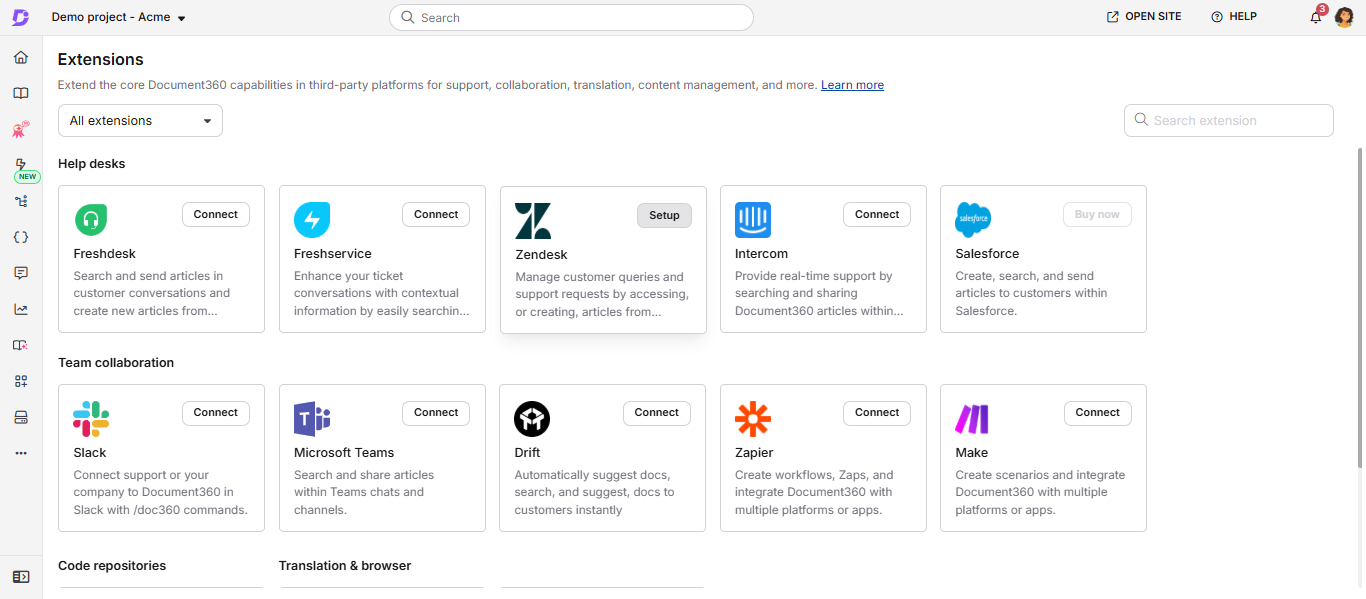
- In the Generate API token setting, click Generate. The Generate extension token dialog appears.
- Click Yes. The Connect with Zendesk dialog appears with your token.
- Click the Copy icon to copy the token.
- Click Cancel to close the dialog.
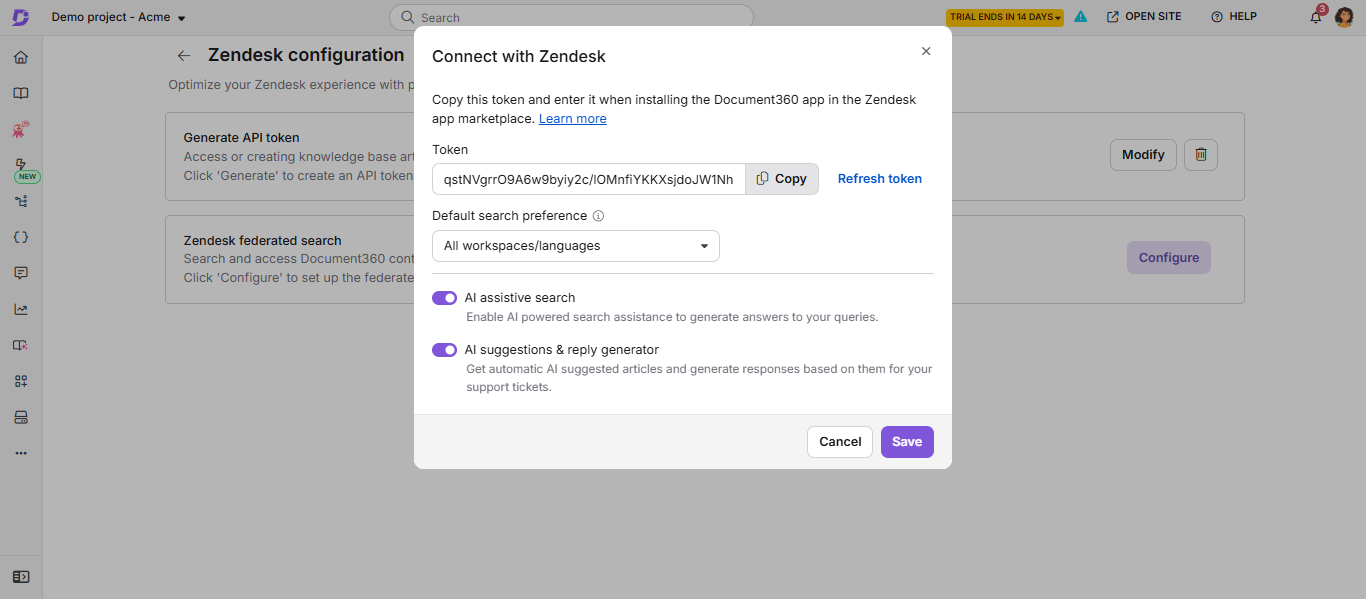
To regenerate the token, click Refresh token. If agents are required to sign in, refreshing the token also signs out every agent in the project.
Install the Document360 app on Zendesk
- Log in to your Zendesk Support console.
- Go to the Zendesk Marketplace and click Apps.
- Search for Document360 in the Filter apps field.
- Click Document360.
- Click the How to install tab to review the instructions and complete any pre-installation tasks.
- Click Install at the top right.
- If you have multiple Zendesk accounts, select the account and click Install.
- Enter a name for the app in the Title field.
- In the Token field, paste the Document360 API token you copied earlier.
- If needed, select Enable role restrictions or Enable group restrictions to limit which Zendesk roles or groups can use the app. Both are off by default.
- Click Install.
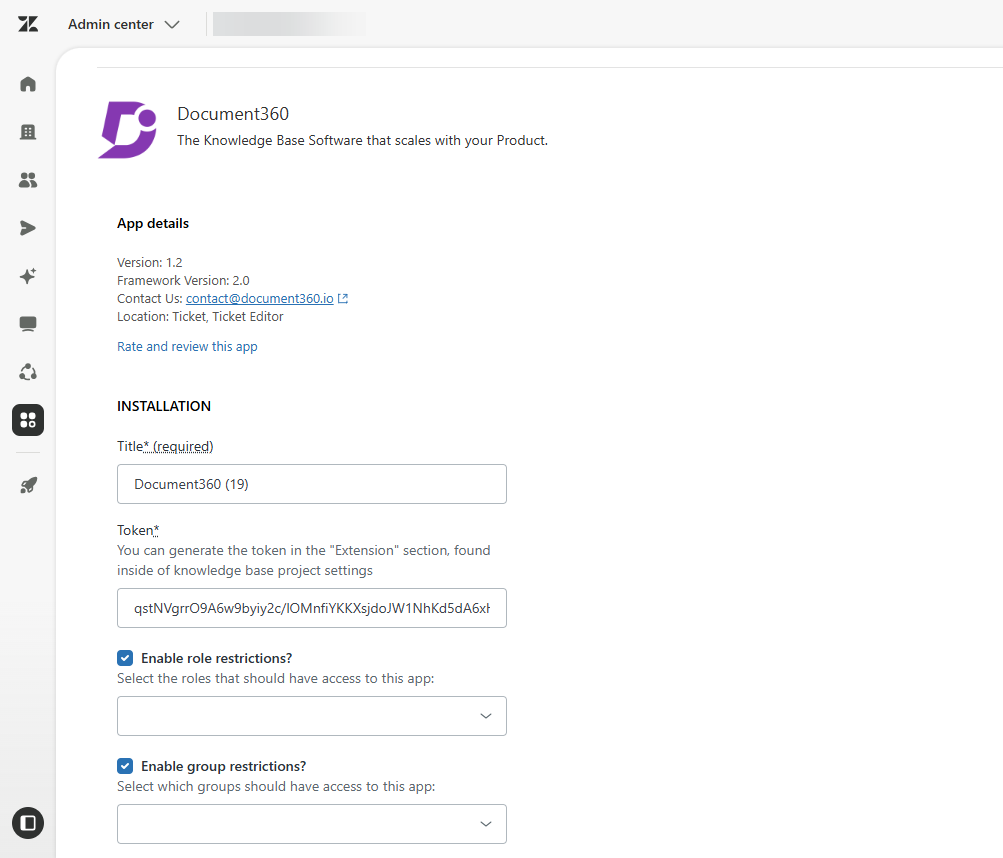
The Document360 app now appears in the ticket panel for your agents.
Configure Zendesk federated search
Federated search shows your Document360 articles as an external source in Zendesk search results.
- In the Knowledge base portal, navigate to Connections () > Extensions () in the left navigation bar.
- In the Help desks section, click Zendesk.
- Click Setup to open the Zendesk configuration page.
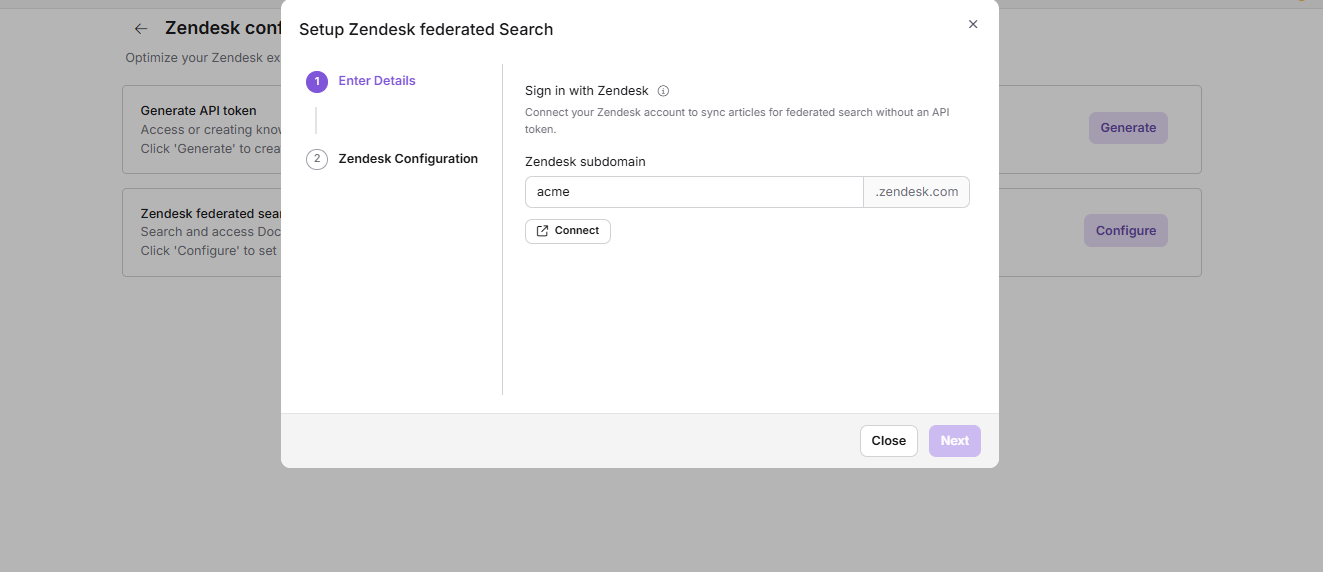
- In the Zendesk federated search setting, click Configure. The Setup Zendesk federated search dialog appears.
- In the Zendesk subdomain field, enter your Zendesk subdomain. For example, for
acme.zendesk.com, enteracme. - Click Connect. A Zendesk window opens.
- Sign in to Zendesk as an admin and approve access. Once connected, the Next button is enabled.
- Zendesk no longer allows new API tokens to be created, and existing tokens stop working after April 30, 2027. Document360 connects to Zendesk with your Zendesk account instead.
- If your setup already uses a Zendesk API token, the dialog shows the API token option with a warning. Switch to Zendesk account before April 30, 2027 to keep federated search working.
- Only a Zendesk admin can approve the connection.
- To connect a different Zendesk account later, click Disconnect in this dialog, then connect the other account.
- If your browser blocks the Zendesk window, Document360 shows a link to open Zendesk instead. Approve access there, then return to Document360.
- Click Next.
- In the Select Version dropdown, select the workspaces and languages to sync.
- Click Save.
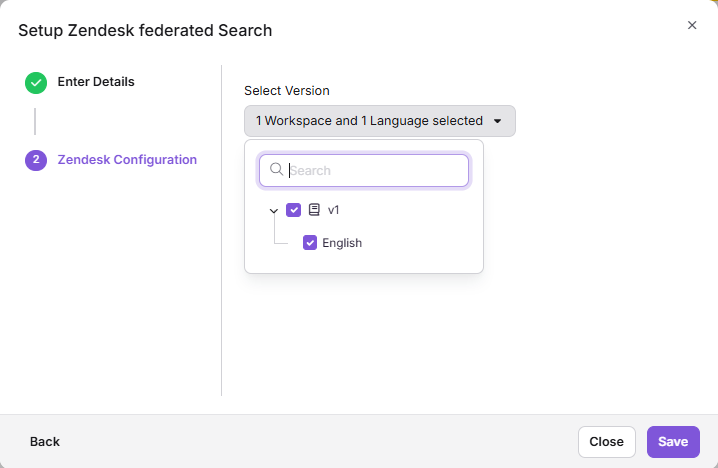
Your Document360 articles are now searchable as an external source in Zendesk.
The language codes in Zendesk and Document360 must match for content to sync. For example, Zendesk uses en-us for English by default. If your Document360 English variant uses en, federated search returns no results.
Enable AI features for the Zendesk app
Eddy AI features let agents search with AI, get suggested articles for each ticket, and generate draft replies.
- In the Knowledge base portal, navigate to Connections () > Extensions () in the left navigation bar.
- In the Help desks section, click Zendesk.
- Click Setup to open the Zendesk configuration page.
- In the Generate API token setting, click Modify. The Connect with Zendesk dialog appears. The same dialog also has the Require agents to sign in to Document360 setting. For details, see Require agents to sign in to Document360.
- In the Default search preference field, select where Eddy AI fetches results from:
- Default workspace/language: The default workspace and language only.
- All workspaces/languages: All workspaces and languages in the knowledge base.
- Enable the AI assistive search toggle.
- Enable the AI suggestions & reply generator toggle to show AI-suggested articles and generate draft replies for tickets.
- Click Save.
To enable the AI assistive search toggle, you must first enable assistive search for KB widgets and extensions in your Knowledge base settings. Until then, the toggle stays disabled.
Remove the Document360 app from Zendesk
- In Zendesk, navigate to Apps and integrations > Apps > Zendesk Support apps. The My Apps page appears.
- Locate the Document360 app in the list of installed apps.
- Hover over the Document360 app.
- Click the settings icon and select Uninstall.
- In the Uninstall App prompt, click Uninstall App.
FAQ
Can I configure federated search for multiple workspaces?
Yes. In the Select Version dropdown, select the workspaces and languages you want to sync. To change the selection later, return to the Zendesk configuration page in Document360 and update it.
What happens if the language codes do not match between Zendesk and Document360?
Content does not sync to federated search. Make sure the language codes are identical in both platforms before you save the configuration.
What is the difference between the Document360 app and the Zendesk knowledge connector?
The Document360 app adds a Document360 panel to each ticket, with Eddy AI features and article creation. The Zendesk knowledge connector is built by Zendesk and syncs content from a public Document360 workspace into Zendesk's own search and AI features. For details, read Zendesk knowledge connector.