The Zendesk Knowledge Connector is a native, first-party integration built and maintained by Zendesk that syncs Document360 content into Zendesk's own knowledge experiences. Unlike the Document360 app for Zendesk, which installs from the Zendesk Marketplace and is configured from Document360's side, this connector is set up entirely from Zendesk's Knowledge admin panel, using an API token generated in Document360.
When to use this connector
- Your support agents work in Zendesk, but your documentation lives in Document360, and you want agents and AI features in Zendesk to draw on that content without duplicating it.
- You want Document360 content to stay the single source of truth: readers who click through from Zendesk should land on the real Document360 article, not a copy.
- You don't need a public help center hosted inside Zendesk itself. If you do, that's a separate setup (see What this doesn't do).
How it works
Sync runs one way, from Document360 to Zendesk. Nothing edited in Zendesk syncs back. Document360 remains the source of truth: articles aren't copied into Zendesk's Help Center as native content; they're indexed as external content pointers. When a reader clicks a synced result from Zendesk, they land on the original Document360 article URL, not a Zendesk-hosted copy. Sync runs automatically every 24 hours, with a manual sync available on demand from the connection's options menu.
Once connected, Document360 content becomes available to:
- Help Center search results
- Generative search / Quick Answers on the Help Center
- Agent Workspace's Knowledge panel
- AI Agents
- Auto Assist
What this doesn't do
This connector doesn't replace Zendesk Help Center, and it isn't a way to migrate a public help center to Document360. If a customer wants their customer-facing help center hosted on Document360 itself (with a custom domain), they'd do that separately: the connector's job is just keeping Zendesk's agents and AI equipped with the same content, not hosting it.
It's also one direction only. For the reverse (Document360's Eddy AI chatbot escalating unanswered questions into Zendesk tickets), see Ticket escalation.
And it doesn't bring Document360's own AI features into Zendesk. A reader searching in Zendesk gets a click-through to the source article, not an Eddy AI-generated answer. That stays on Document360's side. If you want readers to get AI-generated answers directly, they'd need to be using Document360 itself, not just the synced content surfaced in Zendesk.
Before you begin
You'll need the following in place:
| Requirement | Notes |
|---|---|
| Zendesk Knowledge admin access | Required to create and manage external content connections. |
| A Document360 API token with GET access | Generate a unique token per connection: each connection needs its own, and only the GET method needs to be allowed. |
| A public Document360 workspace | Only public workspaces can be connected; private workspaces won't appear as an option. |
A single connection covers one workspace and one language. If you have multiple workspaces, or want to sync more than one language, you'll set up a separate connection for each. See Step 5 below.
Set up the connector
-
In Document360, generate an API token with GET access.
-
In Zendesk, go to Knowledge admin > Manage articles > External content > Connections.
-
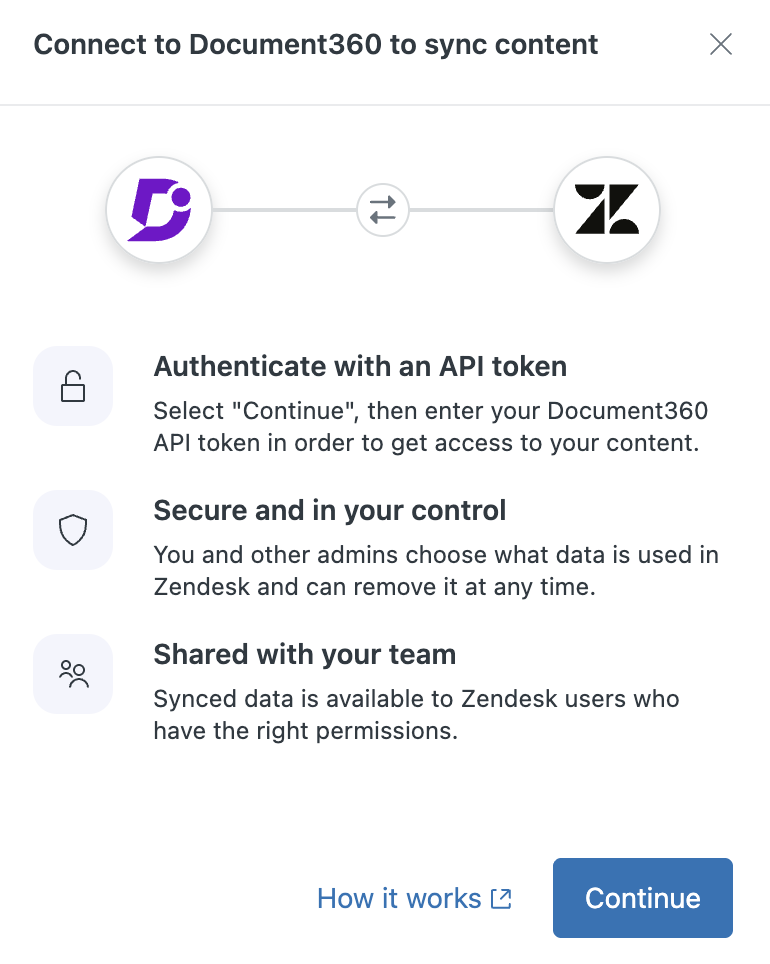
Find the Document360 card and select Connect, then Continue.
-
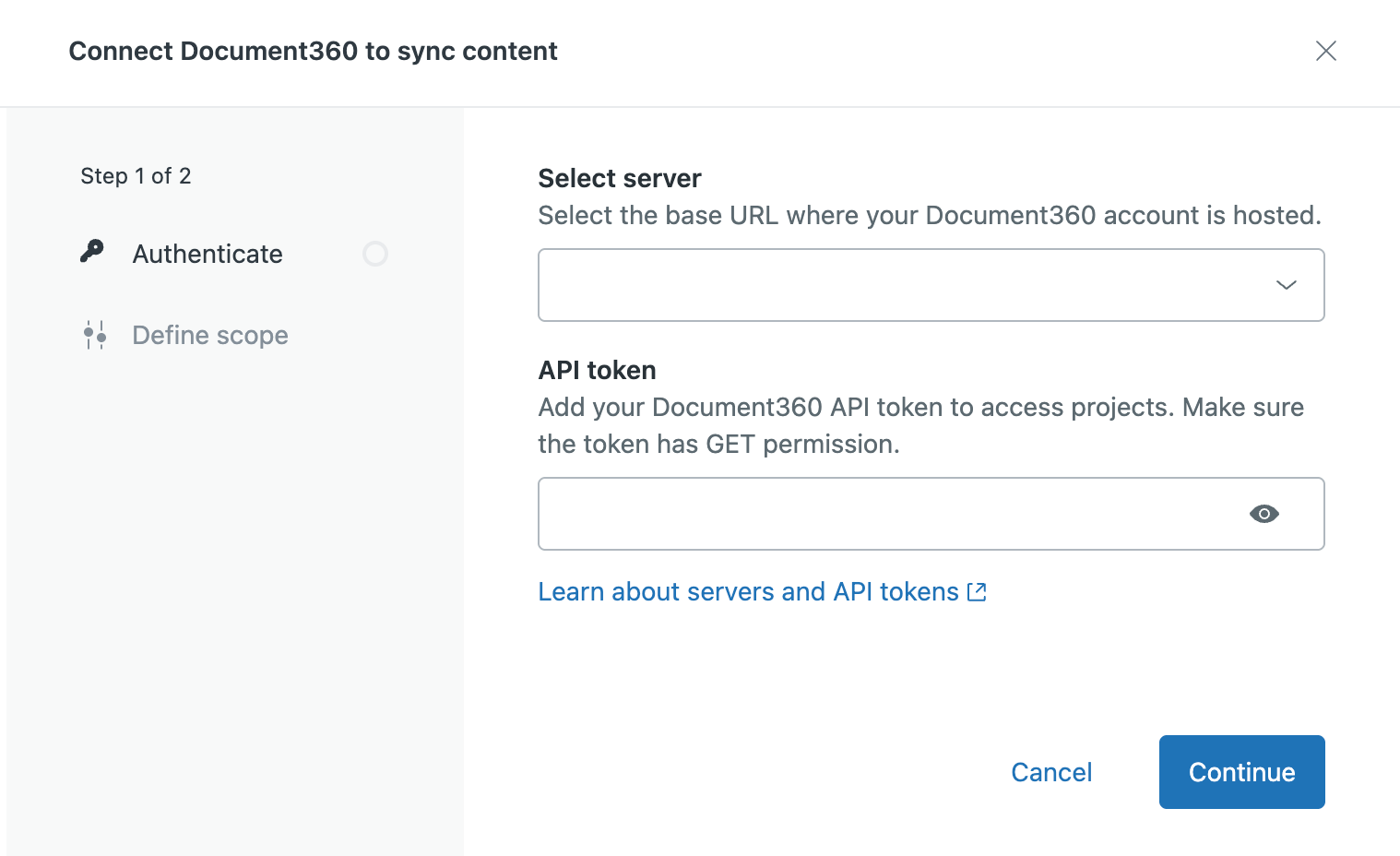
On the authentication screen, choose your Select server region (EU, US, or Private; include your subdomain for Private), and enter your API token in the API token field.
-
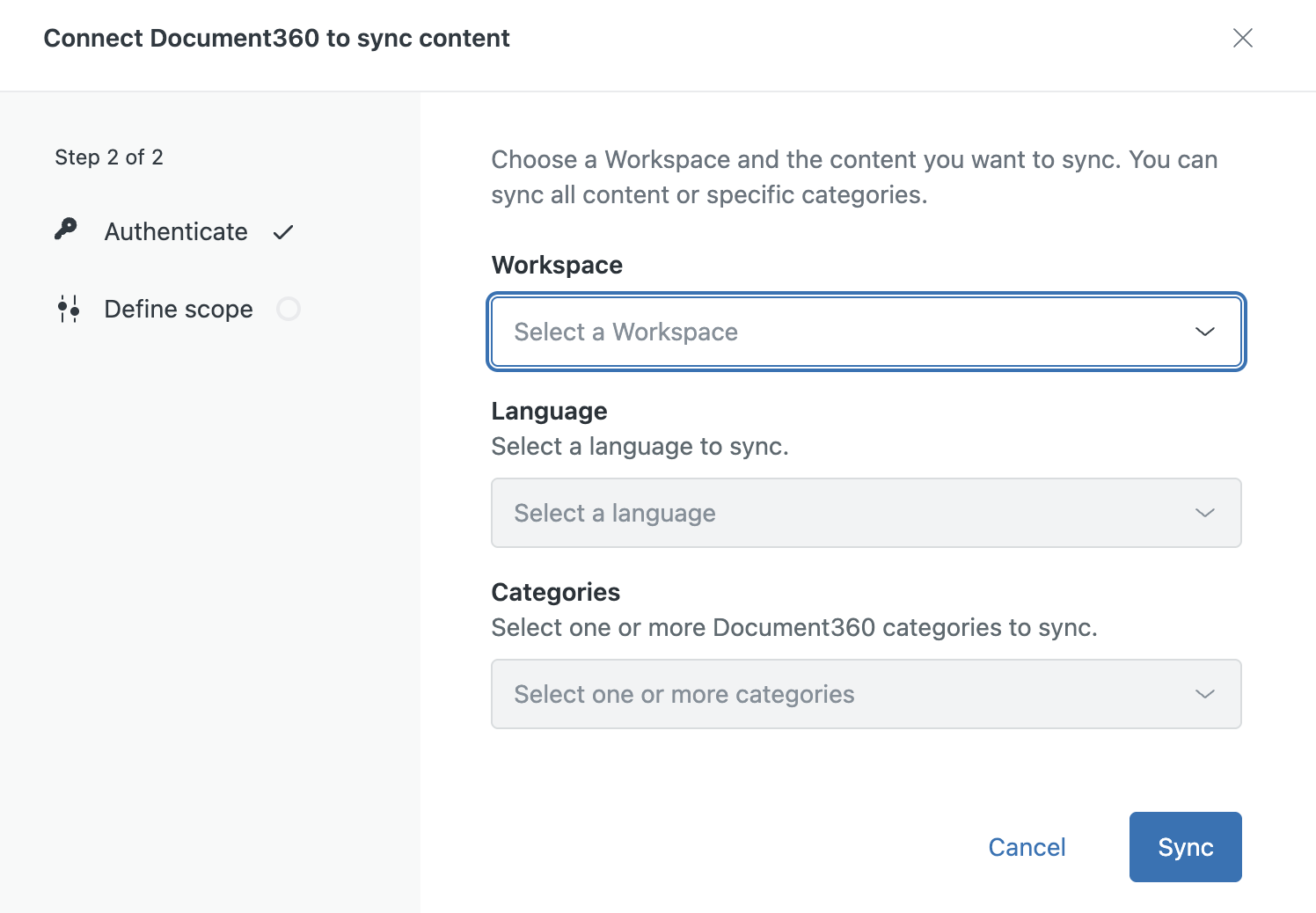
Select the Workspace you want to sync (only public workspaces are listed), a Language (one per connection, so set up an additional connection for each further language you want synced), and the Categories to sync. Selecting a parent category does not automatically include its subcategories; select each one you want synced individually.
-
Select Sync to complete the connection.
For the full Zendesk-side walkthrough, see Zendesk's configuration guide.
Controlling who sees synced content
By default, synced content follows the viewer permissions you set on the connection. From the connection's options in Zendesk, you can restrict visibility to:
- Signed-in users only
- Agents and admins only
- Specific custom user segments
Use this if your Document360 workspace has content you don't want surfaced to end customers through Zendesk's Help Center search or AI features, even though the workspace itself is public.
These viewer permissions live entirely in Zendesk and aren't the same thing as Document360's own reader groups: the two aren't linked, and Zendesk's options here are generally coarser than Document360's per-category reader group model. Setting a restriction in one system doesn't apply it in the other, so if you need matching access boundaries on both sides, set them separately in each.
Troubleshooting quick reference
| Symptom | Cause | Fix |
|---|---|---|
| A category's articles aren't syncing | A parent category was selected, but its subcategories weren't selected individually | Select each subcategory you want synced: selecting a parent category doesn't cascade to its children |
| Content in a second language never appears | A single connection only syncs one language | Set up an additional connection for each further language |
| Content from another workspace doesn't show up | A single connection only syncs one workspace | Set up a separate connection for that workspace |
| A workspace doesn't appear as an option when connecting | The workspace is private | Only public Document360 workspaces can be connected |
| Synced content is visible to readers who shouldn't see it | Connection's viewer permissions are broader than intended | Restrict visibility under Controlling who sees synced content above |
Limitations to plan around
- One-way sync only: edits made in Zendesk never flow back to Document360.
- Scoped to one workspace and one language per connection: broader coverage means multiple connections, not one connection covering everything.
- Syncs every 24 hours on its own schedule, with manual sync available on demand: not built for near-real-time updates.
- Only public Document360 workspaces can be connected.