Use the Document360 app in Zendesk to search for knowledge base articles, draft replies with Eddy AI, and create new articles without leaving the ticket panel. You can link or insert articles directly into your responses, so you can resolve tickets faster without switching tabs. This article explains how to use each of these options and how to remove the app from Zendesk.
Search and share articles on ticket responses
While responding to support tickets, you can use the installed Document360 app to find and share relevant articles with customers directly from within the Zendesk environment, without switching tabs. The Document360 app appears on the right side of the open ticket response panel in Zendesk.
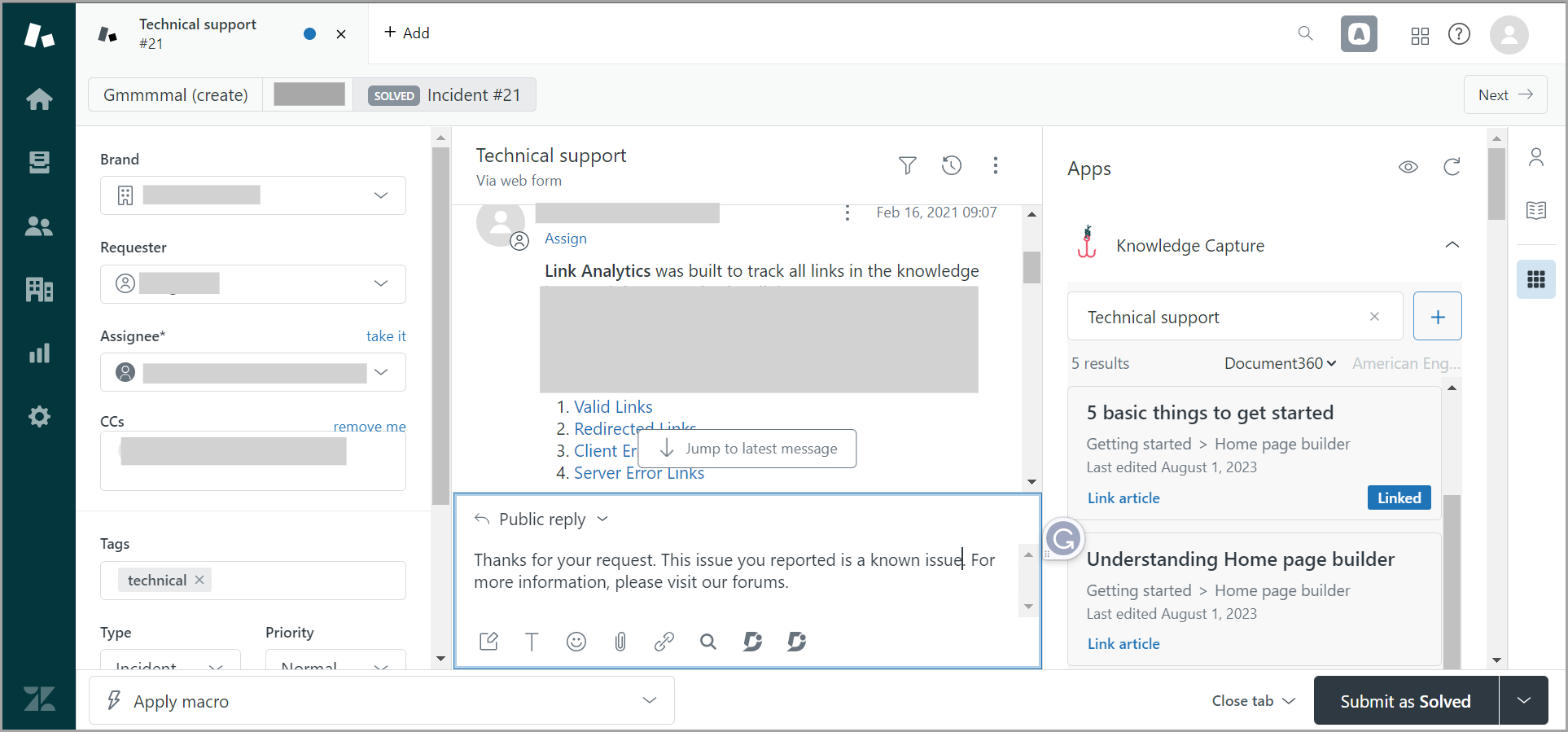
- Click the Document360 app in the ticket panel. As it loads, Zendesk automatically searches for articles based on the ticket title.
- To search manually, type a search term in the search field. Relevant articles are listed below.
- Click Link article on the article you want to attach. The article link is inserted into your response. Once linked, the Linked label appears on that article in the list so you can identify it at a glance.
- To preview an article before linking it, click Preview. In preview mode, you have three options:
- Open Document360: opens the article in a new tab.
- Link article: inserts the article link in your response message.
- Insert content: adds the full article content to your response message.
Use Eddy AI to draft replies and find suggested articles
Once AI assistive search is enabled for the Zendesk extension, Eddy AI can recommend articles and draft replies based on ticket context.
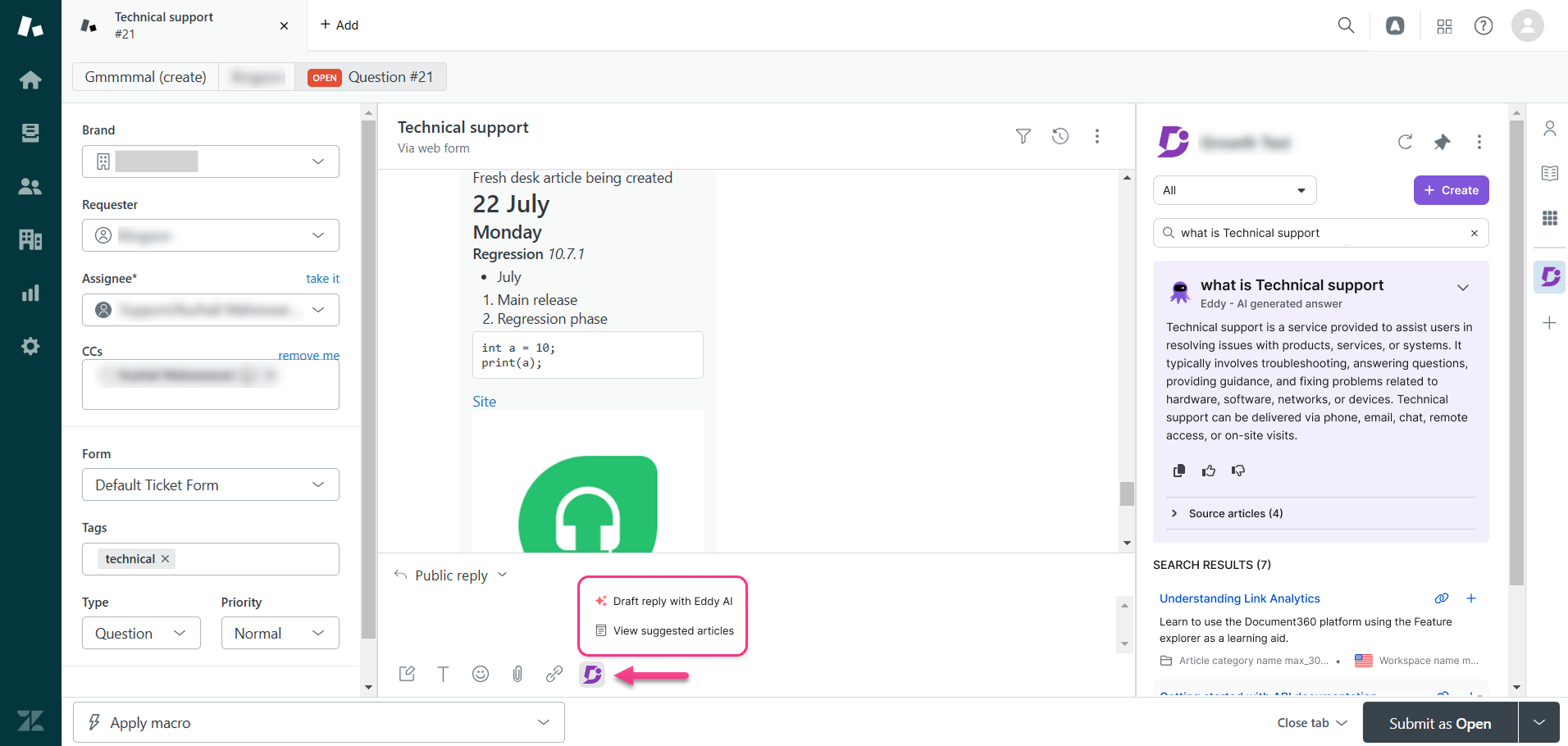
- Click the pinned Document360 icon in the Zendesk sidebar to open the Document360 panel. Eddy AI recommended articles load automatically.
- When you start typing in the search bar, you are prompted to search the knowledge base using Eddy AI.
Eddy AI assistive search analytics are captured for this extension. You can filter the analytics by selecting the Zendesk extension as the source.
- The workspace and language filters appear based on the content access configuration set in the extension.
- In the reply pane, click the Document360 icon to access two options:
Draft reply using Eddy AI
- Eddy AI generates a suggested response based on the context of the support ticket.
- If Eddy AI is unsure about the reply, it provides a fallback response.
- The drafted reply is generated in the same language as the conversation.
If AI credit usage alerts are enabled in the notification mapping settings, you receive email notifications when credit consumption reaches 80%, 90%, and 100%.
View suggested articles
- The knowledge base dialog opens with Eddy AI-recommended articles.
- Up to 5 articles are displayed.
- Eddy AI considers the workspace filter applied when fetching articles.
When using Zendesk's Messaging API, new messages might not appear instantly. Zendesk sometimes processes messages in batches during high activity periods. This delay only affects the Messaging API. Tickets from forms, live chat, or other methods are not delayed. Because of this, Draft reply and View suggested articles may take a little longer to update with the latest data.
Create an article from Zendesk
You can create knowledge base articles directly from Zendesk without needing additional user accounts in Document360.
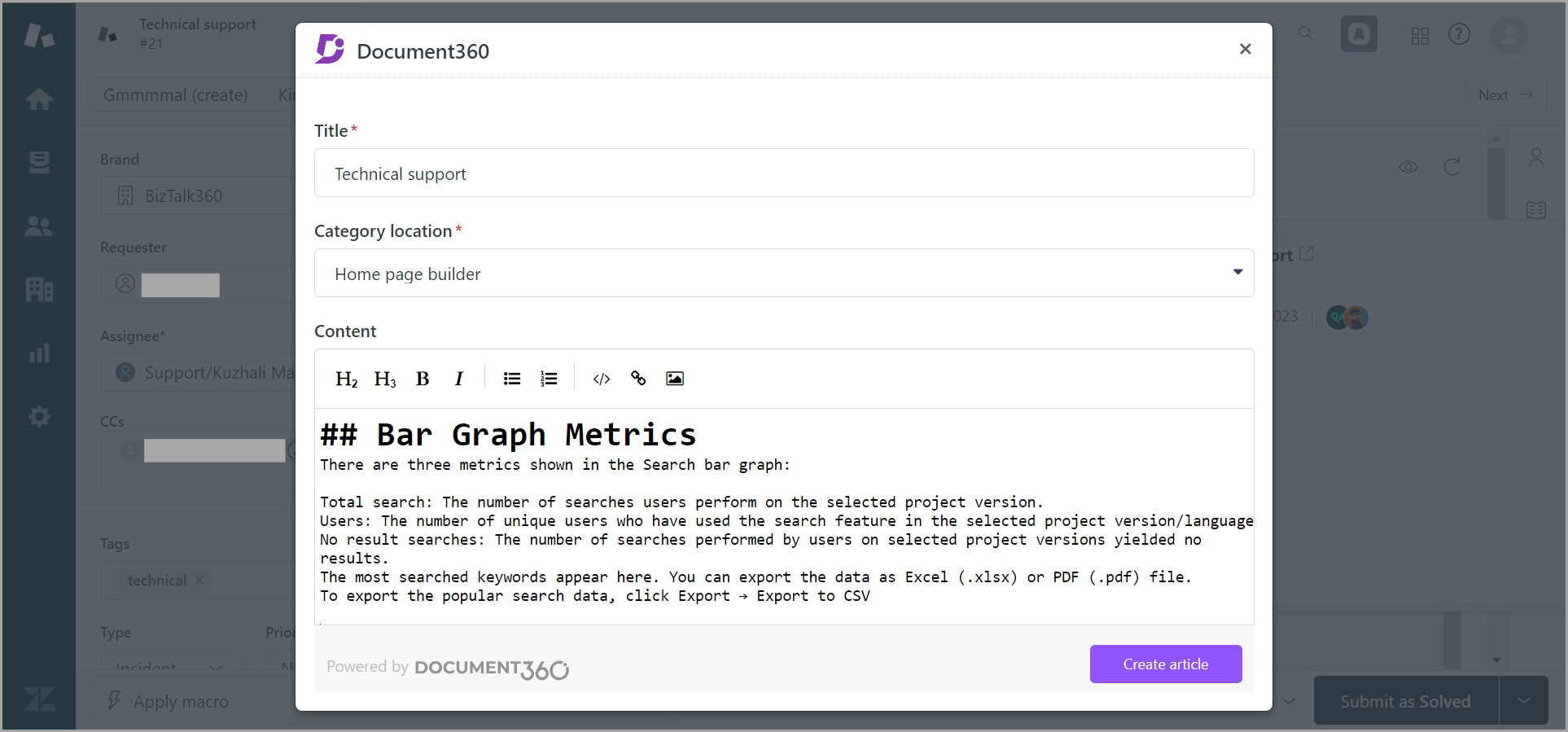
- Click Create an article in the Document360 app frame, or click the plus (+) icon.
- Enter the Title of the article and select the category or subcategory where you want to place it.
You can create root-level categories and subcategories on your knowledge base directly from Zendesk.
- Write the article content in the Markdown editor.
- In the Article body editor, you can use basic text formatting including headings (H2 and H3), Bold, Italic, Ordered list, and Unordered list, and Insert options such as code block, Hyperlink, and Image.
- Click Create. The article is saved in draft state. An editor can review and publish it from the Document360 portal.
Quick launch in the reply panel
You can also access Document360 directly from the chat controls at the bottom of the ticket reply panel.
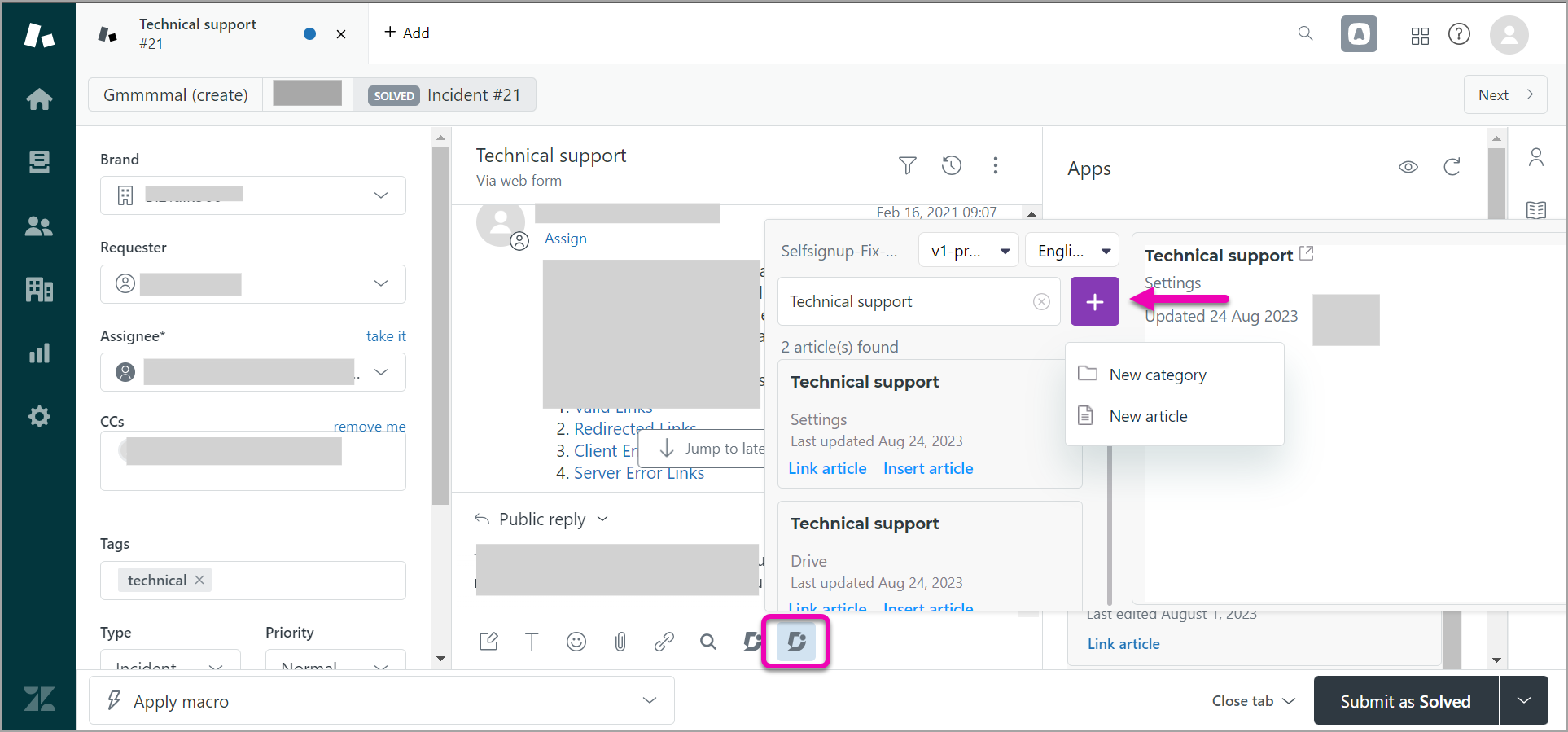
- Click the Document360 D icon in the chat controls to open the module.
- Select the Document360 workspace and language you want to search.
- Type in the search field. Relevant articles appear in the results.
- From this panel, you can:
- Link article: shares the article's Document360 URL in your response.
- Insert article: inserts the article's full content into your response.
- Click the plus (+) icon to create a new article for your Document360 knowledge base without leaving Zendesk.
Remove Document360 from Zendesk
- In Zendesk, navigate to Apps and integrations > Apps > Zendesk Support apps in the left navigation pane. The My Apps page appears.
- Locate the Document360 app in the list of installed apps.
- Hover over the Document360 app.
- Click the settings icon and select Uninstall.
- In the Uninstall App prompt, click Uninstall App.