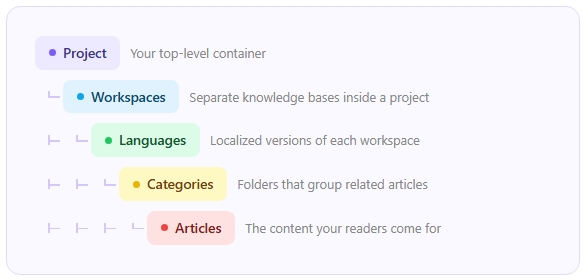
Before you add your first article, decide how your knowledge base will be structured. Document360 organizes content in five levels: project, workspace, language, category, and article. This article helps you choose the right level for each part of your documentation, so readers find what they need and your team can keep it maintainable as it grows.
Understand - Structure
Know the five levels
Each level answers a different question about your documentation: who it is for, what language it is in, and where it sits in the navigation. Work from the top down when you plan your structure.
Control who can read what
Plan - Example
See it in practice
Acme makes project management software for two audiences: everyday users and developers. The two groups need completely different documentation, so Acme gives each its own workspace inside one project.
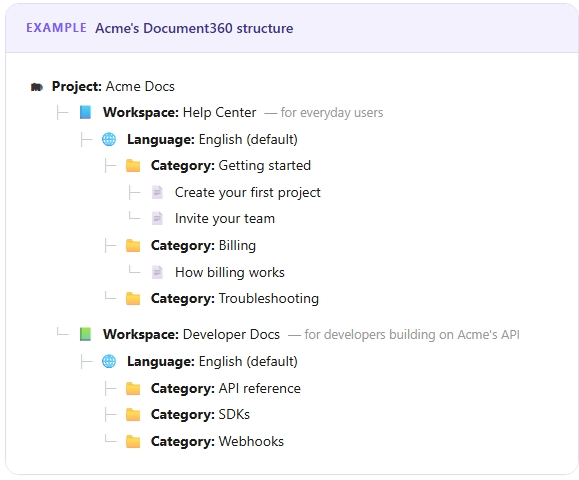
Acme manages both workspaces from one project, with one subscription, one team, and one set of settings. Readers experience them as two separate sites, each with its own navigation and search.
Plan - Decide
Workspace, category, or language: which one do you need?
This is the decision most new teams get stuck on. Use these rules:
Before you build
Considerations
Check these limits while you plan, so your structure does not need to change later.
| Item | Behavior |
|---|---|
| Category depth | Up to seven levels: one root category and six subcategory levels. |
| Categories per workspace | Up to 1,000. |
| Workspace name | Up to 30 characters, using letters, numbers, and hyphens only. |
| Main workspace | Must be Public. A Deprecated workspace cannot be the Main workspace. |
| Visibility on the site | A category does not appear on the Knowledge base site until it contains at least one published, visible article. |
| Page categories | A Page category stays in draft until you publish it. Until then, its URL returns a broken link. |
| GitHub categories | Created through the GitHub integration only. Synced content is read-only in Document360. |
| Moving content | Drag and drop works within one workspace. To move content to another workspace, use Move and turn on Auto update referenced links to keep internal links working. Content cannot be moved between projects. |
Maintain - Best practices
Best practices
These habits keep your knowledge base easy to navigate as it grows.
- Start with three to five top-level categories. You can reorganize later. Renaming a category does not change its slug or article URLs, so existing links keep working. If you change a slug, add an article redirect rule from the old URL.
- Name categories for what readers want to do, not your team's internal terms. "Get started" works better than "Onboarding flow."
- Keep one idea per article. Focused articles are easier to find in search and easier to keep current.
- Keep to two subcategory levels. Deeper nesting makes content harder for readers to find and harder for you to maintain.
- Use one multilingual workspace instead of a separate workspace for each language.
- Set a new workspace to Beta while you build it, so readers do not see it before it is ready.
- Copy an existing workspace when you document a new product version. You keep your category structure and save setup time.
FAQ
Can I change a category's type after I create it?
Yes. You can change the type at any time without losing content. If you change a category to Page, it goes into draft until you publish it. Read Category types.
Can I move content from one workspace to another?
Yes. Use Move on the category or article, select the destination workspace, and turn on Auto update referenced links. Read Move category.
Why doesn't my new category appear on the Knowledge base site?
A category appears only when it contains at least one published article that is not hidden. Publish an article in the category to make it visible.
Should I create a separate workspace for each language?
No. Add languages to one workspace. Each language then shares the same structure, which makes your content easier to manage. Read Multilingual knowledge base.