This article is a consolidated reference for every error, warning, and unexpected behavior documented across Document360's API documentation feature. Use it to diagnose and resolve issues with imports, authentication, the Try It! feature, rendering, and the knowledge base site.
Import errors
Invalid format – API file upload failed
When it occurs: When one or more responses in your OpenAPI specification file are missing the required content section.
Why it happens: Document360 enforces strict OpenAPI validation rules. Although a file may pass validation in tools like Swagger Editor, Document360 requires all responses to explicitly define both the media type (for example, application/json) and a schema reference under a content block. Responses that are empty or that reference a schema directly without a content wrapper will cause this error.
How to fix it:
Open your OpenAPI spec file in a text editor or IDE.
Locate any response definitions that are empty or that reference a schema without a
contentblock.Incorrect:
responses:
  "200": {}
Correct:
responses:
  "200":
    description: OK
    content:
      application/json:
        schema:
          $ref: "#/components/schemas/YourSchema"
Save the file and re-upload it to Document360.
If the issue persists, contact the Document360 support team.
Invalid URL
When it occurs: When creating an API reference from a URL and the URL provided cannot be fetched or resolved.
Why it happens: The URL may be malformed, unreachable from Document360's servers, or pointing to a resource that is not a valid OpenAPI spec.
How to fix it: Verify the URL resolves correctly in a browser or with curl. Ensure it returns a valid JSON or YAML OpenAPI document. Correct the URL and try again.
Unsupported file format
When it occurs: When the uploaded file is not a supported format.
How to fix it: Ensure your file is one of the following: JSON, YAML, or YML. Document360 supports OpenAPI 2.0, OpenAPI 3.0, OpenAPI 3.1, and Postman Collections.
Unable to add API reference – invalid specification file
Error message: "Unable to add API reference. This operation can't be completed. Please ensure that you have given a valid specification file."
 When it occurs: When uploading a YAML specification file that has been copied or exported from a rich-text editor or word processor.
Why it happens: The uploaded YAML file is malformed and not a valid OpenAPI 3.0 YAML document. This commonly occurs when the file has been copied or exported from a rich-text editor, which introduces formatting characters such as \f0\fs24 or trailing backslashes that break the YAML format.
Validate your spec file: Open your YAML file in a tool like Swagger Editor or a code editor to check for errors or formatting issues.
Look for unwanted formatting characters: Check for characters like
\f0\fs24or trailing backslashes\(especially in the endpoint description) that may have been introduced during copy-paste from a rich-text source. These can break the YAML format.Clean up the file: Use a plain text or code editor to remove any special formatting characters. Avoid using word processors when editing or saving YAML files.
Re-upload the file: After cleaning the file and ensuring it’s a valid OpenAPI 3.0 YAML, try uploading it again.
Summary and tags not reflected after import
When it occurs: After importing a spec, endpoint articles display incorrect titles or appear under unexpected category folders.
Why it happens: The summary and tags fields are defined at the path level in the spec rather than inside the operation object (get, post, put, or delete). Additionally, the tags field must always be written as an array, even when only one tag is used.
How to fix it:
Open your OpenAPI specification file in a text editor.
Move the
summaryandtagsfields inside each operation object and ensuretagsis written as an array.Incorrect:
/your-endpoint:
  summary: My Endpoint
  tags: My Category
  get:
    ...
Correct:
/your-endpoint:
  get:
    summary: My Endpoint
    tags: ["My Category"]
    ...
Save the file and reimport it into Document360. The imported articles will use the
summaryvalue as the article title, and tag-based folders will be created correctly.
If the issue persists, contact the Document360 support team.
Upload fails with 400 Bad Request – specification file too large
When it occurs: When uploading a valid YAML or JSON OpenAPI specification file that contains endpoints with deeply nested response schemas and multiple response codes per endpoint.
Why it happens: Although the file may be valid YAML and pass external validators such as Swagger Editor, Document360 enforces an internal article size limit. When an endpoint contains response schemas nested eight or more levels deep across multiple response codes, the resulting data size exceeds this limit and cannot be processed or stored.
How to fix it:
Open your OpenAPI specification file in a text editor or IDE.
For each endpoint, retain only one 201 response type, one 400-series response type, and the default response type. Remove all additional response codes.
For endpoints where the 201 response alone contains deeply nested schemas, retain only the 201 response type and remove the 400-series and default response types entirely.
Save the modified file and re-upload it to Document360.
NOTE
If publishing fails after a successful upload, contact the Document360 support team. Publishing may require backend assistance due to the article size limitation.
Top-level tag descriptions not rendered in API documentation
When it occurs: Descriptions and metadata defined in top-level OpenAPI tag objects are not displayed in the generated API documentation.
Why it happens: When an OpenAPI specification file contains top-level tags used to group API operations, Document360 converts those tags into folder-type categories during import. Folder categories are used only for organising endpoints and do not generate standalone content pages. As a result, any description or metadata defined within those top-level tag objects is not rendered.
Workaround: Add the relevant context directly to the individual endpoint descriptions within the tag, so the information is visible on the generated endpoint pages.
Spec configuration issues
Missing or incorrect server URL in OpenAPI spec
When it occurs: The Try It! button does not appear, or API consumers are unsure which base URL to use for their requests.
Why it happens: The servers section is missing from the OpenAPI spec or contains an incorrect URL. Without it, API users cannot determine where to send requests and documentation tools cannot populate the Try It! feature.
How to fix it:
Add a correct
serverssection to your spec:servers: - url: https://api.yourdomain.com description: ProductionFor region-specific APIs, define multiple server entries:
servers:
  - url: https://api.yourdomain.com
    description: Global
  - url: https://api.us.yourdomain.com
    description: US region
Ensure that all API clients (for example, Postman, cURL) use the correct server URL when making requests.
NOTE
The URLs above are examples. Use the actual base URL for your API.
Empty body shown in API documentation
When it occurs: An endpoint's request body displays as empty in the published documentation.
Why it happens: The OpenAPI schema is missing "type": "object" on one or more object definitions.
How to fix it: Ensure every object definition in your OpenAPI spec includes "type": "object". This attribute tells Document360 how to render request body parameters and response schemas accurately, making it easier for developers to understand and interact with your API.
Authentication errors
403 error when using Try It!
When it occurs: Clicking Try It! on an endpoint immediately returns a 403 error after a spec has been successfully uploaded.
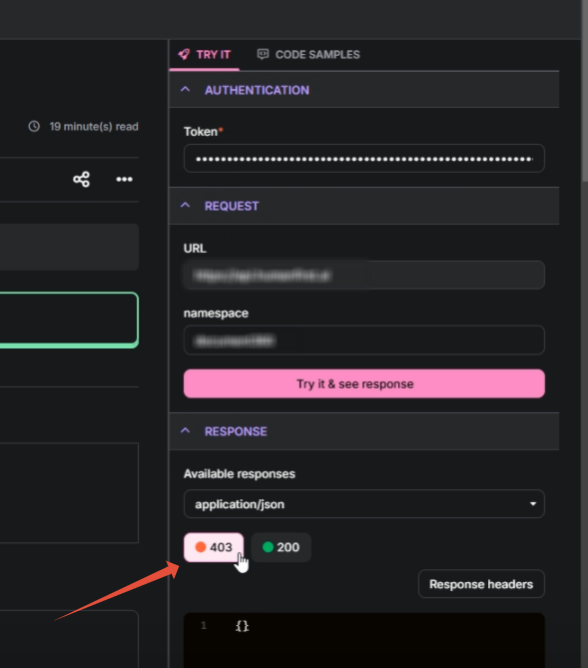
Why it happens: The spec is missing a definition for the BearerAuth security mechanism under components/securitySchemes.
How to fix it:
Check your spec for a
BearerAuthsecurity scheme definition undercomponents/securitySchemes.If it is missing, add it:
components:
  securitySchemes:
    BearerAuth:
      type: http
      scheme: bearer
Re-upload the spec.
During import, check the Alerts section for any warnings related to Bearer Authentication and address them.
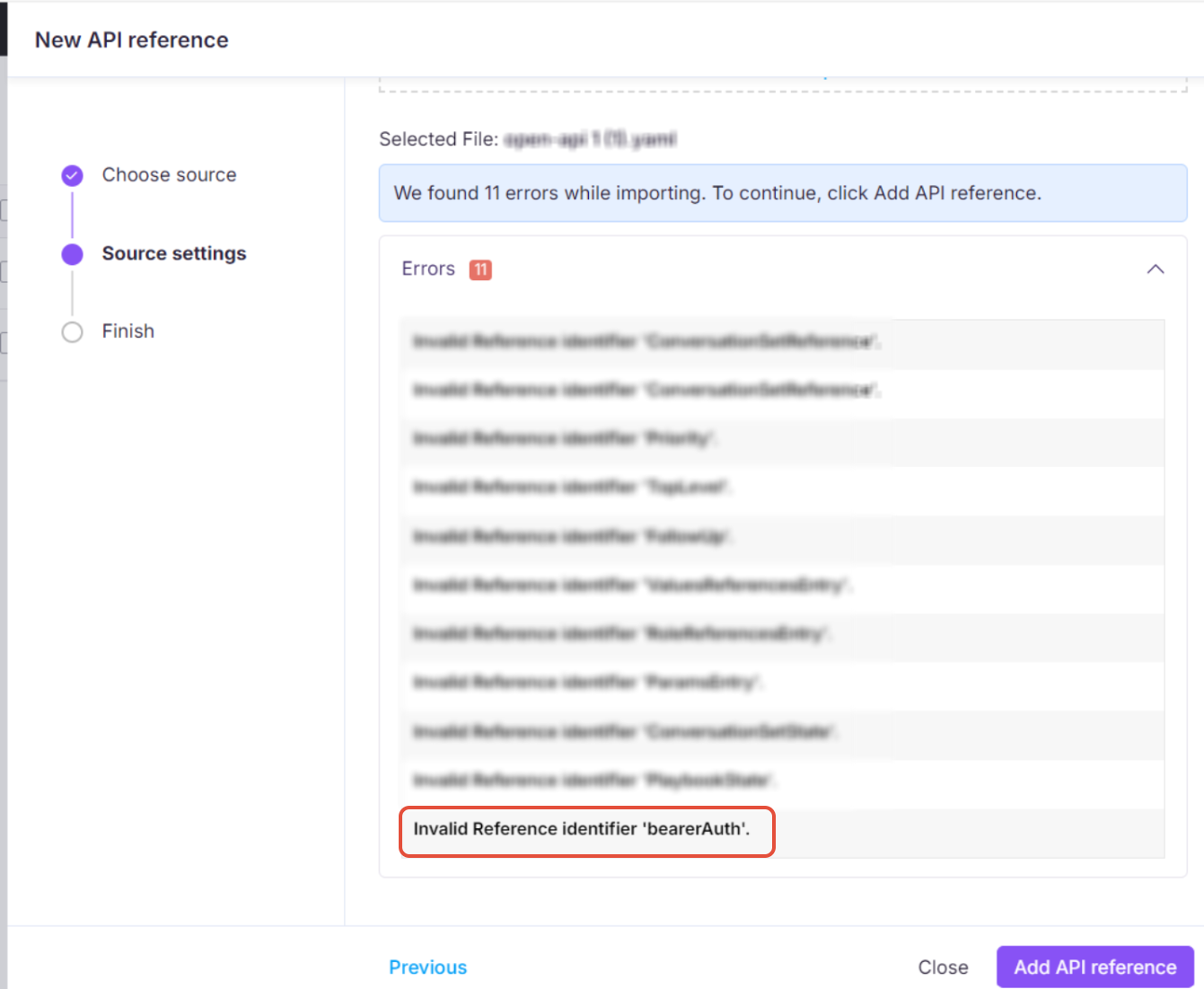
401 Unauthorized error from incorrect server URL
When it occurs: API requests return a 401 Unauthorized response when using Try It! or when making direct API calls.
Why it happens: The wrong region-based server URL is being used. For example, sending a request to https://api.yourdomain.com when the correct endpoint is https://api.us.yourdomain.com will cause authentication failures because the region-specific endpoint validates credentials differently.
How to fix it:
Confirm you are using the correct region-based URL for your account.
Ensure the correct client ID and client secret are being used with that URL.
Verify the authentication token is correctly included in the request header.
Access and permission errors
400 error – API access is disabled
Error message: "400 error – API access is disabled. Please contact your project administrator."
When it occurs: When attempting to use the public API and public API access has been deactivated in the project settings.
How to fix it:
Navigate to Settings () > AI settings > Eddy AI settings in the Knowledge base portal.
Under the AI search suite section, ensure that the Public API checkbox is selected.
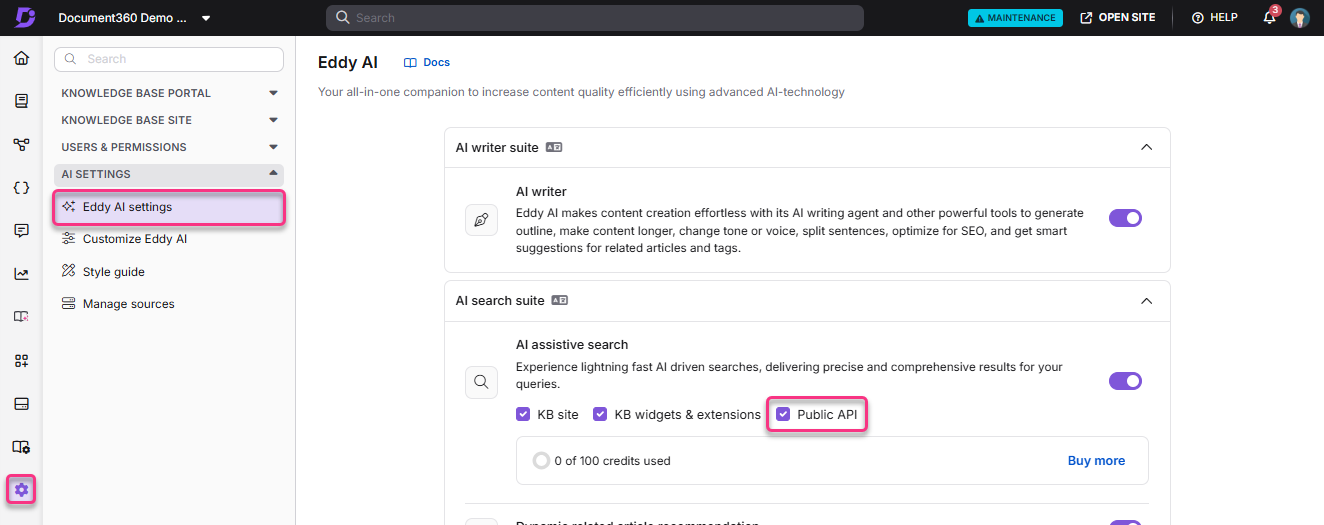
If the issue persists, contact the Document360 support team.
403 error when posting via API endpoint
When it occurs: When attempting a POST request through the API endpoint and receiving a 403 response.
Why it happens: The API token being used does not have the required permissions to make POST requests.
How to fix it: Review the permissions assigned to your API token. Ensure it has write and POST permissions enabled. Update the token settings and retry.
Rendering and display issues
Incorrect HTML styling in API response
When it occurs: When retrieving article HTML content via the API, the rendered output displays with broken styling or misplaced quotes.
Why it happens: API responses are formatted in JSON, which uses escape characters (for example, \") to handle certain characters safely. If these escaped characters are not converted back (unescaped) before rendering, the HTML structure breaks.
For example, a paragraph like:
<p>This is a "sample" paragraph.</p>May appear in the JSON response as:
"<p>This is a \"sample\" paragraph.</p>"How to fix it:
Retrieve the HTML content via the API and inspect the response.
Look for escaped characters in the JSON response, such as:
\"(escaped double quotes)\\(escaped backslashes)\n(newline)\t(tab)
Unescape the JSON content before rendering it. This restores the original HTML structure.
Verify the styling after unescaping to ensure the content appears correctly.
If the issue persists, check if additional modifications in your code are altering the API response.
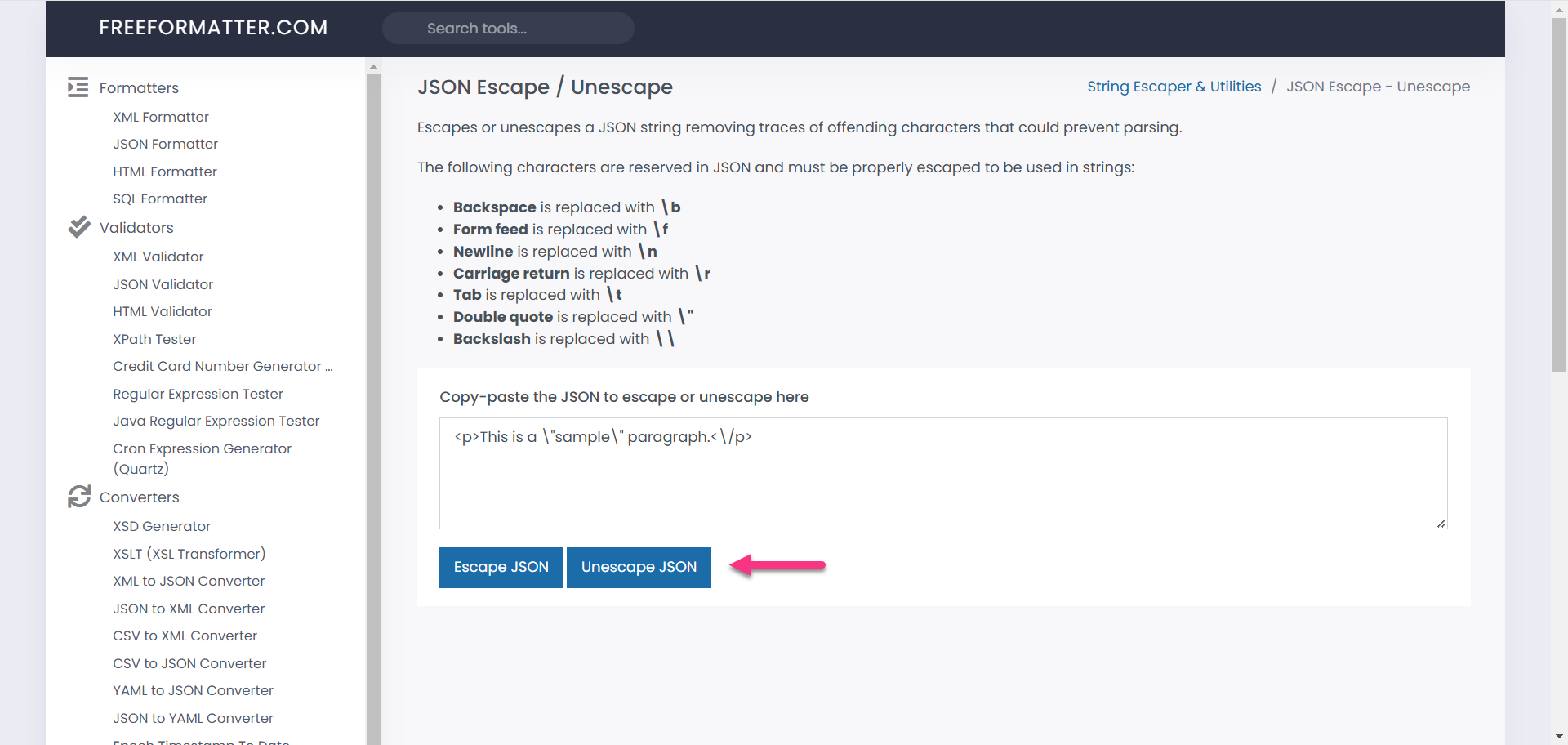
Once unescaped properly, the HTML will display as expected, preventing styling discrepancies.
Variables and snippets not rendering in API response
When it occurs: When retrieving article content via the API, variables appear as unprocessed placeholders — for example, {{variable.UserName}} instead of the actual value.
Why it happens: The isForDisplay parameter is not set correctly in the API request.
When
isForDisplay = true: variables and snippets are fully rendered in the response, and placeholders are replaced with actual values.When
isForDisplay = false(or not set): the response contains unprocessed placeholders, which are not suitable for direct display.
How to fix it:
Retrieve the article content via the API and inspect the response.
Check if variables or snippets appear unprocessed in the response.
Ensure the API request includes
"isForDisplay": true. Example request:{ "articleId": "your-article-id", "isForDisplay": true }Send the modified request and verify the API response now displays correctly rendered variables and snippets.
If the issue persists, ensure that the system processing the API response handles and displays the rendered content properly.
IMPORTANT
When updating articles via the API, do not pass fully rendered content back. This would replace dynamic placeholders with static values, breaking future rendering.
Category and navigation issues
Nested categories not displaying correctly
When it occurs: Endpoints that should appear in nested subcategories are not organised hierarchically after import.
How it works: Document360 supports second-level subcategories using the > symbol in OpenAPI tags. For example, a tag of Pets > Details will create a Pets category with a Details subcategory inside it. This structure is preserved during resync operations.
tags:
  - name: "Pets > Details"
NOTE
The API documentation workspace supports a maximum of three levels of subcategories. If your spec includes more than three levels, any additional levels are placed at the third level.
Category order is not what I expected
When it occurs: After uploading a spec, categories appear in a different order than expected.
Why it happens: Categories in Document360 are created based on the tag order defined in the spec file. The order of tags in your spec determines the order categories appear in the documentation.
How to fix it: Reorder the tags array in your OpenAPI spec to match the desired category order, then resync.
Knowledge base site errors
Knowledge base homepage redirects to /apidocs (page not found)
When it occurs: After an account upgrade, visiting the knowledge base homepage automatically redirects to /apidocs, which returns a 404 or blank page.
Why it happens: When an account is upgraded, the API documentation workspace may be set to Public reader access. This causes the knowledge base homepage to redirect visitors to /apidocs, which does not exist by default.
How to fix it:
Navigate to Settings () > Users & Permissions in the left navigation bar of the Knowledge base portal.
In the left navigation pane, go to Reader access.
Locate the API documentation workspace.
Set Reader access to Private.
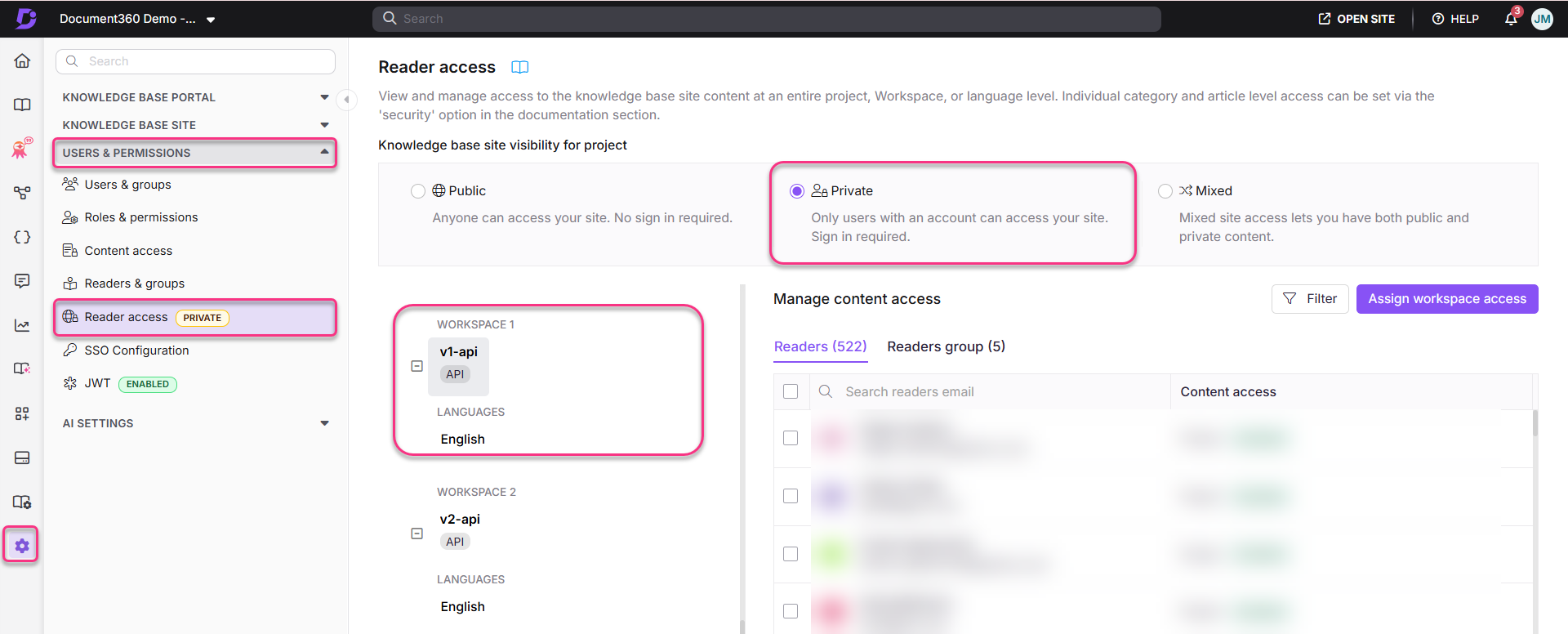
This will stop the unintended redirect and restore normal access to your knowledge base homepage.
Still having issues?
If the steps above do not resolve your issue, contact the Document360 support team directly.
FAQ
Can I filter API results by articles created or modified after a certain date?
The API does not support filtering articles directly by creation or modification time. You can use the Gets all article versions endpoint, which includes a Modified At timestamp in the metadata, and filter the response on your end. Use the article ID to fetch full content via the article details endpoint.
Does Document360 support dynamic or instance-based API responses?
No. Document360 follows the OpenAPI specification, which defines a consistent static structure for request and response objects. If your API returns different responses for the same endpoint across different instances, Document360 cannot reflect those variations dynamically. The recommended approach is to use the same schema structure across all environments, or to publish separate OpenAPI spec files for each environment. For fields that vary slightly between instances, use the OpenAPI additionalProperties property.
Can I download articles as PDFs using the API?
Currently there is no option to download articles as PDFs through the API endpoints.
Can readers access the knowledge base site during Document360 portal downtime?
Yes. GET calls of the Customer API run independently of the Document360 portal, so readers can continue accessing the site during scheduled maintenance or portal downtime.
Why does the Try It! URL include tryit.document360.io?
This is expected behaviour. The tryit.document360.io subdomain is used internally to route and process API test requests. It does not affect functionality — requests return correct results from your API.
Why am I receiving errors when making API requests from an automated workflow or CI/CD pipeline?
This can occur if the user_id included in the API request belongs to an inactive user or a user who does not have the required permissions for the operation being performed.
Example: When calling fork endpoints (such as /v2/Categories/{CategoryId}/fork), a stale or invalid user_id will return the misleading error "The method or operation is not implemented." This does not mean the endpoint is unsupported — it means the user_id is invalid or the user lacks permissions.
Fix: Ensure that the user_id belongs to an active Document360 user with the necessary access rights (for example, edit permissions on the article or category being forked). For automation use cases, it is recommended to use a dedicated service account. You can retrieve the appropriate user_id using the Get complete user details by id API endpoint.
Why does the API return unexpected languages in the available_languages field?
When it occurs
This occurs when the available_languages field in the API response includes languages that are not currently expected to be available for the article.
Why it happens
The API returns all languages in which the article has been published at least once. If a translated version of the article was published previously, that language will be included in the available_languages field, even if it is no longer actively maintained.
How to fix it
Navigate to the article in the respective language.
Verify whether the translated article has been published previously.
Unpublish the translated article if it should no longer be available.
After the translated article is unpublished, the language will no longer be returned in the available_languages field of the API response.
Why does the API return a different slug for translated articles?
When it occurs
This occurs when the slug returned for a translated article differs from the slug used in the original API request.
Example
Requested slug:
add-subscription-activation-codeReturned translation slug:
adding-your-subscription-with-your-activation-code
Why it happens
The URL of the translated article has been modified after its initial creation, and a redirect rule has been configured for the previous URL. The API returns the current active slug associated with the translated article rather than the original slug.
How to fix it
Navigate to Settings > Knowledge Base Site > Article Redirect Rules.
Check whether a redirect rule exists for the translated article.
Review the current URL configured for the article in the respective language.
If required, update the article URL or redirect configuration to align with the expected slug.
The API will always return the currently active URL for the translated article.
How can I retrieve only published articles when using the "Get list of articles within a project version" API endpoint?
When it occurs
This occurs when the Get list of articles within a project version API endpoint returns articles in multiple publication states, and only published articles are required.
Why it happens
The endpoint returns all articles available within the specified project version, regardless of their publication status. The publication state of each article is identified by the status field in the API response.
Supported status values include:
0— Draft3— Published
As the endpoint does not currently support filtering by publication status, both draft and published articles are returned in the response.
How to fix it
To retrieve only published articles:
Call the Get list of articles within a project version API endpoint.
Filter the response to include only articles where
status = 3.Extract the article IDs from the filtered results.
Use the filtered article IDs with the Gets an article API endpoint to retrieve the content of the published articles.
Additional Information
Currently, the Get list of articles within a project version API endpoint does not provide a query parameter or path parameter to return only published articles. Filtering the response based on the status field is the recommended method for identifying and retrieving published content.
The
isPublishedparameter exists on individual-resource endpoints (Gets an article, Gets a category) but not on list endpoints. Do not useisPublishedto filter list results.