Users are team members who log in to the knowledge base portal to create, edit, review, and manage content. Unlike Readers, who only consume the published knowledge base, users have portal access and are assigned roles that control what they can do. When you add a user, you specify their project role, content role, and the level of content access they receive.
Why add users
Adding users is how you give your team access to the Document360 portal. Without a user account, a team member cannot log in to write articles, review content, manage settings, or perform any authoring or administrative task. You assign each user a project role (which controls portal access) and a content role (which controls what they can do with articles and content). This combination lets you give each person exactly the right level of access — no more, no less.
Use this article when you need to:
- Invite a new team member to the portal.
- Assign a specific role to a writer, editor, reviewer, or administrator.
- Restrict a user to specific workspaces, languages, or categories.
- Add users via SSO authentication.
Before you begin
- You must have the Owner or Admin project role.
- Have the email addresses of the users you want to add ready.
How to add a user
-
Navigate to Settings () > Users and security in the left navigation bar in the knowledge base portal.
-
In the left navigation pane, navigate to Users and groups > Users.
-
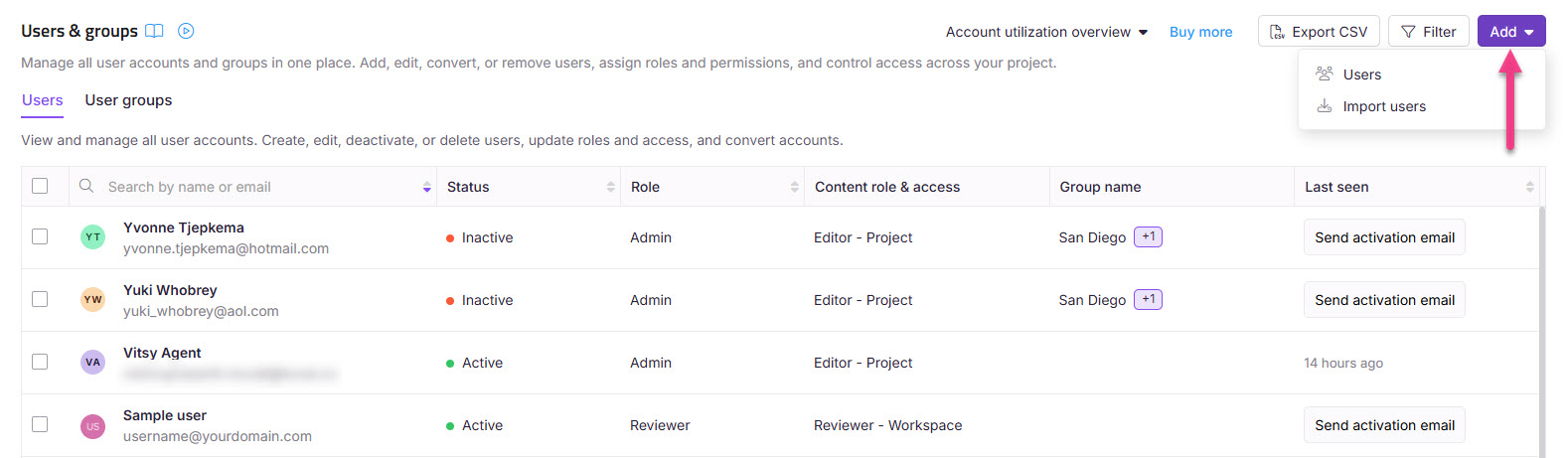
Click Add > User to open the New user dialog.
-
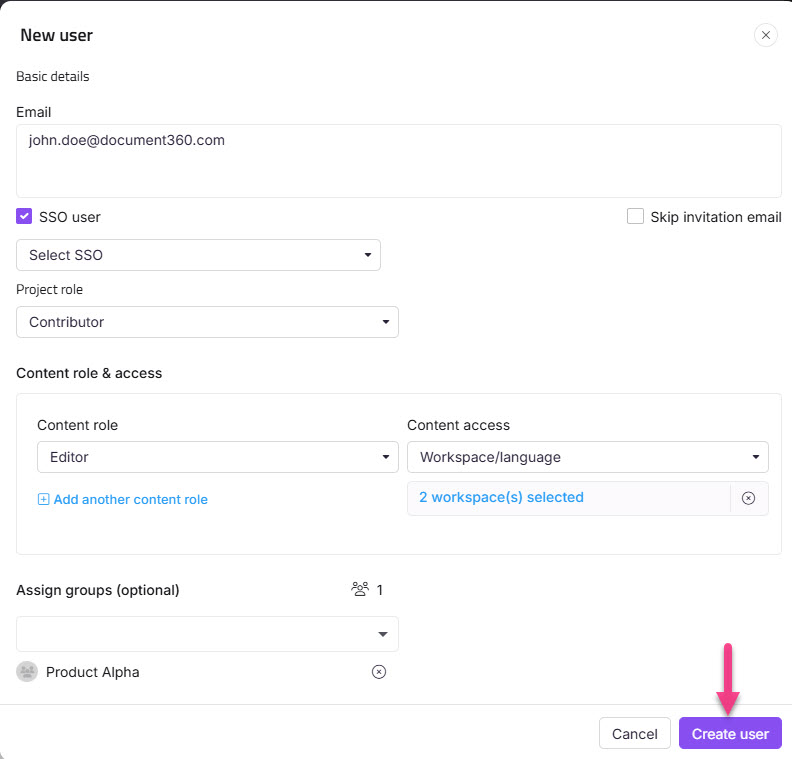
In the Email field, enter the email addresses of the users you want to add.
NOTE
You can add up to five email addresses at a time, separated by commas. To add more than five users at once, use Import users.
- Select the SSO user checkbox to add the user as an SSO user.
- If you selected the SSO user checkbox, select an SSO configuration from the Select SSO dropdown menu.
- Select the Skip invitation mail checkbox if you don't want your new users to receive an invitation email. You can share the portal URL with users directly so they can log in without an invitation.
- Choose the desired Project role for the new accounts.
NOTE
You cannot choose individual portal roles for each email you enter in the Email field. All addresses in the field receive the same project role.
- Select the desired Content role for the new users.
NOTE
You can assign multiple content roles to control access by selecting Add another content role. If no content role is selected, the user is assigned None by default.
- Choose the level of content access you want for the content role.
- Assign groups for the new users from the Assign groups dropdown. This field is optional. You can also add users without associating them with any group.
- Click New user.
Project roles
The project role determines what areas of the knowledge base portal a user can access and manage. For a detailed breakdown of permissions by role, see Roles and permissions.
| Role | Description |
|---|---|
| Owner | Has full access to all features, including billing. Can add or reassign other Owners. Only one Owner role can be assigned at a time per project. |
| Admin | Has access to all features except billing. Can manage users, projects, and configurations. Cannot add or assign the Owner role. |
| Contributor | Can create, edit, and publish draft articles and category pages. |
| Reviewer | Can log in to the knowledge base portal and access articles assigned to them for review. |
| Custom role | A tailored set of permissions defined by your organisation. Custom roles are created and managed in Roles and permissions. |
Content roles
The content role controls what actions a user can perform on articles and other content within the knowledge base.
| Role | Description |
|---|---|
| Draft Writer | Can create and edit articles and category pages, but cannot publish them. |
| Editor | Can manage articles, categories, drives, workflows, and content reuse. |
| Reviewer | Can add comments to articles, update workflow statuses, and set due dates for workflow statuses. |
| None | No content role assigned. This can be updated later as needed. |
Content access levels
The content access level determines which knowledge base content a user can view and work with for their assigned content role.
| Access level | Description |
|---|---|
| None | The user has no access to any knowledge base content. |
| All | The user has access to all knowledge base content across all workspaces and languages. |
| Workspace / Language | Restricts access to content within specific workspaces and languages. Users can only view content designated for their assigned selections. |
| Category | Limits access to specific categories within designated workspaces and languages. Users can only view content under their assigned categories. |
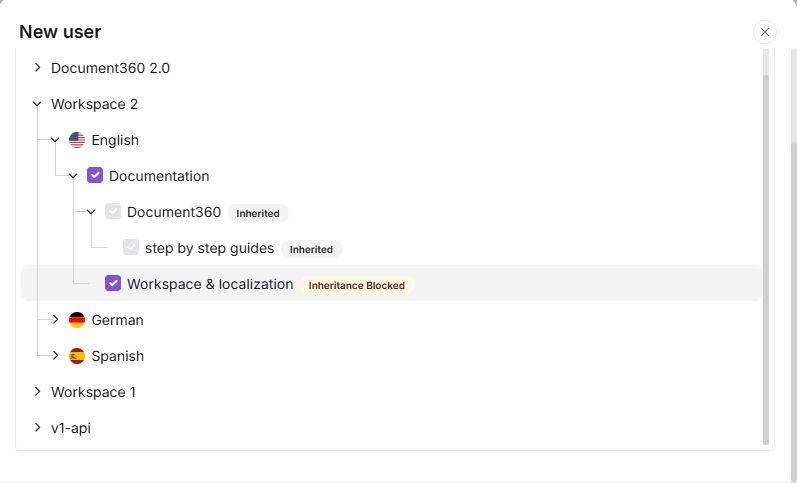
When you choose Category as the content access level, you select specific categories from a tree. Selecting a parent category automatically selects all its categories and subcategories, shown with an Inherited badge. If Block Inheritance has been applied to a specific category or subcategory, that will be excluded from the automatic selection — it appears unchecked with an Inheritance blocked badge, and you can manually select it to grant explicit access to that category. The tree only displays categories you have access to.
- Content access levels (None, All, Workspace/Language, and Category) apply to both the knowledge base portal and the published knowledge base site for the same user. You cannot configure different content access levels for each.
- For example, you can combine multiple content roles to give a Reviewer view-only access to a broader range of content without granting edit permissions. See Reviewer permissions for more information.
FAQ
Why am I unable to add a user to Document360?
This usually occurs when the user is already part of the project in a different role, such as a Reader (SSO Reader), Reviewer, or an existing user. In such cases, you won't be able to add the same email address again as a new user.
To resolve this, check if the user exists under Readers and groups. If they are listed as a Reader, you can convert them to a user with the desired access. If the user is assigned as a Reviewer, remove them from that role before assigning them the appropriate role and content access. Also, ensure the email ID entered is valid and free of typos.
Who can add or delete a user?
Admins and Owners of the project can add and delete users. Those with the Manage users permission can also add users.
Only an Owner can add or reassign another Owner.
Admins can add users, but cannot add or assign the Owner role.
Can I add a user without sending an invitation email?
Yes. Select the Skip invitation mail checkbox in the New user dialog before clicking New user. The account is created immediately, but the user will not receive an email notification. You can share the portal URL with them directly so they can log in.
What happens if I try to add someone who is already a Reader?
Document360 does not allow the same email address to exist as both a user and a Reader. If you enter an email that belongs to an existing Reader, the system will show an error. To give that person portal access, convert their Reader account to a user account instead of creating a new entry.
Can I add more than five users at once?
The New user dialog accepts up to five email addresses at a time. To add more than five users in a single operation, use Import users, which lets you upload a CSV file with as many users as your plan allows.
What is the difference between a user and a Reader?
Users have access to the knowledge base portal and can create, edit, or manage content depending on their role. Readers only have access to the published knowledge base site and cannot log in to the portal. If you need someone to view your published articles without contributing content, add them as a Reader instead.