Eddy AI can suggest descriptive alt text, and for images, a file name, so you don't have to write them yourself. When you upload or paste an image, click Generate to have Eddy AI analyze it and suggest alt text or a file name, for example, Document360's settings dashboard with configuration options. You can use the suggestion as-is or edit it before inserting the image. The feature is available in the Advanced WYSIWYG editor and in Drive.
When to use Eddy AI alt text generation
- Accessibility compliance — alt text is read aloud by the Read Out Loud feature on the Knowledge Base site for visually impaired users. Use this feature to ensure every image in your knowledge base has a meaningful description.
- Improving image discoverability — with 20% of Google searches being image-based, optimised alt text improves how your knowledge base images appear in search results.
- High-volume image workflows. — If you're uploading many images at once, use the Generate banner at the top of the upload panel to generate alt text for every image in the batch in one step, instead of generating each one manually.
- Auditing existing images in Drive — use the File details panel to add or regenerate alt text for images already uploaded to Drive that are missing descriptions.
Before you begin
- The AI writer must be enabled in your project. Eddy AI alt text generation is enabled by default when the AI writer is on.
- Images must be in JPEG, JPG, PNG, or WEBP format and smaller than 20 MB. Images in other formats or above this size cannot have alt text generated.
- Alt text generation is supported in English only.
- You need sufficient monthly AI generation credits. Alt text and file name suggestions use the same credit pool, so check your balance before generating in bulk.
Generate alt text in the Advanced WYSIWYG editor
When inserting a new image
-
Open the article in the Advanced WYSIWYG editor.
-
Use the slash command
/imageor go to Insert > Image.The Insert Image panel appears.
-
Insert your image using one of the following methods:
- Upload from my device: select an image from your local device.
- Drag and drop: drag and drop the image into the panel.
- External URL: enter the image URL.
- Choose from Drive: select an image from Drive. If the image already has alt text stored in Drive, that text is carried over.
-
For a single image, click Generate next to the File name field or the Alt text field to have Eddy AI suggest a value, or enter one manually. Each field has its own Generate button.
-
For multiple images, click each image's Generate dropdown to choose File name, Alt text, or Both. To generate alt text for every image in the batch at once, use the Generate banner at the top of the panel.
-
Click Insert to add the image(s) to the article.
For more information on inserting images, see Inserting images in the Advanced WYSIWYG editor.
When copy-pasting an image directly into the editor
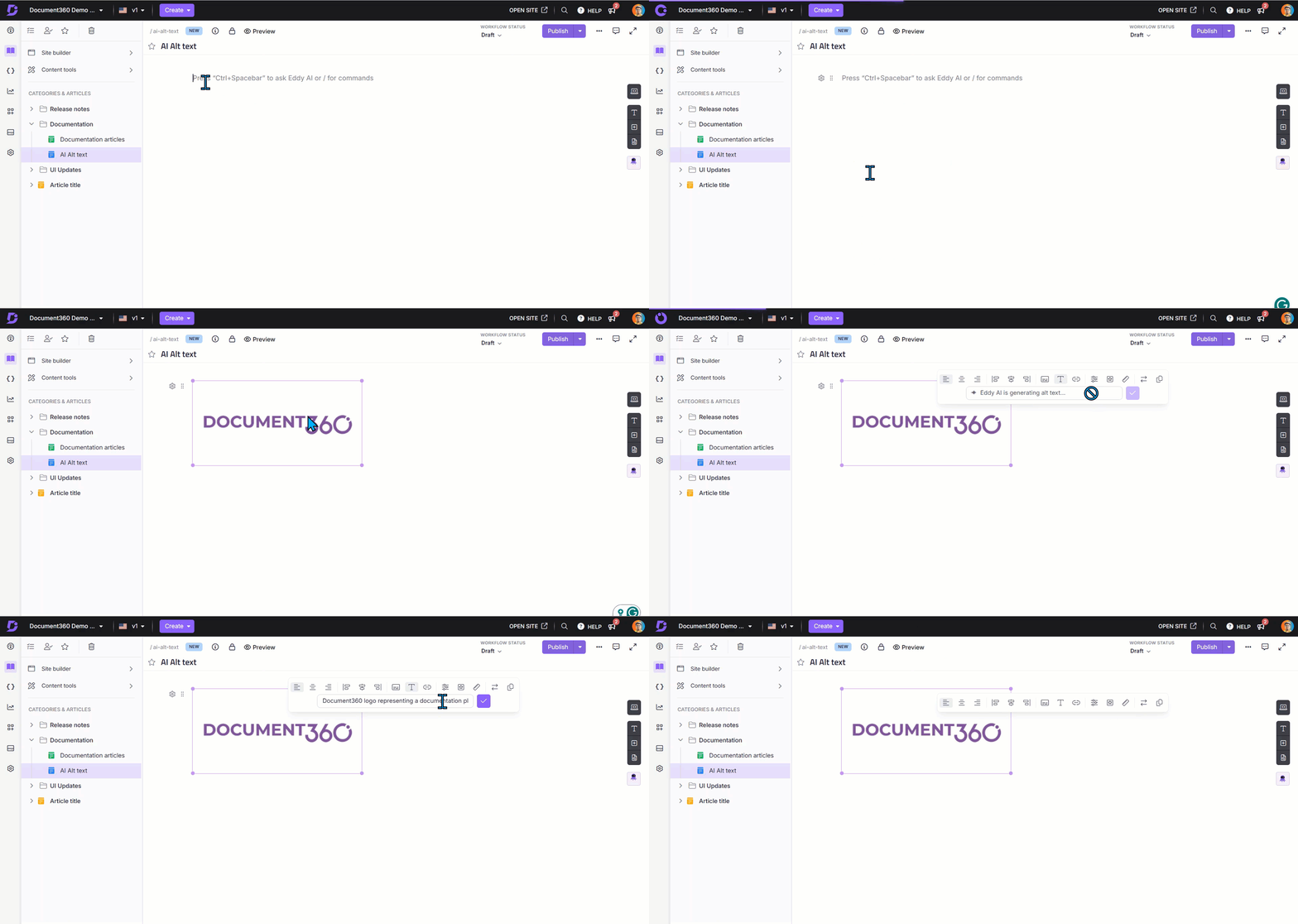
When you paste or drag an image directly into the editor body (outside the Insert Image panel), alt text is not generated automatically. Use the floating menu to generate it.
-
Paste or drag and drop the image directly into the Advanced WYSIWYG editor.
-
Click the image.
The floating menu appears.
-
Select the Alt text (T) icon.
-
In the Image alt text field, enter alt text manually or click ✦ Generate to create it with Eddy AI.
-
Click ✓ to save the alt text.
Generate alt text in Drive
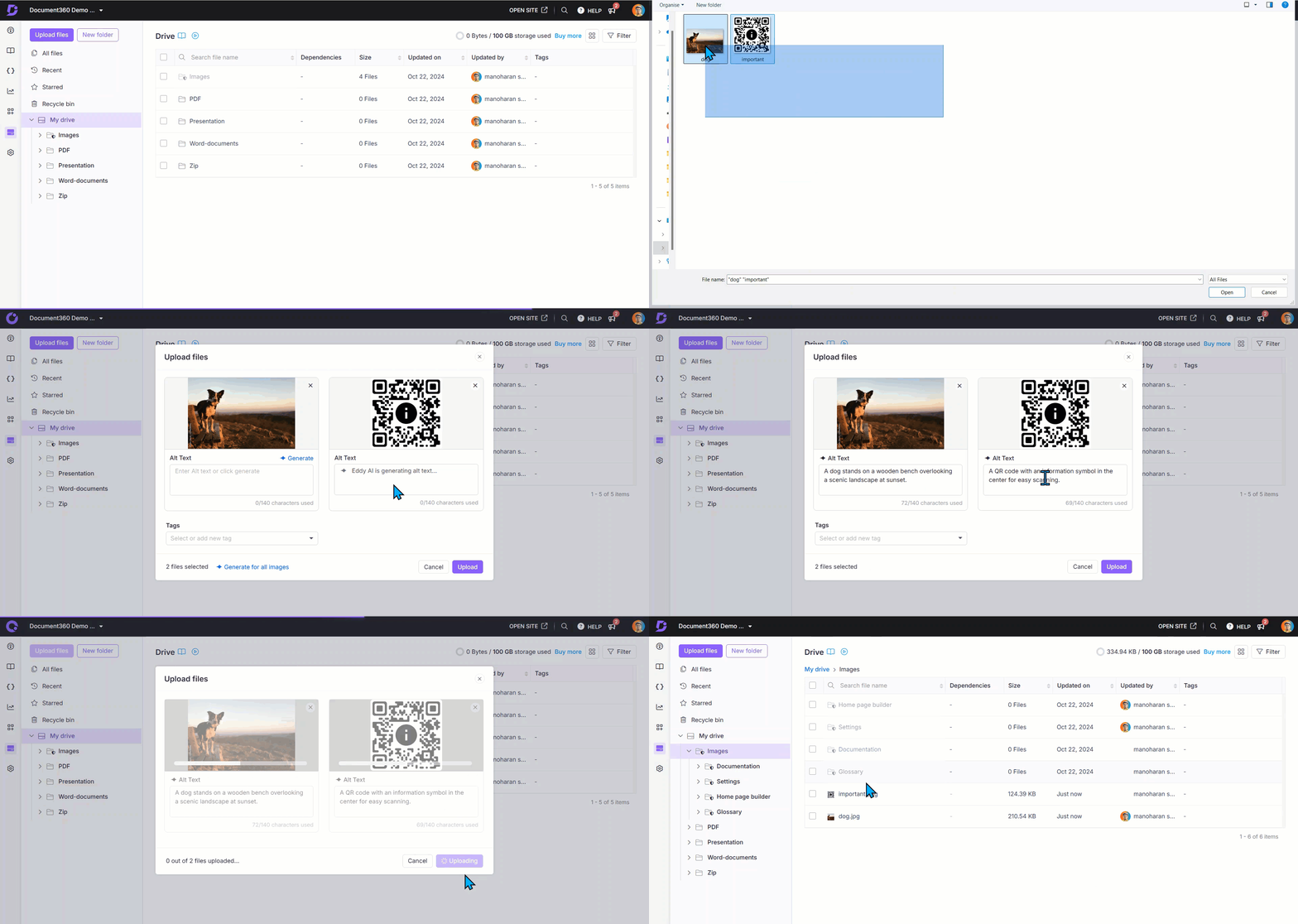
When uploading new images to Drive
- For a single image, click Generate next to the File name field or the Alt text field to have Eddy AI suggest a value, or enter one manually. Each field has its own Generate button.
- For multiple images, click each image's Generate dropdown to choose File name, Alt text, or Both. To generate alt text for every image in the batch at once, use the Generate banner at the top of the upload panel.
For images already in Drive
-
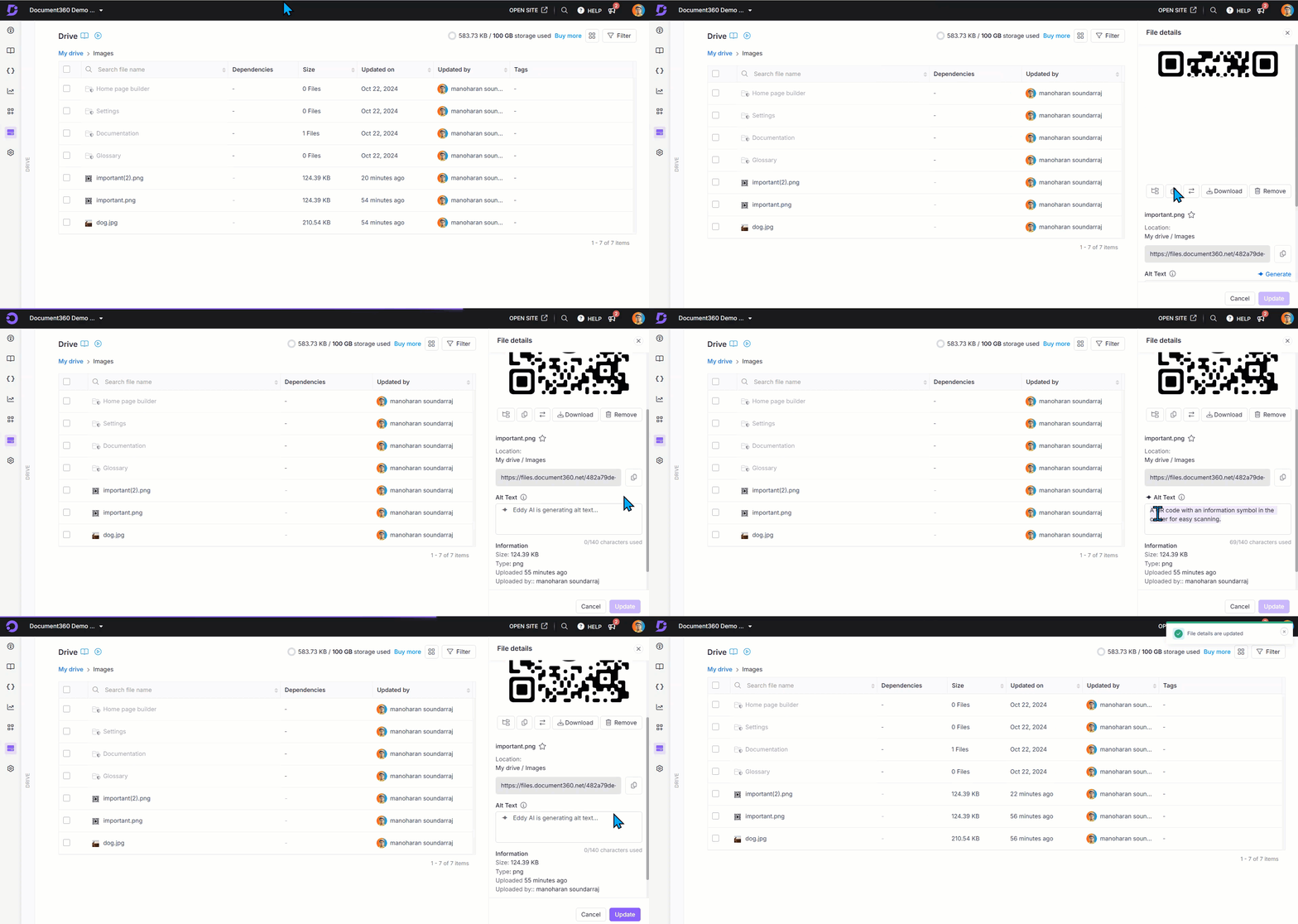
In the Knowledge Base portal, select Drive in the left navigation bar.
-
Click the desired image.
The File details panel appears.
-
In the Alt text section, click ✦ Generate to create alt text using Eddy AI.
To regenerate, clear the existing alt text and click ✦ Generate again.
-
Click Update to save the changes.
Supported formats and quotas
| Limit | Value | Notes |
|---|---|---|
| Supported image formats | JPEG, JPG, PNG, WEBP | Other formats are not supported |
| Maximum file size | 20 MB | Images above this size cannot have alt text generated |
| Monthly generation limit | 5,000 generations per project | Shared across alt text and file name generation, and across all articles and Drive uploads. Each generation, including regeneration, uses one credit from this monthly limit. |
| Language support | English only | Alt text is generated in English regardless of the article language |
| Known accuracy limitations | Panorama images, fisheye view images, monochrome icons | Results may be less accurate for these image types |
Best practices
- Always review generated alt text before inserting — Eddy AI produces a starting point, not a final description. Check that the generated text accurately reflects what the image shows in the context of your article, and edit where needed.
- Use "Generate for all images" during initial Drive uploads — if you're uploading a batch of new images, generate alt text for all at once rather than returning to each image individually later.
- Regenerate rather than manually rewrite from scratch — if the generated alt text is directionally wrong, clear it and regenerate. A second generation often produces a better result than editing a poor first attempt.
- Add alt text to Drive images before inserting them into articles — if an image already has alt text in Drive, that text carries over automatically when you insert it into an article, saving a step.
- Monitor your monthly credit balance for large projects — the 5,000/month limit is shared across alt text and file name generation, and across all articles and Drive uploads in the project.
Try this feature
Explore the feature with the interactive demo below.
FAQ
What happens if the Generate button is inactive?
An inactive Generate button means you've used up your monthly AI generation credits, which are shared between alt text and file name suggestions. Contact your admin or Document360 support to increase your limit.
What happens if I upload multiple images but don't have enough credits for all of them?
The banner's Generate button will be inactive if you don't have enough credits left for the whole batch. For example, if you upload 10 images but only have 5 credits left, you can use each image's own Generate dropdown to generate alt text or a file name for up to 5 images individually.
Are Knowledge Base customization images included in the monthly AI generation count?
No. Only images from published articles with dependencies, as well as those from templates, snippets, and glossary, count toward the monthly limit.