Translate with Eddy AI is Document360's AI-powered translation feature that automatically translates article content, meta titles, and category titles into any language added to your project. It uses Microsoft Azure Translator in the backend and lets you translate individual articles from the editor or multiple articles at once from the All articles section — making it practical to maintain a multilingual knowledge base at scale.
- If an article is deleted in the main language, it is also deleted in all other languages. However, if an article is hidden in the main language, it remains visible on the Knowledge Base site in other languages.
- In addition to article content, Translate with Eddy AI also translates the meta title (displayed in the browser tab) and the titles of articles and categories (folder and index types).
- Document360 does not support embedding a browser translation widget (e.g. Google Translate) as an alternative to Translate with Eddy AI. Widgets of this kind only change what is displayed on the page — they do not affect search indexing or Ask Eddy AI responses.
Before you begin
- Ensure you have sufficient Translate with Eddy AI character credits. Check your available credits at Settings > Knowledge base portal > Workspace & localization > Translate with Eddy AI.
- You can translate multiple articles simultaneously — there is no limit on how many articles you can translate at once, as long as you have sufficient credits.
- You can also manually translate articles using external translation services and mark them as translated in Document360. This is the recommended approach when you need to bring content authored in a secondary language into the default language, since Eddy AI translates only from the default language into secondary languages. Use an external translation service to convert the secondary language content into the default language, then continue managing all future translations from the default language into secondary languages using Translate with Eddy AI.
- Translation credits are renewed annually at the project level.
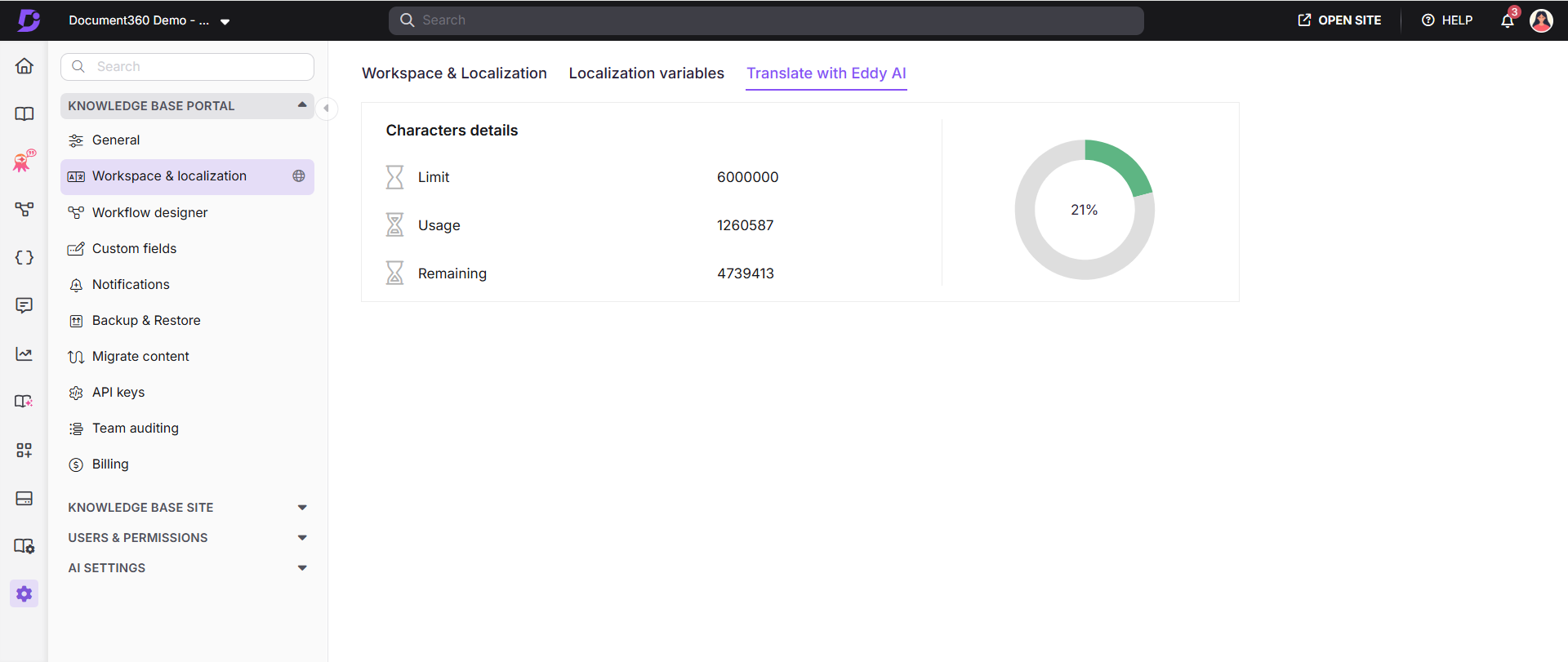
- Translate with Eddy AI credits are consumed at a rate of one credit per translated character.
- Each character translated reduces your available credits accordingly.
Translate articles from the All articles section
Use this method to translate multiple articles at once.
- In the Knowledge Base portal, select Documentation () in the left navigation bar.
- In the left navigation pane, select All articles.
- From the article list, select the checkboxes next to the articles you want to translate.
- Click the More () icon and select Translate with Eddy AI.
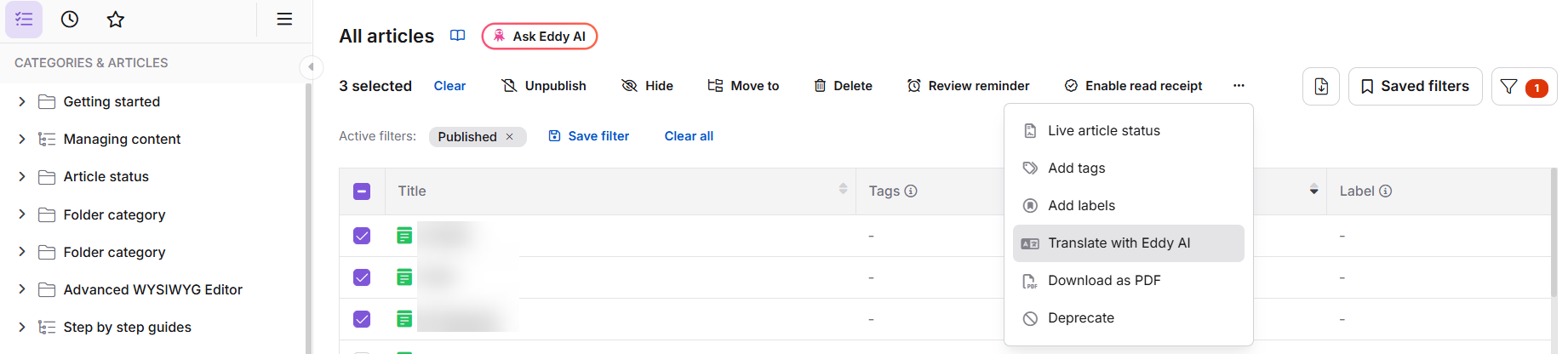
The Translate to other languages panel appears.
The Translate to other languages panel appears only when you initiate translation from the workspace's default language. If you initiate translation from any other language, the panel does not appear and translation starts immediately.
-
Select the target languages (for example, German and Spanish).
-
Type
Yesin the confirmation field and click Yes.WARNING- Translate with Eddy AI is only available for WYSIWYG and Advanced WYSIWYG editors. Selected articles will be switched to the Advanced WYSIWYG editor and cannot be reverted. Markdown articles are automatically converted to Advanced WYSIWYG when translated.
- If you update content in your main language later, you must repeat these steps to keep translated versions current.
- Once an article is translated, the original content is not retained. Keep a backup if you may need it later.
Updating translation status from the All articles section
After selecting one or more articles on the All articles page, the following translation actions are available from the toolbar:
| Action | When it appears | What it does |
|---|---|---|
| Translate with Eddy AI | Before an article has been translated for the first time | Initiates AI translation |
| Needs translation | After an article has been translated | Manually marks the article as requiring further translation |
| Mark as translated | When an article is in the Translated status | Manually marks the article as complete |
The Needs translation status is only available for secondary languages in your workspace. When a new language is added to a workspace, all articles appear with Needs translation status by default.
Translation direction
Translate with Eddy AI translates content from the default (primary) language of a workspace into secondary languages. Translation runs in this direction only.
When you initiate translation from within a secondary language workspace, Eddy AI translates into that workspace's language only. It does not translate secondary language content into the default language.
If you create a new article directly in a secondary language, a placeholder article is also created in the default language with the same title, but its body remains empty. There is no option to translate the secondary language content into that default language placeholder.
If collaborative editing is enabled in your project, translation captures the latest saved version of the article at the moment it starts. If someone is editing a translated version (Secondary language. For example: Spanish) and a new translation is triggered from the source language before those edits are saved, the new translation overwrites the whole translated article in the secondary language, and the unsaved edits will be lost.
Collaborative editing is rolled out in phases, so if you don’t see it yet, it’s on its way.
Recommended practice
To keep your default language as the consistent source of content, draft new articles in the default language first, then use Translate with Eddy AI to localize them into your secondary languages.
If content already exists only in a secondary language and you need it in the default language, see the workaround described in the "Before you begin" section.
Translate an article from the editor
Use this method to translate a single article at a time.
- Navigate to the article in the other language that you want to translate (for example, French or Spanish).
- Ensure the appropriate content is available in the editor.
- Click the Translate with Eddy AI icon.
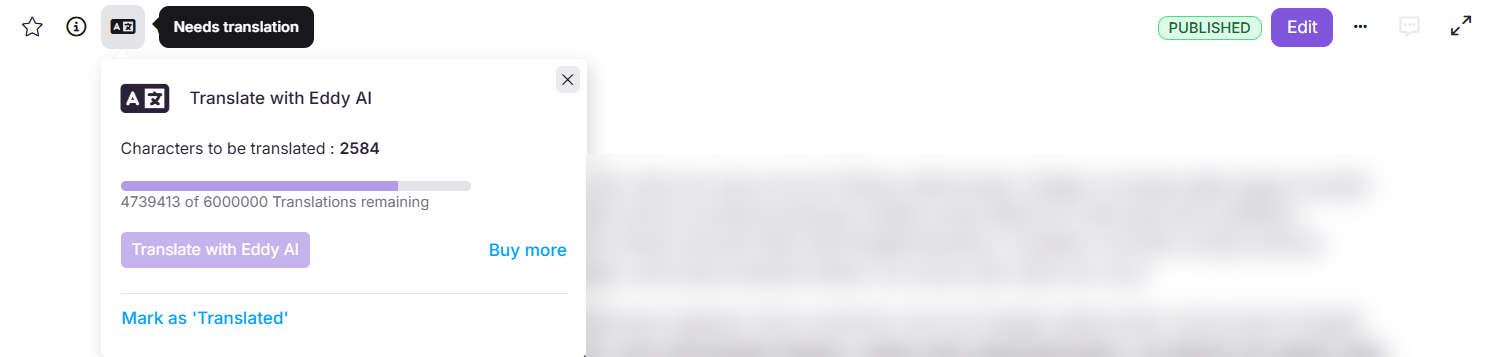
A panel appears with translation details.
-
Click Translate with Eddy AI to begin.
A progress indicator appears and other operations are restricted until translation is complete. Only the content is translated — formatting remains consistent across all languages.
If a translated article has been updated and you want to translate it again, click ✓ Translated and select Mark as 'Needs translation'. This resets the status back to Needs translation.
Translate index and folder category titles
Article titles are translated automatically when you translate an article. However, index and folder category titles are not translated automatically — you must initiate title translation manually.
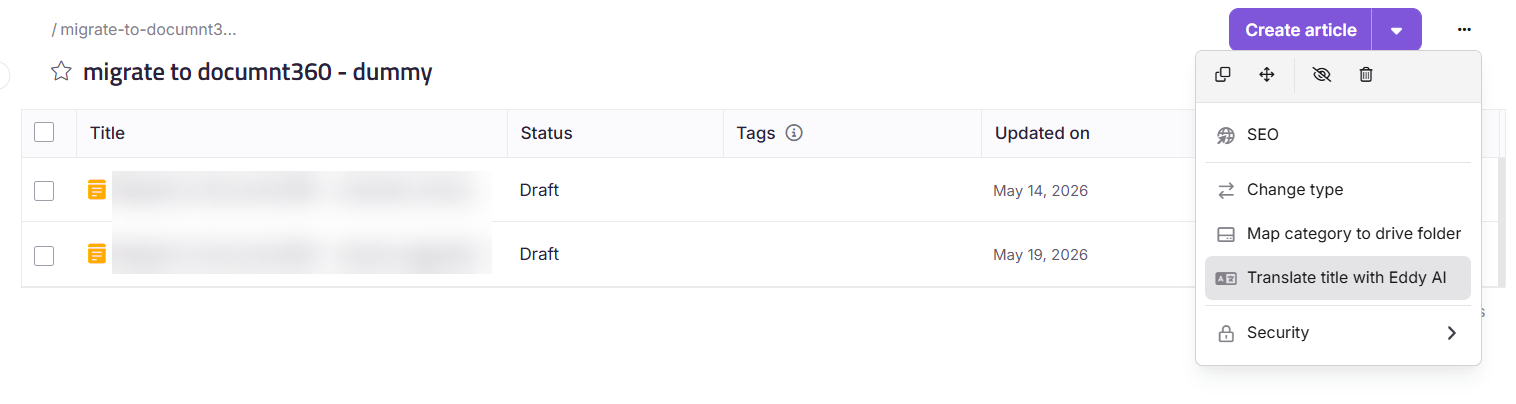
You can access the Translate title option from:
- The More () icon next to the index or folder category in the category tree.
- The More () icon within the index or folder category page.
To translate a category title:
- Locate the index or folder category in the category tree.
- Click the three-dot menu associated with the category.
- Select Translate title.
Translation behaviour by workspace language
From the default language workspace:
- A confirmation dialog appears.
- Select the languages into which the category title should be translated.
- Click Translate to confirm and start the translation.
From a secondary language workspace:
- Clicking Translate title translates the category title immediately into that workspace's language.
- A toast notification confirms when the translation is complete.
Translating category titles consumes character credits, the same as article translation.
- If no Translate with Eddy AI credits are available, the Translate title option is disabled.
- If credits run out mid-translation, a toast notification indicates that the credit limit is exhausted.
Real-world examples
Translating articles to existing languages
Your main language is English and your project already includes German and Spanish.
When you create a new English article, corresponding empty articles are automatically created in German and Spanish. To populate them, go to All articles, select the English article(s), click Translate with Eddy AI, select your target languages, and confirm. The content is translated from English into all selected languages.
Adding a new language to the project
If you add French to your project after drafting content in English, the English content is automatically replicated in the French articles. Navigate to the French articles, click the Translate with Eddy AI icon, and select Needs translation to translate the content.
However, if languages such as German and Spanish were already added to the project before the English article was drafted, the content will not be automatically replicated. In that case, you must manually translate it from the All articles section.
Remove articles in a specific language
Deleting an article in any language deletes it across all languages, because articles are linked. To remove content from one language only, hide the article instead.
To hide an article in a specific language:
- Navigate to the article in the target language.
- Use the Hide option to prevent it from appearing on the Knowledge Base site for users in that language.
The article remains available in all other languages.
To delete all articles in one specific language while keeping other languages intact:
-
In the Knowledge Base portal, select Settings in the left navigation bar.
-
In the left navigation pane, go to Knowledge base portal > Workspace & localization.
-
Hover over the desired workspace and click the Edit icon.
The Edit workspace panel appears.
-
Navigate to the desired language and click the More () icon.
-
Click Remove.
This action permanently deletes all articles in that language across the entire project. Articles in other languages remain unaffected.
Manage Translate with Eddy AI credits
To view your credit balance, go to Settings > Knowledge base portal > Workspace & localization > Translate with Eddy AI.
The page shows the following credit details:
| Field | Description |
|---|---|
| Limit | The total Translate with Eddy AI credits allotted for your project |
| Usage | The number of credits consumed so far |
| Remaining | The number of characters remaining from your total limit |
| Usage meter | Shows the percentage of your total limit that has been consumed |
- Translate with Eddy AI credits are allocated at the project level and apply collectively across all workspaces and languages within that project.
- Credit allocation varies according to your subscription plan.
Translation status indicators
Translation status indicators appear above the text formatting toolbar in any project workspace that contains multiple languages, in Markdown, WYSIWYG, and Advanced WYSIWYG editors.
| Status | What it means |
|---|---|
| Needs translation | The article has not yet been translated or requires additional translation. This is the default status for all secondary language articles. Clicking the status shows two options: Translate or Mark as translated. Articles with this status are marked with a globe icon in the left navigation pane. |
| Translated | The article has been AI-translated, manually translated, or marked as translated by a team member. |
The translation status indicator is not available on the main language article.
Filter articles by translation status
-
In the Knowledge Base portal, select Documentation in the left navigation bar.
-
In the left navigation pane, select All articles.
The article list appears.
-
Click Filter on the right.
-
Expand the Status filter and select Needs translation or Translated.
Note: this filter is unavailable on the main language article page.
From the filtered list, you can change the translation status or run Translate with Eddy AI on the selected articles.
Best practices
- Complete translation before adding screenshots — when translated content is imported via Translate with Eddy AI or Crowdin, the entire article is replaced, including images from the primary language. Localized screenshots will be overwritten. Always finish the translation process first, then manually add language-specific screenshots to each translated article.
- Use bulk translation for initial setup — when first enabling a new language, use the All articles section to translate everything at once rather than opening each article individually.
- Monitor your credit balance regularly — credits are shared across all workspaces and languages in the project. Check your balance before running large translation batches to avoid mid-translation interruptions.
- Update translations after content changes — Translate with Eddy AI does not automatically re-translate articles when the main language content changes. After updating an article, revisit the translated versions and re-run the translation.
FAQ
What languages are supported for Translate with Eddy AI?
Document360 uses Microsoft Azure Translator for Translate with Eddy AI. Supported languages include:
| Afrikaans | Dutch (Belgium) | Georgian | Lithuanian | Swedish |
| Arabic | English | German | Mongolian | Thai |
| Arabic - Egypt | English (Australia) | Greek | Norwegian | Türkçe |
| Bulgarian | English (Canada) | Hebrew (he - עִבְרִית) | Polish | Ukrainian |
| Chinese | English (UK) | Hungarian | Portuguese | Vietnamese |
| Chinese (Simplified, PRC) | English (US) | Icelandic | Portuguese (Brazil) | Русский |
| Chinese (Traditional, Taiwan) | Estonian | Indonesian | Romanian | Cantonese |
| Chinese (Traditional) | Filipino | Italian | Slovakian | |
| Czech | Finnish | Japanese (Ja - 日本語) | Slovenian | |
| Danish | French | Korean | Spanish | |
| Dutch | French (Canada) | Latvian | Spanish (Mexican) |
Note: Azure Translator uses a single English (en) model for text translation. Regional English variants, English (Australia), English (Canada), English (UK), and English (US) are all translated using this model, so the output is standard English and does not reflect region-specific spelling, vocabulary, or date formats. Review these translations manually where regional accuracy matters.
Are there additional costs for using Translate with Eddy AI?
Translate with Eddy AI is included in your subscription plan. However, exceeding your character limit will incur additional charges. Translate with Eddy AI credits are allocated at the project level and apply collectively across all workspaces and languages within that project.
What happens to the editor type when I translate a Markdown article?
When you use Translate with Eddy AI on a Markdown article, the article is automatically converted to the Advanced WYSIWYG editor. This conversion cannot be reverted.