Latest content in the main language is not reflected in secondary languages
Updates made to the main language will not automatically reflect in other languages. You must manually initiate the translation process using the Translate with Eddy AI feature.
When an article is created in the main language, its structure is automatically replicated in secondary languages, but the content itself is not transferred.
Steps to resolve: To update the content in secondary languages, follow these steps:
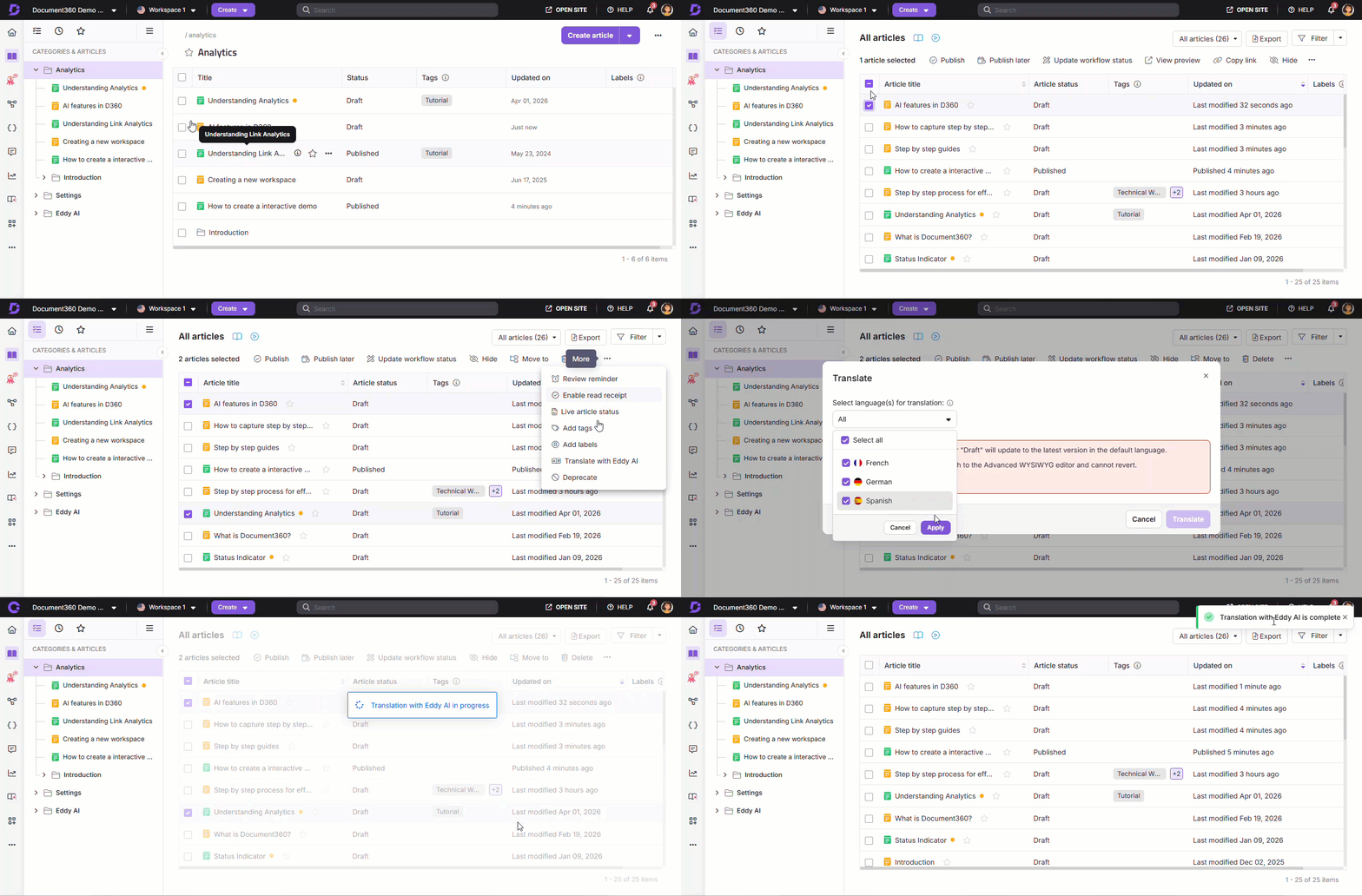
Navigate to the All articles () section in the main language.
Select the article you want to translate into secondary languages.
Click Translate with Eddy AI.
The Translate to other languages panel will appear. The panel appears only when you translate from the workspace’s default language, while translations from other languages start immediately without showing the panel.
Select the desired languages.
NOTE
The translating articles will switch to the Advanced WYSIWYG editor and cannot be reverted.
Articles in New or Draft status in secondary languages will be overwritten by the latest version from the main language.
Type Yes in the confirmation field and click Yes to proceed.
NOTE
After translation, the articles in other languages will remain in draft state. Once reviewed, you can publish them for the content to go live on the Knowledge base site.
The Translate with Eddy AI icon is greyed out or unclickable
The Translate with Eddy AI () icon in the editor becomes greyed out when the corresponding article in the secondary language is empty.
When a new language is added to the Localization page, articles and their content are copied to the secondary language space automatically. However, if a new article is later created in the main language, a corresponding article is automatically created in the secondary language, but without any content. This leaves the secondary article empty, deactivating the Translate with Eddy AI () icon.
Steps to resolve:
To enable the Translate with Eddy AI (), follow one of these methods:
Method 1: Apply Translate with Eddy AI from the secondary language
Copy and paste the content from the main language article into the secondary language article.
The Translate with Eddy AI () icon would have been enabled now.
Click the Translate with Eddy AI () icon and select Needs translation.
Method 2: Apply Translate with Eddy AI from the main language
Navigate to Documentation () in the left navigation bar in the Knowledge base portal.
In the left navigation pane, navigate to All articles ().
Select the desired article and click Translate with Eddy AI.
Choose one or more secondary languages and click Translate.
NOTE
When you retranslate an article after making updates, the entire article content is retranslated — not just the modified sections. As a result, the full character count of the article is consumed from your credits each time a retranslation is triggered. To manage your credit usage effectively, consider batching content updates before initiating a retranslation, rather than translating after every individual change.
FAQ
Does Translate with Eddy AI translate related articles, tags, the Feedback Manager, or search?
No. Translate with Eddy AI covers article content, meta titles, and category titles only. Related article associations, tags, Feedback Manager call-to-actions and questions, and the search experience are not part of AI Translation and need to be set up separately for each language.