Many organizations use Asana to organize, track, and manage work across teams. When your team uses Asana to manage documentation tasks — for example, coordinating content creation with external vendors or tracking writing assignments across projects — there's often a manual step of transferring completed content into Document360. By connecting Asana and Document360 through Zapier, you can automate this: whenever a specified event occurs in an Asana project, Zapier creates a corresponding article in your knowledge base automatically.
When to use this integration
- Your documentation team uses Asana to assign and track writing tasks with external contributors, and you want completed task content to flow into Document360 without a manual copy-paste step.
- You manage a content pipeline in Asana where tasks represent articles in progress, and you want new tasks to automatically generate draft articles in Document360 so writers have a place to work from the start.
- You want to keep your Asana project activity and Document360 content creation in sync, reducing the overhead of switching between tools to move content forward.
Before you begin
- You must be logged into your Zapier account.
- You must have an Asana account with access to the workspace and project you want to monitor.
- You must have your Document360 API token ready. To generate one, navigate to Connections > Extensions , locate the Zapier tile, and click Connect to copy the token.
How to set up the Zap
Step 1 — Create a new Zap
- Log in to your Zapier account.
- From the left navigation menu, click Create then select Zaps.
- A new Zap is created with a Trigger and Action flow.

Step 2 — Connect Asana as the trigger
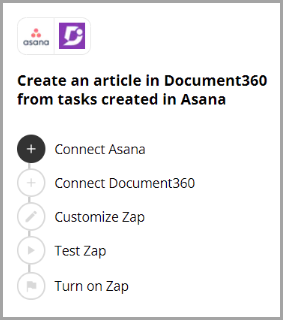
- In the Trigger field, choose Asana.
- In the Trigger event field, select the required event to trigger in Asana.
To change the trigger app later, click Change in the Trigger field.
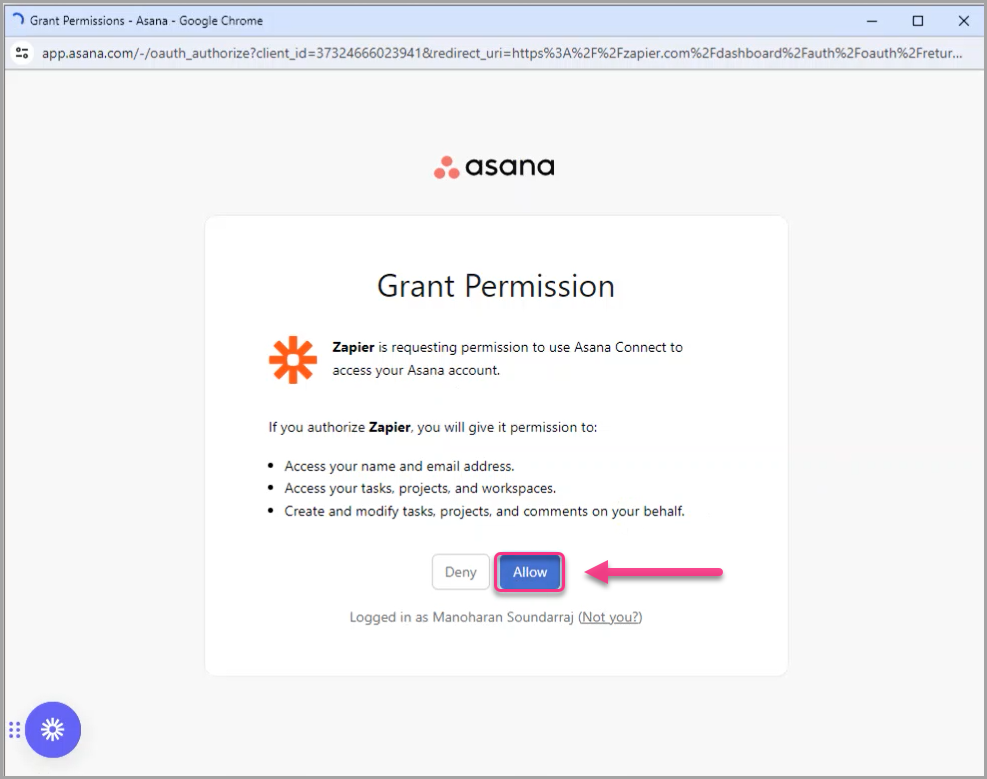
- Click the Account field — a Sign-in panel appears.
- Enter your Asana credentials and click Allow. Zapier runs a test to confirm the trigger is correctly configured.
If your account is already linked to Asana, you can directly select it from the Sign-in panel without entering credentials again.
- Select your Asana account and click Next.
- Select the desired Workspace and click Next.
- Select the desired Project and click Next.
Step 3 — Connect Document360 as the action
- In the Action field, choose Document360.
- On the Setup panel, select the desired event in the Event field.
- Click the Account field — a Sign-in panel appears.
- Enter your sign-in credentials and click Allow.
To generate the API token from Document360:
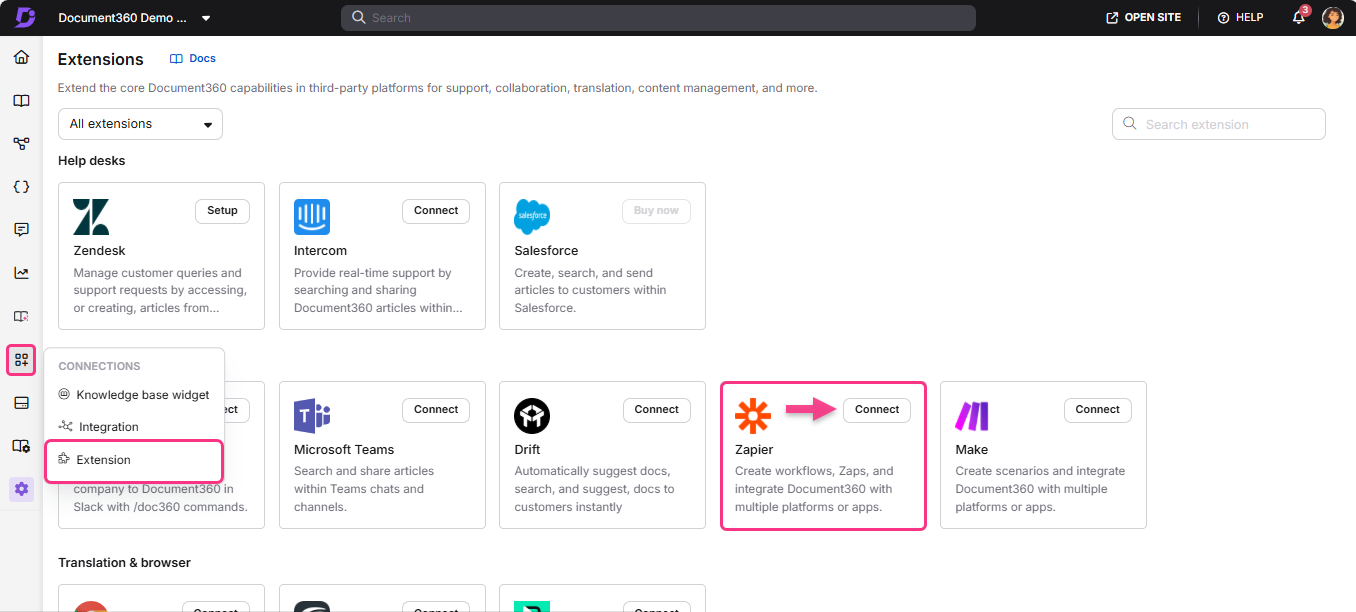
- Navigate to Connections > Extensions in the left navigation bar of the Knowledge base portal.
- On the Zapier extension tile, click Connect.
- Click the Copy icon to copy the token.
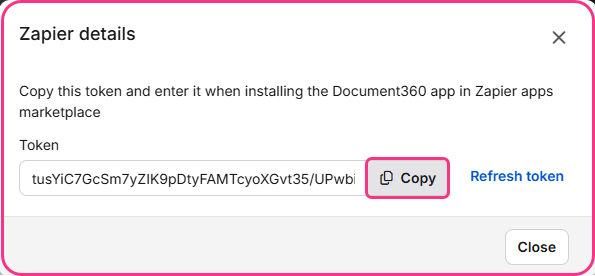
- Head back to the Zapier panel and paste the API token into the field.
- Click Yes, Continue to Document360.
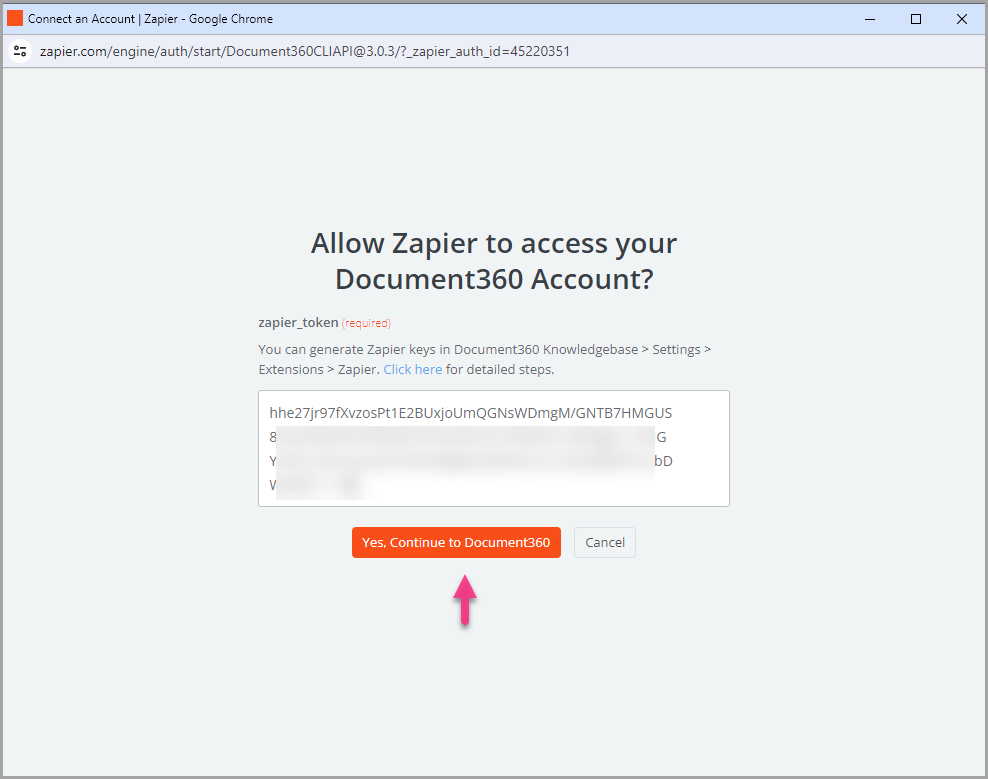
- You can find the connected Document360 project on the Connect Document360 account page. Click Continue.
Step 4 — Map the fields
- Map the required fields from Asana to Document360:
| Field | Description |
|---|---|
| Title | Choose a suitable title from the available Asana task fields. |
| Content | Choose suitable content based on your business requirements. |
| Version | Select the workspace in your Document360 project where the article should be created. |
| Language | Choose the language within the selected workspace. |
| Article | Choose the article within the selected category. |
The Continue button is only enabled after all required fields have been mapped.
- Click Continue.
Step 5 — Test and publish the Zap
- In the test section, click Test step.
- If successful, you will get the message A Document was sent to Document360.
- In your Document360 portal, you'll find the article located in the folder you previously selected.
- Head back to the Zapier setup panel and click Next, then click Publish.
- Review or edit the trigger and action settings as needed. You will see a success message: Your Zap is on. Click Manage your Zap to go to the Zap overview page.
Zap overview
Once active, you can view and manage the Zap from the Zapier dashboard. The overview page shows the trigger, action, and run history for the Zap.
How to delete a Zap
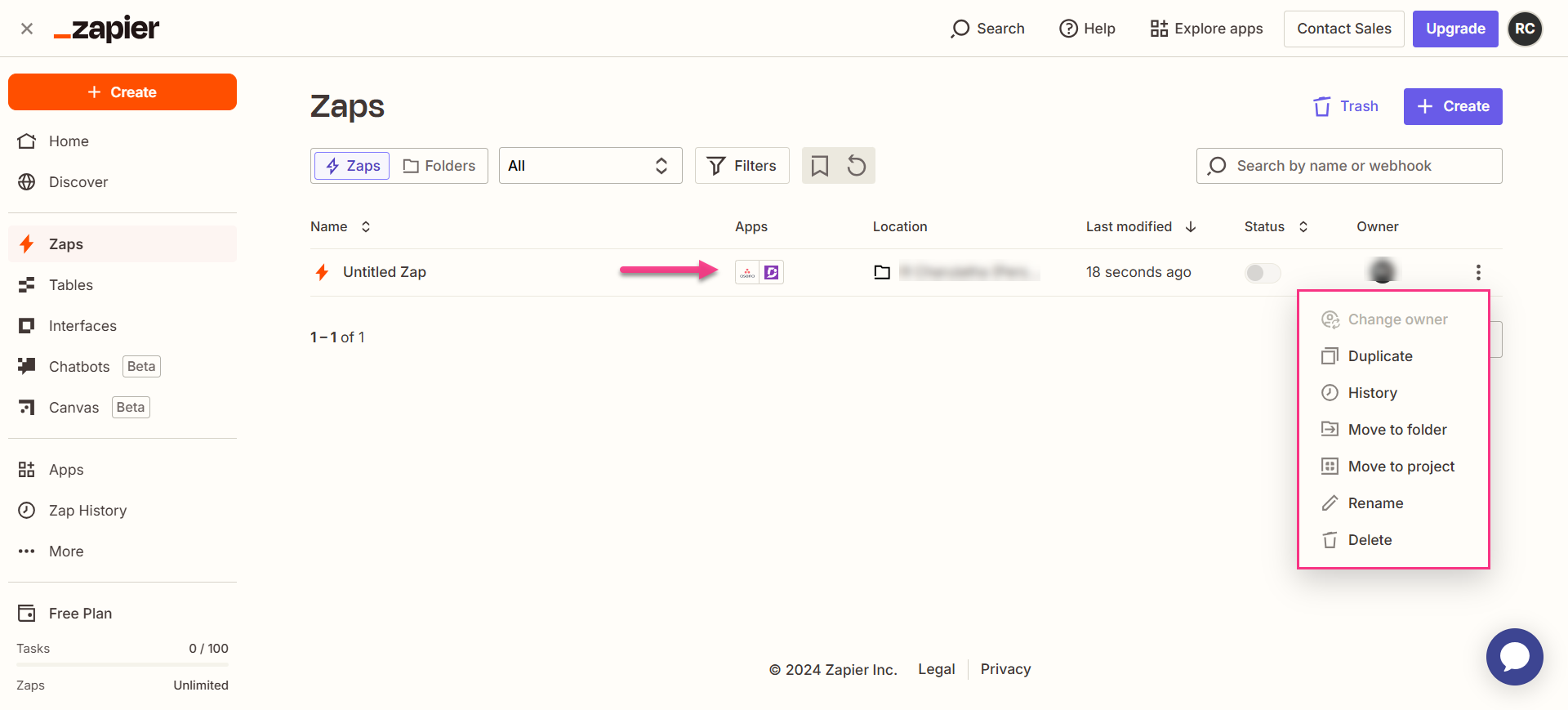
- Navigate to the Zapier dashboard. A list of all existing Zaps is displayed on the overview page.
- Click the Zap actions () icon to the right of the Zap you want to remove and click Delete. The Zap is permanently deleted.
Best practices
- Scope the Zap to a specific Asana project rather than a broad workspace trigger. Connecting to a focused project — for example, a dedicated documentation or content pipeline project — keeps the Zap from firing on unrelated task activity across your organization.
- Map the Asana task name to the article title so each Document360 article created from a task can be traced back to its Asana origin. Clear naming conventions in Asana will produce cleaner article titles in Document360.
- Use a dedicated Asana project for documentation tasks if possible. This makes it easier to manage the Zap scope, audit what's been created in Document360, and keep content work separate from other types of Asana tasks.