Once you have a PDF template set up, you can create a new export by selecting the content you want, choosing a template, and configuring the file name and optional password protection. Exports are managed from the Export articles page under Content tools.
Before you begin
- Only published articles, step-by-step guides, and category pages can be exported. Hidden articles and categories are not available for selection.
- The maximum export size is 25 MB. If your export exceeds this, reduce the number of selected categories or articles and try again.
- You need at least one PDF template configured before exporting. See PDF templates for setup instructions.
Access the Export articles page
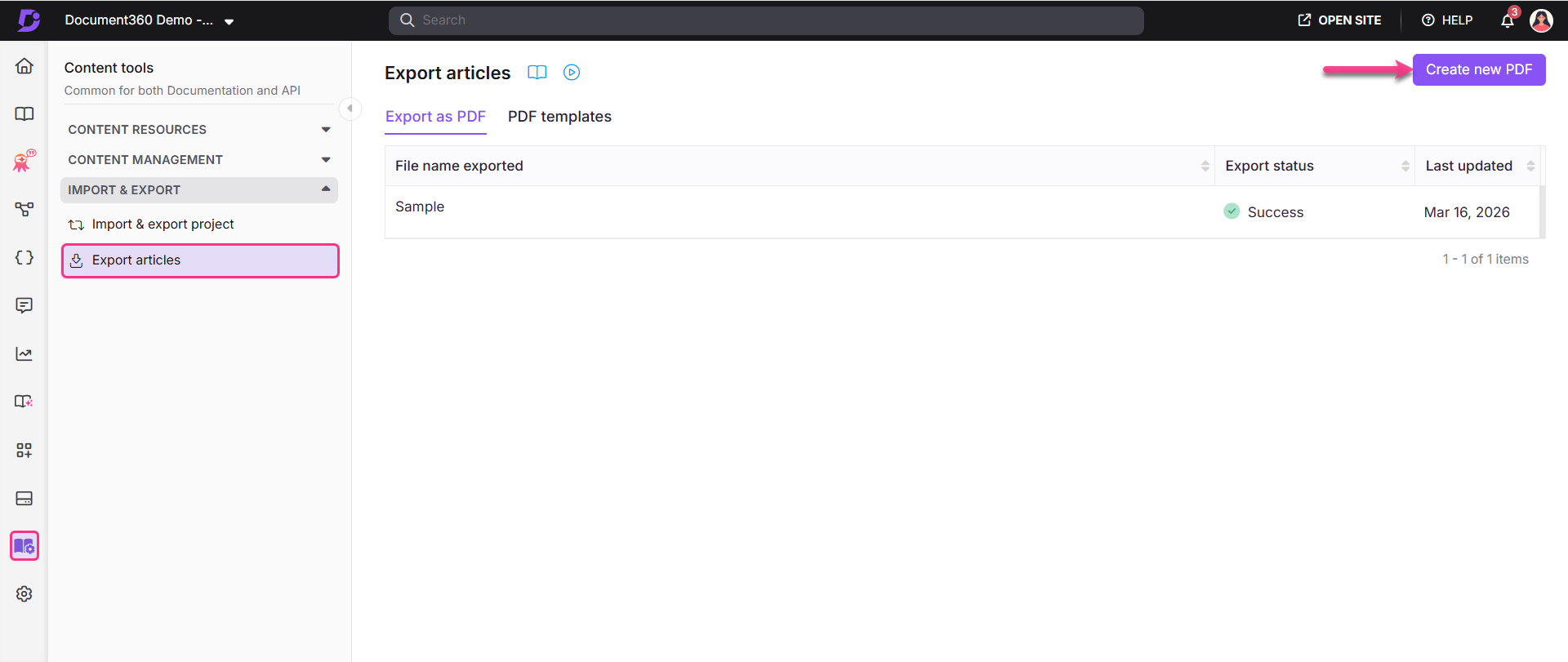
- Navigate to Content tools () in the left navigation bar.
- Select Import & export > Export articles in the left navigation pane.
Create a new PDF export
- On the Export articles page, click Create new PDF in the top-right corner. The Start export page opens.
- Fill in the export details:
| Field | Description |
|---|---|
| Name | Enter a name for the exported PDF file. |
| Password | Optional. Add a password to restrict access to the PDF. |
| Select PDF template | Choose a PDF template to apply design settings, cover page, watermark, layout, and fonts. |
| Workspace | Select the workspace to export from. |
| Language | Select the language version of the content to export. |
- Review the template preview on the right side of the page. Navigate between the Cover, Terms, ToC, and Content previews to verify the design before exporting.
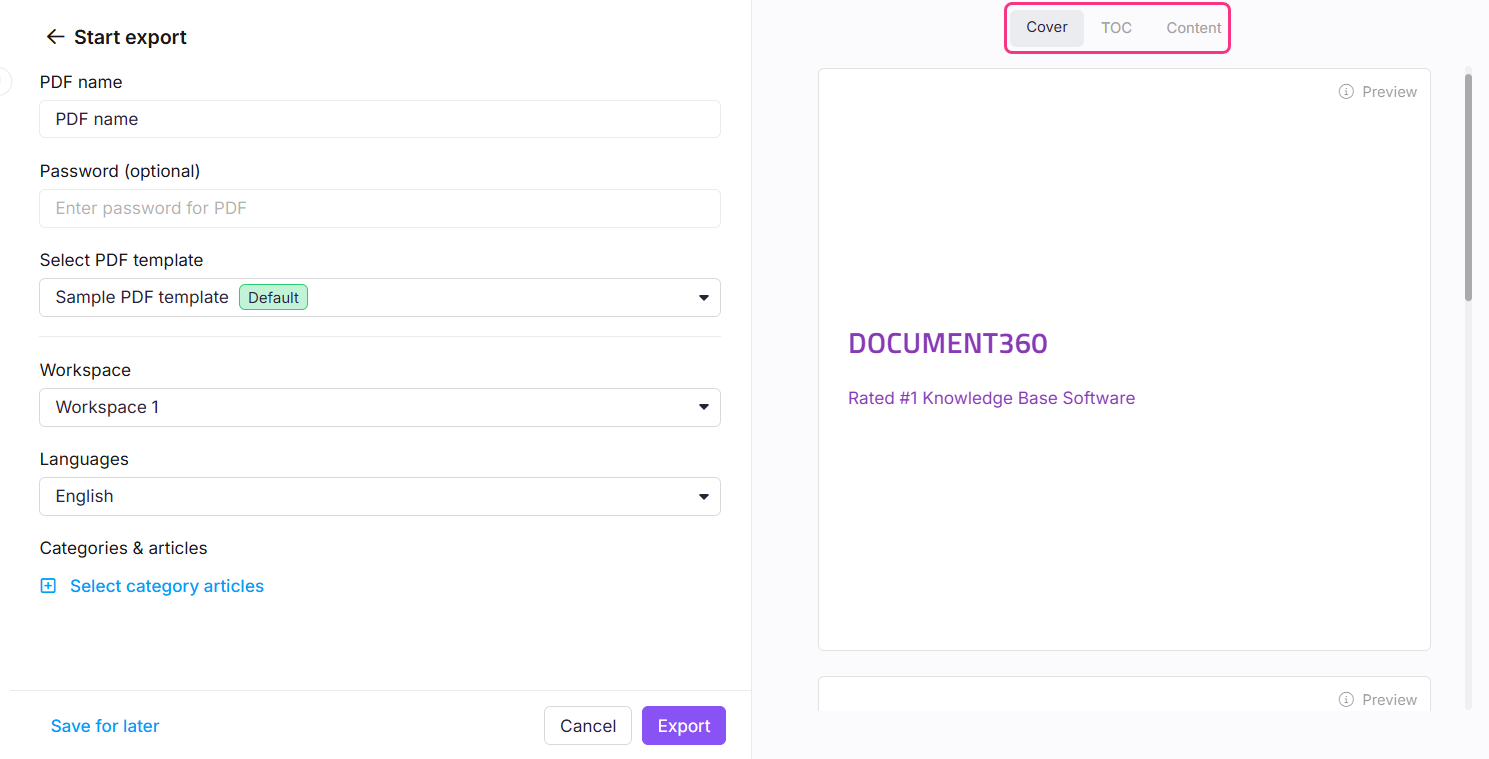
- In the Categories & articles section, click Select category articles.
- In the Add categories & articles dialog, select the categories, subcategories, and articles you want to include.
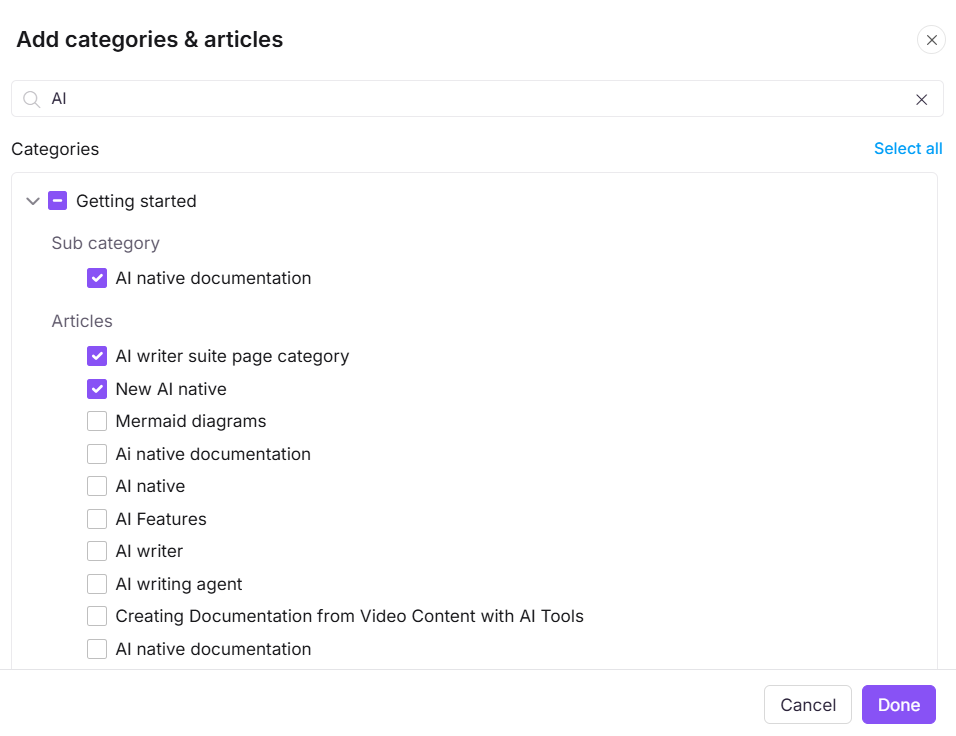
- Click Done to confirm your selection.
- Click Export to initiate the export. The Export Status updates to Success once the export is complete.
Internal article and heading links within the selected articles remain functional in the exported PDF. Links that point to articles not included in the export open the corresponding page on the knowledge base site. You can export articles from one or more categories in a single export.
Manage exported PDFs
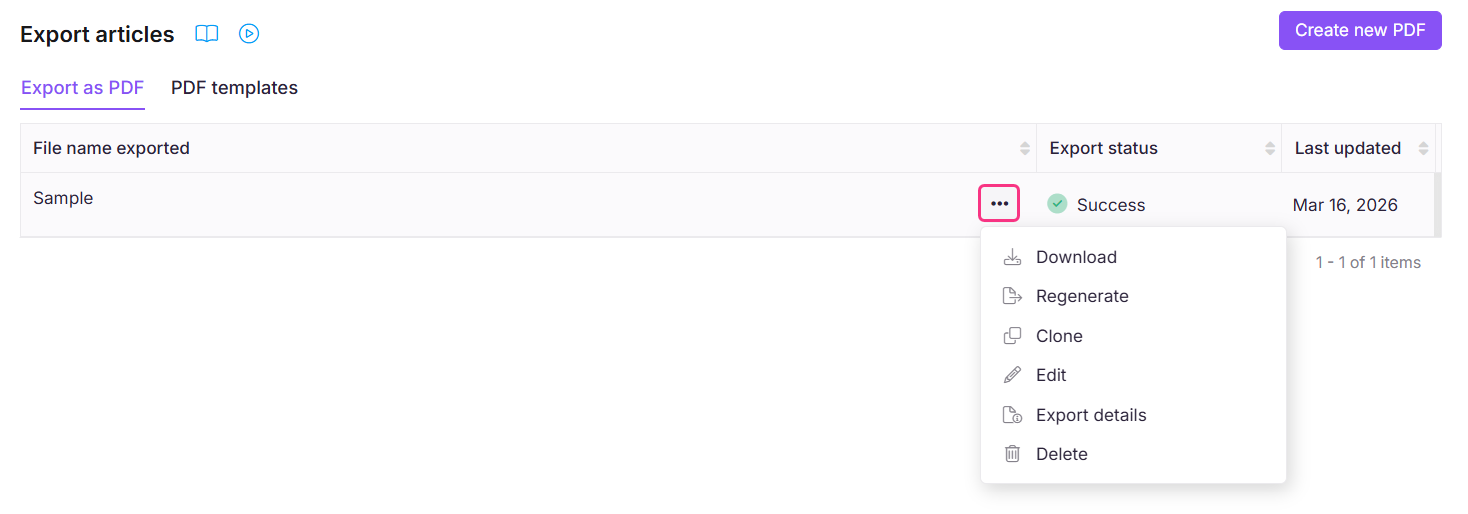
After an export is created, hover over it to access the following actions:
| Action | Description |
|---|---|
| Download | Save the generated PDF to your device. |
| Regenerate | Re-run the export with the latest published content. |
| Clone | Create a duplicate of the export with all the same attributes. |
| Edit | Update the export attributes such as name, template, workspace, or content selection. |
| Export details | View the file name, version, language, and the categories and articles included in the export. |
| Delete | Permanently remove the export. This action cannot be reversed. |
Export a draft article as PDF
You can export a single draft article as a PDF directly from the Advanced WYSIWYG editor to share it with members outside your project team.
- Open the article in the Advanced WYSIWYG editor.
- Click the More () icon and select Export PDF.
.png)
- Download the PDF and share it as needed.
When you export an article as a PDF, the file is static. Any updates made to the article after exporting will not appear in the PDF. If you want external members to always see the most recent version of an article, use Share articles via private link instead.
Limitations
| Item | Detail |
|---|---|
| Maximum export size | 25 MB. |
| Exportable content | Published articles, step-by-step guides, and category pages only. |
| Hidden content | Hidden articles and categories are excluded from export. |
| SVG images | SVG images may not render in exported PDFs due to a limitation of the PDF conversion plugin. Convert SVGs to PNG or JPG before uploading as a workaround. |
Best practices
- Name exports descriptively. Use a naming convention that includes the workspace, language, and date, for example
UserGuide_EN_Oct2025. This makes it easy to identify the right file when managing multiple exports. - Regenerate rather than re-export. If content has changed since your last export, use Regenerate instead of creating a new export. It re-runs the same settings against the latest published content without duplicating the export entry.
- Test with a small selection first. Before exporting a large batch of categories, run a small test export to verify the template design renders correctly on your actual content.
- Use password protection for sensitive content. If the PDF contains internal or confidential information, add a password at the export step to restrict access.
FAQ
Can I export draft articles as PDFs?
You can export a single draft article as a PDF from the Advanced WYSIWYG editor using the More menu. However, the bulk Export to PDF feature only supports published articles. The exported PDF is static and will not reflect future changes to the article.
What is the difference between Clone and Regenerate?
Clone creates a duplicate of the export entry with all the same attributes, useful when you want to create a variation of an existing export. Regenerate re-runs the same export with the latest published content, updating the existing file rather than creating a new one.
Do links in the exported PDF still work?
Yes. Internal article and heading links remain functional in the exported PDF. If the linked article is included in the export, the link navigates within the PDF. If it is not included, the link opens the corresponding article on the knowledge base site.
What happens if my export exceeds 25 MB?
The export will fail. Reduce the number of selected categories or articles and try again. You can split the content across multiple smaller exports if needed.
Why are SVG images not visible in my exported PDFs?
SVG images may not appear in exported PDFs due to a limitation of the PDF conversion plugin. Convert the SVG to PNG or JPG and re-upload it before exporting.