The unified Editor and the Advanced WYSIWYG editor let you insert emojis directly into article content. Emojis can add visual cues, convey tone, or make consumer-facing and onboarding content more approachable and engaging.
NOTE
The unified Editor is rolled out in phases and is currently available in projects created after November 23, 2026. Projects created earlier continue to use the Advanced WYSIWYG editor and the Markdown editor. We're working to make it available to all projects soon.
Not sure which editor you are using? Open any article in edit mode and check the label in the article header. It shows Unified Editor, Advanced WYSIWYG, or Markdown.
How to use emojis
- Add an emoji at the start of a callout title to reinforce the callout type visually. For example, ⚠️ before a warning
- Use emojis in H2 or H3 headings in onboarding or consumer-facing articles to make sections visually distinct and easier to scan
- Use emojis such as ✅ or 🔧 in checklists to add context beyond the checkbox itself
- Use emojis such as 🟢, 🟡, or 🔴 within tables to indicate status visually alongside text labels
- Use emojis in onboarding guides or getting started articles to make content feel less formal and more engaging
Insert an emoji
In the unified Editor
- Place your cursor where you want to insert the emoji.
- In the toolbar, select Insert (+), then select Emoji. You can also type
/and select Emoji on the Insert tab, or select More on the quick insert bar in an empty block. - The emoji picker opens. Browse or search for the emoji you want.
- Click the emoji to insert it at the cursor's position.
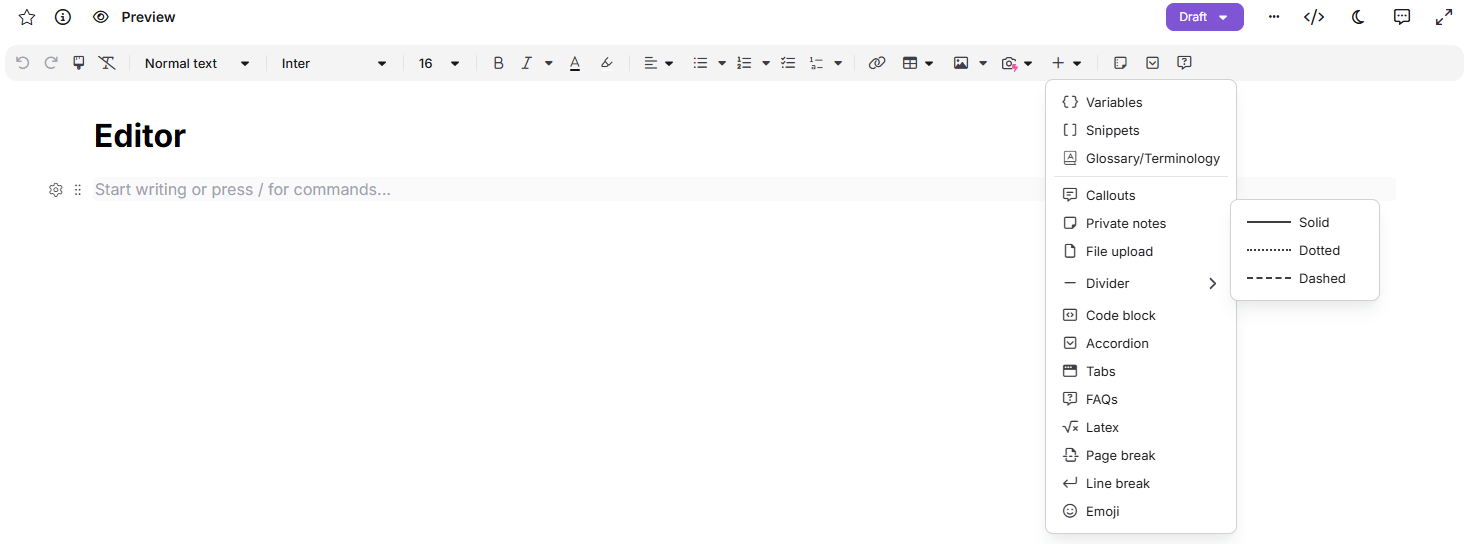
In Markdown view, paste the emoji character directly. It stays as the emoji when you switch back to Block view.
In the Advanced WYSIWYG editor
- Place your cursor where you want to insert the emoji.
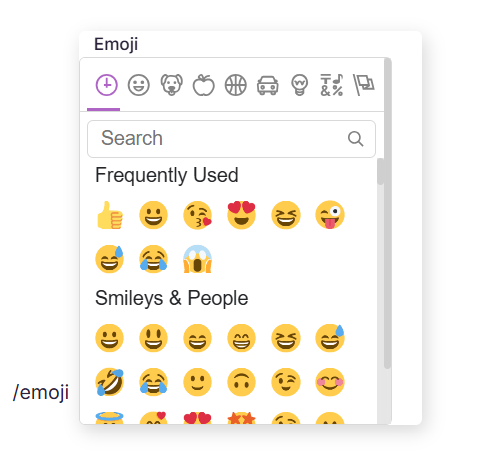
- Type
/emojiand pressEnter. - The emoji picker opens. Browse or search for the emoji you want.
- Click the emoji to insert it at the cursor's position.
In the Markdown editor
The Markdown editor does not have a built-in emoji picker. Copy the desired emoji from an external source and paste it directly into the Markdown content.
In every editor, you can also copy an emoji from any external source or your operating system's emoji panel and paste it directly into the article.
Emojis inserted via the editor render on the knowledge base site. Appearance may vary slightly depending on the reader's operating system, browser, and device. Emoji rendering is controlled by the system font, not Document360.
FAQ
Will emojis look the same for all readers?
Not necessarily. Emoji appearance is controlled by the reader's operating system and browser, not Document360. The same emoji may look slightly different on Windows, macOS, iOS, and Android.
Are emojis included when exporting an article as PDF?
Emoji rendering in PDF exports depends on the font and system used for PDF generation. Test your specific emojis in a PDF export to confirm they appear as expected before publishing.