You can export the full article list from the All articles page as a CSV file. The export includes each article's title, category, status, date, and URLs — useful for content audits, progress tracking, or sharing article lists with stakeholders.
When to export articles
- Export the full article list to review coverage, identify gaps, or track article statuses across your workspace during a content audit.
- Share a snapshot of your knowledge base articles with managers or stakeholders without giving them portal access.
- Filter by contributor, category, or date before exporting to get a focused list for sprint planning or content reviews.
Export the article list
- Navigate to Documentation () in the left navigation bar.
- Click All articles () in the left navigation pane.
- Use the All articles dropdown to filter by status, or click the Filter () button to apply additional filters. To know more, read Filter articles.
- Click the Export () button next to the filter.
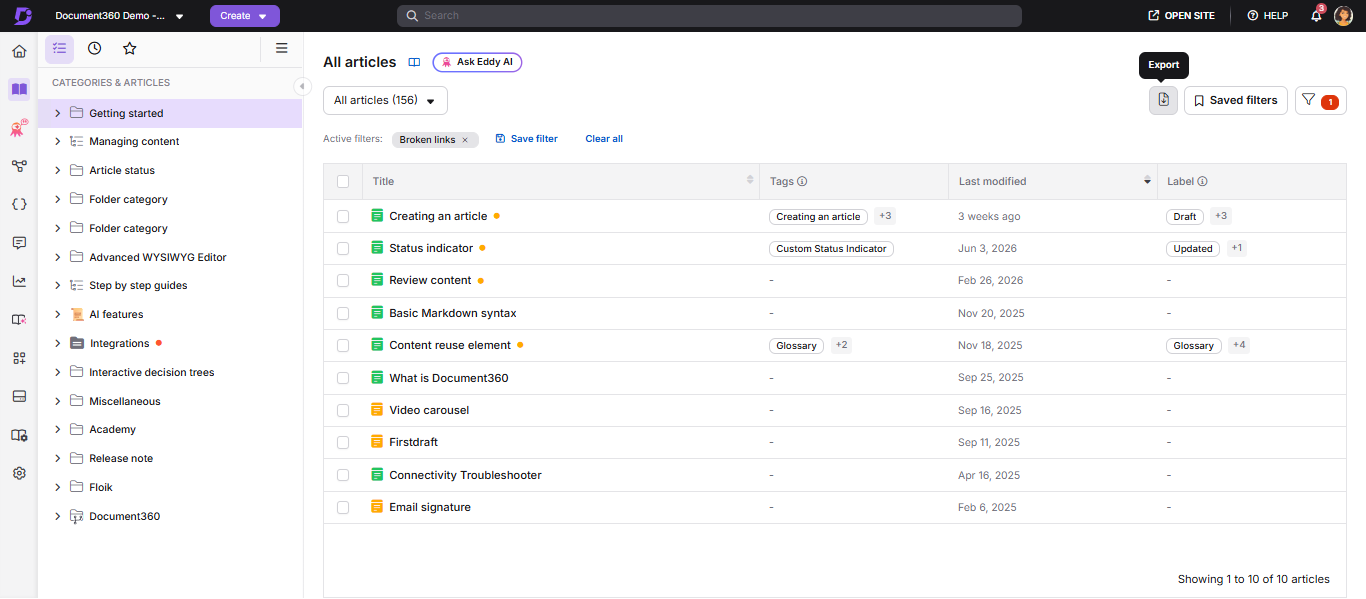
The file downloads to your device in .csv format.
What is included in the exported file
The CSV file includes the following fields for each article:
| Field | Description |
|---|---|
| Article title | The title of the article. |
| Category title | The category the article belongs to. |
| Article status | The current status: Draft, Published, Unpublished, and so on. |
| Date | The last updated date. |
| Portal URLs | The article's URL in the knowledge base portal. |
| Site URLs | The article's URL on the knowledge base site. |
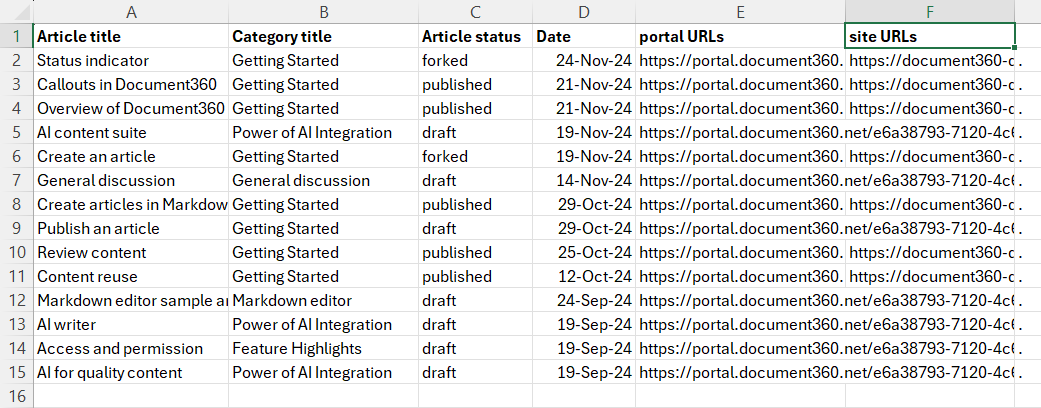
The CSV file can be opened with Microsoft Excel, Google Sheets, Open Office, Notepad, or any CSV-compatible application.
Best practices
- Apply filters before exporting. The export reflects whatever is currently shown in the All articles list. Apply filters first to get a focused, relevant export rather than exporting everything and filtering in the spreadsheet.
- Use Date and Status filters together for periodic reports. Combining a date range with a specific status, for example Published articles from the last 30 days, gives you a clean snapshot for regular reporting.
- Export by category for team handoffs. When handing off a section of the knowledge base to another team or contributor, filter by category before exporting so they receive only the articles relevant to them.
FAQ
Can I export draft articles?
Yes. Use the All articles dropdown to filter by Draft status, then optionally apply a Category filter to narrow it down further. Click Export to download the filtered list as a CSV.
Does the export include replicated articles?
No. Replicated articles are not included in the All articles page or CSV export. Only source articles appear in the export.
How do I retrieve article titles and their URLs programmatically?
Use the {{ glossary.API}} endpoint to get all article lists → to retrieve article titles and URLs programmatically. The Project Version ID required for the query can be found using the Get Project Versions endpoint →