Use this article to choose an editor for each article, switch an article to a different editor, and set the default editor for new articles in your project.
This article applies to projects that use the Advanced WYSIWYG editor and the Markdown editor. In projects that use the unified Editor, you don't choose an editor: Article settings has no Editor type tab, and the Editor section in Settings > Knowledge base portal > General shows only Show line numbers in the markdown editor.
The unified Editor is the editor some people call the new editor. There is no setting to switch an existing project or article to it. The Editor type tab switches only between the Advanced WYSIWYG editor and the Markdown editor.
Not sure which editor you are using? Open any article in edit mode and check the label in the article header. It shows Unified Editor, Advanced WYSIWYG, or Markdown.
NOTE
The unified Editor is rolled out in phases and is currently available in projects created after November 23, 2026. Projects created earlier continue to use the Advanced WYSIWYG editor and the Markdown editor. We're working to make it available to all projects soon.
Check which editor your project uses
Open any article. If the formatting toolbar is fixed across the top and Switch to Markdown view () appears in the article header, your project uses the unified Editor. Otherwise, your project uses the Advanced WYSIWYG editor and the Markdown editor.
The editor you use depends on when your project was created. Newly created projects use the unified Editor. Projects created earlier use the Advanced WYSIWYG and Markdown editors.
Your project uses the unified Editor
Write every article in one editor and switch between Block view and Markdown view.
Go to section →Your project uses the Advanced WYSIWYG and Markdown editors
Choose a visual or syntax-based editor for each article.
Go to section →Write in the unified Editor
You don't choose an editor when you create an article. Every article uses the same editor, and you pick the view that suits the task:
- Block view: Format text with the toolbar fixed across the top, and see the content as readers will see it.
- Markdown view: Type plain text with simple symbols, such as
#for a heading, and add HTML where you need more control.
To switch to Markdown view, select Switch to Markdown view () in the article header. To return to Block view, select Exit Markdown view ().
You and your teammates can edit the same article at the same time. Articles are not locked while someone is editing. In Block view, merge codes you type stay as plain text, so insert snippets and variables from the Insert snippet and Insert variable dialogs.
Write and publish an article
Write, format, and publish an article, and switch between Block view and Markdown view.
Learn more →Insert editor elements
Add tables, tabs, callouts, code blocks, media, and other elements.
Learn more →Edit with your team
Work on the same article with other contributors and see their edits in real time.
Learn more →Choose an editor for your article
Document360 has three editors: Advanced WYSIWYG, Markdown, and WYSIWYG (HTML). When you create an article, you choose between Advanced WYSIWYG and Markdown. Both produce the same published article. Choose the one that matches how you like to write:
- Advanced WYSIWYG (what you see is what you get): Format text, images, and videos with the toolbar, and see the content as readers will see it. You can also type Markdown symbols and use keyboard shortcuts to insert content. Choose this editor if you prefer to work visually.
- Markdown: Type plain text with simple symbols, such as
#for a heading or**bold**for bold text, and Document360 converts it into a formatted article. Choose this editor if you prefer to write without leaving the keyboard.
WYSIWYG (HTML) is the legacy editor. New articles use it only if your project's default editor is changed to it. All three editors appear under Editor type in Article settings.
Pick the editor you plan to keep. You can move an article from Markdown to Advanced WYSIWYG, but you can't move it back.
Write in the Advanced WYSIWYG editor
Format with the toolbar, embed media, and build layouts without markup.
Learn more →Write in the Markdown editor
Structure content in plain text without leaving the keyboard.
Learn more →Switch an article from Markdown to Advanced WYSIWYG
You can move a single article to the Advanced WYSIWYG editor without affecting any other article. All your content and formatting carry over. This switch is available only in projects that use the Advanced WYSIWYG editor and the Markdown editor. It doesn't move an article to the unified Editor.
Before you begin
- You need permission to edit the article.
- Make sure the article isn't locked and no one else is editing it. You can't switch the editor until it's free.
This switch is permanent. After an article moves to the Advanced WYSIWYG editor, you can't switch it back to Markdown.
- In the left navigation bar, select Documentation.
- Open the article you want to switch.
- Select the More () icon, and then select More article options. The Article settings panel appears.
- On the Editor type tab, select Advanced WYSIWYG.
- Select Save.
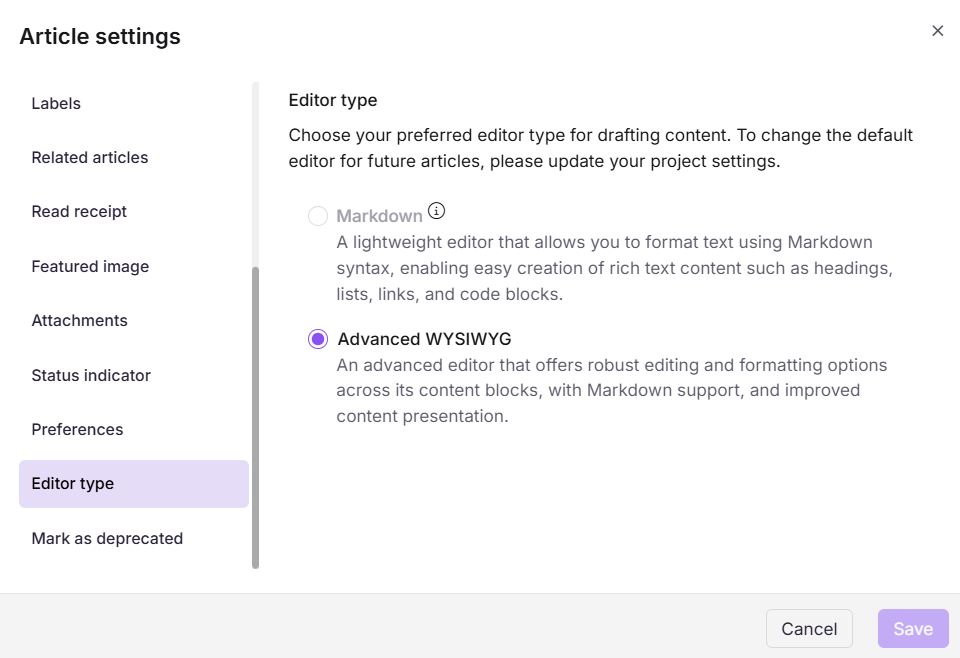
The article opens in the Advanced WYSIWYG editor right away. The change applies to the current draft, and your published article stays the same until you publish the draft.
Set the default editor for new articles
Set the default editor so every new article in your project opens in the same editor. This setting is available in projects that use the Advanced WYSIWYG editor and the Markdown editor.
Before you begin
You need the Owner or Admin role, or a custom role with permission to change project settings.
- Go to Settings > Knowledge base portal > General.
- In the Editor section, select Markdown or Advanced WYSIWYG.
- (Optional) If you selected Markdown, turn on Show line numbers in the markdown editor to number each line as you write.
- Select Save.
Every article created in the project after this point opens in the editor you selected. Existing articles keep their current editor.
Start from existing content
If you have a recording, a PDF, or rough notes, you don't have to start from a blank page. Use Eddy AI to turn them into a draft article, and then refine it in your editor.
FAQ
Can I switch my existing project or articles to the unified Editor?
No. There is no setting in Document360 to switch an existing project or article to the unified Editor. The Editor type tab in Article settings and the default editor setting switch only between the Advanced WYSIWYG editor and the Markdown editor. Document360 rolls the unified Editor out to projects in phases.
What happens to my existing articles when the unified Editor reaches my project?
Document360 moves your existing articles, page categories, templates, and snippets to the unified Editor for you. Your content and formatting stay the same, and you don't need to do anything.
Is the new editor the same as the unified Editor?
Yes. The new editor is the unified Editor. Block view and Markdown view are its two views, not separate editors. To learn more, read Unified Editor.