Private notes are an internal content feature that let you show content only to selected users, security groups, or reader groups. Private notes are hidden from the general public on the knowledge base site.
Use private notes for internal reminders, review comments, and editorial instructions placed directly within article content.
NOTE
The unified Editor is rolled out in phases and is currently available in projects created after November 23, 2026. Projects created earlier continue to use the Advanced WYSIWYG editor and the Markdown editor. We're working to make it available to all projects soon.
Not sure which editor you are using? Open any article in edit mode and check the label in the article header. It shows Unified Editor, Advanced WYSIWYG, or Markdown.
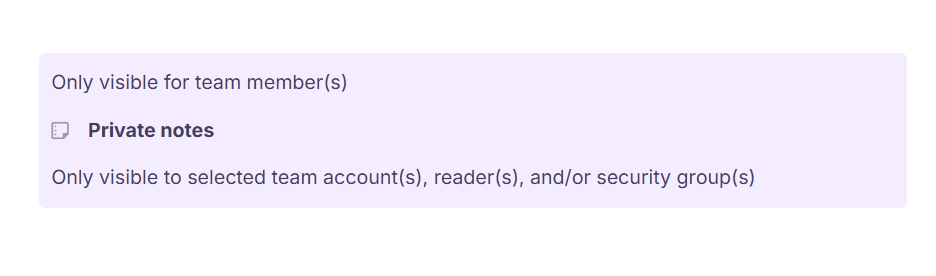
When can you use private notes
- Leave a note asking a subject matter expert to verify a specific claim or step before the article is published
- Flag a section that needs to be revisited when a new product version is released, without disrupting published content
- Provide background information or source references inside the article that are only relevant to the documentation team
- Leave instructions for the next person in the review workflow about what still needs to be done
- In a Private or Mixed mode knowledge base, use reader group visibility to surface notes only to a selected audience, such as beta users or internal teams
Insert a private note
In the unified Editor
- Place your cursor where you want the note.
- In the toolbar, select Insert (+), then select Private notes. You can also type
/and select Private note on the Insert tab, or select More on the quick insert bar in an empty block. - A private note block is inserted at the cursor's position. Click inside it to add your content.
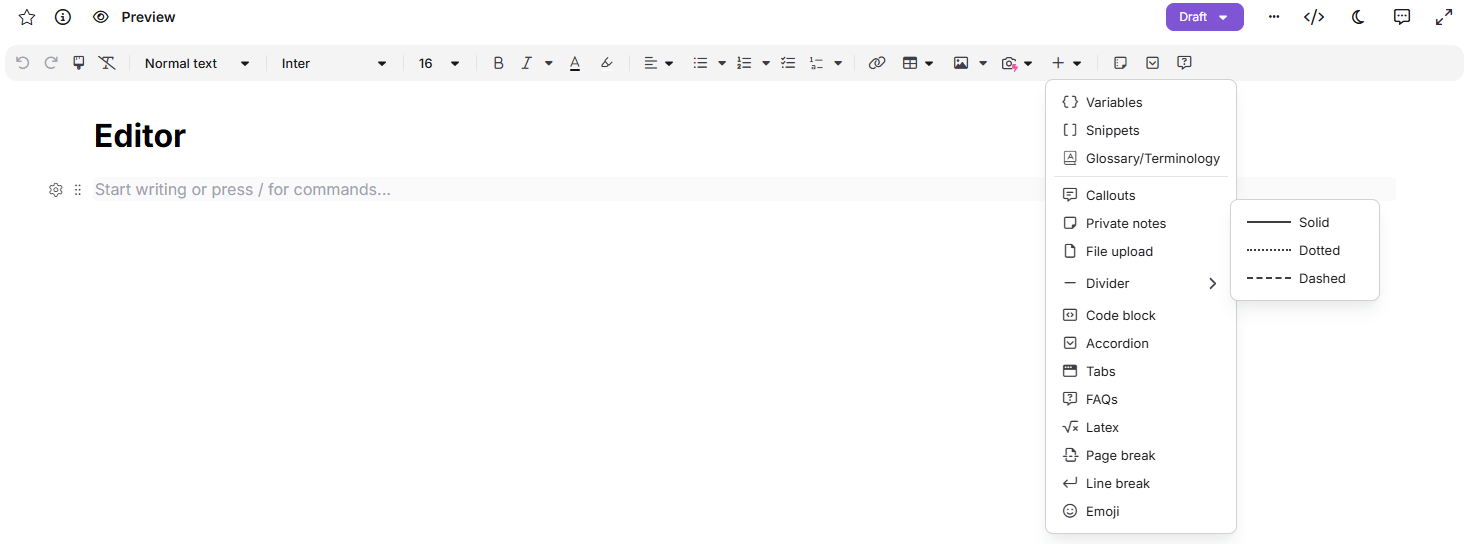
The Insert (+) menu labels this option Private notes, and the slash menu labels it Private note. Both insert the same block.
In the Advanced WYSIWYG editor
- Type
/Private noteand pressEnter. - A private note block is inserted at the cursor's position. Click inside it to add your content.
Manage the note
After inserting, click the private note to access the floating menu:
| Option | Description |
|---|---|
| Who can see this | Select who can view the private note: All team members (default) or Specific groups. If you select Specific groups, choose the groups from the list. |
| Copy | Copies the private note content. |
| Delete | Removes the private note from the article. |
Visibility settings
In the unified Editor, there is no Visibility settings option. Use Who can see this instead, as described in Manage the note.
By default, private notes are visible to all users. After inserting a note, you can set visibility to all users, security groups, or reader groups using the Visibility settings option.
- Click the private note to open the floating menu.
- Click the Visibility settings icon.
- A panel appears with the following options:
- All: Visible to all logged-in users.
- Security groups: Select specific user groups from the dropdown to restrict visibility to those groups only.
- Reader groups: Applies only to Private and Mixed mode knowledge bases. Select specific reader groups who should be able to see the note.
Delete a private note
Click the private note and select the Delete icon from the floating menu.
Private notes cannot be deleted from a published article. Click Edit on the article first to enter edit mode before deleting.
Private notes in PDF exports
When users or readers download an article containing a private note using the Download as PDF option, the private note is not included in the exported file.
If a reader uses their browser's Print or Save as PDF function instead, the private note will be included in the output. Advise users to use the knowledge base's built-in PDF download option to avoid exposing private notes.
Best practices
- Keep private notes short and actionable. They are internal communication tools, not places for lengthy documentation.
- Always include the name or role of the intended recipient in the note so users know who the comment is directed at.
- Remove or resolve private notes before considering an article complete. Leaving stale notes in published articles confuses future editors.
- Use the Security groups visibility setting to limit notes to only the relevant users, especially in large teams where not all members need to see every note.
- Do not put sensitive or confidential information in private notes if there is any risk of the article being printed or saved as PDF via the browser. Use a secure internal channel instead.
FAQ
Are private notes included in PDF exports?
No. When users or readers use the built-in Download as PDF option, private notes are excluded. However, if a browser's Print or Save as PDF function is used, private notes will be included in the output.
Who can see private notes?
By default, all logged-in users can see private notes. After inserting a note, you can restrict visibility to selected users, security groups, or reader groups (for Private and Mixed mode knowledge bases) using the Visibility settings. In the unified Editor, use Who can see this and choose All team members or Specific groups.
Can I delete a private note from a published article?
No. You must click Edit on the article first to enter edit mode before you can delete a private note.