By default, all agents who use the Document360 app in Zendesk see the same knowledge base content. The app connects with one shared token for your project, so it doesn't know which agent is using it. When you require agents to sign in, each agent signs in to the app with their own Document360 account. They see only the content their account can access, and their searches are linked to their account. You can also turn on silent agent sign-in. Agents whose Zendesk email address matches their Document360 email address can then sign in with one click, without entering a password.
When to require agents to sign in
- Your knowledge base has workspaces, languages, or categories that only some agents should see.
- You want Eddy AI search analytics to show which agent ran each query.
- Your agents already have Document360 accounts, or you can add them as readers.
If you don't want to add Document360 accounts for your agents, keep this setting disabled. The app continues to work with the project's Document360 API token.
Before you begin
- You need the Owner or Admin role in your Document360 project.
- The Document360 app must already be installed and connected in Zendesk. See Set up the Document360 app for Zendesk.
- Your Zendesk account must use the latest version of the Document360 app. Older versions don't work while this setting is enabled.
- Each agent needs a Document360 user account or reader account in the project. Reviewer accounts cannot sign in to the app.
- To use silent agent sign-in, you need an account that has admin access to both Document360 and Zendesk.
What agents can access
| Account type | What the agent can do in the Document360 app |
|---|---|
| User | Search, link, and insert content allowed by their workspace, language, and category access. Create articles and categories if their content role allows it. |
| Reader | Search, link, and insert published content allowed by their content access. Readers cannot see drafts, hidden articles, or private notes. The Create option is hidden for them. |
| Reviewer | Cannot sign in to the app. |
Agents can sign in with their Document360 credentials or through your project's SSO configuration.
Require agents to sign in
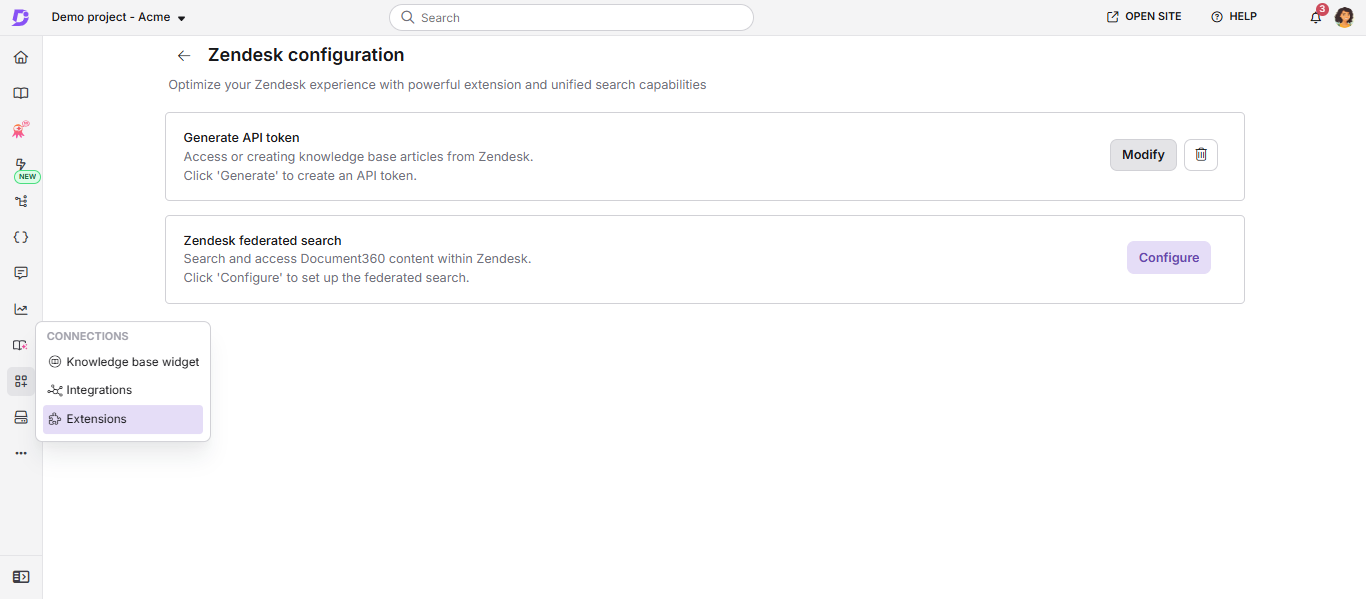
- In the Knowledge base portal, navigate to Connections () > Extensions () in the left navigation bar.
- Find Zendesk and click Setup. The Zendesk configuration page opens.
- In the Generate API token setting, click Modify. The Connect with Zendesk dialog appears.
- Select the Require agents to sign in to Document360 checkbox.
- Click Save.
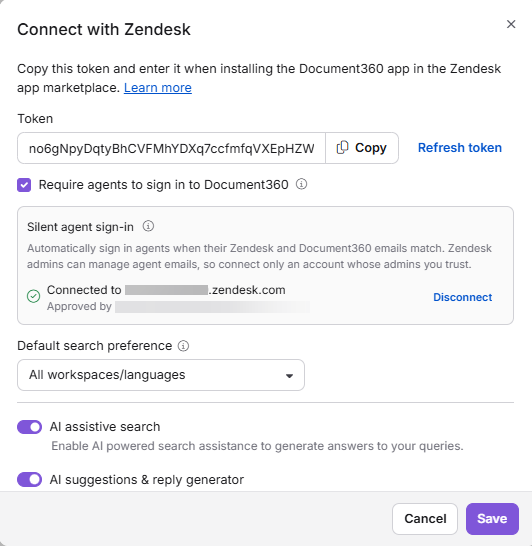
The next time agents open the Document360 app in a ticket, they see a sign-in screen. For the agent steps, see Sign in to the Document360 app.
To stop requiring sign-in, clear the Require agents to sign in to Document360 checkbox and click Save.
This setting is disabled by default. Existing installations keep working with the project's Document360 API token until you enable it.
Sign agents in automatically
With silent agent sign-in, agents still click Sign in in the Document360 app, but they aren't asked for a password or any confirmation when the verified email address of their Zendesk account matches their Document360 account. Agents whose email addresses don't match sign in with their Document360 credentials.
To turn on silent agent sign-in,
- Open the Connect with Zendesk dialog as described in Require agents to sign in.
- Make sure the Require agents to sign in to Document360 checkbox is selected. The Silent agent sign-in section appears below it.
- In the Zendesk subdomain field, enter your Zendesk subdomain. For example, for
acme.zendesk.com, enteracme. - Click Connect. A Zendesk window opens.
- Sign in with an account that has admin access to both Document360 and Zendesk, and approve access.
The connection is saved as soon as you approve it. The Silent agent sign-in section shows Connected to your Zendesk account and the admin who approved it.
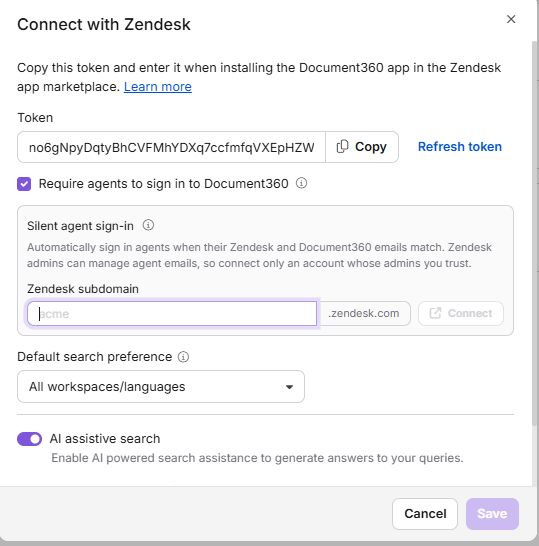
Zendesk admins can change agent email addresses in Zendesk. Connect only a Zendesk account whose admins you trust, because a changed email address could sign an agent in as a different Document360 user.
To turn off silent agent sign-in, click Disconnect in the Silent agent sign-in section. The connection is removed immediately, without a confirmation prompt, and agents then sign in with their Document360 credentials.
How agent sessions work
- Agents stay signed in when they switch between tickets.
- When you remove a user or reader from the project, their session in the app ends automatically.
- When you refresh the Document360 API token on the Zendesk configuration page, every agent session in the project ends. Agents must sign in again.
- Each search and Eddy AI query is linked to the signed-in account in Eddy AI search analytics. If the Anonymize reader information setting is enabled, reader names and email addresses are hidden.
FAQ
Do I need to require agents to sign in?
No. The setting is optional and disabled by default. Enable it when agents should see only the content their own Document360 account can access, or when you want to see which agent ran each search.
Why is an agent asked for a password even though silent agent sign-in is connected?
Silent agent sign-in works only when the agent's verified Zendesk email address matches their Document360 email address. If the addresses don't match, the agent signs in with their Document360 credentials.
Why can't a reviewer sign in to the app?
Reviewer accounts are not supported in the Document360 app for Zendesk. To give a reviewer access, convert the account to a reader or a user. For steps, read Convert reviewer to reader.
Why were all agents signed out of the app?
The Document360 API token was refreshed on the Zendesk configuration page. Refreshing the token ends every agent session in the project. Agents must sign in again the next time they open the app.
What happens if an agent doesn't have a Document360 account?
The agent sees the sign-in screen but cannot use the app, even if silent agent sign-in is connected. Ask a project owner or admin to add the agent to the project as a user or reader. The agent can then sign in.