The File details panel gives you a complete overview of a file in Document360 Drive, including its metadata, thumbnail preview, and quick access to all file actions from one place.
Why use the file details panel
- Review file metadata — Check the file's location, size, type, upload date, and who uploaded it without leaving Drive.
- Manage file properties — Edit tags and alt text directly from the panel without navigating elsewhere.
- Access all file actions in one place — Perform move, copy, replace, download, remove, add tags, and view dependencies from a single panel instead of hunting through menus.
Before you begin
- Tags, alt text, and the file name are the only editable properties in the File details panel. All other metadata is read-only.
- Alt text is only available for image files.
Access the file details panel
There are three ways to open the File details panel:
- Click the file name directly in Drive.
- Click the thumbnail directly in Drive.
- Click the More () icon next to the file name and select View details from the dropdown menu.
The File details panel opens on the right.
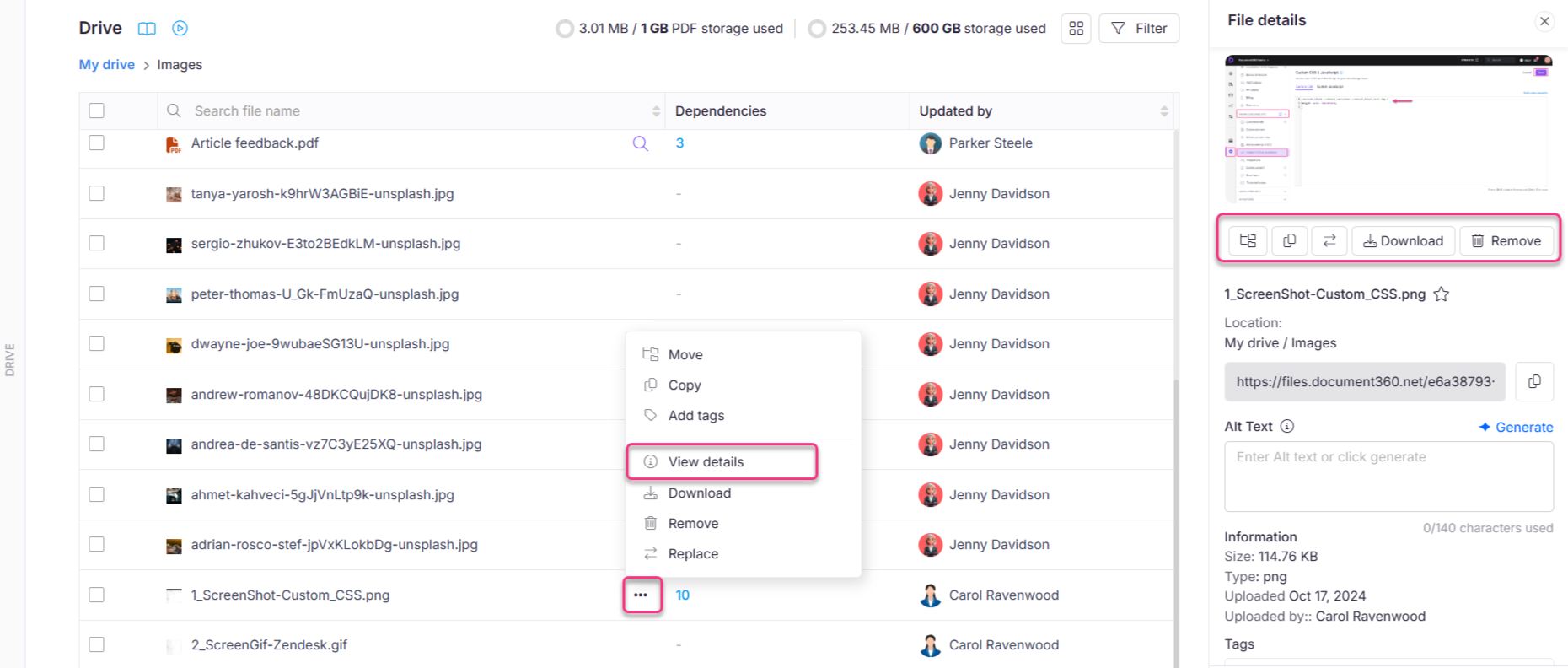
What's in the File details panel
Thumbnail preview
A visual preview of the file appears at the top of the panel.
File actions
A row of icons below the thumbnail gives you direct access to all file actions:
| Action | What it does |
|---|---|
| Move | Relocates the file to another folder within the same project |
| Copy | Duplicates the file to another folder within the same project |
| Replace | Overwrites the file with a new version of the same type |
| Rename | Click the pencil icon next to the file name to open the rename dialog. For image files, click Generate file name to have Eddy AI suggest a name |
| Download | Downloads the file as a .zip to your local storage |
| Remove | Deletes the file from Drive |
| Star | Adds the file to your starred files. Click again to unstar it |
File metadata
The panel displays the following read-only information about the file:
| Field | Description |
|---|---|
| File name | Name of the uploaded file |
| Location | The folder path where the file is stored in Drive |
| Size | The file size |
| Type | The file format (for example, PNG, PDF, MP4) |
| Uploaded by | The name of the user who uploaded the file |
| Uploaded on | The date the file was added to Drive |
| Updated by | The name of the user who last modified the file |
| Updated on | The date the file was last modified (for example, after a rename or replace) |
Editable properties
| Field | Details |
|---|---|
| Tags | Add, select, or remove tags. File and article tags share the same library. |
| Alt text | Available for image files only. Describes the image for accessibility and SEO. If you have AI enabled, click Generate to allow Eddy AI to generate alt text for your image. |
Click Update after making any changes to tags or alt text.
Best practices
- Use the panel as your go-to for file actions — Since all actions are available from one place, opening the File details panel is often faster than right-clicking or using the top menu bar.
- Check metadata before replacing or removing — Review the upload date and file type before taking irreversible actions like Replace or Remove.
- Keep alt text and tags updated — Whenever a file's content changes (for example, after a Replace), revisit the panel to update the alt text and tags to match the new content.
- Use View dependencies before removing — Always check where a file is used before deleting it to avoid breaking articles or pages that reference it.