Custom CSS & JavaScript in Eddy AI Chatbot lets you add your own code to further personalize the chatbot's appearance or behavior beyond what the standard Appearance settings provide. You can inject custom styles to override the chatbot's default visual design, and add JavaScript to introduce custom interactivity or event handling. Changes are applied to the live chatbot only after you click Publish.
When to use custom CSS and JavaScript
- Use Custom CSS when you need styling changes not available in the Appearance tab — for example, modifying font size, border radius, button styles, or chat bubble colours.
- Use Custom JavaScript when you need to trigger custom events, integrate the chatbot with third-party tools, or add behaviour that responds to user actions within the chatbot.
Before you begin
- You must have created an Eddy AI Chatbot with at least one source connected.
- Review the standard Appearance settings before writing custom CSS — many common visual customizations (color, icon, position, spacing) can be made without code.
- Custom code is applied globally to the chatbot. Test changes thoroughly in the Playground before publishing.
Add custom CSS and JavaScript
- Navigate to AI Chatbot (
 ) in the left navigation bar and click Customize.
 - Navigate to the Custom CSS & JavaScript () tab.
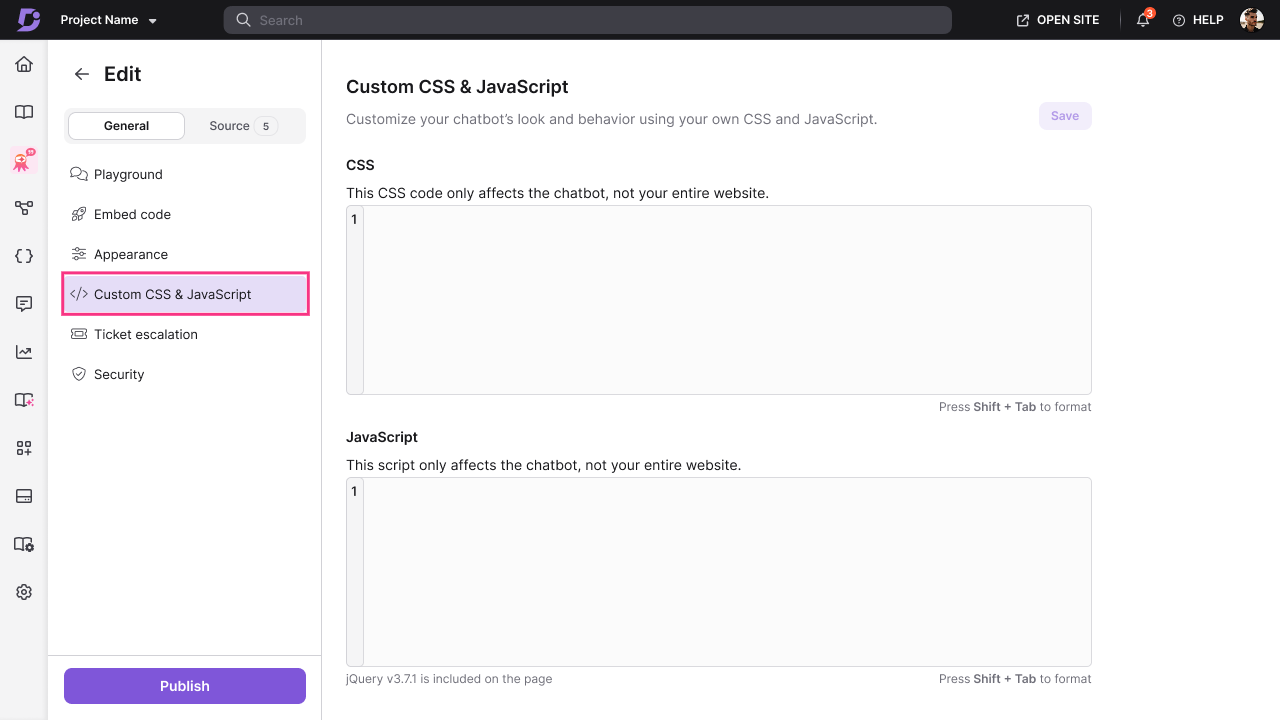
- Enter your CSS code in the Custom CSS field to modify the chatbot's styling.
- Enter your JavaScript code in the Custom JavaScript field to add custom interactivity.
- Click Save to save your code.
- Click Publish to apply the changes to your live chatbot.
The chatbot on your website now reflects your custom code.
Best practices
- Make one change at a time — add and test a single CSS or JavaScript change before adding the next. This makes it easier to isolate issues if something breaks.
- Use the Playground to preview before publishing — save your changes first, then check the Playground to confirm the chatbot looks and behaves as expected before going live.
- Scope your CSS selectors carefully — use specific selectors to target chatbot elements precisely and avoid accidentally overriding other styles on your webpage.
- Keep JavaScript minimal — use JavaScript only for behavior that cannot be achieved through the Appearance settings or standard chatbot configuration. Excessive JavaScript can affect chatbot load time.
- Comment your custom code — add comments to your CSS and JavaScript so your team can understand and maintain the customizations over time.