The Embed code tab in Eddy AI Chatbot lets you deploy your chatbot to your website by generating a JavaScript snippet you paste into your site's HTML, or by enabling it instantly across your entire Document360 Knowledge Base site. You must publish the chatbot before it goes live, regardless of which deployment method you use.
When to use the embed code
- Use Copy embed code when you want to add the chatbot to a custom website or specific pages, giving you precise control over where it appears.
- Use Launch chatbot instantly when you want to enable the chatbot across your entire Document360 Knowledge Base site without manually editing any HTML.
Before you begin
- You must have created an Eddy AI Chatbot with at least one source connected.
- Test the chatbot in the Playground before publishing to verify it responds correctly.
- Only one chatbot or widget can be active per website domain. If another chatbot is already active on your Knowledge Base site, enabling Launch chatbot instantly will prompt you to replace it.
Deploy your chatbot
- Navigate to AI Chatbot (
 ) in the left navigation bar and click Customize.
 - Navigate to the Embed code () tab.
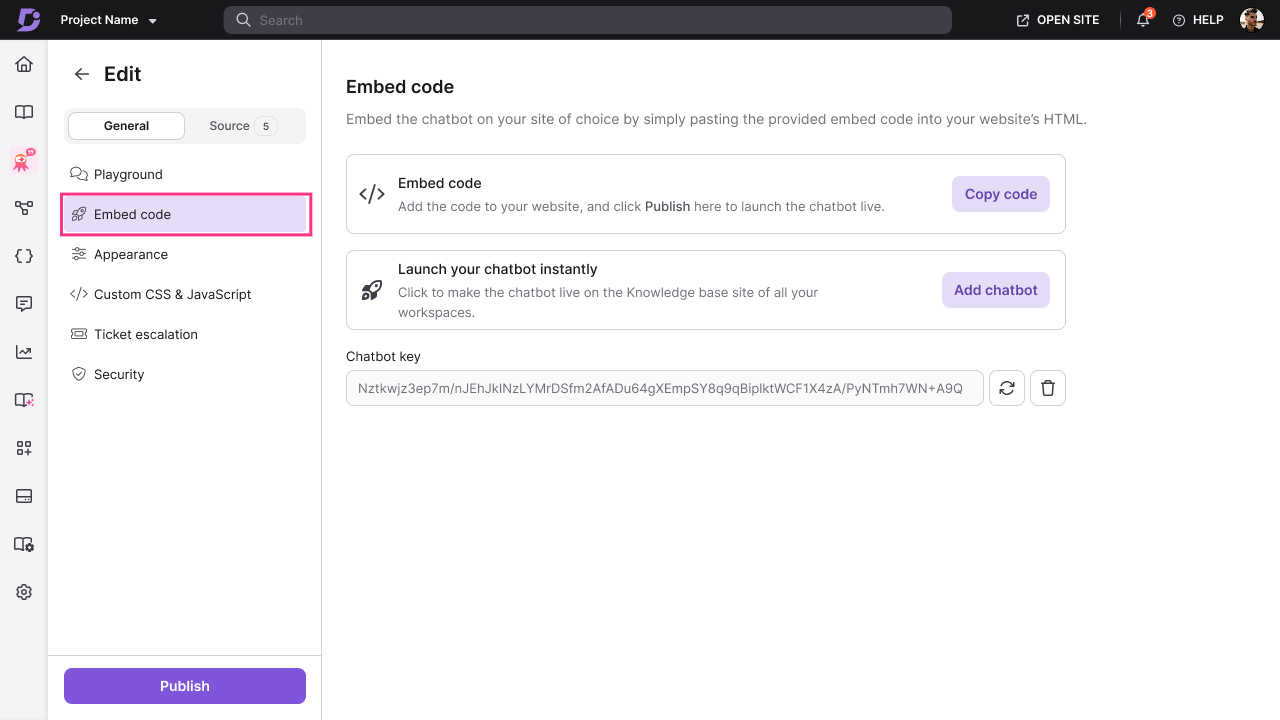
- Choose one of the two deployment options:
Option 1: Copy embed code (custom website)
- Click Copy embed code to copy the JavaScript snippet to your clipboard.
- Paste the snippet into your website's HTML wherever you want the chatbot to appear.
- Click Publish to make the chatbot live.
The chatbot appears on your website at the location defined by the embed code.
Option 2: Launch chatbot instantly (Knowledge Base site)
- Click Publish to activate the chatbot.
- Toggle on Launch your chatbot instantly to enable the chatbot across your Document360 Knowledge Base site on all workspaces.
A custom integration card is automatically created under Integrations. - Click Publish to apply the change.
The chatbot is now live across your entire Knowledge Base site.
Only one chatbot or widget can be active per website domain. If you enable Launch chatbot instantly and another chatbot is already active on the KB site, you will be prompted to replace it.
Disable the chatbot on the Knowledge Base site
If you want to remove the chatbot from your Knowledge Base site without deleting it:
- Navigate to AI Chatbot () in the left navigation bar.
- Click Customize and select the chatbot you want to manage.
- Navigate to the Embed code () tab.
- Toggle off Launch your chatbot instantly.
The chatbot is removed from the Knowledge Base site. The chatbot configuration, sources, and settings remain intact.
Best practices
- Test in the Playground before publishing — once published, the chatbot is immediately visible to users. Validate responses and appearance before clicking Publish.
- Use trusted domains to restrict where the embed code works — configure Security settings to authorize only specific domains, preventing the chatbot from appearing on unintended sites.
- Keep your Chatbot Key secure — the Chatbot Key in the embed code links the chatbot to your site. If you suspect it has been compromised, regenerate the key from the Security tab. Note that regenerating the key invalidates the existing embed code — you will need to update the code on your website.
- Use "Copy embed code" for page-level control — if you only want the chatbot on specific pages (for example, a support page or product documentation section), use the manual embed code rather than the site-wide toggle.