Security settings in Eddy AI Chatbot let you control where your chatbot can be embedded and configure secure user authentication using JSON Web Tokens (JWT). You can restrict the chatbot to specific trusted domains to prevent it from appearing on unauthorised sites, and enable JWT authentication to ensure only verified users can interact with the chatbot. Both settings are available under the Security () tab in your chatbot's configuration panel.
When to configure security settings
- Use Trusted domains when you want to restrict the chatbot to specific websites and prevent it from loading on domains you have not authorised.
- Use Connected domains to audit where your chatbot embed code has been detected across the web.
- Use JWT authentication when your chatbot is deployed on a private or authenticated site and you need to verify the identity of users before they can interact with the chatbot.
Before you begin
- You must have created an Eddy AI Chatbot and embedded it on your site.
- To configure JWT, have your Client ID, Client secret, Chatbot ID, and Token endpoint details ready.
Configure trusted domains
Trusted domains define which websites are authorised to display your chatbot. Any domain not on the list will not load the chatbot, even if the embed code is present.
- Navigate to AI Chatbot (
 ) in the left navigation bar and click Customize.
 - Navigate to the Security () tab.
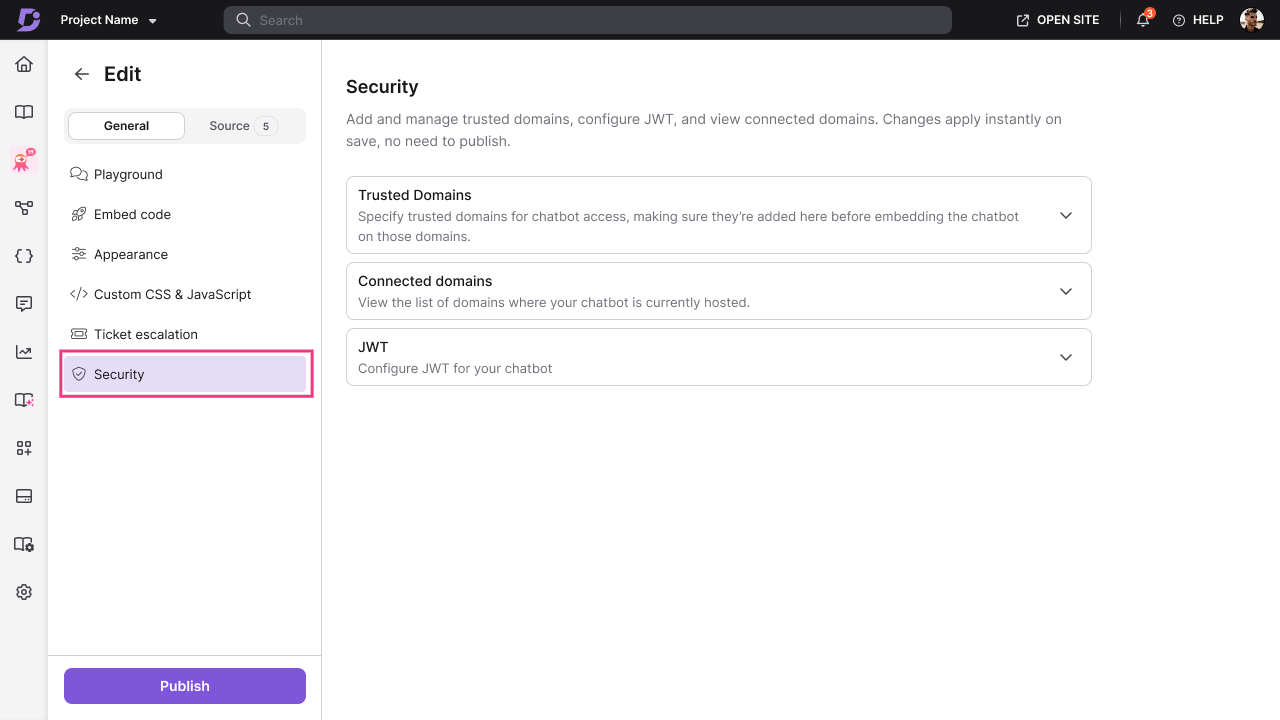
- Click + Add under Trusted domains.

- Enter the domain where your chatbot will be embedded.
- Click Save to apply.
Only domains listed in Trusted domains are authorised to display the chatbot on your frontend application. If no trusted domains are added, the chatbot will work on any domain.
The domain is now authorised and the chatbot will load on that site.
View connected domains
Connected domains shows you an auto-populated, read-only list of all domains where your chatbot embed code has been detected. Use this to audit where the chatbot is currently active.
- Navigate to the Security () tab.
- Click Connected domains to view the list.
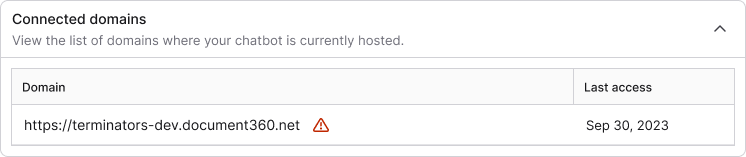
Connected domains is an auto-populated, read-only section. It reflects the domains where the chatbot embed code has been detected — not necessarily where the chatbot is visible to users.
If the embed code is detected on a domain that is not in your Trusted domains list, a warning is displayed and the chatbot will not be visible on that domain. To resolve this, add the domain to the Trusted domains list.
Configure JWT authentication
JWT (JSON Web Token) enables secure chatbot authentication, ensuring only verified users on your site can interact with the chatbot.
- Navigate to the Security () tab.
- Enable JWT and configure the following fields:
| Field | Description |
|---|---|
| Client ID | The unique identifier for your client application |
| Chatbot ID | The unique identifier for your chatbot |
| Token endpoint | The URL your server uses to generate and return JWT tokens |
| Client secret | The secret key used to sign and verify JWT tokens |
- Configure your Authorization URLs.
- Click Save to apply changes.
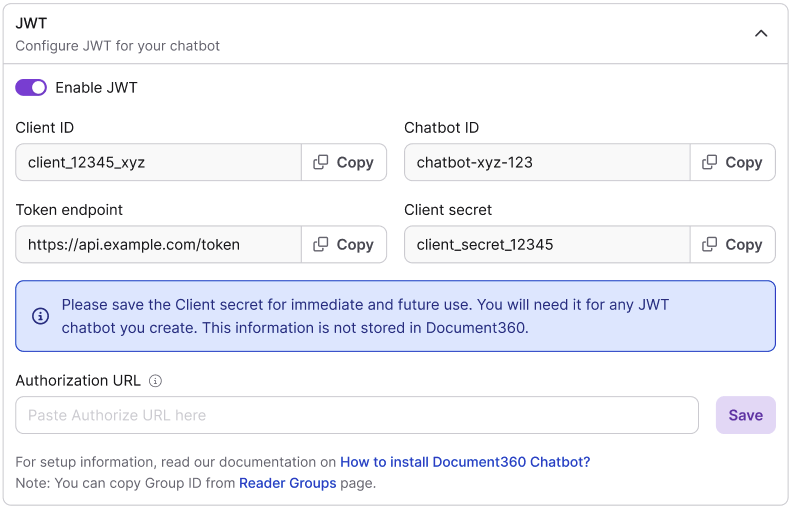
The chatbot now requires JWT verification before users can interact with it.
Best practices
- Always configure trusted domains before going live — leaving trusted domains empty means the chatbot can load on any domain, including sites you do not control.
- Add all your environments as trusted domains — include your production, staging, and development domains so the chatbot works correctly across all environments without unexpected blocks.
- Use JWT for authenticated knowledge bases — if your knowledge base or website requires users to log in, enable JWT so the chatbot session is tied to the authenticated user identity.
- Rotate your Client secret periodically — treat the Client secret like a password. Rotate it on a regular schedule and update the Token endpoint configuration accordingly.
- Use Connected domains to detect unauthorised usage — if you see an unrecognised domain in the Connected domains list, restrict access immediately by adding only your authorised domains to the Trusted domains list.