The Source tab in Eddy AI Chatbot gives you a centralized view of every content source connected to your chatbot — including the source type, storage used, and the last synced date. From here, you can monitor your storage usage, manually retrain the chatbot to pull in the latest content from all sources at once, and identify when individual sources were last updated.
When to manage chatbot sources
- Use this when you want to check how much of your 40 MB storage limit is in use across all sources.
- Use this when you have updated content in Zendesk, Freshdesk, or your website and want the chatbot to reflect those changes immediately rather than waiting for the next automatic sync.
- Use this when you need to retrain the chatbot after making significant changes to multiple sources at once.
Before you begin
- You must have created an Eddy AI Chatbot with at least one source connected.
- Manual retraining is limited to 2 times per day. Individual source resync and recrawl are also limited to 2 times per day per source.
- Review source sync behaviour below to understand which sources sync automatically and which require manual action.
View source details
- Navigate to AI Chatbot (
 ) in the left navigation bar and click Customize.
 - Navigate to the Source tab.
You see a summary of all connected sources with the following information:
| Column | Description |
|---|---|
| Source type | The type of source (Knowledge Base, Website — Crawl Links / Sitemap / Webpages, Text, FAQ, File, Zendesk, Freshdesk) and the number of entries added for each. |
| Size | Storage space used by each source and the total size used in MB or KB. Each chatbot supports up to 40 MB of source data by default. |
| Last synced | The date and time when the source was last synced or updated. |
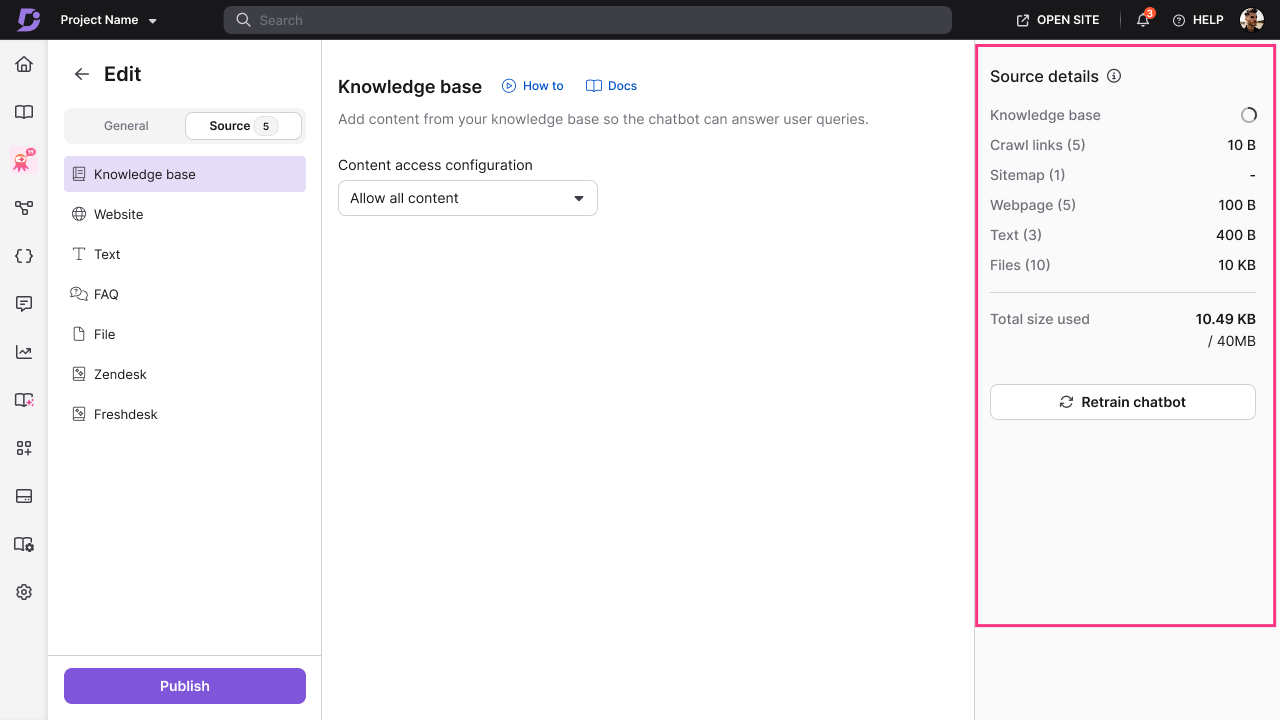
Retrain your chatbot
Retraining updates the chatbot with the latest content from all connected sources at once.
- Navigate to the Source tab.
- Click Retrain chatbot.
- Click Retrain to confirm and begin the retraining process.
The chatbot is updated with the latest content from all connected sources.
Manual retraining is limited to 2 times per day. Individual sources (website pages, Zendesk, Freshdesk) can be resynced or recrawled up to 2 times per day. Zendesk and Freshdesk sources sync daily automatically on a periodic basis — manual resync is only needed when you want to reflect changes immediately. Other sources (Knowledge Base, Text, FAQ, File, Website) sync automatically when you add or update content.
Source sync behaviour
| Source type | Sync behaviour |
|---|---|
| Knowledge base | Syncs instantly when articles are added or updated |
| Text | Syncs instantly when entries are added or updated |
| FAQ | Syncs instantly when entries are added or updated |
| File | Syncs instantly when files are added or updated |
| Website (Crawl Links, Sitemap, Webpage) | Does not auto-sync — requires manual recrawl or Retrain chatbot |
| Zendesk | Syncs daily automatically; can be manually resynced up to 2 times per day |
| Freshdesk | Syncs daily automatically; can be manually resynced up to 2 times per day |
To resync Zendesk, Freshdesk, and Website sources all at once, use Retrain chatbot (available up to 2 times per day).
Best practices
- Monitor storage usage regularly — as you add sources, check the Size column on the Source tab to ensure you are not approaching the 40 MB limit unexpectedly.
- Retrain after bulk content updates — if you update multiple sources at once (for example, after a product release), use Retrain chatbot to sync everything in a single action rather than resyncing each source individually.
- Schedule manual resyncs around business needs — since Zendesk and Freshdesk only sync daily by default, trigger a manual resync after closing a batch of tickets or updating support content, so the chatbot reflects the latest information.
- Remove unused sources — if a source is no longer relevant (for example, an old file or an outdated text entry), delete it to free up storage for more current content.
- Validate in the Playground after retraining — always test chatbot responses in the Playground after a retrain to confirm the chatbot is using the latest content correctly.
FAQ
What happens if I exceed my storage limit?
If adding content or retraining/resyncing the chatbot would exceed your storage limit, you will see an error message. Contact your Customer Success Manager to increase storage.
How often do sources sync automatically?
Knowledge base, Text, FAQ, and File sources sync instantly when added or updated. Zendesk and Freshdesk sync daily automatically. Website sources (Crawl Links, Sitemap, Webpage) do not auto-sync and must be updated manually using Retrain chatbot or by recrawling individually.
How many times can I manually retrain the chatbot per day?
You can use Retrain chatbot up to 2 times per day. Individual sources such as website pages, Zendesk, and Freshdesk can also be resynced or recrawled individually up to 2 times per day.