Document360 supports embedding third-party content directly into your articles — including diagrams, videos, and interactive forms — without leaving the knowledge base portal. Embedding is done using HTML iframe code pasted into Code view in the Advanced WYSIWYG editor, or directly into the Markdown editor.
Three embedding types are covered in this article:
Draw.io diagrams
Embed flowcharts, UML diagrams, network diagrams, and more from Diagrams.net directly into your articles as images or via HTML.
Learn more →Microsoft Stream videos
Embed SharePoint Stream and Microsoft Stream videos into articles using an iframe embed code from the Stream platform.
Learn more →Google Forms
Embed interactive Google Forms into articles to collect feedback, run surveys, or capture reader input directly on the page.
Learn more →When would you use these
- Embed a Draw.io flowchart or architecture diagram alongside a technical procedure so readers can see the full system context without switching tools
- Embed a Microsoft Stream training video inside an onboarding article so internal users can watch it without leaving the knowledge base
- Embed a Google Form at the end of an article to collect reader feedback, satisfaction ratings, or support requests inline
- Use diagrams exported as images when you need a lightweight, always-visible visual that does not depend on external service availability
Embed Draw.io diagram
Diagrams.net (commonly referred to as Draw.io) is a web-based open-source tool for creating flowcharts, UML diagrams, entity relationships, network diagrams, mockups, and more.
Diagrams stored on Google Drive, Dropbox, or other cloud storage are private by default. Before embedding, ensure the diagram's privacy settings are set to public — otherwise readers will not be able to view it.
Embed as an image tag
Use this approach in the Markdown editor or via Code view in the Advanced WYSIWYG editor.
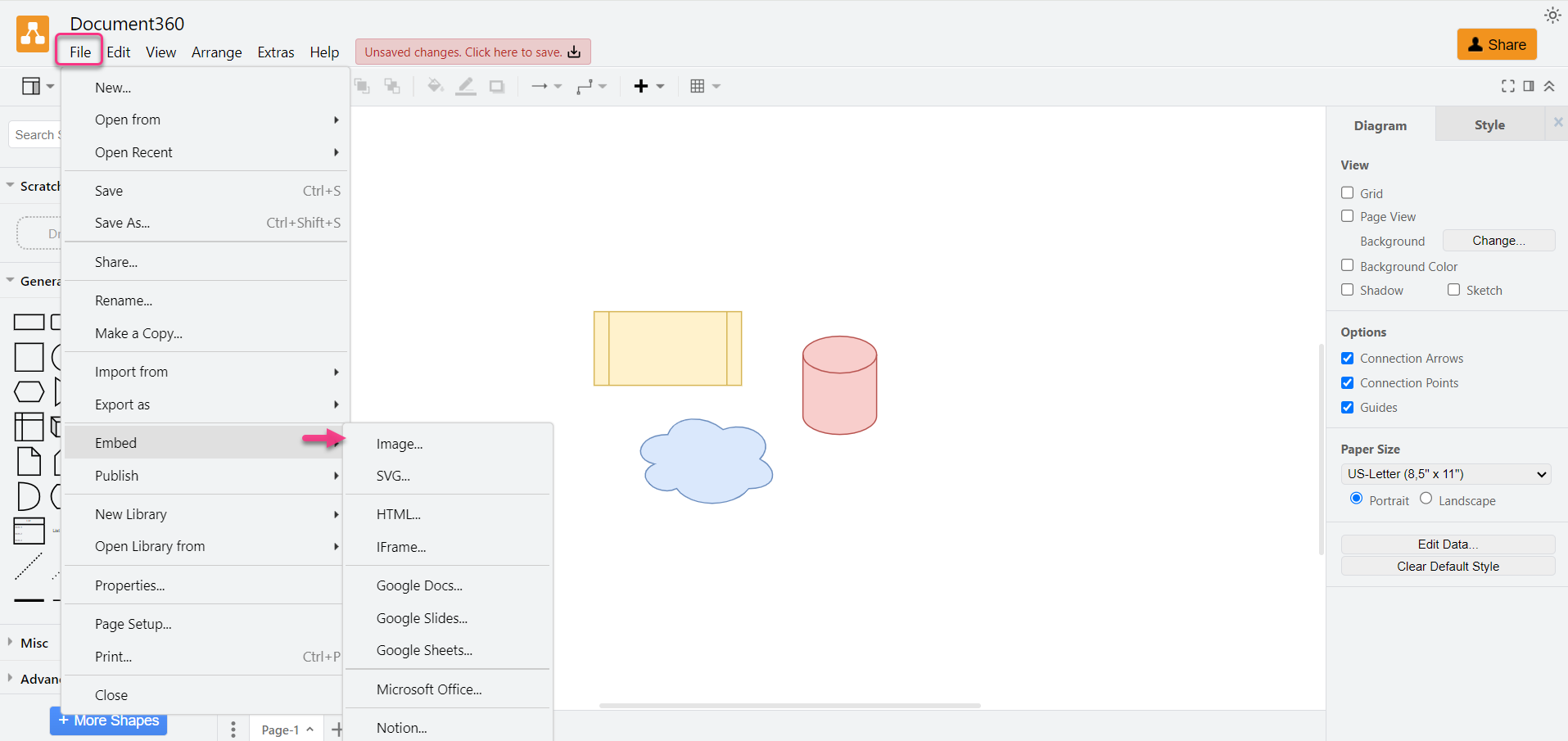
- In Diagrams.net, click File > Embed and choose Image.
- Click Embed.
- Click Copy to copy the generated image tag.
- In the Markdown editor, paste the copied code directly into the article. In the Advanced WYSIWYG editor, click the Code view icon and paste the code at the desired location.
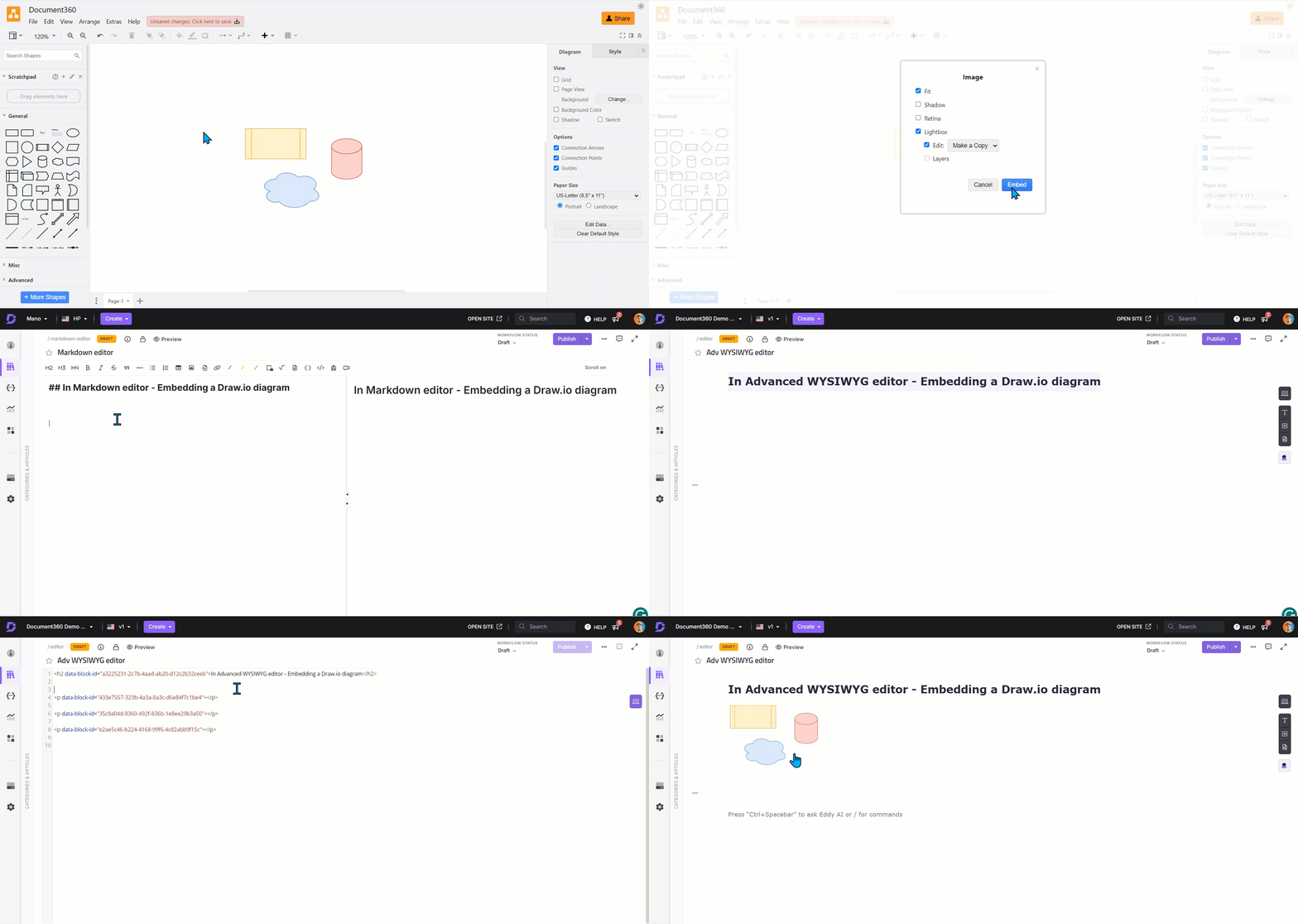
You can adjust the height and width values in the tag as needed.
Export as image and upload
Use this approach for the Advanced WYSIWYG editor or when you want to store the diagram in Document360 Drive.
- In Diagrams.net, click File > Export as > PNG.
- Click Export, name the file, and save it to your preferred location.
- Click Download.
- In the Document360 editor, click Insert image and select From Upload/URL.
- Select the downloaded image and click Insert.
Embed Microsoft Stream videos
You can embed both Microsoft SharePoint Stream and the latest Microsoft Stream videos into Document360 articles. Embedding is supported in both the Markdown and Advanced WYSIWYG editors.
Getting the embed code from Stream
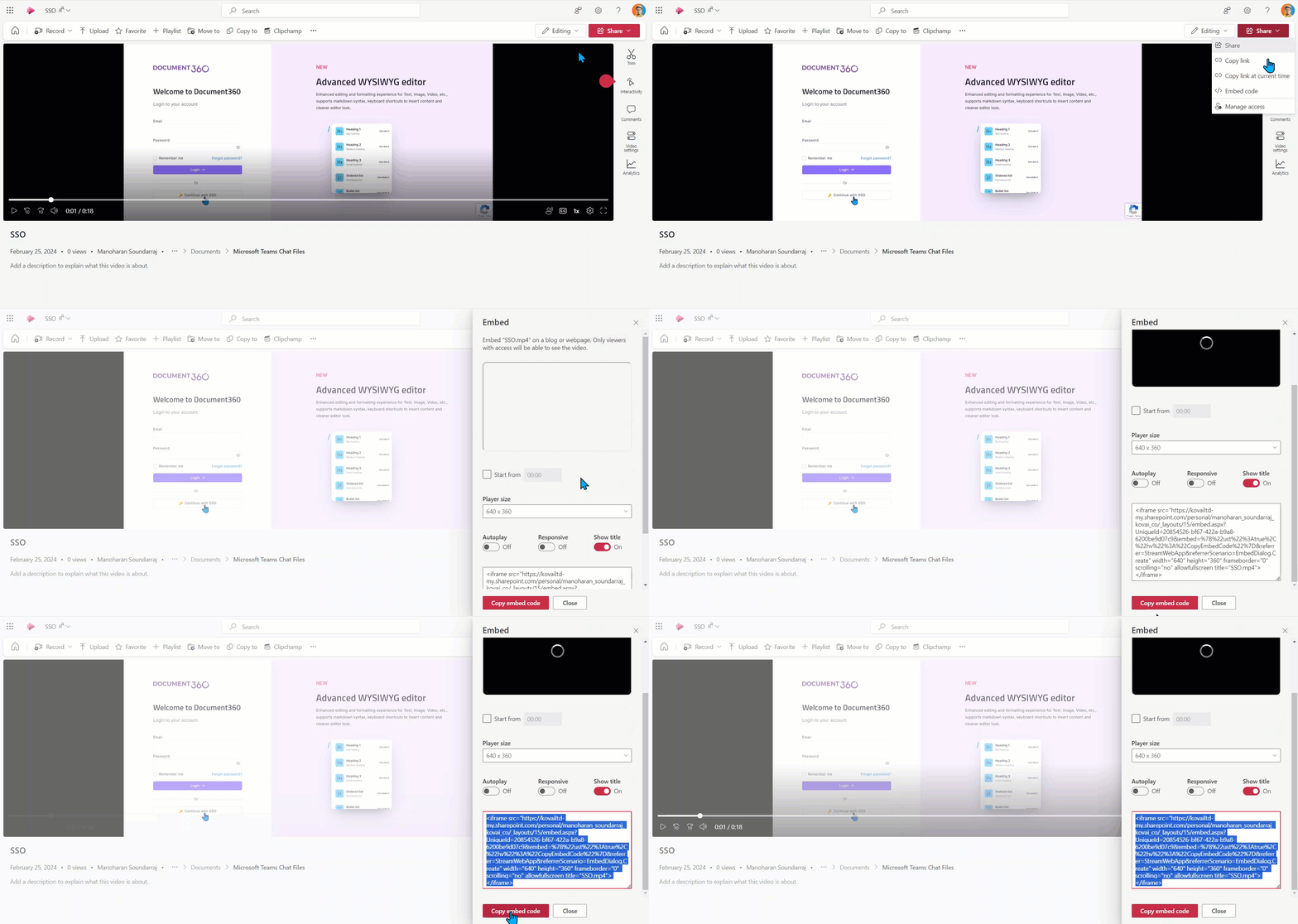
- Navigate to the Stream platform and select the video you want to embed.
- Click Share at the top right of the video page, then select Embed code.
- In the embed panel, configure the following options if needed:
- Start from — set a specific timestamp (e.g., 01:23)
- Player size — choose a resolution (e.g., 640×360, 1280×720)
- Click Copy embed code.
Embedding in the Advanced WYSIWYG editor
- Navigate to the desired article.
- Click the Code view icon.
- Paste the embed code at the desired location.
- Press
Ctrl + Sto save.
Embedding using the slash command
- Type
/Videoand pressEnter. The Insert video panel appears. - In the Embed code tab, paste the copied embed code.
- Click Save.
Ensure you manage access permissions for the Stream video before publishing. Without proper permissions set in Microsoft Stream, readers will not be able to view the embedded video. Refer to the Microsoft Stream support documentation on permissions for details.
Embed Google Forms
You can embed Google Forms directly into knowledge base articles using an HTML iframe code. After publishing, readers can interact with the form — filling out surveys, submitting feedback, or entering data — without leaving the article.
Getting the embed code from Google Forms
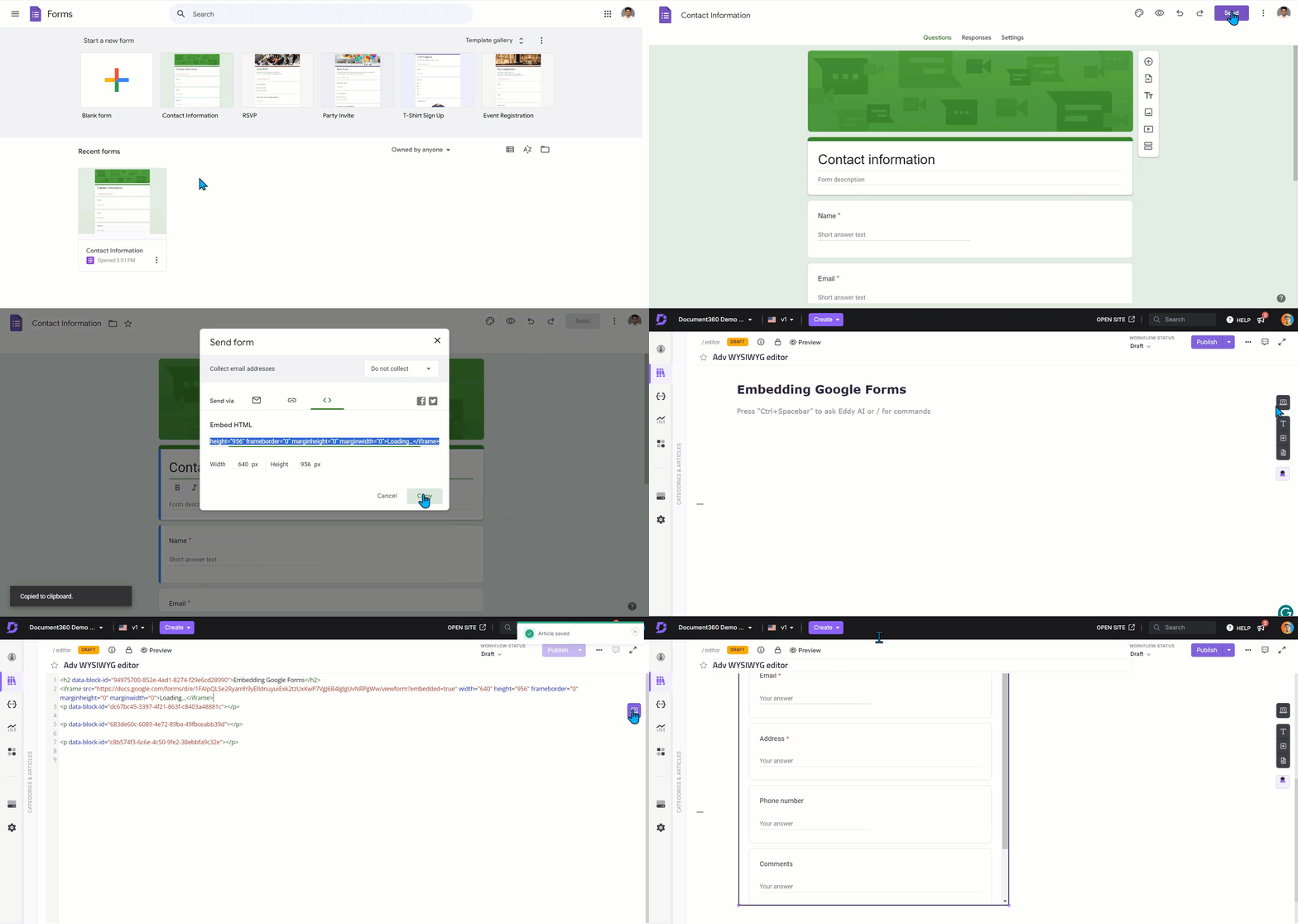
- Go to Google Forms and log in with your Google account.
- Open an existing form or create a new one.
- Click the Send button at the top of the form.
- In the Send form panel, select the < > (Embed) tab.
- Click Copy to copy the iframe embed code.
Embedding in the Advanced WYSIWYG editor
- Navigate to the desired article.
- Click the Code view icon.
- Paste the copied iframe code at the desired location.
- Press
Ctrl + Sto save. The form will appear rendered in the article.
Embedding in the Markdown editor
- Navigate to the desired article in the Markdown editor.
- Paste the iframe src link directly into the editor at the desired location.
Best practices
- Always set Draw.io diagrams to public before embedding — private diagrams will appear broken to readers on the knowledge base site
- Use the export as image approach for Draw.io diagrams when you want full control over the visual without relying on an external service link staying active
- Verify Stream video permissions before publishing — readers without access to the Stream video will see an error rather than the video
- Test embedded Google Forms after publishing to confirm they render and submit correctly for readers
- Keep embedded content focused — one diagram or form per section. Stacking multiple embeds in a single article can affect page load performance
- Always preview the article after embedding to confirm the content renders correctly before publishing