Custom CSS in Document360 lets you apply your own CSS code to change the visual appearance of your knowledge base site beyond what the built-in Site customization settings offer. You write CSS rules directly in the portal and they are applied globally across your entire knowledge base site. This is the right tool when you need precise control over typography, colors, spacing, table styles, image alignment, or any other visual element that cannot be configured through the standard settings.
When to use custom CSS
Use custom CSS when the built-in styling options in Site customization do not give you the level of control you need:
- Override default styles - change the appearance of elements that are not exposed in the Customize site settings, such as callout colors, table borders, or the "back to top" button.
- Apply brand-consistent typography - set a specific font family, size, or weight across all articles to match your product's design guidelines.
- Fix layout or spacing issues - adjust margins, padding, or alignment for specific elements that appear differently than intended.
- Apply visual treatments to images - center-align images in articles, add shadows, or set consistent dimensions for article illustrations.
For common customizations - body font, heading font, table styles, image alignment, callout colors, and hero section background - Document360 provides pre-built CSS snippets you can insert with one click. See CSS snippets before writing custom CSS from scratch.
Before you begin
- You must have a team account with admin-level access to the Knowledge base portal.
- Custom CSS applies globally to the entire knowledge base site - changes affect all pages and all readers.
- Document360 does not validate or lint your CSS code, so errors will not be flagged automatically.
- Malformed or conflicting CSS can break the site's layout. Test your changes carefully before saving.
:::
How to add custom CSS
- Navigate to Settings () > Knowledge base site in the left navigation bar of the Knowledge base portal.
- In the left navigation pane, navigate to Site customization.
- Click Custom CSS & JavaScript.
- Select the CSS tab. The CSS code editor appears.
- Enter your CSS code in the text area.
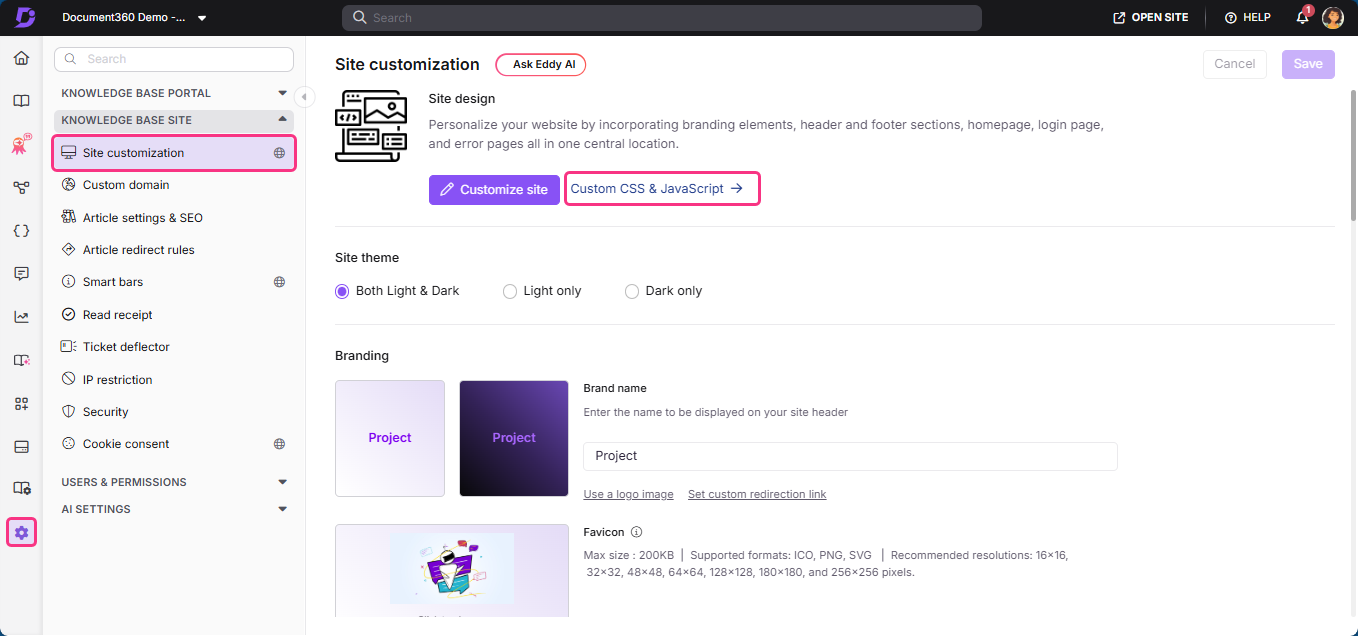
- Press Ctrl + S or click Save to apply your changes.
The CSS is now applied to your knowledge base site. Visit the site to preview the changes.
How to use CSS snippets
CSS snippets are pre-written blocks of code you can insert directly into the CSS editor. They cover the most common customization tasks and are designed to be modified for your specific requirements.
- Navigate to Settings () > Knowledge base site > Site customization > Custom CSS & JavaScript.
- Select the CSS tab.
- Click Add code snippets in the top right of the code editor.
- In the snippets panel, click the desired snippet. The code is inserted into the CSS editor.
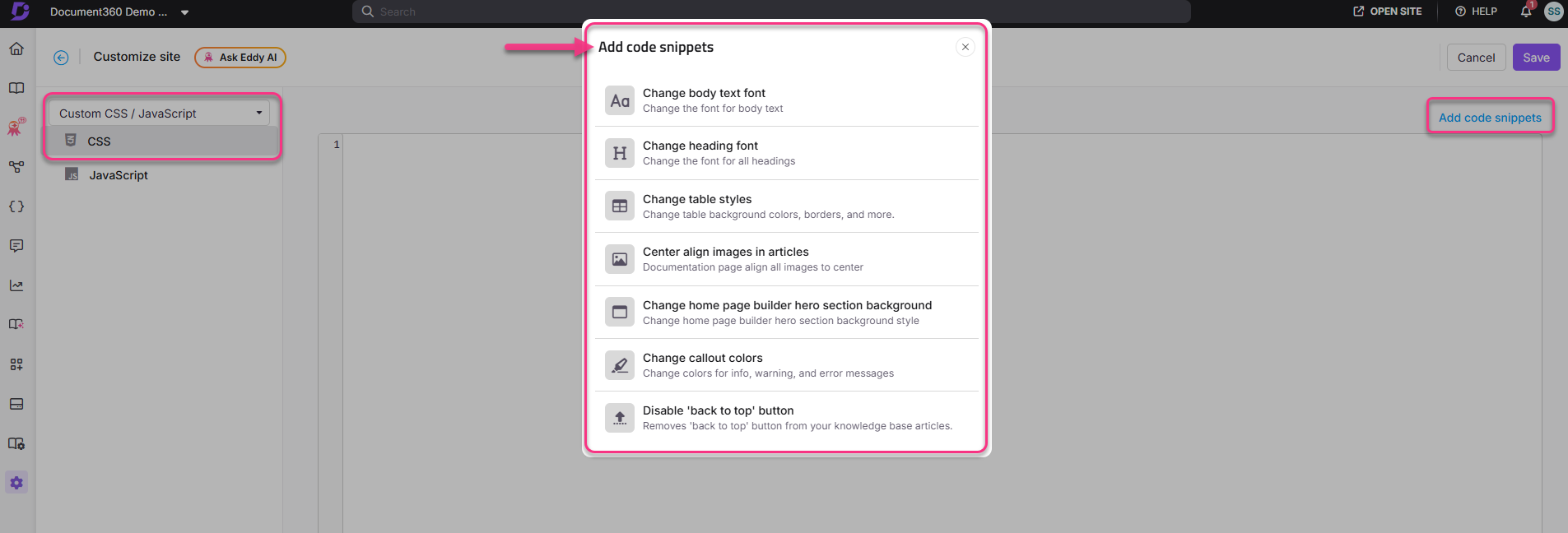
5. Modify the inserted code as needed - for example, replace the font name, color code, or size value.
6. Press Ctrl + S or click Save.
For detailed walkthroughs of each snippet, see CSS snippets.
Best practices
- Use the pre-built snippets as a starting point - even if you need to customise heavily, starting from a snippet ensures the correct selectors and structure for Document360's HTML.
- Use specific selectors - avoid broad selectors like
bodyor*unless intentional. Specific selectors reduce the risk of unintentionally overriding other styles. - Comment your code - add comments to explain what each block does, especially if multiple team members manage the CSS. Example:
/* Centers all article images — added June 2026 */ - Test in both light and dark mode - styles that look correct in light mode may have contrast or visibility issues in dark mode. Always preview both before saving.
- Keep a backup - before making significant changes, copy the current CSS to a text file. Document360 does not maintain a version history of custom CSS changes.
FAQ
Can I apply custom .css files in Document360?
Yes. Document360 lets you reference and apply custom .css files to tailor the appearance and style of your documentation.
If I manage multiple brands, do I need a separate workspace for each?
You can manage multiple brands either by creating separate workspaces within a single project, or by purchasing additional projects for each brand. CSS configured at the project level applies universally across all workspaces. You can still customise the styling of landing pages and other elements for each workspace individually.
Why doesn't custom CSS appear in the shareable preview link?
Custom CSS, JavaScript, and HTML integrations are not applied in the shareable preview link. This is expected behavior — these customizations are intentionally disabled in shareable previews to ensure consistent performance and security when content is shared externally. To view the final appearance of your CSS changes, publish the article and access it directly from the knowledge base site, or use a sandbox environment.