The Change heading font CSS snippet lets you update the font family and color applied to heading tags (H1–H6) across your entire knowledge base site. The default header font in Document360 is Montserrat. Header fonts are the most visible typographic element in your articles - they lead readers through the content structure and set the visual tone for the entire knowledge base.
How to customize the header font
-
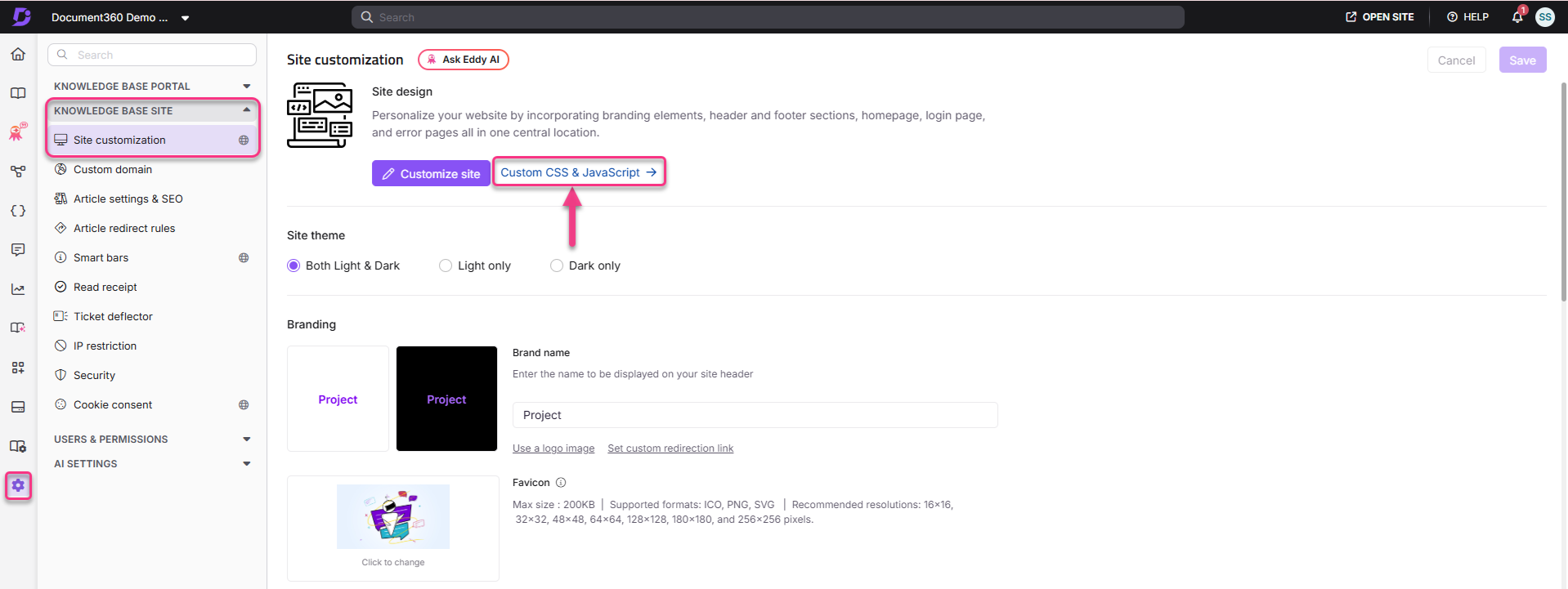
Navigate to Settings () > Knowledge base site in the left navigation bar of the Knowledge base portal.
-
In the left navigation pane, navigate to Site customization.
-
Click Custom CSS & JavaScript.
-
Select the CSS tab, then click Add code snippets in the top right.
-
Click Change heading font. The snippet is inserted into the CSS editor.
-
Replace the
font-familyvalue with your desired font name. -
Replace the
colorvalue with your desired heading color (HEX code). -
Click Save or press Ctrl + S.
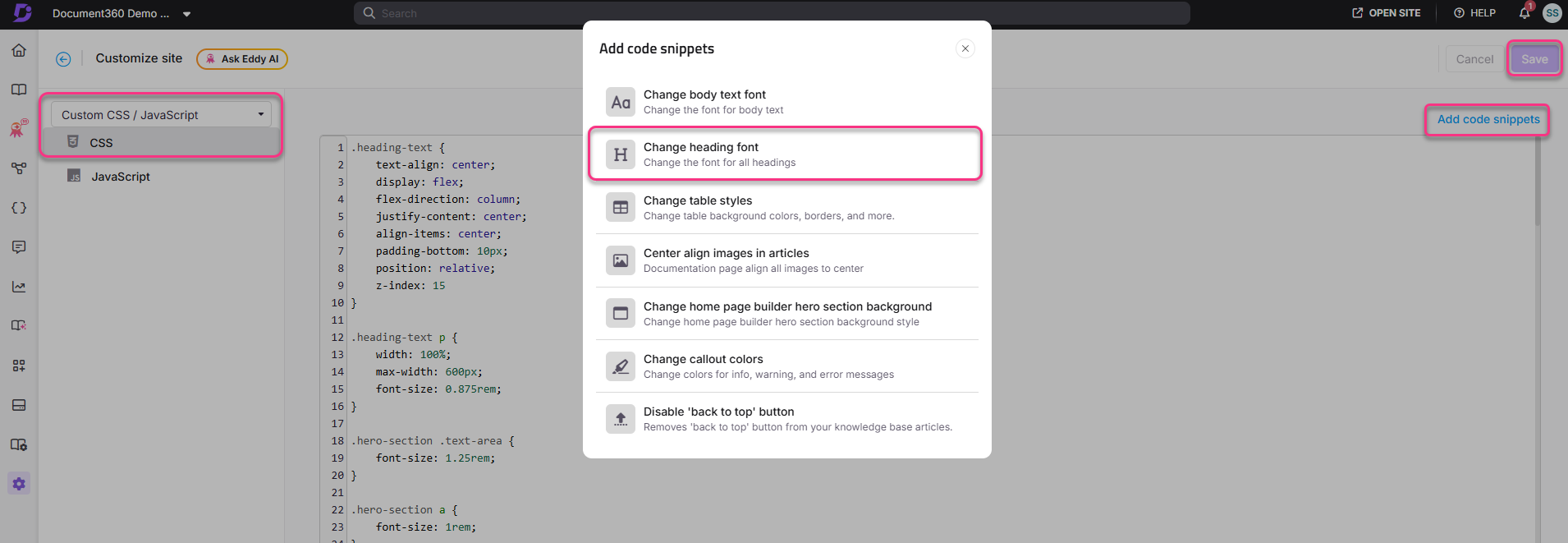
The updated font is applied to all H1–H6 heading tags across the entire knowledge base.
Montserrat is the default header font for all <H> tags. The modification applies to all heading levels and the entire knowledge base.
Best practices
- Choose a font that contrasts with the body font - using a different font for headings and body content creates a clear visual hierarchy and improves scannability.
- Prefer sans-serif for technical documentation - sans-serif fonts are the most commonly used for headings in technical documentation as they are clean and easy to read at larger sizes.
- Always include a fallback - add a generic family (
sans-seriforserif) as the last value in yourfont-familydeclaration. If the primary font fails to load, the browser falls back gracefully. - Use the same font across heading levels - changing all H tags to the same font keeps the hierarchy consistent. If you need to differentiate H1 from H2–H4, use font size and weight rather than different font families.