A private link lets you share any article with someone who does not have access to your knowledge base portal or site. The link is unique to the article and can be generated, copied, and deleted at any time. You can choose whether a link never expires or set an expiry date when you create it and also edit that expiry later if required. This is useful for sharing draft or restricted articles with reviewers, stakeholders, or external collaborators without publishing the content or granting portal access.
This feature works the same way for regular articles, page categories, API documentation articles, and custom pages.
Owners and Admins can also turn off the Share link setting for the entire project. This revokes all active links and stops anyone from creating new ones. For more information, see Manage private link sharing.
When to use private links
- Share a draft article with a stakeholder or subject matter expert for review before publishing.
- Share a restricted article with an external collaborator who is not a user in your Document360 project.
- Provide temporary, time-boxed access to content without adding the recipient as a reader or user.
Before you begin
- The Share link setting must be turned on for your project. If an Owner or Admin has turned it off, no one can create private links, whatever their role.
- You must have the Editor content role, or a custom role with View, Update and Delete access to the Share link permission, to create, edit, or stop sharing a private link.
- With only View access to Share link, you can see whether an article has an active link, but you can't create, edit, or delete one.
- Content roles are managed under Settings > Users & Permissions > Roles & permissions > Content role.
Create a private link
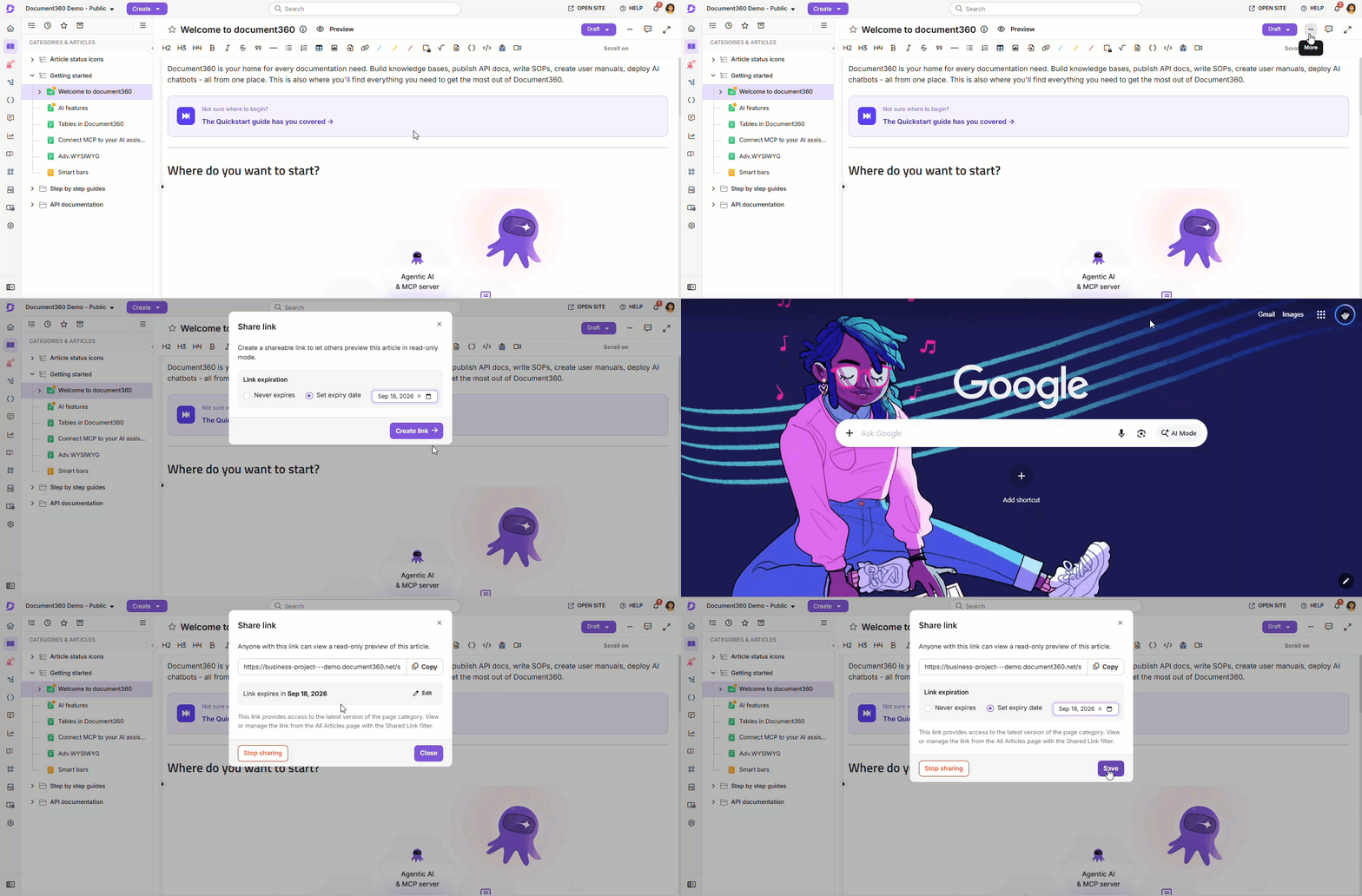
- Navigate to the article in the knowledge base portal.
- Click the More () icon in the article header, or click the More icon next to the article name in the category tree.
- Click the Share link () icon. This icon turns green () whenever the article already has an active link.
- In the Share link panel, choose the link's expiration:
- Never expires (default), or
- Set expiry date, then pick a date from the calendar. Past dates cannot be selected.
- Click Create link.
- Once created, click Copy next to the link to copy it, and share it with the recipient.
If the Share link icon is disabled, the Share link setting is turned off for your project. Only Owners and Admins can turn it on again, in General project settings. If you're not an Owner or Admin, contact one of them.
Change a link's expiry
You can change an existing link's expiry at any time, in either direction, without changing the link itself.
- Open the Share link panel for the article (see steps 1 to 3 above).
- Click Edit next to the current expiry status.
- Choose Never expires or Set expiry date (with a new date).
- Click Save. This button stays disabled until you actually change the value.
Changing a link's expiry does not change its URL. Anyone who already has the link continues to use the same URL.
Manage a private link
Once a private link has been generated, you can manage it from the same Share link panel, from the article's info panel on the All articles page, or from the All articles Shared link column (see Find shared articles below).
| Action | How to |
|---|---|
| Copy the link | Click Copy in the Share link panel. |
| Change the expiry | Click Edit, choose Never expires or Set expiry date, then click Save. |
| Stop sharing | Click Stop sharing and confirm. The link becomes immediately invalid for anyone it was shared with, and the link is permanently deleted. |
| Create a new link after stop sharing | Click Create link again. This generates a new URL; the previous link will be deleted and not available. |
How private links behave
- A private link grants access only to the specific article it was created for. If the article contains links to other articles, clicking those links prompts the recipient to log in.
- A link with an expiry date stops working as soon as that date passes. An expired link behaves exactly like a stopped link: the recipient cannot tell the difference, and there is no partial or "expiring soon" state visible to them.
- To share an expired article again, create a new link. The original URL does not become active again.
- If the article is deleted, the private link will not display the article content. If the article is later recovered from the recycle bin or restored from a backup, the same link will work again (subject to its expiry).
- Links that existed before expiry support was introduced are treated as Never expires. Nothing was retroactively expired.
- Custom JavaScript and HTML integrations are not supported in private link previews.
- If an Owner or Admin turns off the Share link setting, every active link stops working immediately and is permanently revoked. Recipients who open a revoked link see an invalid link page. Turning the setting on again does not restore these links.
Find shared articles
Use the All articles page to see every article that currently has an active private link, and manage them from one place.
- Navigate to Documentation () in the left navigation bar.
- Click All articles () in the left navigation pane.
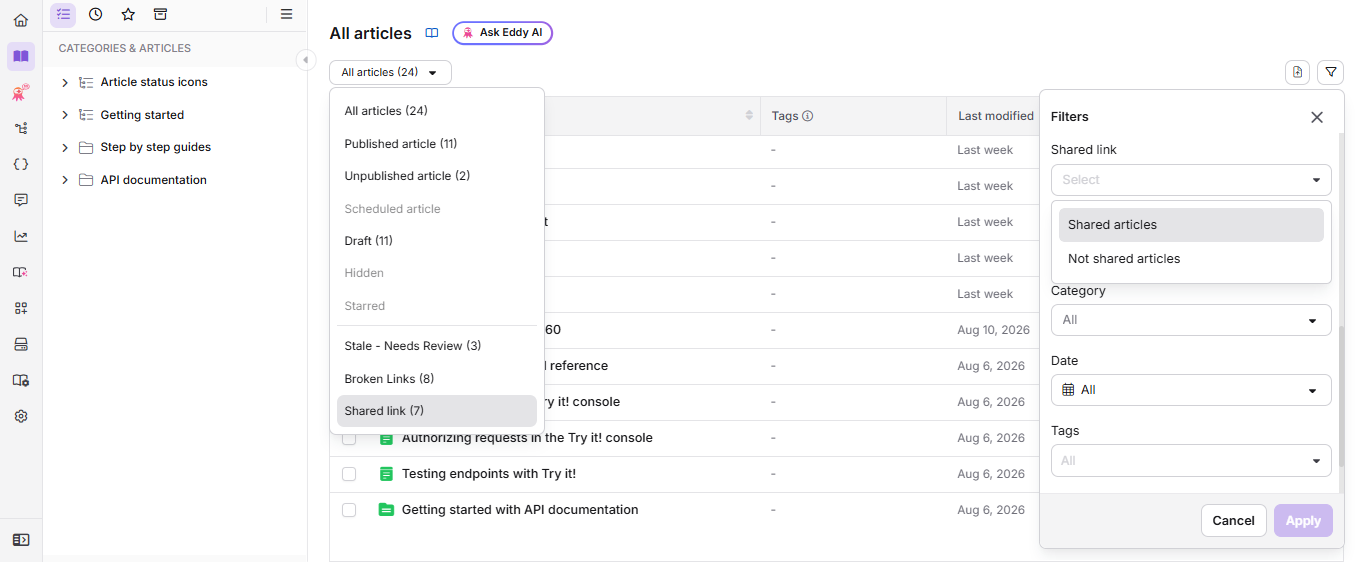
- Use the quick filter dropdown at the top left to select the Shared link, or click the Filter () button and set the Shared link filter. To know more, read Filter articles.
The Shared link filter and quick filter are available only when the Share link setting is turned on for your project.
Shared link filter
Filters articles by whether they currently have an active private link.
| Option | What it shows |
|---|---|
| Shared articles | Articles that currently have an active private link. |
| Not shared articles | Articles that do not have an active private link. |
The Shared link quick filter in the dropdown applies the same filter, and shows the current count next to it, for example Shared link (21).
With the filter applied, the grid adds a Shared link column showing each link's status: Expires <date>, Expires today, or No expiry. Hover over a row to reveal Copy link, so you can copy that article's link without opening it.
An article drops out of this filtered view as soon as its link is stopped or expires.
If you export the All articles list to CSV, the export includes two additional columns: Share link and Share link expiry.
Stop sharing in bulk
From the Shared link filtered view, select multiple articles and click Stop sharing in the bulk-select toolbar. Confirm the action to stop sharing all selected links at once.
Manage private link sharing
The Share link setting controls whether anyone in your project can create private links. It's turned on by default for all projects, and only Owners and Admins can change it. If you want to stop all external sharing at once, turn off the setting. This revokes every active link and stops anyone from creating new links until you turn the setting on again.
Before you turn off the setting, check which articles are shared, because recipients lose access and the links can't be restored. To see the shared articles, apply the Shared link filter on the All articles page (see Find shared articles).
To turn off Share link:
-
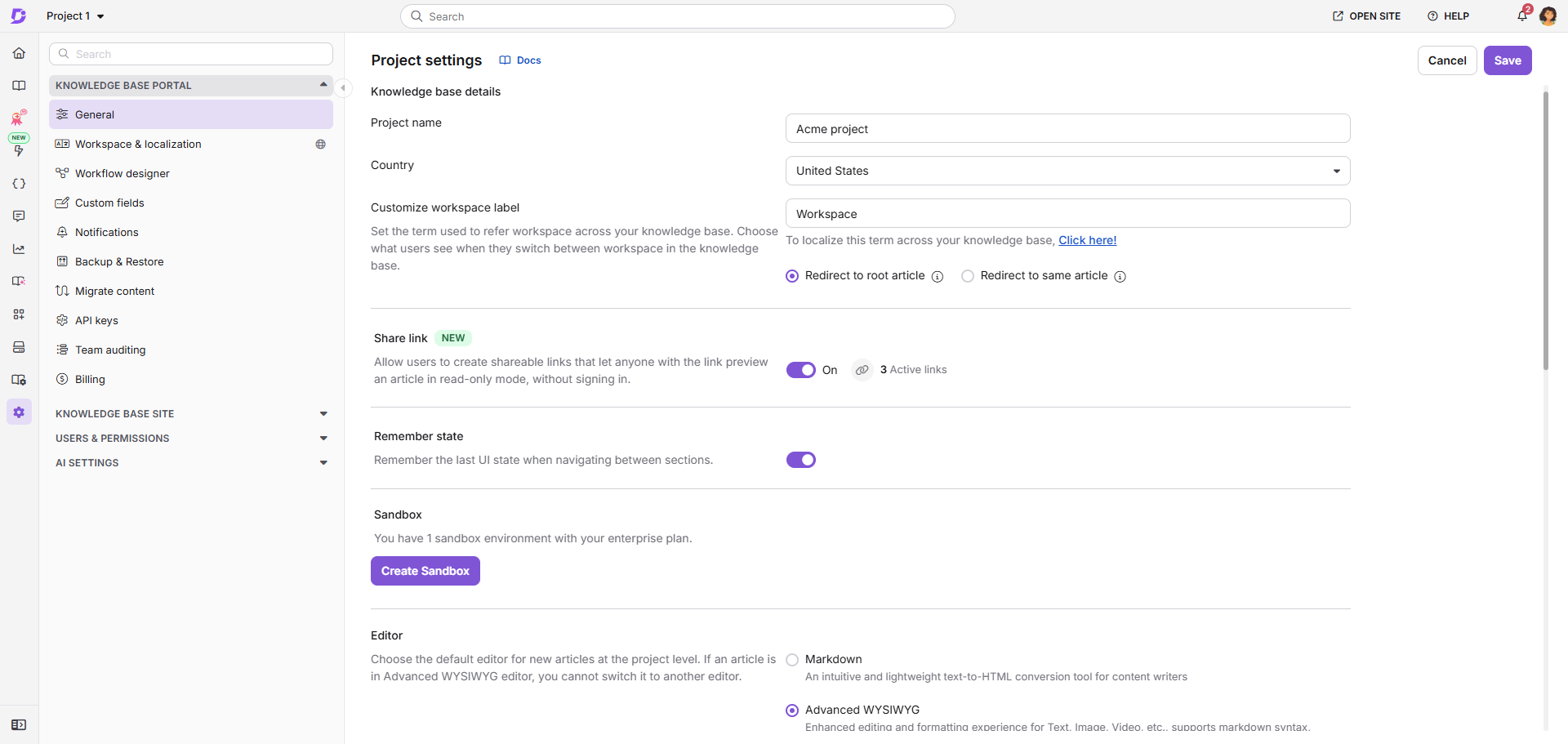
Navigate to Settings () > Knowledge base portal in the left navigation bar.
-
In the left navigation pane, select General.
-
In the Share link section, check the number of active links.
-
Turn off the Share link toggle.
-
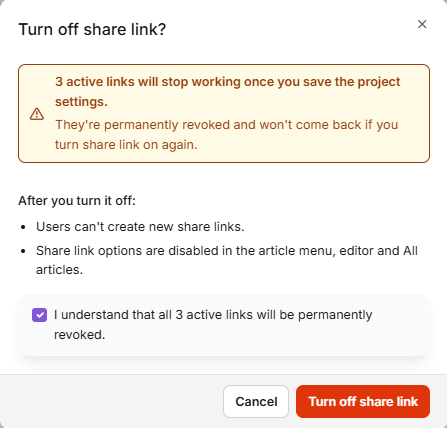
In the Turn off share link? dialog, select the checkbox to confirm that you understand the active links will be permanently revoked, then click Turn off share link.
The change applies immediately. You don't need to click Save.
After you turn off Share link:
| Where | What happens |
|---|---|
| Existing private links | They stop working immediately and are permanently revoked. Recipients see an invalid link page. |
| Share link icon in the article header, editor, and category tree More menus | It's disabled. Owners and Admins can hover over it to see where to turn the setting on again. |
| All articles page | The Shared link filter and quick filter are hidden, and the article info panel no longer shows the Share link row. |
| Share link role permission | It stays editable in content roles, but has no effect until the setting is turned on again. |
To allow sharing again, turn on the Share link toggle in the same place. The change applies immediately, with no confirmation. Users whose role includes the Share link permission can create private links again, but links revoked earlier don't come back, so create new links and send them to the recipients.
Best practices
- Set an expiry date at creation for anything time-boxed, so the link closes itself out without you having to remember to stop sharing it.
- Stop sharing a link once a review is complete, even if it has an expiry date, to prevent access before that date.
- Generate a separate private link for each article if you need to share multiple articles with the same recipient.
- Check the All articles Shared link filter periodically to see what's currently exposed outside your project.
- Use private links for draft review rather than publishing a draft to a restricted reader group. It is faster and does not require adding the recipient as a reader.
- Before you turn off the Share link setting, apply the Shared link filter on the All articles page to review active links, and tell recipients who still need access.
FAQ
Can I share an unpublished article with someone who is not a user in my project?
Yes. Private links work for both published and unpublished articles. The recipient does not need to be a user or reader in your Document360 project to access the article via the link.
Does a private link expire automatically?
Only if you set an expiry date. By default, a new link never expires, but you can set an expiry date when you create it, or add one later from the Share link panel.
What happens when a private link expires?
It stops working immediately, the same as a stopped link. The recipient cannot tell whether a link expired or was stopped manually. They see an invalid link page if they try to access the expired link. To share the article again, create a new link; the expired link's URL does not come back.
Can I stop sharing more than one article at a time?
Yes. From the All articles Shared link filtered view, select multiple articles and click Stop sharing in the bulk-select toolbar.
Can the recipient access other articles linked within the shared article?
No. A private link grants access only to the specific article it was created for. Clicking links to other articles within the content will prompt the recipient to log in. Generate and share separate private links for each article if multiple articles need to be accessible.
Why does custom JavaScript not appear in the shareable link preview?
Custom JavaScript and HTML integrations are not supported in private link previews to ensure consistent performance and security when content is accessed externally. Custom CSS is supported and will be applied in the preview. To test JavaScript or HTML customizations, publish the article and access it from the knowledge base site, or use a Sandbox project for testing.
Why can't I create a private link?
The Share link setting is turned off for your project. If you're an Owner or Admin, turn it on in General project settings. Otherwise, contact your Owner or Admin.
If I turn Share link on again, do the old links work?
No. Turning off the Share link setting permanently revokes every active link. After you turn it on again, create new links and share them with the recipients.
Can I link directly to a specific heading within a shared draft article?
No. A private link opens the article from the top. Heading-specific copy links are generated only on the published knowledge base site, by hovering over an H2, H3, or H4 heading and clicking the Copy link icon. To point a reviewer to an exact section in a draft, mention the section or heading name in your message alongside the private link, or publish the article first if you need a direct heading link.