A Document360 project is a self-contained workspace that holds all your knowledge base content, including articles, categories, subcategories, home page, users, readers, groups (for private and mixed projects), and custom configurations. Creating a project is the first step to building any knowledge base in Document360, whether you're documenting software, SOPs, APIs, or user manuals, or building an AI chatbot.
How to create a project in Document360
Access the dashboard
- Log in to Document360 to access the Dashboard. For login steps, see Sign up and log in to Document360.
If you are already inside a project, click the Document360 logo in the top navigation bar to return to the Dashboard. - Click the + Project button in the top-right corner.
.png)
Choose your use case
- On the Choose your use case to get started page, click Get started on the use case that fits your project.
| Use case | Description |
|---|---|
| Knowledge base platform | Build and maintain a repository of information to help users find answers quickly. Ideal for FAQs, guides, and troubleshooting. |
| Eddy AI Chatbot | Build an AI chatbot tailored to your content and goals, for customer support, lead capture, and user engagement. |
| API documentation | Organize API documentation to help developers integrate effectively, with endpoints and examples. |
| Software/Technical documentation | Create and manage technical documents for your software projects, SDKs, and integration guides. |
| User manual | Create detailed instruction manuals that guide your customers through product features and usage. |
| SOP documentation | Standardize your procedures with clear SOPs to ensure consistency and compliance in operations. |
Set up the basics
- On the Basic page, enter a Project name.
The project name may be pre-filled based on your email domain. You can edit it. - Select the Default language. English is selected by default.
- Optionally, under Personalize your knowledge base, enter your company's Website URL. Document360 imports your logo and brand colors from the site.
If the URL isn't valid, an Enter valid website address message appears below the field. - Click Create project.
- Project names must be unique. If the name is already taken, a Project name already exists message appears and Create project stays disabled until you enter a different name.
- To change your use case, click the back arrow (←) before you click Create project.
Access the knowledge base portal
After your project is created, you are taken to the module that matches your use case.
| Use case | Where you land |
|---|---|
| Knowledge base platform, Software/Technical documentation, User manual, SOP documentation | Documentation |
| Eddy AI Chatbot | Eddy AI Chatbot |
| API documentation | API documentation |
Document360 also adds two example articles to your project, based on your use case. Each one is labeled as an example article, so you can edit it or delete it.
| Use case | Example articles |
|---|---|
| Knowledge base platform | Getting Started Guide, FAQ |
| Software/Technical documentation | Software Design Documentation (SDD), User Guide |
| User manual | Instruction Manual, Training Manual |
| SOP documentation | Operation SOP, Compliance Policies and Procedures |
| API documentation | A sample Petstore API reference in the API documentation module |
- You can change your project's logo, colors, home page, and theme at any time from Settings.
- To control who can view your knowledge base site (Private, Public, or Mixed), go to Settings > Users & permissions > Reader access. For more information, see Reader access.
- Beyond site-level privacy, you can assign roles and permissions to team members to control access to specific features and content. For more information, see Roles and permissions.
Switching between projects
Once you have multiple projects, you can switch between them from within the knowledge base portal in two ways.
- Using the Project, workspace and language selection dropdown
- From the Projects dashboard
Switching projects using the project, workspace and language selection dropdown
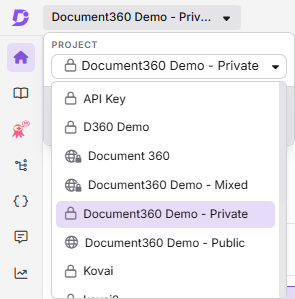
- From any module in the knowledge base portal, click the project, workspace and language selection dropdown in the top navigation bar.
- Click the dropdown under Project
- Each project entry shows the Project Name, Reader access type (Public , Private , or Mixed ), and a Sandbox label if it is a Sandbox project.
- Click the project you want to open.
Switching projects using the projects dashboard
- Click the Document360 logo in the top navigation bar.
Alternatively, click the project, workspace and language selection dropdown in the top navigation bar and select Manage projects footer at the bottom of the dropdown.
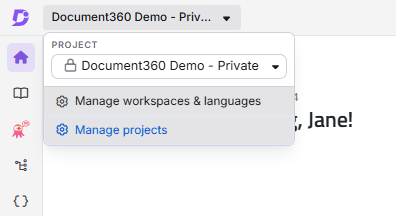
You are redirected to the Your projects page, where all projects you own or are associated with are listed.
- Click the project tile you want to navigate to.
.png)
You can identify which project you are currently working in by checking the project name displayed in the top navigation bar of the knowledge base portal.
Project details
| Item | Detail |
|---|---|
| Project trial period | Each new project includes a 14-day free trial. A separate subscription is required after the trial ends. |
| Onboarding language support | The onboarding flow supports English, Spanish, Brazilian Portuguese, German, and Swedish. The portal itself supports English, Spanish, and Brazilian Portuguese only. |
Best practices
- Name your project clearly before creating it. The project name influences the default URL and branding. Changing it after setup requires additional configuration steps.
- Add your website URL for instant branding. Entering your website URL imports your logo and brand colors, so your knowledge base site matches your brand from the start.
- Use a sandbox project for testing. Before changing themes, workflows, or integrations in a live project, test your changes in a sandbox to avoid disrupting your readers. See Creating a sandbox project.
- Keep one project per distinct knowledge base. Avoid mixing unrelated documentation in a single project. Separate projects ensure independent access control, branding, and analytics.
FAQ
Can I change my use case after creating a project?
No. The use case you select only decides where you land and what content is added when the project is created. It does not limit the features you can use afterward. You can use all Document360 modules in any project.
Does Document360 support different languages in the onboarding flow?
Yes, the onboarding flow supports English, Spanish, Brazilian Portuguese, German, and Swedish. However, the Document360 portal itself currently supports only English, Spanish, and Brazilian Portuguese.
What is a "Sandbox" project, and how is it different from a regular project?
A Sandbox project is an isolated test environment where you can experiment with settings, designs, and workflows without affecting your live knowledge base. It appears with a Sandbox label in the Project, workspace and language selection dropdown. For more information, see Creating a sandbox project.
How does Document360 handle version control for articles?
Document360 maintains a comprehensive article version history called Article revisions. Every change to an article is automatically saved and tracked, allowing you to revert to any previous version if needed.
How can I request access to a project I am not associated with?
Contact your team administrator or the project owner and ask them to add you. They can assign you an appropriate portal role and content access from Settings > Users & permissions.