By default, tables on the Knowledge Base site are left-aligned within the content area. If you want a table to appear centred on the page instead of sitting against the left edge, you can override this using Custom CSS. The change applies globally to all tables on the site.
When to use table centering
- Narrower tables: when a table only spans part of the page width, a left-aligned table can look unbalanced. Centering gives it a more polished, intentional appearance.
- Visual consistency: if other elements on the page (such as centred headings or images) are already centred, a centred table keeps the overall layout visually consistent.
- Reader focus: centering draws the reader's eye to the table by placing it in the visual middle of the page rather than off to one side.
NOTE
This CSS change applies to all tables across your Knowledge base site. It is not possible to target individual tables using this method.
Quick reference
table {
    width: auto !important;
    margin-left: auto !important;
    margin-right: auto !important;
}
How to center align a table
- In the Knowledge Base portal, go to Settings > Knowledge base site > Site customization > Custom CSS & JavaScript.
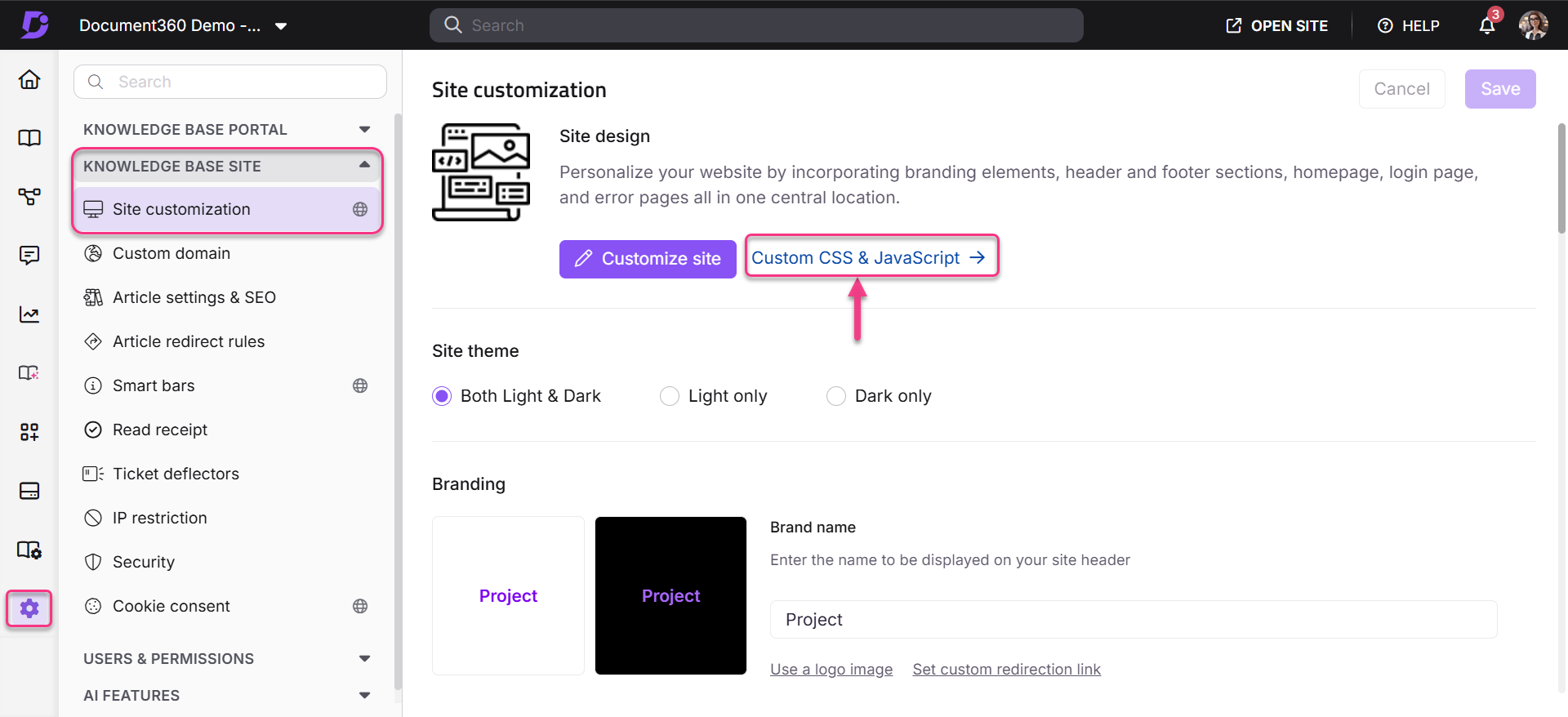
- Select the CSS tab and paste the following snippet:
table {
    width: auto !important;
    margin-left: auto !important;
    margin-right: auto !important;
}
- Click Save.
Outcome
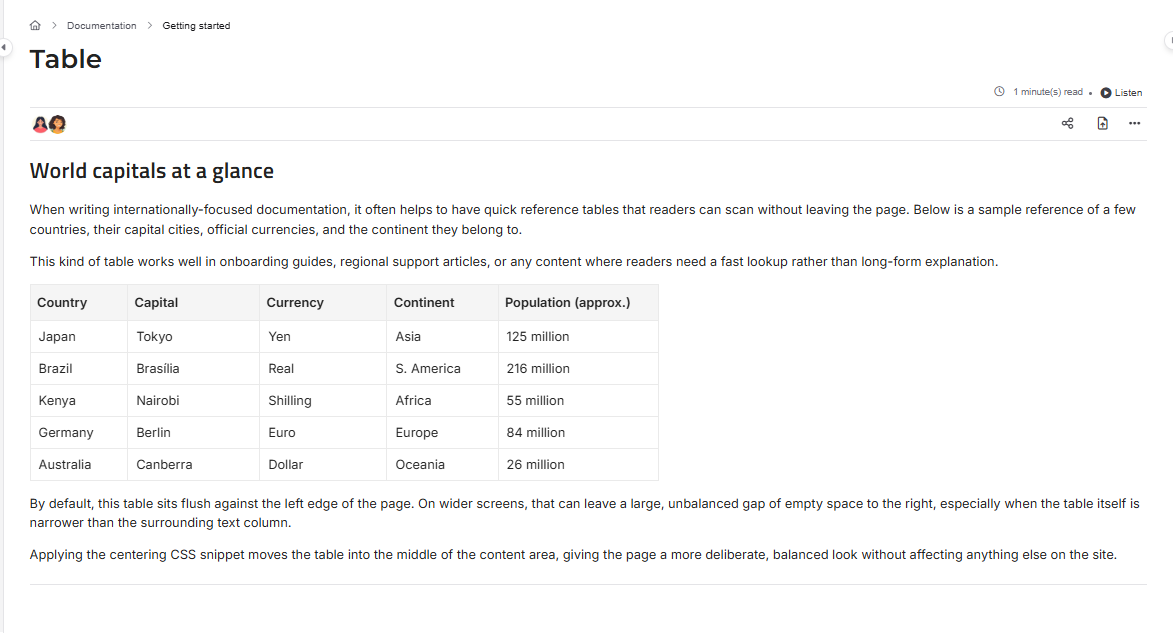
Before
Tables render flush against the left edge of the content area.
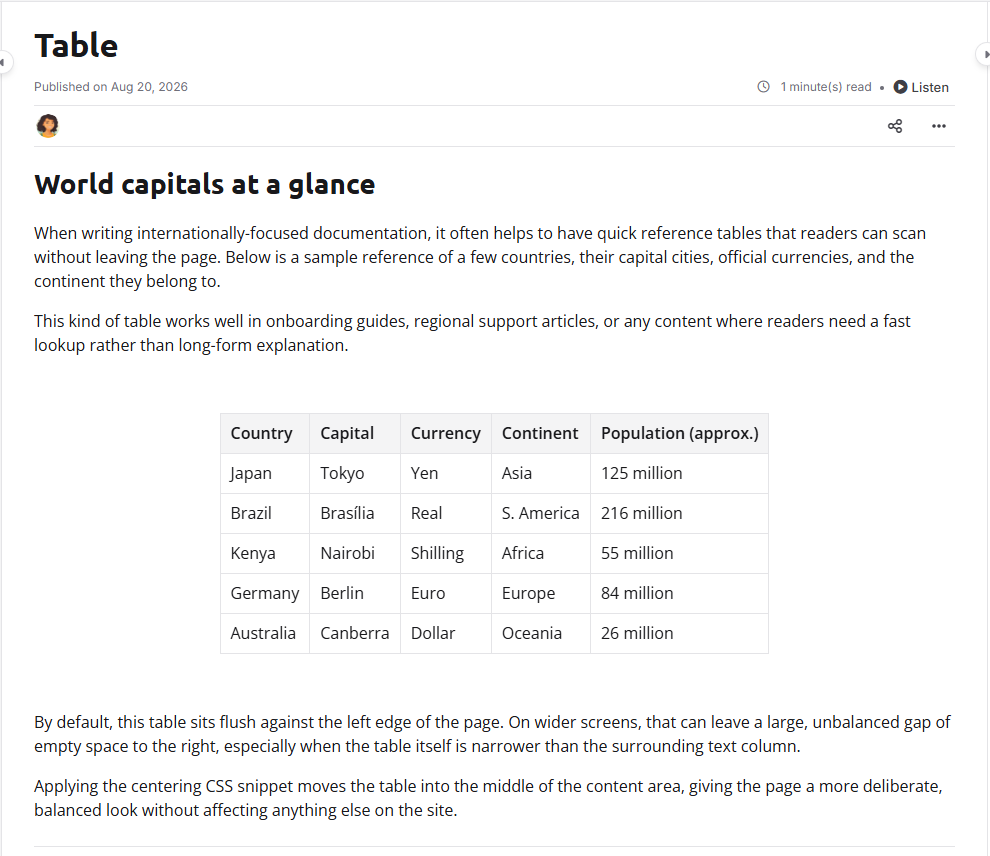
After
Tables render centred within the content area, with equal space on either side.
Best practices
- Remove conflicting width or margin rules first. If you already have other custom CSS targeting table (for example, a fixed width or different margin values), the centering snippet may not take effect, or may behave unpredictably, until the older rule is removed or the new one is placed after it in the CSS editor.
- Combine with cell alignment if needed. This snippet only centers the table block. If you also want the text inside cells centered, add table td, table th { text-align: center; } alongside it.
- Test with both narrow and wide tables. Centering is most noticeable on tables narrower than the page width — a table that already spans the full width will look the same either way.