Freezing the table header keeps the column titles visible while a reader scrolls through long tables, making it easier to interpret the data without scrolling back to the top.
Document360 provides a built-in table freeze functionality in the Advanced WYSIWYG editor that lets you freeze a header row or column without any custom code. Use the steps below only if you need the CSS-based workaround.
When to use frozen table headers
- Long reference tables — when a table has many rows, readers lose track of which column they are reading as they scroll down. A frozen header eliminates that problem.
- Comparison tables — freezing the header ensures the column labels stay visible when readers scroll through rows of comparable options.
- Data-heavy articles — any table tall enough to require scrolling benefits from a fixed header.
How this works
This approach uses two components:
- Custom CSS — makes the table container scrollable and pins the header row to the top of the visible area.
- Per-article HTML wrapper — the CSS only activates for tables wrapped in
<div class="fixed-header-table">, so it does not affect every table on the site. You apply the wrapper individually to each table that needs a frozen header.
Quick reference
CSS snippet — paste once in Custom CSS settings:
.fixed-header-table div[data-type="table-content"] {
    position: relative;
    max-height: 400px;
    overflow-y: auto;
    border: 1px solid #ddd;
}
table {
    width: 100%;
    border-collapse: collapse;
}
tbody th {
    position: sticky;
    top: 0;
    z-index: 2;
}
Per-article HTML wrapper — wrap your table code in this div in code view:
<div class="fixed-header-table">
Your table code
</div>
How to freeze a table header
Add the CSS
- In the Knowledge Base portal, go to Settings > Knowledge base site > Custom CSS & JavaScript.
- Select the CSS tab and paste the following snippet:
.fixed-header-table div[data-type="table-content"] {
    position: relative;
    max-height: 400px;
    overflow-y: auto;
    border: 1px solid #ddd;
}
table {
    width: 100%;
    border-collapse: collapse;
}
tbody th {
    position: sticky;
    top: 0;
    z-index: 2;
}
- Click Save.
Wrap the table in the article
- Open the article containing the table you want to freeze.
- Switch to code view.
- Locate the table HTML and wrap it inside the following div:
<div class="fixed-header-table">
Your table code
</div>
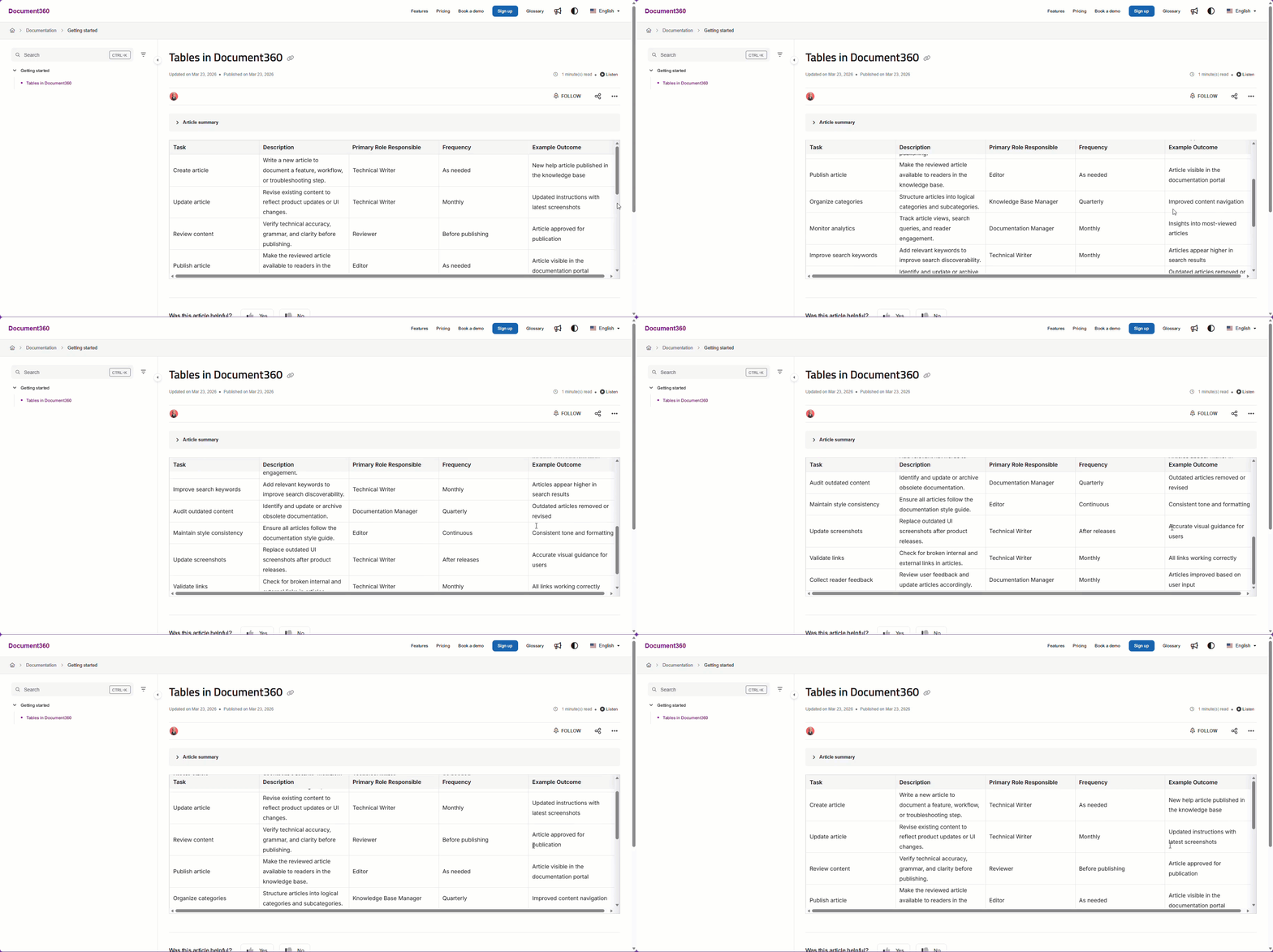
The header row now stays fixed at the top of the table while the reader scrolls through the content.
Outcome
When a reader scrolls through a long table, the column headers remain visible at the top of the table.
Scope and coverage
| Item | Detail |
|---|---|
| Scope | Per-table — only tables wrapped with <div class="fixed-header-table"> are affected |
| Default scroll height | 400px — adjust max-height in the CSS to change when scrolling activates |
| Built-in alternative | The Advanced WYSIWYG editor has a native table freeze feature that requires no custom code |
Best practices
- Adjust
max-heightto match your content — the default of400pxworks for most cases, but for very dense tables or specific layout requirements, increase this value so readers do not have to scroll within a table too early. - Use the built-in freeze feature when possible — if you are working in the Advanced WYSIWYG editor, the native freeze functionality is simpler to apply and does not require code view access.
- Apply the wrapper only to tables that need it — because the class must be added manually per table, you have full control over which tables freeze and which do not. Reserve it for tables tall enough to genuinely benefit from a fixed header.
- Test after applying — switch to the Knowledge Base site preview after wrapping a table to confirm the header sticks correctly and the scroll container renders at the expected height.