Document360 allows you to import Word documents (.docx) directly into your knowledge base. Instead of copying and pasting content manually, you can upload a Word file and have it converted into a ready-to-edit article in the Advanced WYSIWYG editor — preserving formatting, images, and hyperlinks in the process.
You can import a Word file in two ways:
As multiple articles
The document is split into separate articles based on heading levels (H1, H2, H3).
Learn more →When to use Word import
- Migrating existing documentation — Teams with large libraries of Word-based documentation can import files directly into Document360 without retyping content.
- Importing structured guides — A technical writer with a multi-section Word guide can use the Multiple articles import to split the document by heading and create a well-organised category in one step.
- Quick article creation — Writers who draft in Word before publishing can import their final draft directly into the editor, preserving formatting and images.
- Onboarding documentation — HR or operations teams with employee handbooks or onboarding guides in Word can bring them into the knowledge base quickly.
Before you import:
- Only
.docxfiles are supported. Maximum file size: 15 MB. - Word import requires the Advanced WYSIWYG editor. Set it as your default under Settings > Knowledge base portal > General > Editor.
Import Word file as a single article
Use this option when your Word document contains content for one article.
- Navigate to Documentation in the left navigation bar, hover over the desired category and click the More (⋯) icon.
- Select Create article > Import document (.pdf, .docx). The Import panel will appear.
- Upload your
.docxfile by drag-and-drop or by clicking Upload a file. - Confirm the Single article radio button is selected.
- Edit the auto-populated article name and category if needed.
- Select the folder where media files from the document should be saved using the Drive location dropdown.
- Click Import, then Done in the confirmation dialog.
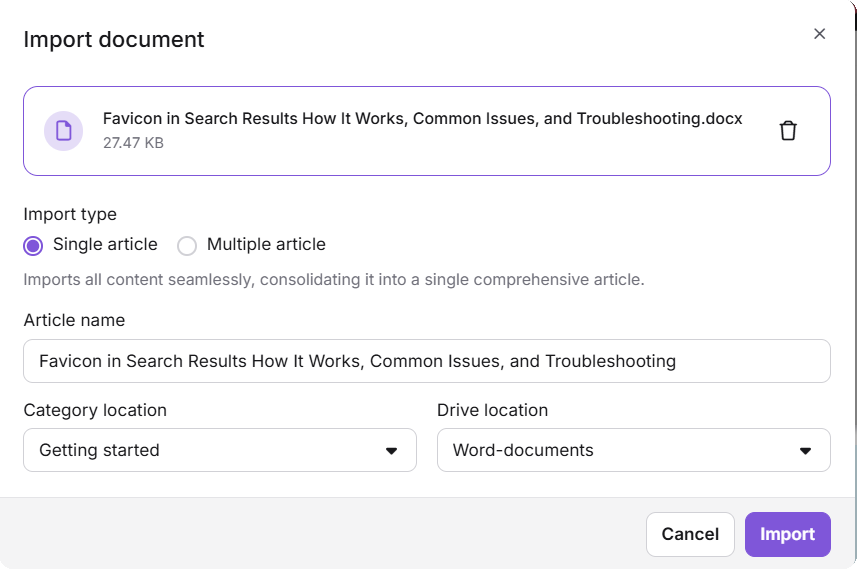
- Images from the Word document are uploaded as individual files to the selected Drive folder.
- All external hyperlinks in the document are retained in the imported article.
- If you manually update the article name during import, this change will not be captured in Team auditing.
Import Word file as multiple articles
Use this when the document is structured with headings and should become several articles.
- Navigate to Documentation in the left navigation bar, hover over the desired category and click the More (⋯) icon.
- Select Create article > Import document (.pdf, .docx). The Import panel will appear.
- Upload your
.docxfile by drag-and-drop or by clicking Upload a file. - Select the Multiple articles tab in the Import panel.
- Select the Drive location for media files.
- In the Split document by heading level field, select the heading levels to use for splitting the document. H1 is selected by default and cannot be removed. For example:
- If only H1 is selected, a new article is created at each H1 heading.
- If both H1 and H2 are selected, articles are created at each H1, and H2 headings within each H1 section are also created as separate articles.
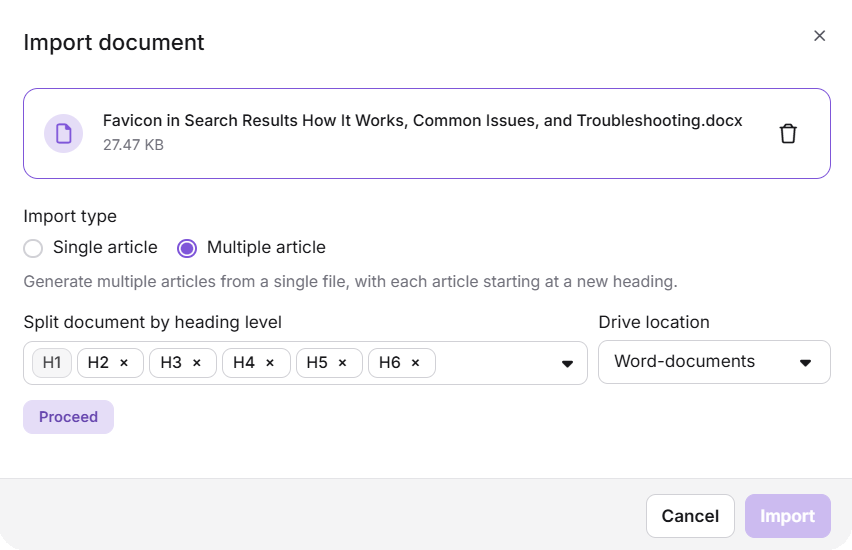
- Click Proceed. Document360 processes the document and displays a list of articles based on the selected heading levels. Article names and category locations are auto-populated.
- Review the article list. When you hover over an article, the following options appear:
- Merge — Combine a sub-heading article into its parent article.
- Preview — View the content of the article before importing.
- Delete — Remove the article from the import list.
- Once you have reviewed the articles, click Import. A success message confirms the import.
- Click Done to close the panel. The imported articles appear in the selected category.
Images from the Word document are uploaded as individual files to the selected Drive folder. All external hyperlinks are retained.
Import directly from the Advanced WYSIWYG editor
If you have already created a blank article, you can import a Word file directly into it from within the editor.
- Open an empty article in the Advanced WYSIWYG editor. The Import document option will appear on the blank page.
- Click Import document. The Import panel will appear.
- Upload the
.docxfile using drag-and-drop or the Upload a file option. - Click Replace if you need to swap the uploaded file.
- Click Import. The article name and URL slug are auto-generated from the filename.
How formatting is handled on import
Most basic formatting in your Word document is preserved when you import it into the Advanced WYSIWYG editor. However, some formatting applied through Word styles or specialized formatting may not be retained.
The following are preserved:
- Headings (Heading 1–4)
- Bold, italic, and underline applied directly to text
- Bulleted and numbered lists, including nested lists
- Tables and header rows
- Hyperlinks
The following may not be preserved:
- Formatting applied through Word styles
- Quotes and blockquotes
- Font colors, highlights, and custom font sizes
- Code or monospace formatting
- Caption styles
After import, review the content and reapply any formatting that wasn't retained in the editor.
Best practices
- Keep file size under 30 MB. If your document is larger, split it into smaller files before importing.
- Use clear heading levels in your Word document before importing as multiple articles — H1 for main article titles, H2 for sub-sections. This ensures the split is clean and logical.
- Review the article list before confirming when importing as multiple articles. Use the Merge, Preview, and Delete options to fine-tune the structure.
- Set your default editor to Advanced WYSIWYG before importing to ensure all imported articles open in the Advanced WYSIWYG editor.
- Select the correct Drive location for media files during import so images are organised and easy to find.
- Avoid password-protected Word files — these cannot be imported. Remove protection before uploading.
FAQ
Can I import multiple Word files at once?
No. You can import only one .docx file at a time. However, within a single import you can choose to split that file into multiple articles using the Multiple articles option.
Can I import Word files using the Markdown editor?
No. Word file import is not supported in the Markdown editor. Use the Advanced WYSIWYG editor instead.
Are hyperlinks in the Word document preserved after import?
Yes. All external hyperlinks in the Word document are retained in the imported article.
Can I import a password-protected Word file?
No. Password-protected or access-restricted Word files cannot be imported. Remove the password protection before importing.