A Page category behaves like both a category and an article. Unlike Folder or Index categories, which are purely containers, a Page category has its own editable content area that you write, format, and publish — just like any article in your knowledge base.
The result: readers arriving at a category page get meaningful context and structured content, not a blank list of articles.
When to use a Page category
- Section introduction — Use a Page category to introduce a major section of your knowledge base. For example, a Getting Started Page category can explain what the section covers, who it is for, and which articles to read first.
- Feature overview landing page — Create a Page category for a product feature that gives readers a high-level explanation before they navigate into detailed how-to articles.
- Structured onboarding — Build a Quickstart Page category with formatted steps, callouts, and links to guide new users through their first actions.
- Rich category context — Instead of a blank category index, provide readers with background information, diagrams, or important notes before they browse the articles within.
Create a Page category
Creating a Page category follows the same flow as creating any category in Document360 — the key difference is two steps: set the Type to Page, and select Advanced WYSIWYG as the Editor type. For the full walkthrough on creating a category, see Create a category.
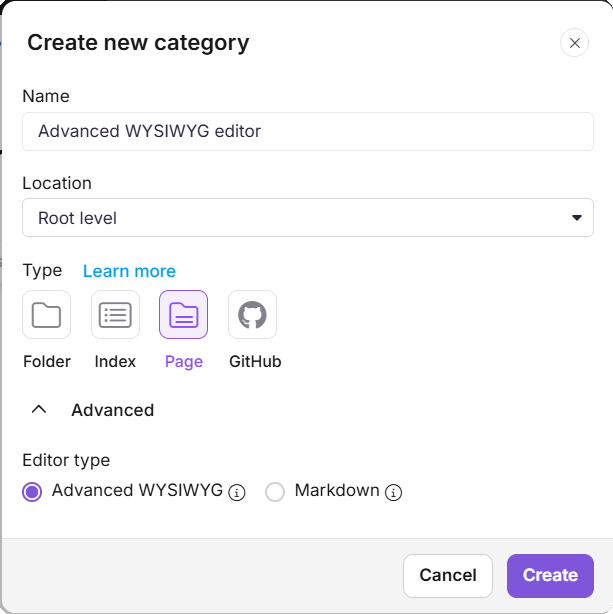
Once those two selections are made, click Create — the Page category opens directly in the Advanced WYSIWYG editor, ready to write.
Write content in a Page category using Advanced WYSIWYG editor
Once created, the Page category opens in the Advanced WYSIWYG editor — the same environment used for all articles. Use / slash commands, Eddy AI, the format toolbar, or Markdown shortcuts to build the content. When ready, click Publish.
To learn more about the Advanced WYSIWYG editor and its features, refer to Editor.
Page categories remain in Draft status until explicitly published. An unpublished Page category will result in a broken URL on your knowledge base site — publish it immediately after creation.
Best practices
- Keep content concise; the goal is to orient readers, not replace the articles inside the category.
- Use callouts for prerequisites or warnings readers should know before going further.
- Link to the most important articles directly from the Page category content.
- Use a consistent structure across all Page categories: overview, what's covered, key links.
FAQ
What is the difference between a Page category and a Folder or Index category?
A Folder or Index category is a container — it holds articles and subcategories but does not have its own editable content page. A Page category has a content area that can be written, formatted, and published, just like an article.
Can I switch a Page category back to a Folder or Index category?
Yes. You can change the category type at any time from the category settings. However, if you switch back, any content written in the Page category will no longer be displayed on the knowledge base site.
Does renaming a Page category update its URL slug?
No. Renaming a category does not automatically update its URL slug. You must manually update the slug from the category's SEO settings if needed.