The Knowledge base categories block lets you surface categories from your documentation directly on the home page as visual cards. Rather than expecting readers to navigate through the category tree to find what they need, this block brings your most important sections to the front, giving readers a visual, clickable overview of what the knowledge base contains the moment they land on the home page.
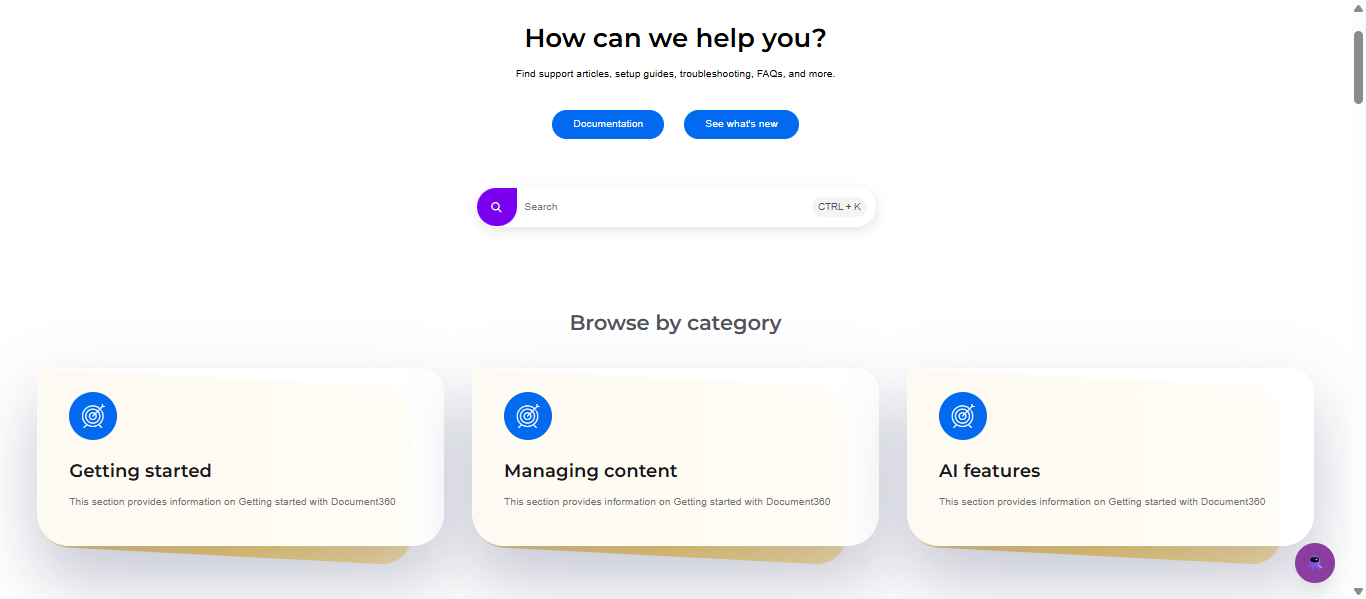
The Knowledge base categories block only supports categories - not individual articles. When a category is selected, the first article in that category is displayed by default. A category will only appear in the block if it contains at least one published article.
When to use the Knowledge base categories block
- Large knowledge bases - When your documentation has many categories, surfacing the most important ones as home page cards helps readers navigate directly without hunting through the category tree.
- Multiple audience types - Use separate cards for "Getting Started," "API Reference," and "Troubleshooting" to route different reader types to the right section immediately.
- Permission-aware navigation - Unlike static links or custom HTML, this block respects reader access permissions. Readers only see the category cards they have permission to access, avoiding 404 errors for restricted content.
- Replacing a table of contents style intro - Instead of writing a text list of major sections, let the category cards do the work visually.
Add a Knowledge base categories block
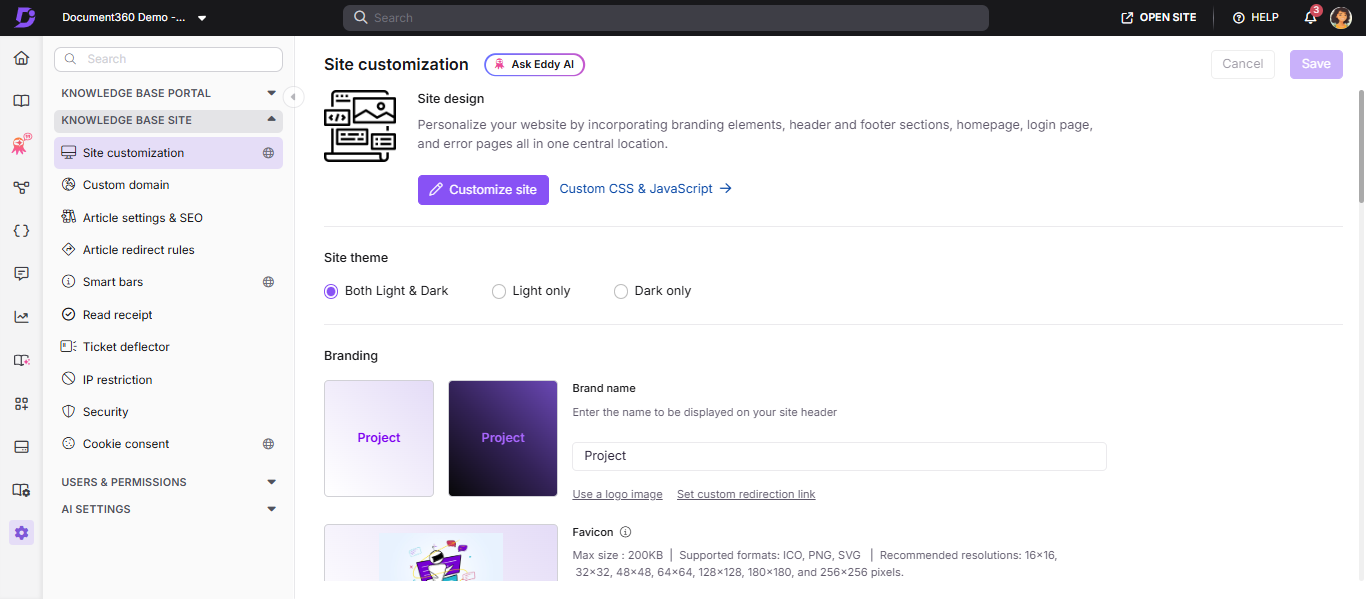
- Navigate to Settings () in the left navigation bar of the Knowledge base portal.
- In the left navigation pane, navigate to Knowledge base site > Site customization.
- Click the Customize site button.
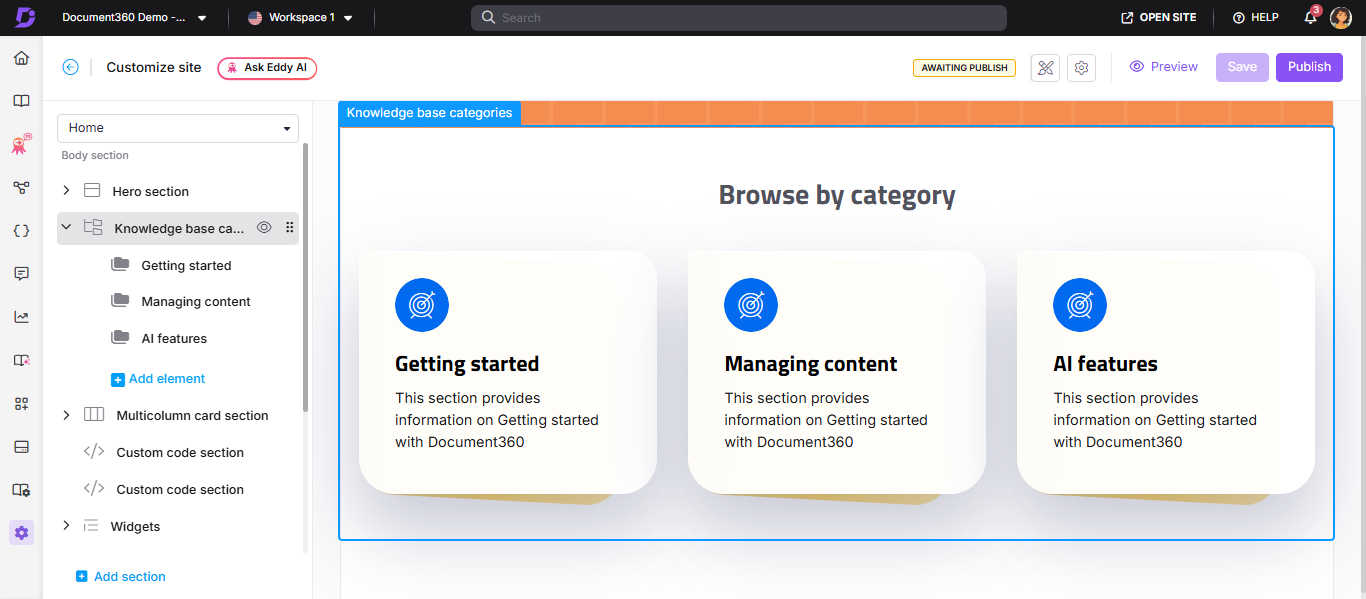
- From the left dropdown, select Home page. The Body section displays the list of body blocks.
- Click Add section and select Knowledge base categories. The block is added to the list.
- Click the Knowledge base categories block to edit the section title and overall icon color.
- Click Add element to add category cards to the block.
- Select the desired categories from your knowledge base. Use the Filter category option to search by name.
- Use the Reorder () icon to rearrange elements. The Reorder and Hide () icons appear when you hover over any body block.
Configure category elements
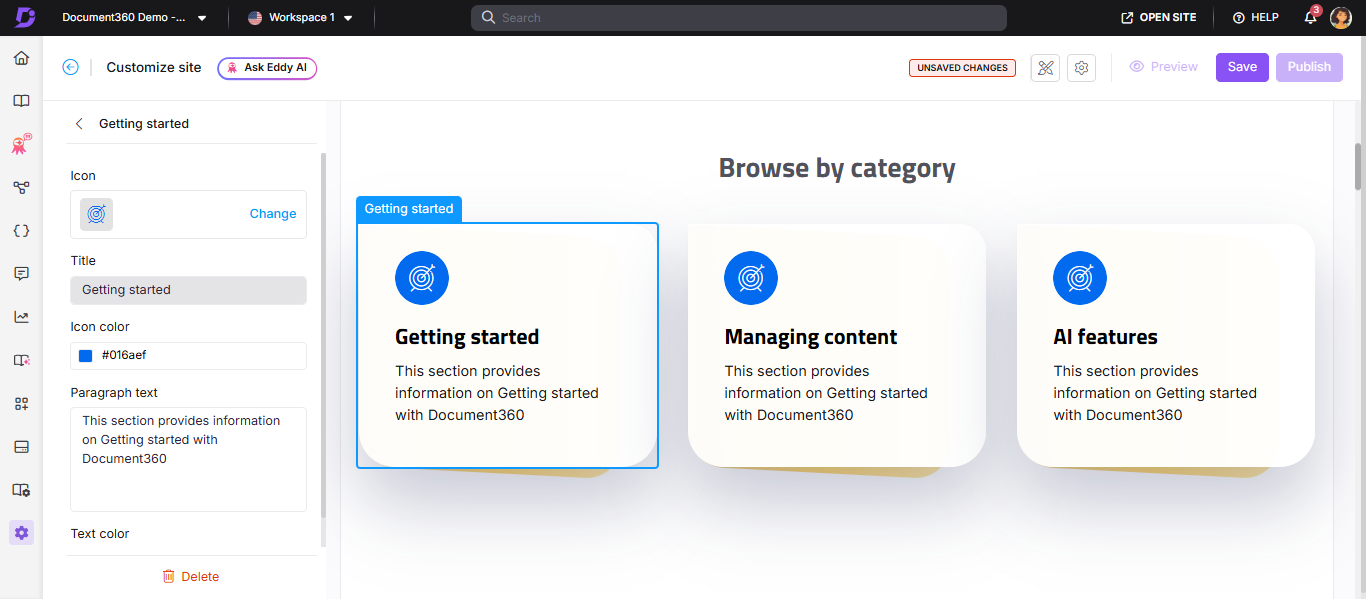
Click any category element to edit the following attributes:
| Attribute | What you can configure |
|---|---|
| Icon | Click Change to select a Document360 or Font Awesome icon from the Icons tab, or upload/enter the URL of a custom image in the Image tab |
| Title | Enter a display title for the category card |
| Icon color | Choose a color for the icon |
| Paragraph text | Add a short description using Markdown syntax |
| Text color | Select the text color for the title and paragraph |
Use square-dimension image files (e.g., 30×30px or 50×50px) for custom icons to avoid distortion.
Save and publish
- Use the Preview toggle on the right to review your changes.
- Click Save to save your changes.
- Click Publish to make changes live..
Best practices
- Feature your most-visited categories - check your analytics to identify which categories readers access most, and surface those first.
- Keep card descriptions short - one sentence per card is enough. Longer paragraph text clutters the card layout.
- Use consistent icon styles - mixing icon types across cards in the same block looks inconsistent. Stick to either Document360 icons, Font Awesome icons, or custom images.
- Order cards by reader journey - put foundational categories (Getting Started, Installation) before advanced ones (API Reference, Troubleshooting) to guide new readers naturally.
- Use this block instead of custom HTML for category links - the built-in block respects reader permissions; static links in custom HTML don't.
FAQ
How do I remove the Knowledge base categories block?
Navigate to {{variable.Settings}} () > {{variable.Knowledge base site}} > Site customization and click Customize site. From the left dropdown, select Home page. Select the desired Knowledge base categories block in the Body section. Click Delete () below the navigation bar, then click Yes in the Delete confirmation prompt. To delete a specific category element, select the element and follow the same steps. Click Save and then Publish to apply the changes.
Why can't I edit the title of categories in the Knowledge base categories block?
Category cards in this block are linked directly to the categories in your Documentation section — their titles reflect the actual category names and cannot be changed from within the block. Only the Paragraph text field is editable here.
To rename a category, navigate to {{variable.Documentation}} () in the left navigation bar. In the Categories and articles pane, locate the category, click the More () icon next to it and select Rename, or double-click the category name to edit it inline. Press Enter to save.
Is there a limit to the number of category blocks I can add to the home page?
No — there is no limit to the number of Knowledge base categories blocks you can add to the home page.
Can I show category cards only to readers who have access to them?
Yes. The Knowledge base categories block automatically respects reader permissions — readers only see the category cards they are authorized to access. This is why this block is recommended over static links or custom HTML for surfacing categories on the home page. When categories are added via custom HTML or hardcoded links, those links appear to all readers regardless of permissions, which can result in 404 errors for readers without access.