The Rich text block lets you add a heading and a paragraph directly to your knowledge base home page. Unlike the other body blocks that require specific content types like images, columns, or code - the Rich text block gives you a flexible space for any text-based content. It supports Markdown formatting in the paragraph, so you can add structured content like announcements, feature descriptions, or section introductions quickly, without needing custom HTML.
When to use the Rich text block
- Product or feature descriptions - Add a short description of what your knowledge base covers or highlight a key feature on your home page.
- Announcements - Post a release note, maintenance notice, or welcome message that readers see immediately on landing.
- Section introductions - Use a Rich text block between other body blocks to provide context or transition between sections of your home page.
- Simple formatted content - When you need bold, italic, lists, or hyperlinks in home page content but don't need an image alongside it. For content that combines text with visuals, use the Image with text block instead.
Add a Rich text block
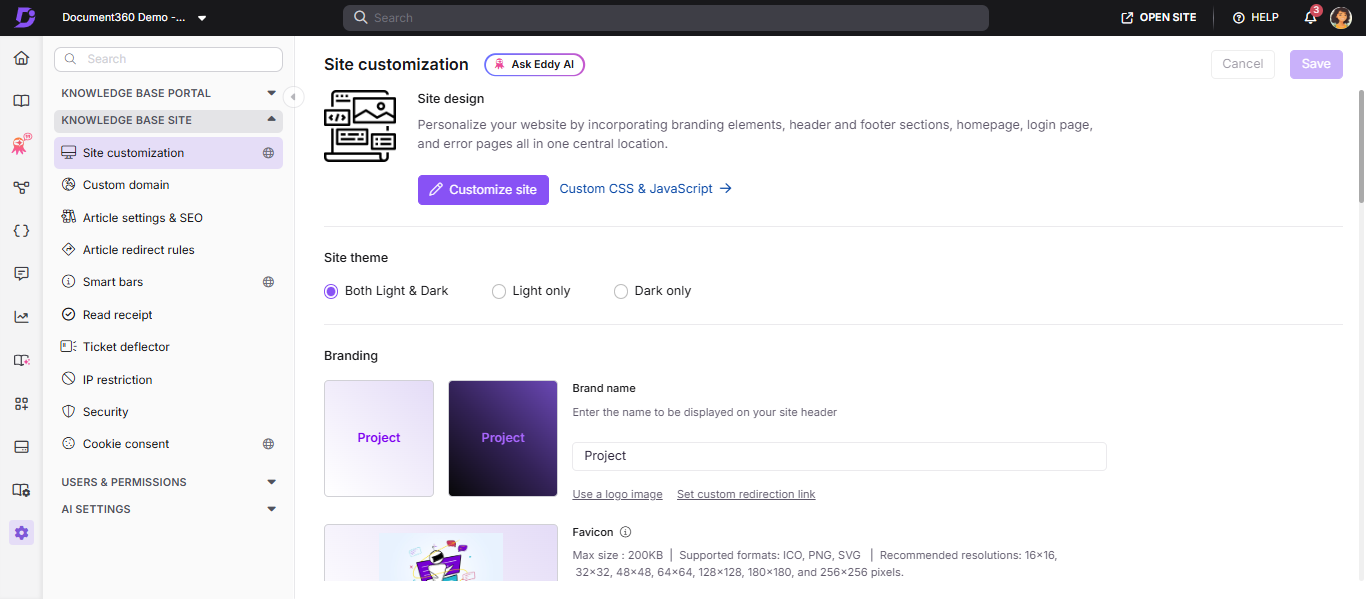
- Navigate to Settings () in the left navigation bar of the Knowledge base portal.
- In the left navigation pane, navigate to Knowledge base site > Site customization.
- Click the Customize site button.
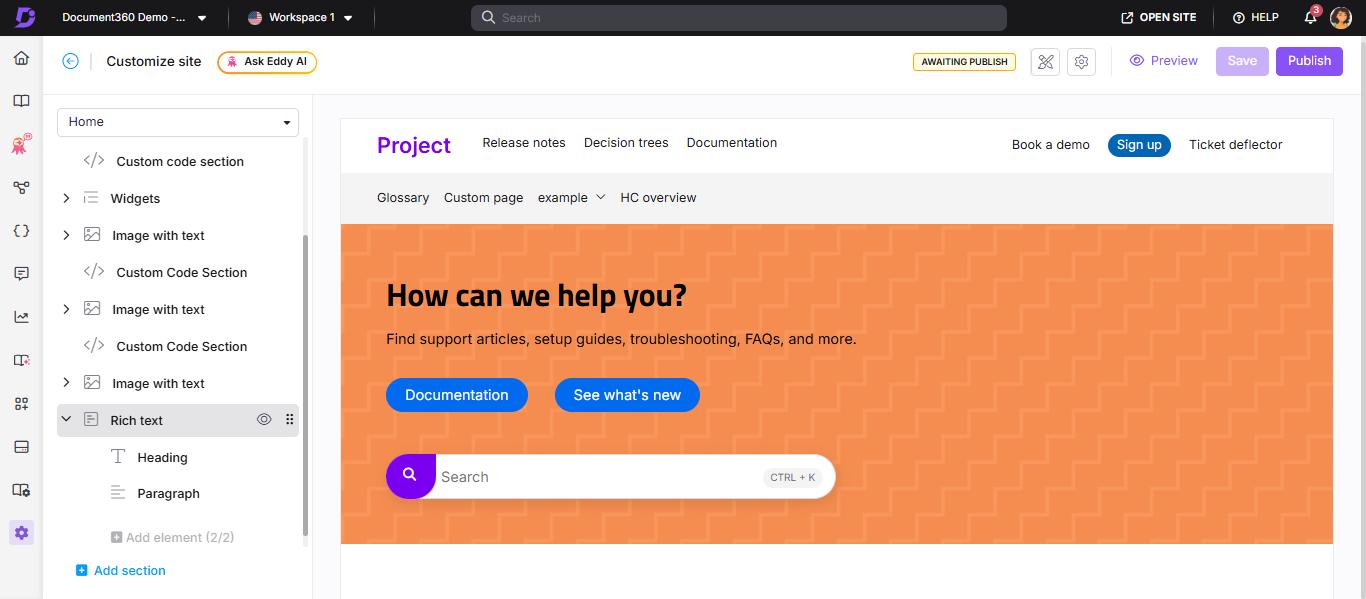
- From the left dropdown, select Home page. The list of body blocks appears in the Body section.
- Click Add section and select Rich text. The Rich text block is added to the list.
- Click the Rich text block and select the desired background color.
- Use the Reorder () icon to rearrange the block within the body section.
- Click the Hide () icon to toggle the block's visibility without deleting it.
- Expand the Rich text dropdown to access the Heading and Paragraph options.
Configure the Rich text block
Heading
- Click Heading to open the Heading panel.
- Enter the desired text in the Heading text field.
- Use the Text color palette to set the heading color.
- In the Alignment section, choose Left, Center, or Right.
- Click Delete to remove the Heading element from this block.
Paragraph
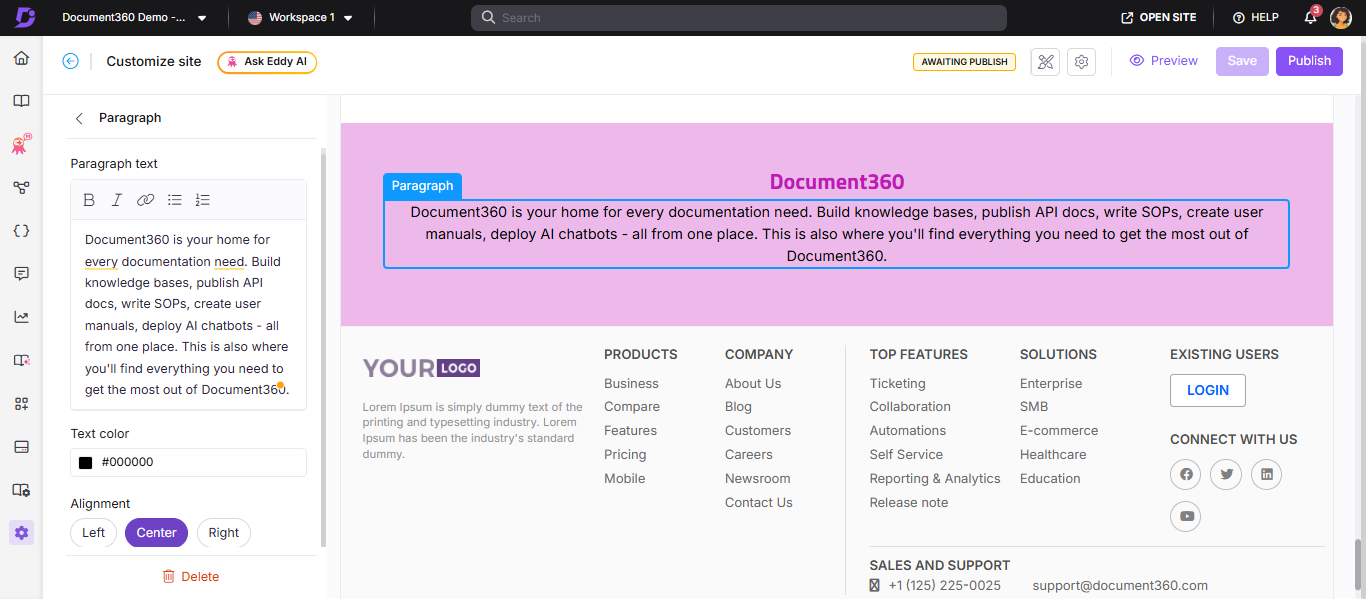
- Click Paragraph to open the Paragraph panel.
- Enter your content in the Paragraph text field.
- Format the text using the following options:
| Option | What it does |
|---|---|
| Bold () | Applies bold formatting |
| Italic () | Applies italic formatting |
| URL/Link () | Adds a hyperlink |
| Unordered list () | Creates a bulleted list |
| Ordered list () | Creates a numbered list |
Markdown syntax is also supported in the Paragraph text field.
- Use the Text color palette to set the paragraph text color.
- In the Alignment section, choose Left, Center, or Right.
- Click Delete to remove the Paragraph element from this block.
Save and publish
- Use the Preview toggle on the right to review your changes.
- Click Save to save your changes.
- Click Publish to make changes live.
Knowledge base site view
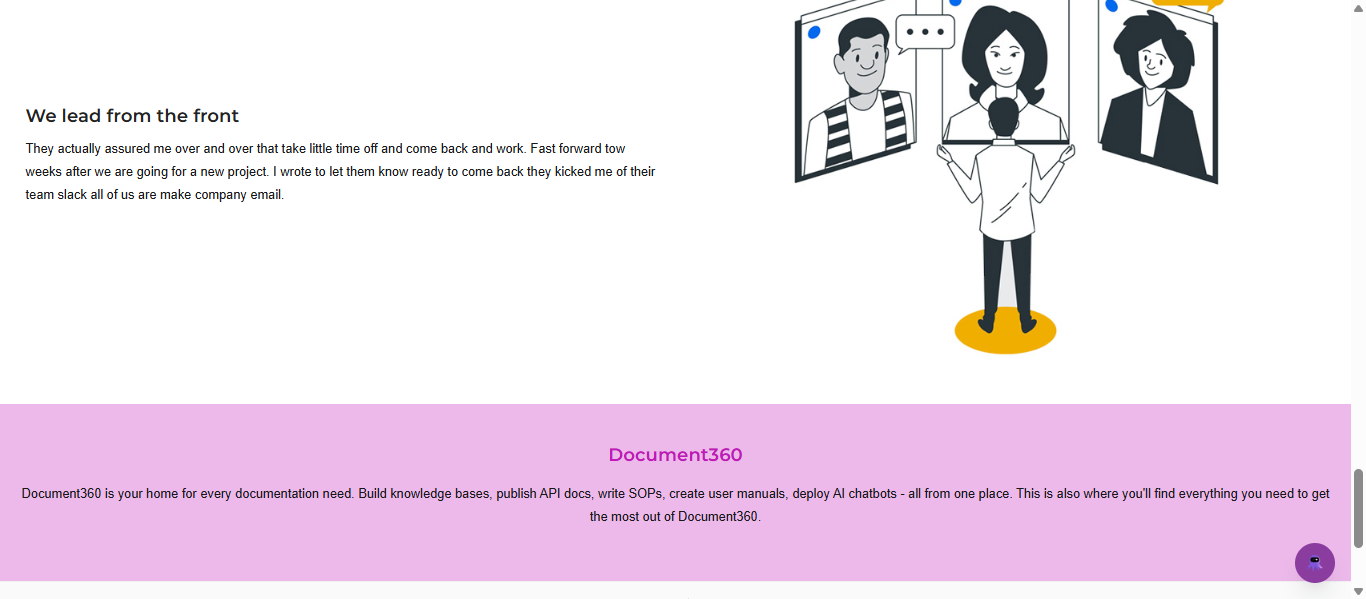
Here is an example of a Rich text block as it appears on the knowledge base site.
Best practices
- Keep the heading short and scannable - the heading is the first thing readers see in this block. One line is ideal.
- Use Markdown in the paragraph for quick formatting - instead of using the toolbar for every edit, you can write
**bold**,*italic*, and- list itemsdirectly in the paragraph field. - Match background color to your home page palette - if you're using multiple body blocks, keep background colors consistent or deliberately contrasted to create visual sections.
- Use the Rich text block for text-only content - if you need an image alongside the text, use the Image with text block instead.
FAQ
How do I delete a Rich text block from the home page?
Navigate to {{variable.Settings}} () > {{variable.Knowledge base site}} > Site customization and click Customize site. From the left dropdown, select Home page. In the Body section, click the desired Rich text block. Click Delete and confirm by clicking Yes in the Delete confirmation prompt. Click Save and then Publish to apply the changes.