Log in to the Document360 Knowledge base portal to write, review, and manage your documentation. You can log in with your password, your Google Workspace or Microsoft organization account, or your organization's Single Sign-On (SSO).
Don't have an account yet? See Sign up for Document360 to create an account. If a teammate added you to their project, activate your account from the invitation email first.
Before you begin
- Know your data center. Your account is stored in one data center: European Union, United States, or Canada. If you're not sure which one, ask your project Owner or Admin.
- Have your email address or subdomain ready. Your subdomain is the first part of your project URL. For example, if your project URL is
https://acme.document360.io, your subdomain isacme. - Activate your account if you were invited. Invitation links are valid for 7 days. If yours has expired, ask your project Owner or Admin to resend it.
Log in with your password
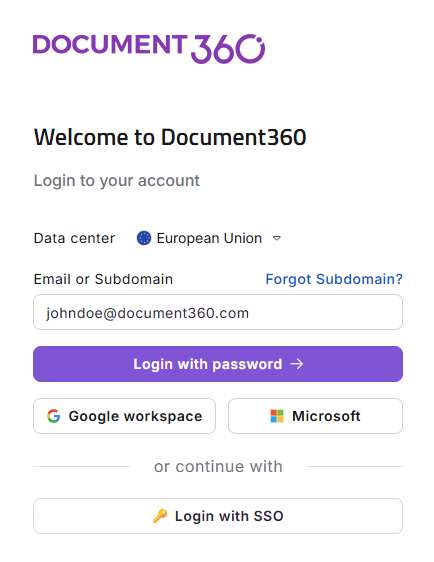
- Go to the Document360 login page.
- From the Data center dropdown, select the data center where your project is hosted.
- In the Email or Subdomain field, enter your email address or subdomain.
- Click Login with password.
- In the Password field, enter your password.
- Optionally, select Remember me to stay logged in on this device. Use this only on devices you trust.
- Click Login.
To use a different method from the password screen, click Try other sign in options.
Log in with Google or Microsoft
- Go to the Document360 login page.
- From the Data center dropdown, select the data center where your project is hosted.
- Click Google workspace or Microsoft.
- Sign in with your Google Workspace or Microsoft organization account on the page that opens.
Google sign-in accepts Google Workspace accounts only, and Microsoft sign-in accepts Microsoft organization accounts only. Personal accounts, such as those ending in @gmail.com, @outlook.com, @hotmail.com, or @live.com, are rejected.
Your password, Google, and Microsoft sign-in all open the same Document360 account. Using a different method doesn't create a new account.
Log in with SSO
Use this method if your organization has set up Single Sign-On for your project.
- Go to the Document360 login page.
- From the Data center dropdown, select the data center where your project is hosted.
- Click Login with SSO.
- Enter your subdomain, then click Continue with SSO.
- Sign in on your identity provider's page.
SSO login uses your subdomain, not your email address. If your administrator has turned off the Document360 login page, you are sent straight to your identity provider.
For more details, including signing in from your identity provider's dashboard, see Log in using SSO - Knowledge base portal.
After you log in
You land on the Your projects page, which lists every project you have access to. Click a project tile to open it. For more information, see Project dashboard.
Forgot your password or subdomain?
Reset your password
- On the password screen, click Forgot password?
- Enter your email address and click Send.
- In the email you receive, click Reset Password.
- Enter and confirm your new password, then click Reset.
Your new password applies to all your Document360 projects. For password requirements, see Account locked.
If you signed up with Google or Microsoft, your account doesn't have a password yet. Follow the same steps to set one.
Recover your subdomain
Click Forgot Subdomain? next to the Email or Subdomain field and follow the prompts.
FAQ
I signed up with Google. Can I also log in with a password?
Yes. Click Forgot password? on the password screen to set a password. After that, you can use either method.
Does changing my password affect all my projects?
Yes. Your password belongs to your Document360 account, not to a single project.
Can readers use Google or Microsoft to sign in to our knowledge base site?
Yes, if a Project Owner turns it on. These options are off by default. For more information, see Login page.