The Login page is what readers see when they try to access a private or mixed-access knowledge base. It is often overlooked during setup - but for readers who encounter it, it is their first interaction with your knowledge base before they've seen any content. A well-configured login page sets the right tone, reduces confusion about why login is required, and gives readers a clear path forward.
The Login page customization option is only relevant for private and mixed-access knowledge bases. If your knowledge base is public, readers will not encounter the login page.
When to customize the Login page
- Brand consistency - the default login page uses generic Document360 styling. Replacing the image or adding a custom layout brings it in line with your product's look and feel.
- Adding context for readers - a custom heading or paragraph can explain why login is required, reducing confusion for first-time readers.
- Adding a support or registration button - if readers need to request access or contact support, a custom style login page lets you add a button that links directly to those resources.
- Letting users sign in with Google workspace or Microsoft - enable social login so users can sign in to the knowledge base site with their existing Google workspace or Microsoft account instead of a separate password.
- Ordering SSO login options - if you have multiple SSO configurations, set which login buttons readers see first.
Access the Login page settings
- Navigate to Settings () > Knowledge base site in the left navigation bar of the Knowledge base portal.
- In the left navigation pane, navigate to Site customization.
- Click the Customize site button.
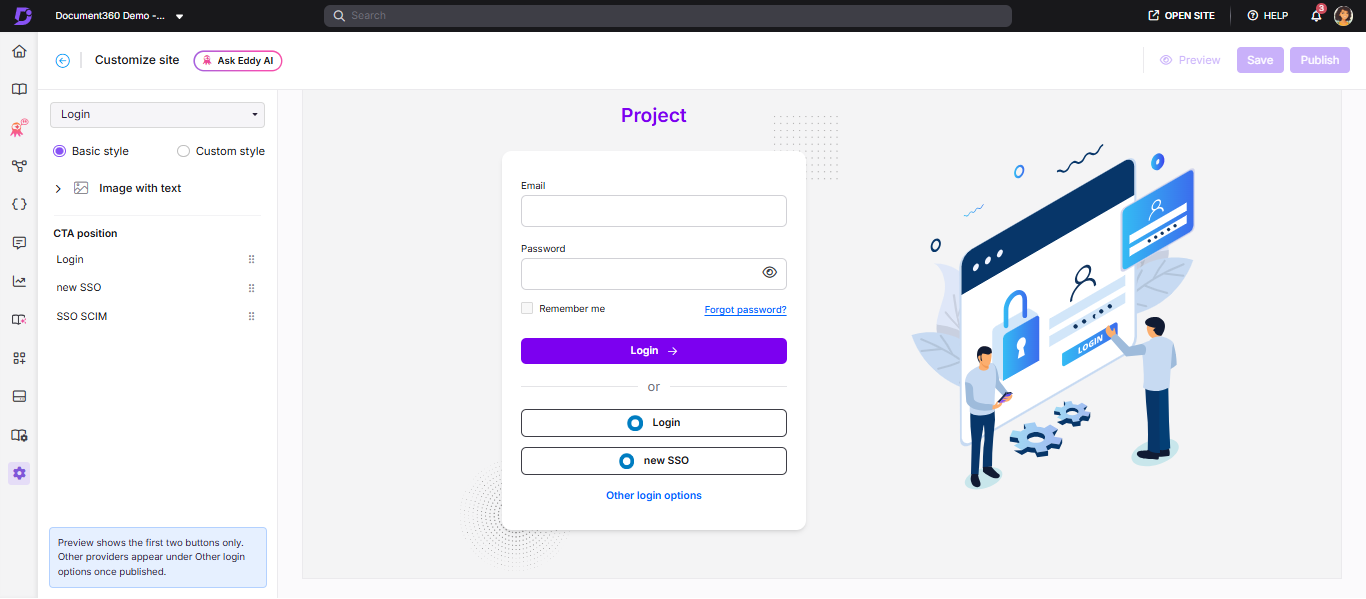
- From the left dropdown, select Login under Main pages. The default Login page design appears with customization options on the left and a live preview on the right.
Customization styles
Document360 offers two approaches to customizing the Login page:
Basic style
Use Basic style to customize the default image, enable social login, and order SSO login buttons on the login page, without writing any code.
- Select Basic style.
- Expand the Image with text dropdown and select Image. The Image panel opens.
- Click Change and choose a desired image from the system images, or upload your own.
- In the Alignment section, select Left, Center, or Right to adjust the image position.
- Use the Preview toggle on the right to review your changes.
- Click Save to save your changes.
- Click Publish to make changes live.
Enable Google workspace and Microsoft sign-in for users
You can let users sign in to the knowledge base site with their Google workspace or Microsoft account.
- In Basic style, go to the Social login section.
- Turn on the Google workspace toggle, the Microsoft toggle, or both. Both toggles are off by default.
- Check the preview on the right to confirm the sign-in buttons appear on the login page.
- Click Save, then click Publish.
Change the order of SSO login buttons
If you have configured SSO for readers, the CTA position section lists your SSO login buttons. Drag the handle () next to a button to change its position on the login page.
- The preview shows only the first two SSO buttons. Other providers appear under Other login options on the published login page.
- Social login and CTA position are available only in Basic style. They are not available in Custom style.
- These settings apply to the login page of the knowledge base site. They do not change how users sign in to the Knowledge base portal.
Custom style
Use Custom style to build a fully custom login page layout using HTML and CSS.
- Select Custom style.
- In the HTML tab, add your custom HTML markup.
- In the CSS tab, add your styles.
- Use the Preview toggle on the right to switch between the code view and the rendered view to review.
- Once done, click Save to save your changes.
- Click Publish to make changes live.
When using Custom style, always retain the following login component in your HTML:
<div class="login-form">{{template:LoginCore}}</div>
This component handles the authentication flow. Removing or modifying it can result in multiple login prompts, redirects to the team portal instead of the knowledge base site, or failed reader authentication. Always include it when building a custom login page.
Best practices
- Keep the login page on-brand but minimal - readers arriving at the login page already intend to access your content. A clean, focused layout with your logo and a clear login form works better than a heavily designed page.
- Use Basic style for image changes and social login - if you only need to replace the default image or let users sign in with Google workspace or Microsoft, Basic style is quicker and safer than Custom style. Social login is not available in Custom style.
- Always test Custom style authentication - after publishing a custom HTML login page, verify the full login flow end-to-end to confirm authentication works correctly before sharing with readers.
- Always retain
{{template:LoginCore}}- this is the most common cause of broken login pages after customization. Include it in every custom HTML layout, even when rebuilding the entire page structure.
FAQ
How do I add a support or contact button to the Login page?
Navigate to {{variable.Settings}} () > {{variable.Knowledge base site}} > Site customization and click Customize site. Select Login from the left dropdown. Choose Custom style and add the following to the HTML tab:
<div class="login-form--support">
    <button class="support-button">
        <a href="your-support-link">Contact Support</a>
    </button>
    <p>Click here to Contact Support</p>
</div>
In the CSS tab, add the following to center the button:
.login-form--support {
    text-align: center;
}
Click Save and Publish to apply.
If I make changes to the Login page, will they automatically update in all languages?
No. Changes made in your default language will not automatically reflect in other languages. You need to manually apply the same changes for each language workspace.
Can I enable Google workspace or Microsoft sign-in if I use Custom style?
No. Social login is available only in Basic style. To let users sign in with Google workspace or Microsoft, switch the Login page to Basic style and turn on the Google workspace or Microsoft toggle in the Social login section.