If your documentation team uses Trello to manage writing tasks across writers, editors, and external agencies, keeping those boards in sync with what's actually published in Document360 requires manual card updates — which is easy to miss, especially with external contributors. By connecting Document360 and Trello through Zapier, you can automate this: whenever an article is published in Document360, Zapier automatically creates a Trello card on your designated board and list, keeping your task board up to date without any manual effort.
You can set up this integration from scratch or use the pre-built Zapier template:
When to use this integration
- Your documentation team tracks article status on a Trello board — for example, with lists like "In Progress", "Under Review", and "Published" — and wants Document360 publish events to automatically move or create cards.
- You work with external writers or agencies who contribute content and need a way to reflect published articles in your team's Trello workspace without exposing your Document360 portal to third parties.
- You want a lightweight visual record of all published articles that your team can annotate, assign, and manage directly in Trello.
Before you begin
- You must be logged into your Zapier account.
- You must have a Trello account with at least one board and list already set up to receive cards.
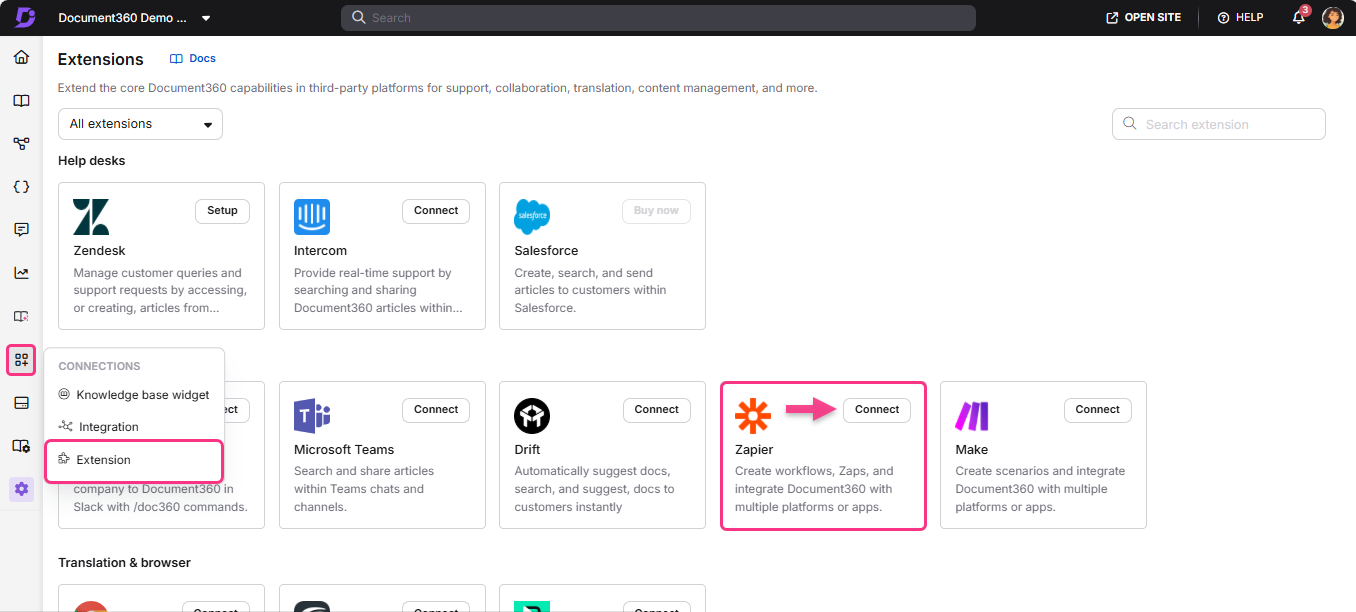
- You must have your Document360 API token ready. To generate one, navigate to Connections > Extensions , locate the Zapier tile, and click Connect to copy the token.
Set up the Zap
Step 1 — Create a new Zap
- Log in to your Zapier account.
- From the left navigation menu, click Create then select Zaps.
- A new Zap is created with a Trigger and Action flow.

Step 2 — Connect Document360 as the trigger
- In the Trigger field, choose Document360.
- On the Setup panel, select the desired event in the Event field.
- Click the Account field — a Sign-in panel appears.
- Enter your sign-in credentials and click Allow.
To generate the API token from Document360:
- Navigate to Connections > Extensions in the left navigation bar of the Knowledge base portal.
- On the Zapier extension tile, click Connect.
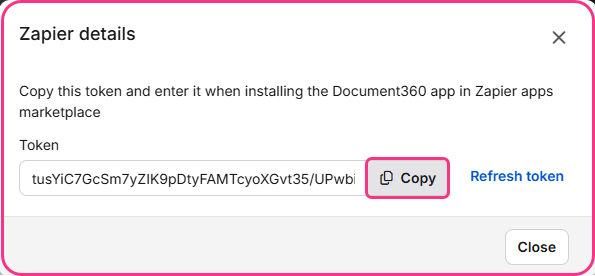
- Click the Copy icon to copy the token.
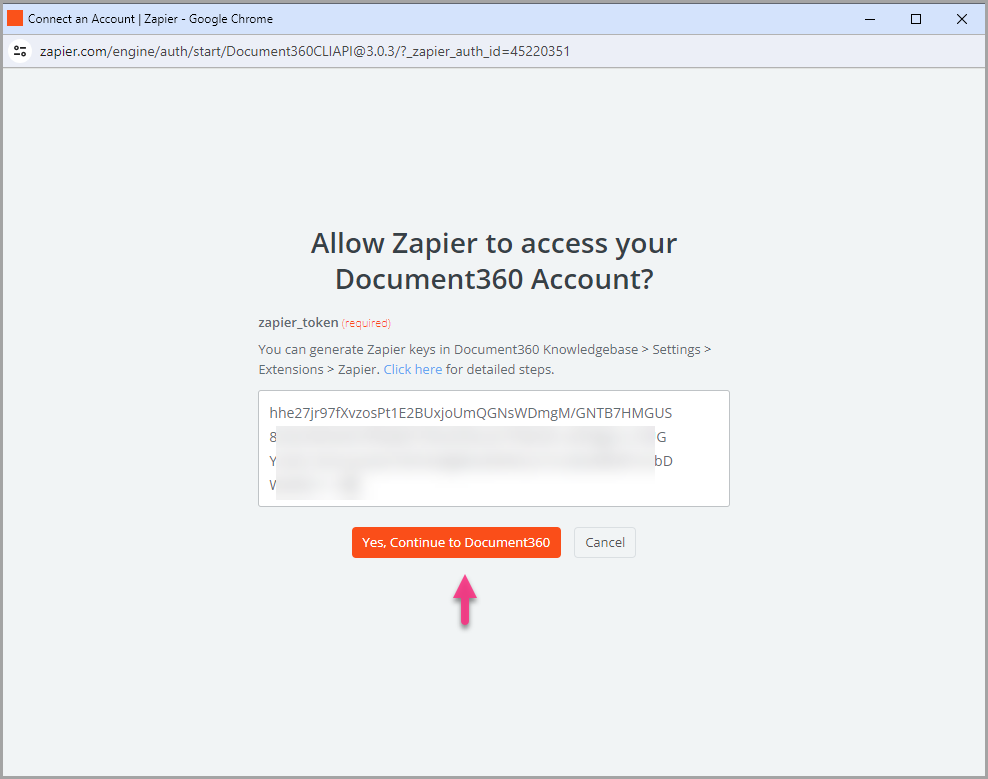
- Head back to the Zapier panel and paste the API token into the field.
- Click Yes, Continue to Document360.
- You can find the connected Document360 project on the Connect Document360 account page. To use a different account later, click Change.
- Click Continue.
- In the Test section, click Test trigger. If the trigger is successful, click Continue.
Step 3 — Connect Trello as the action
- In the Action field, choose Trello.
- On the Setup panel, select Create Card in the Event field.
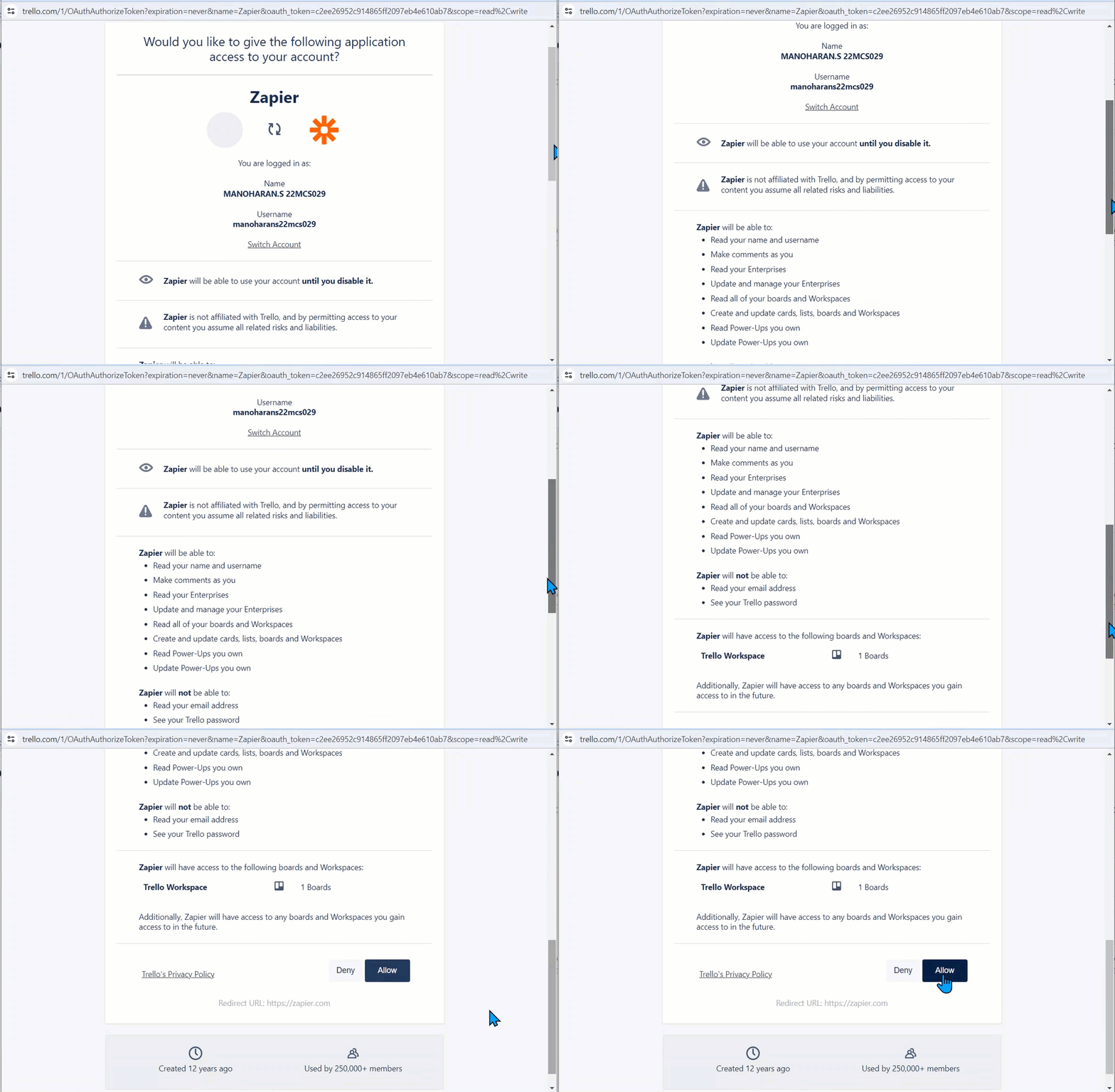
- Click the Account field — a Sign-in panel appears.
- Enter your Trello account credentials and click Allow.
- Click Continue.
- In the Setup action section, configure the following fields:
| Field | Description |
|---|---|
| Board | Choose the Trello board where cards should be created. |
| List | Choose the specific list on the board (e.g. "Published"). |
| Name | Map to a Document360 attribute — typically the article title. |
| Description | Map one or more Document360 attributes such as content, contributor, version, or update date. |
| Label | Pick a color label to apply to the card. |
| Card position | Choose Top or Bottom to control where new cards appear in the list. |
| Members | Assign Trello board members to the card if needed. |
- Click Continue.
- In the Test section, click Test step, then click Publish. A Zap published popup confirms the Zap is on.
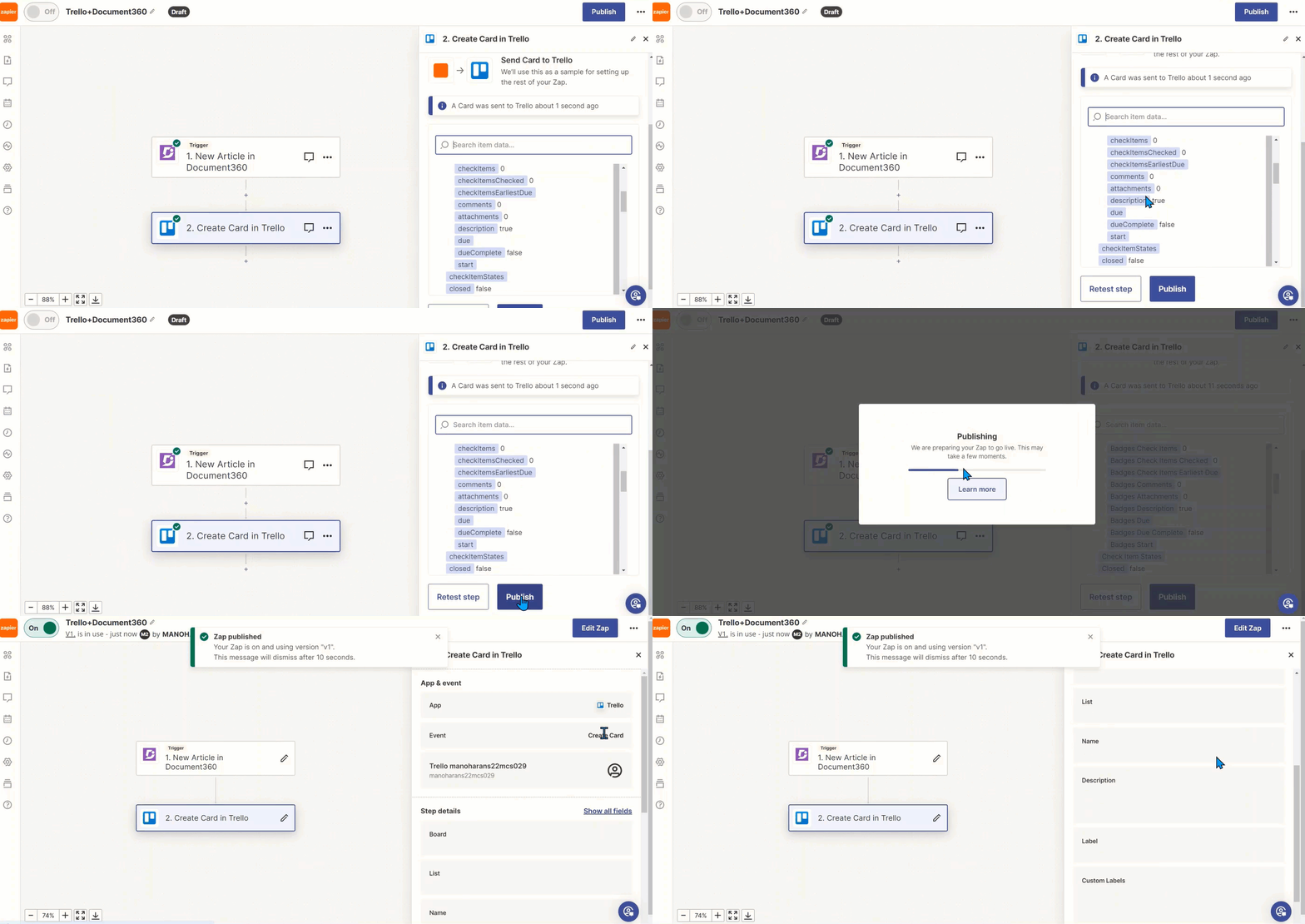
How article syncing works
Once the Zap is active, every time an article is published in your connected Document360 project, a new Trello card is automatically created on the board and list you configured. The card contains the article attributes you mapped — such as title, contributor, publish date, and content — giving your team full visibility into published articles directly from Trello.
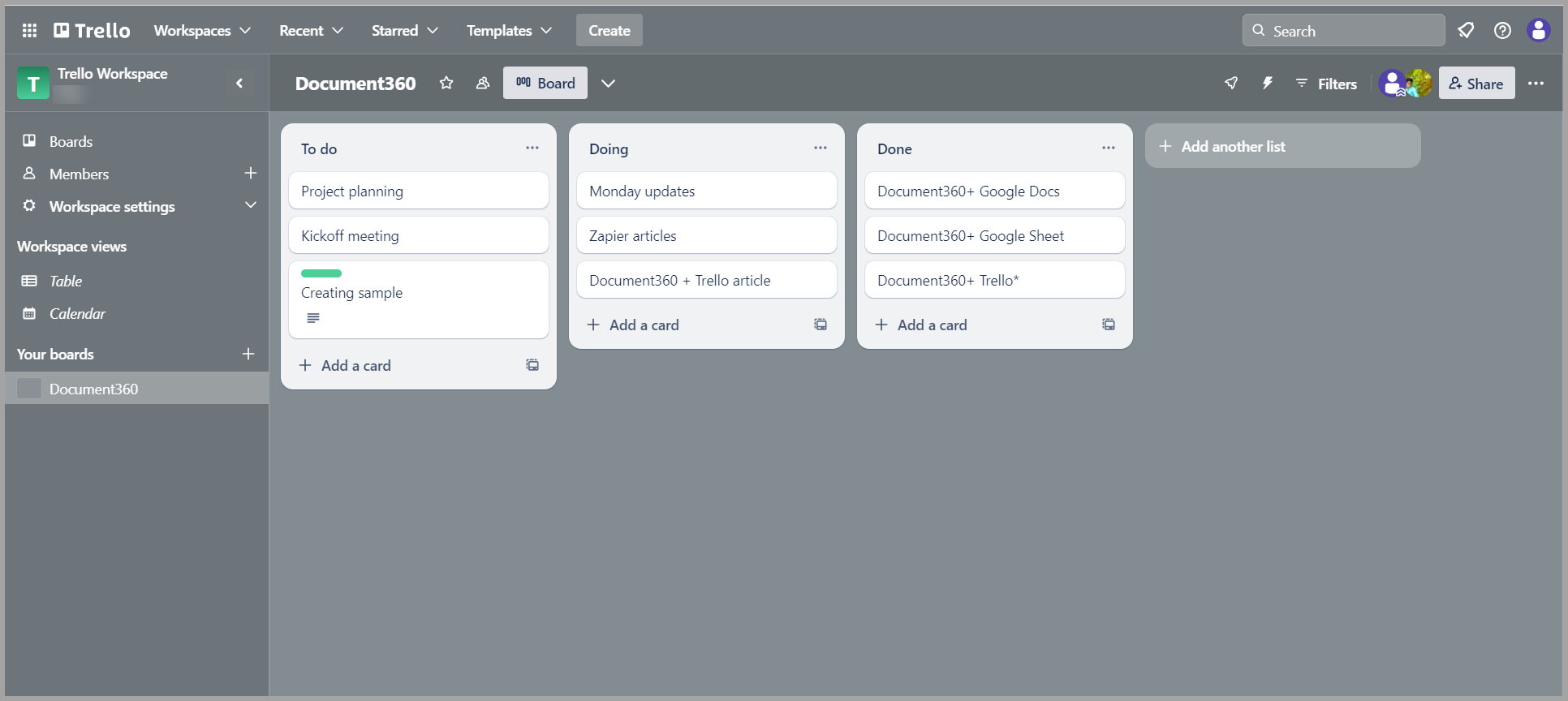
Zap overview
Once active, you can view and manage the Zap from the Zapier dashboard. The overview page shows the trigger, action, and run history for the Zap.
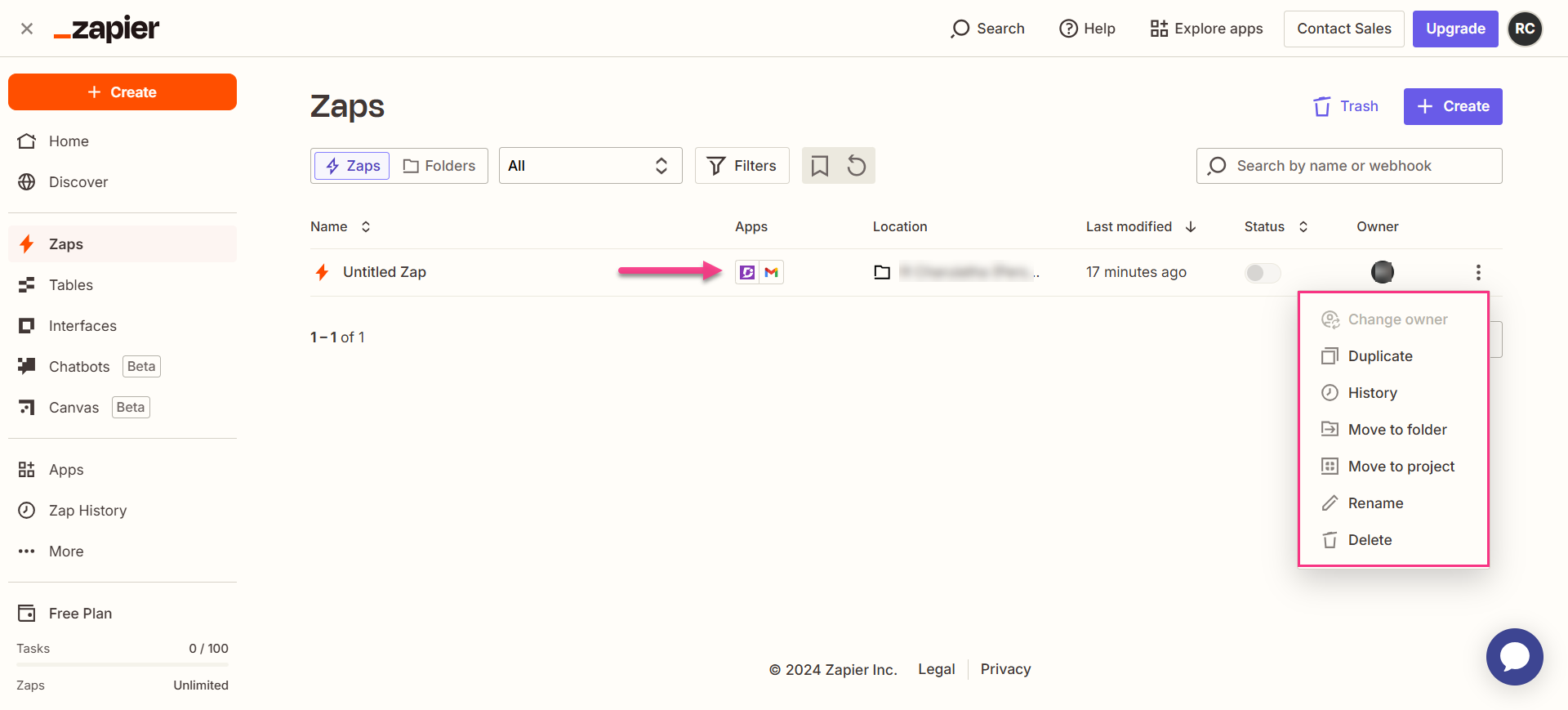
Delete a Zap
- Navigate to the Zapier dashboard. A list of all existing Zaps is displayed on the overview page.
- Click the Zap actions () icon to the right of the Zap you want to remove and click Delete. The Zap is permanently deleted.
Best practices
- Use a dedicated Trello list (such as "Published via D360") as the target for Zap-created cards, rather than mixing them with manually created cards. This makes it easy to distinguish automated entries and audit them if needed.
- Map the article URL or ID in the card description or name alongside the title, so team members can jump directly from the Trello card to the article in Document360 without searching.
- Set the Card position to Top so the most recently published articles always appear at the top of the list, giving your team an up-to-date view of what's been published without scrolling.