Working links appear as broken in the Link status report
Document360 enforces a 5-second validation timeout for link verification. If a request exceeds this limit, the system may flag the link as Unknown or Broken. Even if the link is functional, it may be incorrectly marked as broken due to the timeout restriction.
Steps to resolve:
Manually check the URL
Open the link in a browser to confirm if it loads correctly.
If the page loads, the link may have been incorrectly flagged as broken.
Validate the link using Postman
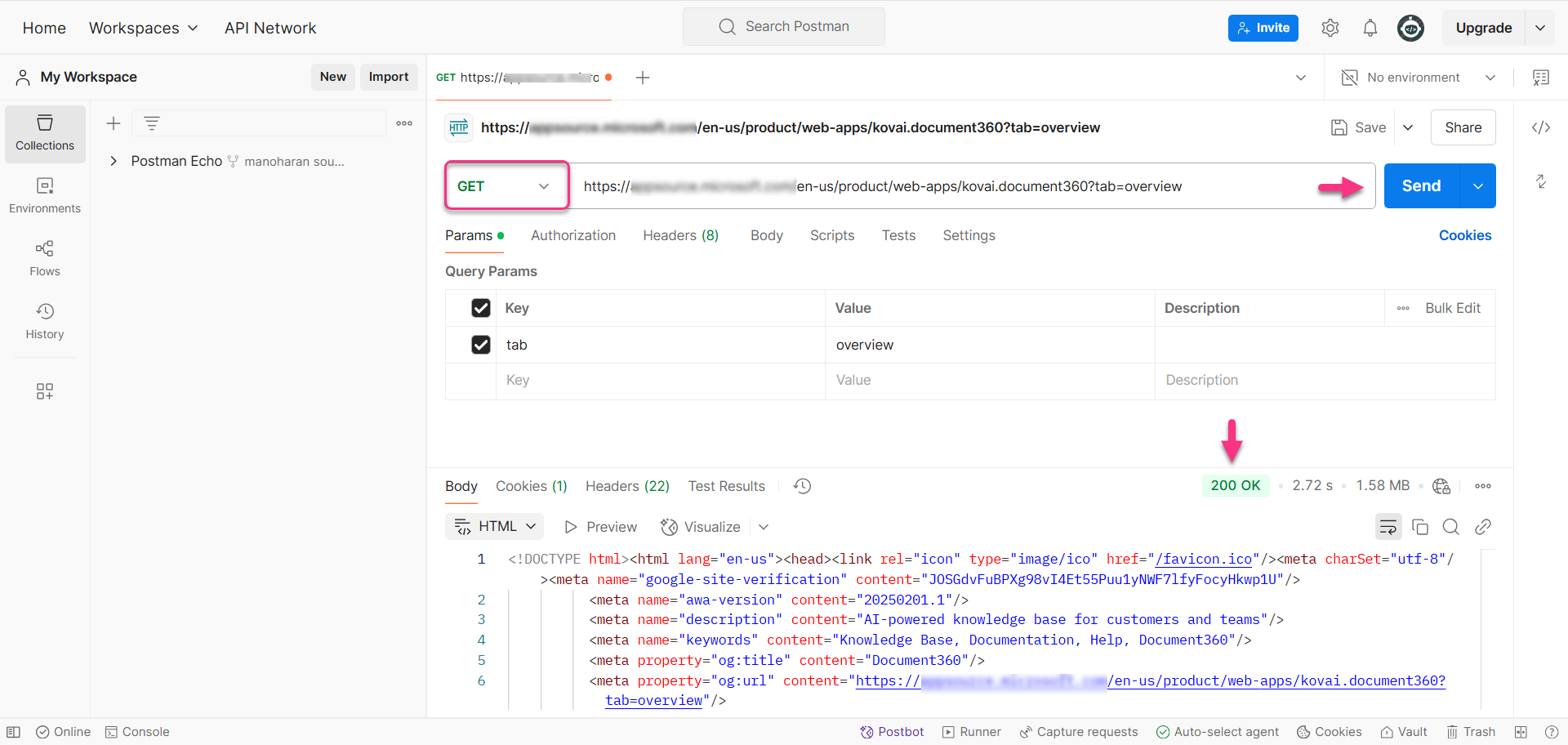
Open Postman and create a new request tab.
Enter the URL and select the GET method.
Click Send to check the response status.
Interpret the HTTP response status
If the response is 200 OK, the link is functional.
If the response code is anything other than 200, the link might be broken.
Some of the important status codes are:
Status code | Status description | Description |
|---|---|---|
200 OK | Success | The request was successful, and the expected response was returned. |
201 Created | Resource created | The request was successful, and a new resource was created. |
204 No content | No response body | The request was successful, but there is no response body (common for DELETE requests). |
400 Bad request | Invalid request | The request has incorrect syntax or missing parameters. |
401 Unauthorized | Authentication required | The request lacks valid authentication credentials (e.g., missing or incorrect API key). |
403 Forbidden | Access denied | The request is valid, but the user does not have permission to access the resource. |
404 Not found | Resource missing | The requested resource does not exist, or the endpoint is incorrect. |
405 Method not allowed | Invalid method | The HTTP method (GET, POST, etc.) is not allowed for this endpoint. |
500 Internal server error | Server issue | A generic error indicating something went wrong on the server. |
502 Bad gateway | Invalid response | The server received an invalid response from an upstream server. |
503 Service unavailable | Server overloaded | The server is down or overloaded with requests. |
504 Gateway timeout | Timeout error | The server did not receive a response from another service in time. |
If the issue persists after following these steps, please contact the Document360 support team for further assistance: Contact Document360 Support
FAQ
Why does a recycle bin icon appear before links in Link Analytics?
The recycle bin icon indicates that the articles containing those links have been deleted and moved to the recycle bin, but have not been permanently deleted. Since the articles can still be restored, the associated links continue to be included in the scheduled link validation process.
Once the articles are permanently deleted from the recycle bin, those links will no longer be validated or displayed in Link Analytics.
Why does the link validator flag an image as a broken link even though it displays correctly in the browser?
This behavior occurs when an image is embedded directly into the article as base64-encoded data instead of being hosted at an external URL.
The Link Validator checks whether a web address points to a valid and accessible resource. Since base64-encoded images are embedded inline within the article and do not have a separate URL, there is no web address available for validation. As a result, the validator may incorrectly flag the image as a broken link, even though the image continues to display correctly in the browser.
To avoid this behavior, it is recommended to host images at a publicly accessible URL (for example, using cloud storage or an external image hosting service) and insert them into the article using the image URL instead of embedding them as base64-encoded data.