This section provides step-by-step guidance to address common challenges that you may encounter while managing or accessing your knowledge base site. From website accessibility problems to configuration errors, each solution is tailored to help you quickly identify and resolve potential roadblocks.
Article returns 404 error or redirects unexpectedly
When an article returns a 404 error or redirects unexpectedly, it is typically caused by the article being unpublished, an incorrect or changed article slug, a deleted article, or a misconfigured URL redirect rule.
Steps to resolve:
Check for server issues
A temporary server problem may prevent the page from loading. Try refreshing the page.
Verify the article slug
Review the article slug configured in the editor. Ensure the slug is in all lowercase and check for any typos.
Ensure that the slug matches the URL being accessed from the knowledge base site.
If the article URL was recently changed, set up a redirection rule in the Knowledge base portal to prevent broken links.
Update the slug or URL if a mismatch is identified.
Note
A slug mismatch, an unpublished article, or a missing article can also prevent the editor’s Preview option from loading, not only the live link on the knowledge base site. If Preview fails to open, follow the same steps above: verify the article slug, confirm the article is published, and check for conflicting redirect rules.
If the slug is correctly formed (all lowercase, no typos, matches the URL you are accessing) but the article still returns a 404 error, the slug may conflict with a system-reserved path. Document360 reserves certain URL paths internally for product features, such as the Favorites feature. If an article slug matches one of these reserved paths, the article will return a 404 error on the knowledge base site even though it appears published in the portal and is visible in the documentation table of contents.
To resolve: change the article slug to a different value. For example, if the slug
favoritesis reserved, usefavorites-articleorfavorites-1instead. After updating the slug, revisit the article on the knowledge base site to confirm it loads correctly. If you are unsure whether a slug is reserved, rename it to any clearly unique value and check whether the 404 error clears.
Verify that the article is published
Ensure that the article is published and available in the appropriate knowledge base version.
If the article is in draft status, publish it and try accessing the article again.
Check URL redirect rules
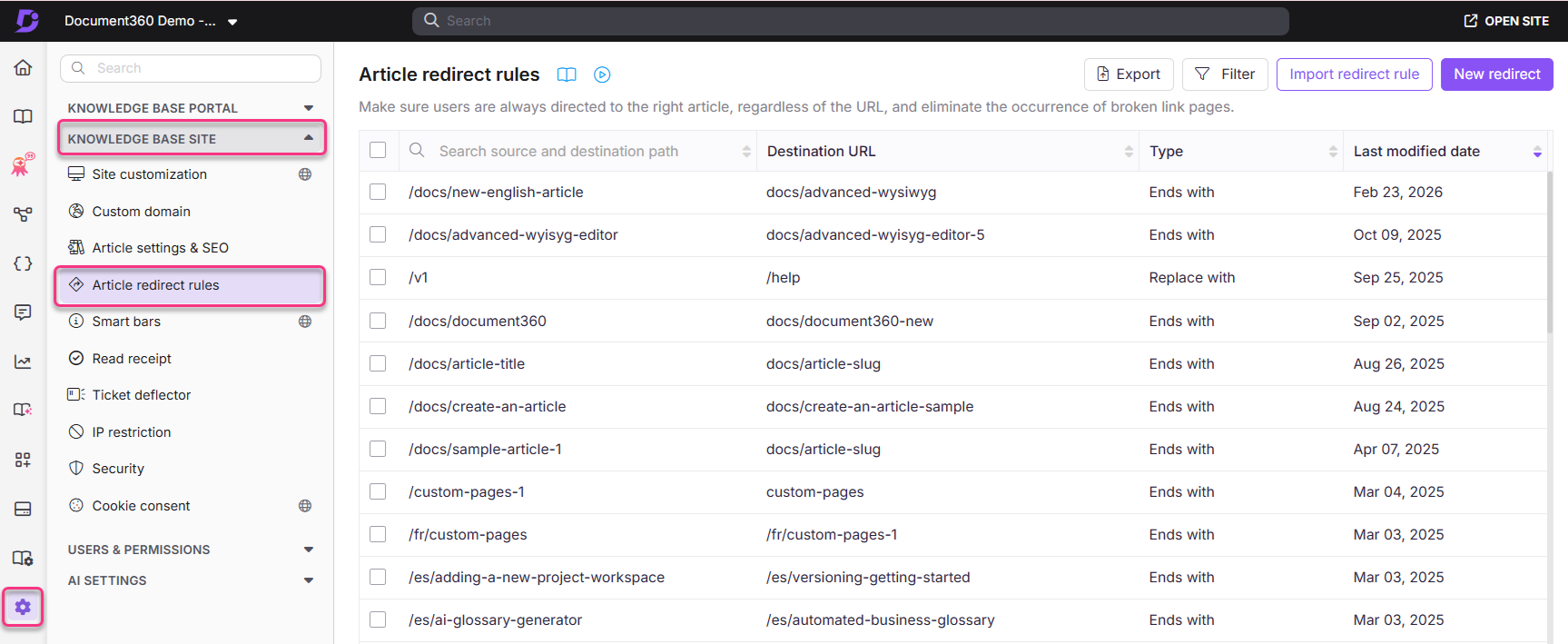
Navigate to Settings () > in the left navigation bar in the Knowledge base portal.
In the left navigation pane, navigate to .
Use the search bar to find the article's slug and check if a redirection rule is applied.
If a redirection rule is applied, review its purpose. If the rule is unnecessary or misconfigured, remove it.
Note:
An existing redirect rule does not always produce a 404 error - it may instead redirect readers silently to a different article or page. If clicking an article link opens unexpected content rather than the intended article, check whether a redirect rule is applied to that article’s slug and remove it if it is no longer needed.
Save the changes and revisit the article to ensure it displays as expected on the Knowledge base site.
Check the subfolder path
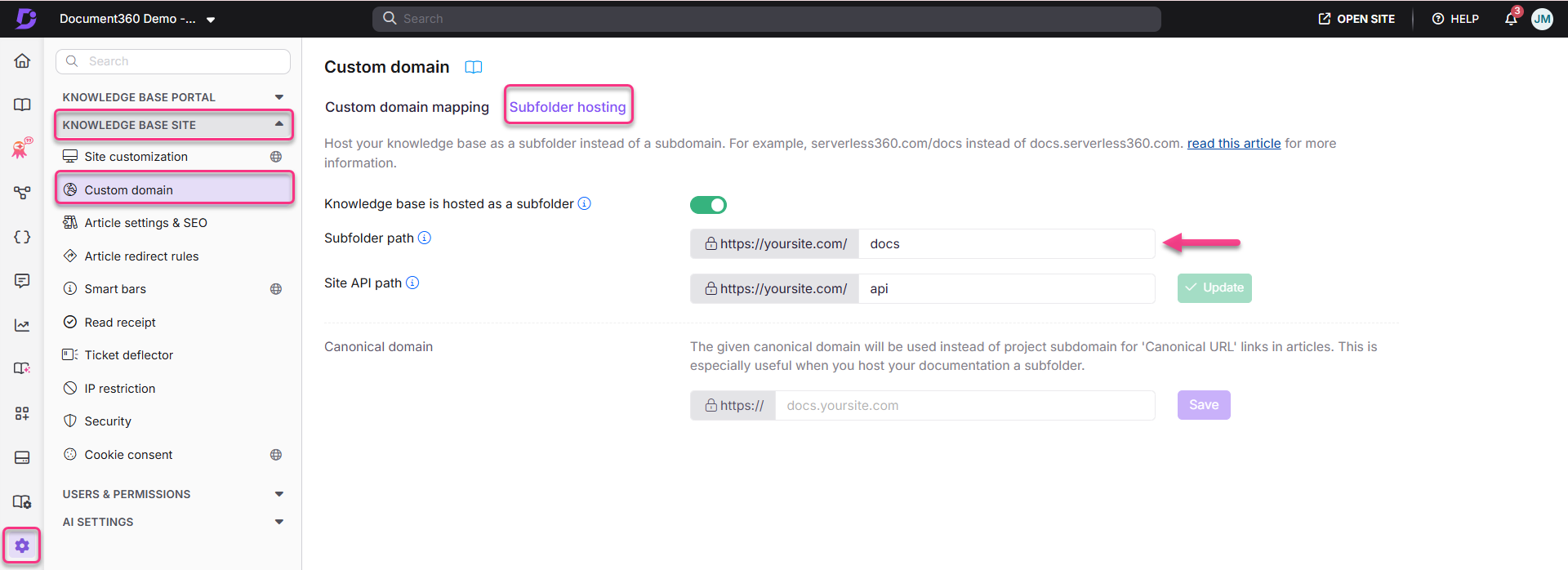
If all articles on the Knowledge base site are returning 404 errors, the subfolder path may have been changed from its default name,
docs. This applies only when the subfolder host is inactive.Change the subfolder path back to
docsand save the changes.For more information, see Hosting Document360 on a sub-directory.
If the issue persists after following these steps, please contact the Document360 support team for further assistance: Contact Document360 Support
Caching after a recent publish, redirect change or custom domain update
If an article was just published, or a redirect rule or custom domain was just changed, a 404 error may appear temporarily even though the configuration is correct. This happens because public knowledge base content is served through an edge cache that can take a short time to refresh. This is expected behavior and is not a configuration error.
Steps to resolve:
Wait a few minutes and refresh the page. In most cases the 404 error resolves on its own once the cache updates.
If you need to confirm the change took effect immediately, view the article using a URL with an extra query parameter added to the end, for example: article-name?refresh=1. This bypasses the cache and shows the latest version directly.
If the 404 error still appears after 15 to 20 minutes, treat it as a configuration issue rather than a caching delay, and continue with the slug, publish status, and redirect rule checks described above.
For more detail on cache duration and behavior by project type, see Content delivery, caching, and update visibility.
Restored article opens to a 404 error or does not appear under its section
If an article was recently restored from the Recycle bin but still returns a 404 error or does not appear in its expected section, this is usually because the article's parent Category (section) was deleted at the same time and has not yet been restored. An article cannot resolve its path correctly if its parent category no longer exists.
Steps to resolve:
Navigate to the Overview page, hover over the Overview icon, and select Recycle bin (or navigate to Documentation and click the Recycle bin icon).
Locate the deleted parent category and click Restore. This returns the category to its original location in the category tree.
Open the restored article and click Publish to ensure it regains a valid path and becomes accessible again. Restoring the category alone does not guarantee the article is republished if it was in a draft or unpublished state.
Revisit the article on the knowledge base site to confirm it now loads correctly and appears under its section.
If the category cannot be found in the Recycle bin (for example, if more than 30 days have passed), see Recycle bin page and Backup and restore for longer-term recovery options.
Encountering an error while saving an article redirection rule.
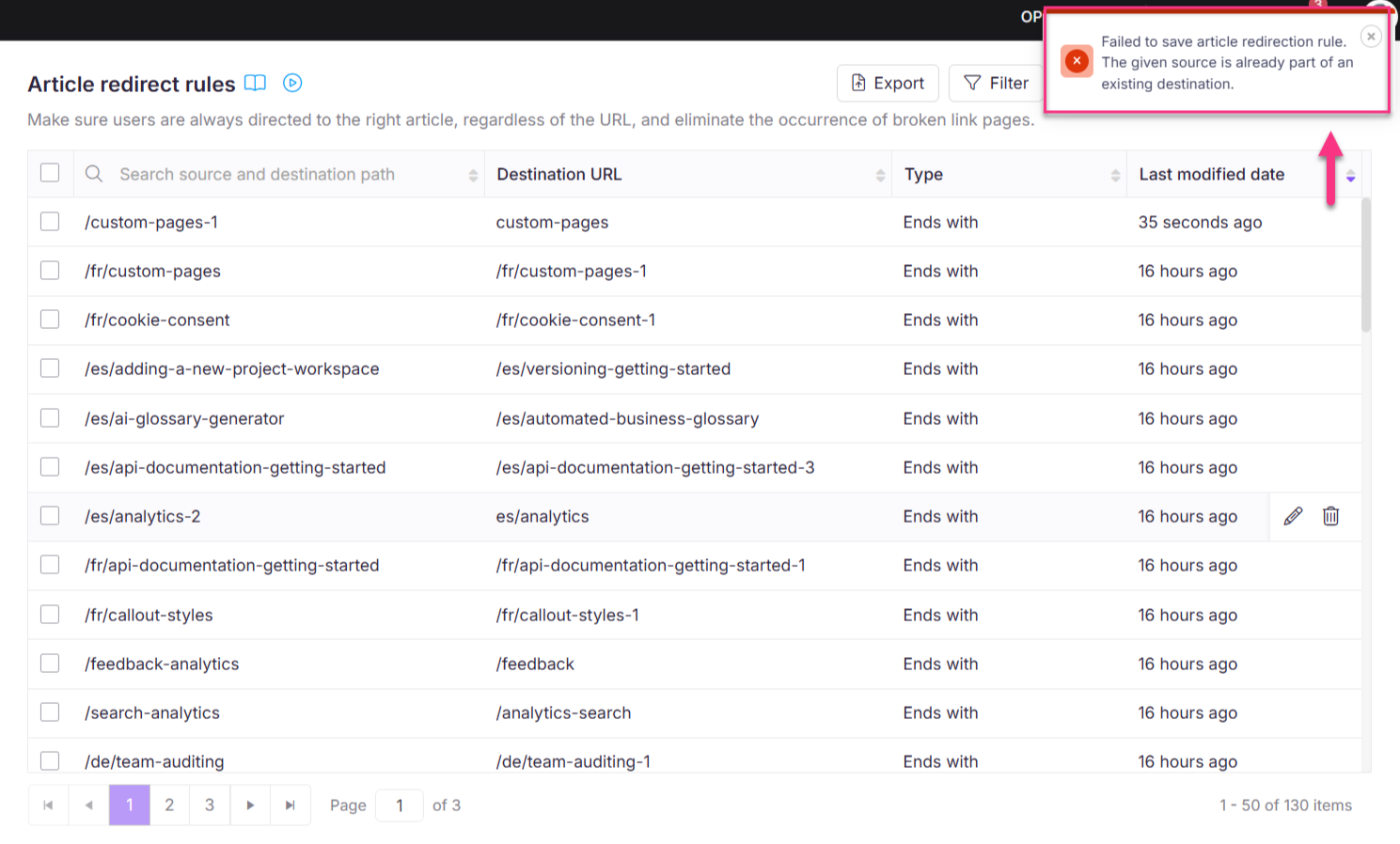
Error: Failed to save article redirection rule. The given source is already part of an existing destination.
This error occurs when a destination slug (the target of an existing redirection rule) is used as the source path for another redirection. Once a destination is set in a redirection rule, it becomes a static target and cannot be reused as a source in a new rule.
Steps to resolve:
Ensure that the destination slug is not used as a source path in any existing or new redirection rules.
Review and update your redirection rules to avoid conflicts.
An existing redirect rule can also cause a live, correctly configured article to return a 404 error for readers, separate from the save-time error described above. This happens when an unnecessary or outdated redirect rule still points from an article's current slug to a different destination.
Steps to resolve:
Navigate to Settings, then Knowledge base site, then Article redirect rules.
Use the Search field to find the existing redirect rule that currently uses the conflicting URL as its destination.
Hover over that rule and click the Edit icon.
In the Destination URL field, update the destination to point directly to your intended final destination URL, bypassing the conflicting URL entirely.
Click Update to save the change.
Once saved, return to Article redirect rules and create the new redirect rule, using the previously conflicting URL as the source path.
Note:
After resolving a redirect chain conflict and successfully saving the rule, the source URL may continue to return a 404 error for a short time. This is expected. Changes to redirect rules are applied through an edge cache that can take a few minutes to refresh. Wait a few minutes and try the source URL again before assuming the configuration is incorrect. If the 404 error persists beyond 15 to 20 minutes, review the rule configuration and continue with the checks below.
Avoiding 404 errors after removing languages in the Knowledge base site
When languages are removed/hidden from the Knowledge base site, readers may encounter 404 errors if they try to access removed-language versions of articles.
Once a language is removed from the project, all articles associated with that language become unavailable. However, users with bookmarked links or direct access to those URLs may still attempt to open them, leading to 404 errors.
Steps to resolve:
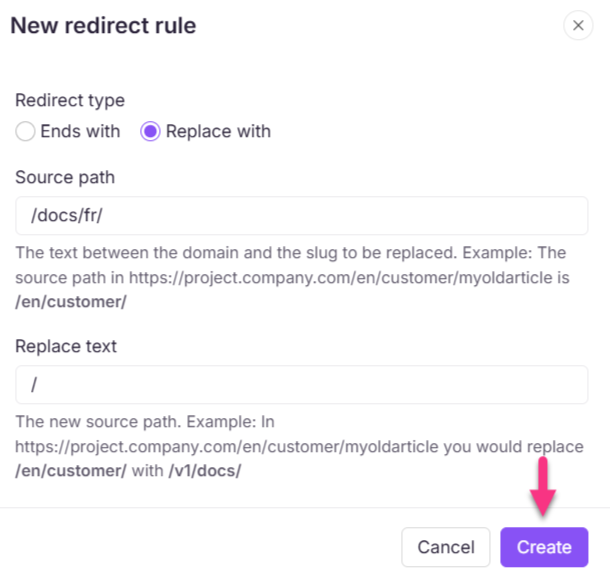
To prevent 404 errors and redirect users to the main language version of the article, set up redirection rules for the removed languages:
Navigate to Settings () > in the left navigation bar in the Knowledge base portal.
In the left navigation pane, navigate to .
Click New redirect to add a new redirection rule.
The New redirect rule panel will appear.
Choose Replace with in the Redirect type section.
In the Source path, enter
/docs/<language_code>(e.g.,/docs/frfor French,/docs/esfor Spanish,/docs/defor German).In the Replace text, enter
/to redirect all language-specific article links to the main language.Click Create to save the rule.
Repeat the process for each removed language. Once these redirection rules are applied, any attempt to access a removed language article will automatically redirect users to the main language version, preventing 404 errors even if the links are bookmarked.
Articles not visible under categories in the portal
If categories appear correctly in both the portal and the knowledge base site but no articles are listed under them, the issue is distinct from a single-article 404 error and requires a different set of investigation steps.
Common symptoms:
One or more categories are visible in the portal navigation and on the knowledge base site.
No articles appear under those categories, even though articles were previously accessible.
Readers attempting to access known article URLs receive a 404 error.
The issue affects all users across the project, not just a specific role or account.
Steps to investigate and recover:
Check the Recycle bin
Navigate to the Recycle bin and use the Deleted from filter to look for articles that belonged to the affected categories. If articles are present, restore them individually or restore the parent category to recover all associated content at once. If you restore a category, open and republish any articles that were in a Draft or Unpublished state to make them accessible on the knowledge base site again.
Check Backup and Restore
If the articles are not in the Recycle bin, navigate to Settings > Knowledge base portal > Backup and Restore. Check whether a backup exists from a date before the content became unavailable. If one exists, restore the Documentation element from that backup.
Caution
Restoring from a backup replaces your current content state with the backup snapshot for the selected element. Review the backup date carefully before proceeding.
Contact Document360 Support
If neither the Recycle bin nor Backup and Restore resolves the issue, contact Document360 Support. Provide the affected category names, the approximate date when content was last accessible, and confirm whether team auditing is enabled for your project. In some cases, content may become unavailable due to a platform-level issue that requires investigation beyond what can be resolved through the portal interface.
Note:
If team auditing was not configured for your project before the content became unavailable, there may be no activity log available to identify what caused the change. See Team auditing for guidance on setting up activity logging for your project.
Website fails to load after entering the URL
If a website is not accessible when you enter a URL, possible causes could be incorrect URL entry, browser cache issues, VPN interference, network problems, server downtime, outdated browsers, or incorrect system date and time settings.
Steps to resolve:
Ensure the website URL is entered correctly.
Reload the page.
Clear browser cache:
Right-click anywhere on the page and select Inspect to open the developer tools menu.
Right-click the browser's reload button and choose Hard reload or Empty cache and Hard reload.
Check if a VPN is active on your device. If it is, turn off the VPN and attempt to access the site again.
Ensure your system's date, time, and time zone are set correctly.
If the issue persists after these steps, consider contacting the support team for further assistance.
Category not appearing in the knowledge base site navigation tree
If a category contains published articles but does not appear in the navigation tree on the knowledge base site, work through the following checks in order. This is a distinct scenario from a 404 error on a specific article: the articles may still be searchable and reachable via their direct links even when the category is not visible in the tree.
Confirm the category is not hidden
Open the category in the Knowledge base portal and check its status. A hidden category appears with a strikethrough on its name in the Categories and Articles pane. If the category is hidden, hover over it, click the More icon, and select Unhide. The category becomes visible on the knowledge base site immediately.
Verify that at least one article in the category is published
A category does not appear on the knowledge base site if none of its articles have a Published status, even if the articles are not set to hidden. Open each article in the affected category and confirm that its status shows as Published rather than Draft or Unpublished. If any articles are in a non-published state, publish them and reload the site to check whether the category appears.
Check for custom JavaScript targeting category navigation
Navigate to Settings > Knowledge base site > Site customization > Custom CSS and JavaScript and review the JavaScript tab. If any script filters or hides specific categories from the navigation tree, review or remove it, then test the site again.
Check reader access settings (private and mixed projects)
If your project is set to Private or Mixed, navigate to the affected category and check whether reader group access restrictions have been applied. If a reader group does not have access to a category, that category will not appear in the navigation tree for readers in that group. Confirm that the relevant reader groups have access to the affected category, or adjust the access settings as needed. This check does not apply if your project is set to Public, as reader group access settings are not applicable in Public mode.
Wait for a cache refresh after recent configuration changes
If project visibility, workspace settings, or category configuration were changed recently, such as switching the project from Private to Public or publishing a new category for the first time, the navigation tree may take a few minutes to reflect the change while the edge cache refreshes. Wait 15 to 20 minutes and reload the page before treating this as a configuration issue.
Confirm the workspace is set to Public
Navigate to Settings > Users and security > Reader access and confirm that your project is set to Public. If the workspace is Private, readers must be logged in to see any content. If the project was recently switched to Public, allow time for the cache to refresh as described above.
Contact Document360 Support
If none of the above steps identify the cause, contact Document360 Support at support@document360.com with the following information:
The names of the affected categories and their locations in the category tree.
Confirmation that the categories are not hidden and contain at least one published article.
Confirmation that articles within the categories are accessible via their direct links and appear in site search results.
Any recent changes made to the project, workspace, or category configuration.
The approximate date and time when the categories last appeared in the navigation tree.
This allows the support team to investigate at the infrastructure level if the issue cannot be resolved through the portal.
Temporary workaround while awaiting investigation
If reader access to the category's content needs to be restored before the issue can be fully investigated, you can recreate the category and move the content as a temporary workaround. This does not resolve the underlying cause but restores site visibility quickly.
Create a new category of the same type as the affected category.
Move all subcategories and articles from the affected category to the new category. Use the Move option on each item, or drag and drop within the workspace.
If readers may have bookmarked the original category URL or if other articles link to it, create an article redirect rule from the original category path to the new category to prevent broken links.
Publish the new category and confirm it appears in the knowledge base site navigation tree.
Leave the original category in place until Document360 Support confirms the issue has been identified and the category can safely be deleted or hidden.
Note:
Moving articles and subcategories to a new category preserves all article content, versions, and settings. Articles that were published remain published after the move. If no redirect rule is set for the original category path, readers who navigate to or search for the old URL will encounter a 404 error until the rule is in place.
Knowledge base site features not working after a product update
Issue: Some knowledge base site features - such as reader personalization or interactive elements — stop working for readers after a Document360 product update, even though article pages continue to load and navigation appears normal. The issue typically affects all readers and is not related to individual article configuration.
Possible cause: Document360 feature updates can introduce new API requests, including POST requests, to the Document360 API endpoint routed through your Site API path. If your infrastructure includes an upstream Web Application Firewall (WAF), CDN security policy, or cloud provider rule set (such as Google Cloud Armor or an equivalent product) that restricts HTTP methods, POST requests may be blocked before they reach your web server. This causes the affected features to fail silently for readers without producing a standard error page.
Steps to resolve:
Identify when the issue started. If it began shortly after a Document360 product update, check whether the timing coincides with a new release. Review recent Document360 release notes to see whether the update introduced new API activity.
Check your upstream security layer. Ask your network or infrastructure team to review any WAF, CDN security policy, or cloud provider rule set that processes traffic before it reaches your web server. Look specifically for rules that restrict HTTP methods — for example, rules that allow only GET requests or that block POST requests to paths under your domain.
Verify that POST requests are permitted to your Site API path. Your Site API path (configured under Settings > Knowledge base site > Custom domain > Subfolder hosting, by default
/api) must allow POST requests. If your security layer blocks POST to this path, whitelist POST for the Document360 API endpoint or for your Site API path specifically, following your security product’s documentation.Test after updating the rule. Once POST requests are permitted, reload the knowledge base site and confirm the affected features work as expected for readers.
Browser security or antivirus extension intercepting Document360 pages
Issue: When navigating to a page in the Document360 portal or knowledge base site — including when right-clicking a link and selecting Open in new tab — the browser is redirected to a block page generated by a browser security or antivirus extension instead of loading the expected page. The URL in the address bar begins with extension:// and the block page typically includes parameters such as type=scam, subtype=riskyPattern, or a similar security-rule identifier. The same Document360 URL loads correctly in a browser where the extension is not installed or is disabled.
Possible cause: Some browser endpoint security and antivirus extensions — such as Malwarebytes Browser Guard, Windows Defender Browser Protection, and similar tools — actively intercept browser navigation and block URLs that match a security rule. Occasionally, Document360 portal or site URLs are incorrectly flagged as a risky pattern (a false positive). The block page and the redirect are generated entirely by the extension, not by Document360. The issue can appear across multiple browsers simultaneously if the same or a comparable extension is active in each.
Steps to resolve:
Confirm the block is coming from a browser extension. Check the address bar. If the URL begins with
extension://and the page appears to be generated by a security tool rather than a Document360 error page, the block is originating from a browser extension, not from Document360.Test the same URL in another browser or private window. Try a browser where the extension is not installed, or an incognito or private browsing window. Many browsers disable extensions in private mode by default. If the Document360 page loads correctly, the extension is confirmed as the cause.
Identify the extension responsible. The extension name or branding is usually shown on the block page itself or visible in the browser's extension toolbar.
Whitelist or allowlist the Document360 domains. The exact steps vary by extension. In Malwarebytes Browser Guard, open the extension, go to its allowlist or exclusions settings, and add the relevant Document360 domains — for example,
portal.document360.io,your-project.document360.io, or your project's custom domain.Contact your organization's IT or security team if necessary. If the extension is managed by your organization, ask the team to review the rule flagging Document360 URLs. Share the specific rule identifier shown in the blocked URL (the value of the
rule=parameter) to help them locate and update the relevant rule.Check whether the issue resolves automatically. If no action is taken and the issue clears after a period of normal use, the extension's threat-definition update has likely resolved the false positive automatically.
NOTE: This is an issue with the browser extension's security rules on the user's own device, not a Document360 configuration problem. Document360 Support cannot modify the rules of third-party browser security extensions. If the above steps do not resolve the issue, contact the browser extension vendor's support team, or your organization's IT or security team if the extension is centrally managed.
Secure connection issues on the knowledge base site
Error:
This site can’t provide a secure connection
Your connection isn’t private
The connection for this site is not secure
Steps to resolve:
Check the CAA Record in DNS:
Verify if a CAA (Certification Authority Authorization) record has been added to the DNS records for your knowledge base site.
If no CAA record is found, inspect the SSL certificate used for the site. For guidance, refer to the steps in the provided video.
Update the CAA Record:
Add the corresponding CAA record to your DNS based on the SSL certificate provider.
For example, if the certificate provider is Let’s Encrypt, add the second CAA record as specified in the instructions. Similarly, ensure the correct CAA record is added for your certificate type.
Reference for CAA Records:
Learn more about CAA records and their importance by reviewing the following article:
CAA Record and Why It Is Needed (SSL-Related).
Contact the DNS Provider:
If the issue persists during custom domain setup, contact your DNS provider to confirm if there are any additional issues.
If the issue persists after following these steps, please contact the Document360 support team for further assistance: Contact Document360 Support
Site or knowledge base completely inaccessible due to corporate firewall SSL inspection
Issue: Users on a corporate or organizational network are unable to reach the knowledge base site or portal at all, even though the site works normally from outside that network (for example, on a mobile hotspot or a different network). The browser may show a generic connection error rather than a specific Document360 error message.
Possible cause: Some corporate firewalls, secure web gateways, or endpoint security tools perform SSL/TLS inspection (also called deep packet inspection) on outbound HTTPS traffic. This decrypts and re-encrypts traffic to inspect it before it reaches the browser. If the firewall’s SSL inspection profile does not fully support the TLS configuration Document360’s servers use, or does not yet support newer cipher suites or TLS 1.3 extensions involved in the connection, the TLS handshake can fail, making the site appear completely unreachable rather than showing a certificate warning.
Steps to resolve:
Confirm the scope of the issue. Check whether the site is reachable from a device or network outside the affected organization (for example, a mobile hotspot). If it loads correctly there, the issue is specific to the corporate network rather than to Document360.
Ask your network or security team to check whether SSL/TLS inspection (sometimes listed as deep packet inspection, HTTPS inspection, or an SSL inspection profile) is enabled for outbound traffic on the firewall or secure web gateway.
As a test, ask your network or security team to temporarily exclude Document360’s domains from SSL inspection, or temporarily switch the relevant inspection profile to a monitor-only or detection-only mode, then try accessing the site again.
If access is restored, your network or security team can work with their firewall vendor to adjust the SSL inspection profile so Document360 traffic is handled correctly, rather than leaving inspection disabled long-term.
If the issue persists after checking the above, generate a HAR file and contact Document360 Support for further investigation.
Note: This is a network-level issue on the reader’s or administrator’s own network, not a Document360 configuration issue, so Document360 Support cannot change firewall settings directly. If the site loads but without CSS styling (partial breakage) rather than failing completely, see the domain whitelisting table in Content display and functionality issues instead - that is a related but distinct cause.
504 gateway timeout while accessing the site
Error: 504 gateway timeout
If a 504 error occurs while accessing the site, one possible reason could be the sub-folder configuration.
Steps to resolve:
Check recent changes in the web server configuration:
Review the location blocks or configuration files in the web server for any recent changes.
If changes are identified, revert them to their previous state.
Verify the sub-folder Configuration:
A change in the sub-folder slug within the Sub-folder Configuration may cause the issue.
Revert any recent changes to the sub-folder configuration to resolve the issue.
For more reference on sub-folder configuration, refer to the article on Hosting Document360 on a sub-directory.
Error while accessing the site
Error:
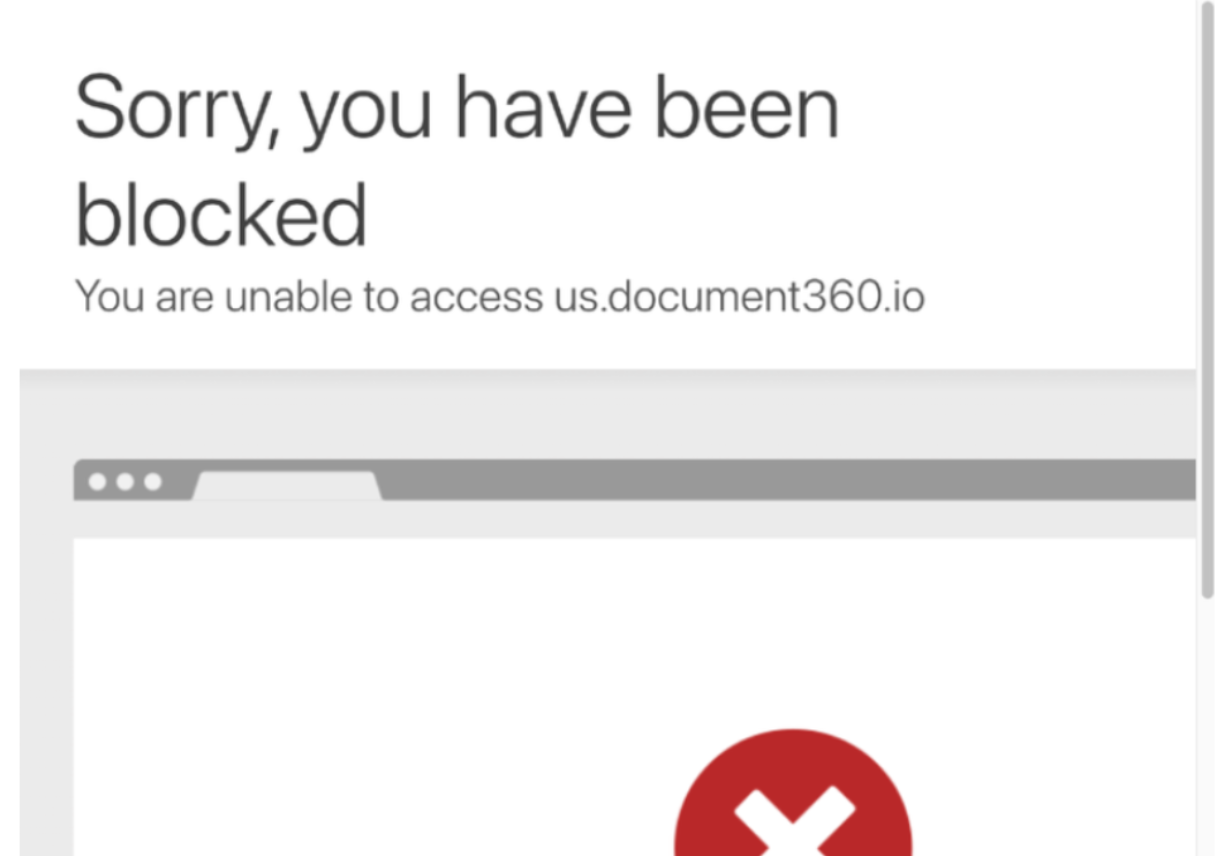
1. Sorry, you have been blocked. You are unable to access us.document360.io
2. The site fails to load properly or displays error code: 6003
The Knowledge base site is not loading or is inaccessible for certain users. Cloudflare might have flagged the IP address or the browser's user agent as suspicious or bot-like. This can result in restricted access to the site.
Or, this issue can occur if the JWT (JSON Web Token) client secret has been regenerated. When the secret is changed but not updated in the application, authentication fails, leading to access issues.

Steps to resolve:
If you experience the first issue, please reach out to us at Document360 Support. Our team will investigate the IP score or browser agent and assist in resolving the problem.
If you experience the second issue,
If the secret was recently regenerated and not updated, regenerate a new client secret.
After regenerating, ensure the new client secret is correctly updated in the JWT application's configuration settings.
Brief regional service disruptions not reflected on the status page
From time to time, your knowledge base site may experience a short slowdown or a brief failure to complete sign-in, typically lasting only a few minutes, without that event appearing on the Document360 status page. This can happen when there is a short, partial connectivity issue on the Cloudflare network, which carries traffic between Cloudflare’s edge locations and the Document360 environment serving your project’s region.
During an event like this, you may notice:
Slower than normal page loads for readers in the affected region.
A temporary server error on some requests.
Readers of a site that requires sign-in being asked to sign in again, or sign-in not completing, until the connectivity issue clears.
Other regions, and sites hosted outside the affected region, are not impacted. No data is lost. Document360’s servers, databases, and applications continue operating normally throughout; only the network path for some requests is affected.
These events typically resolve automatically within a few minutes once the underlying network connectivity is restored, and no action is required on your part.
Steps to resolve:
Wait a few minutes and try again. Brief regional connectivity issues usually clear within 10 to 15 minutes.
If the issue continues beyond 15 to 20 minutes, treat it as a possible configuration issue rather than a transient network issue, and follow the other troubleshooting steps on this page, such as checking the article slug, publish status, and redirect rules.
To confirm or report a short disruption that did not appear on the status page, contact Document360 Support with the exact date, start and end time (including time zone), and the affected URL or feature. Support can check infrastructure logs for that window and share the findings with you.
Note:
A brief regional network issue may not always appear as a separate incident on the Document360 status page. Contact Document360 Support with specific timestamps if you would like confirmation of what occurred during a specific window.
Knowledge base inaccessible to readers despite correct configuration
Issue: Readers receive an error when accessing the knowledge base site, but articles appear as Published in the Knowledge base portal with no access restrictions configured. The issue affects all or most readers across the project simultaneously, not just a specific reader or reader group.
Common symptoms:
Readers encounter an error - such as a 404 error - when attempting to open articles on the knowledge base site.
The issue affects all or most readers at the same time, not just one user or one reader group.
Articles appear as Published in the Knowledge base portal.
No access restrictions, hidden articles, or redirect rules are configured that would explain the error.
The error persists and does not clear after a few minutes.
Steps to investigate:
Confirm that articles are published and not hidden. In the Knowledge base portal, verify that the affected articles show a Published status and are not set to Hidden.
Verify that no access restrictions or redirect rules apply. Navigate to Documentation and confirm that no article-level or category-level security restrictions have been set for the affected content. Navigate to Settings > Knowledge base site > Article redirect rules and confirm that no redirect rule is applied to the affected article slugs.
Rule out user-side causes. Ask a small group of affected readers to try the following steps:
Open the knowledge base site in a different browser or in an incognito or private browsing window.
Disable any active VPN or proxy connection.
Try a different network connection, such as a mobile hotspot.
If the issue persists across different browsers and networks for all tested readers, a user-side cause is unlikely.
Check for recent configuration changes. Review whether any of the following changes were made to the project recently:
Workspace visibility or reader access settings.
Project-level access settings (public, private, or mixed).
Custom domain or subfolder path configuration.
Contact Document360 Support. If all of the above checks confirm that configuration is correct and the issue is persistent and affects all or most readers, the cause may be a platform-level issue. Contact Document360 Support at support@document360.com with the following details:
The affected knowledge base URL.
The date and approximate time the issue began.
Confirmation that articles appear as Published in the portal with no access restrictions or redirect rules configured.
Confirmation that the issue affects all or most readers simultaneously, not specific users only.
A HAR file from an affected reader’s browser session, captured while the error occurs.
Note:
In some cases, a knowledge base may become temporarily inaccessible due to a platform issue that cannot be resolved through portal configuration. Document360 Support can investigate at the infrastructure level and will work toward a resolution.
Encountering the "/home/error/" message while accessing the site
Error: /home/error/
Possible causes of this error include incorrect site configuration, server-side issues, or unresolved errors in the website's backend. You might encounter this error in the URL section after the domain URL.
Steps to resolve:
Reach out to us at Document360 Support with the following details:
A screen share video demonstrating the issue on the page.
Steps to reproduce the error, if possible.
Follow the steps outlined in this guide to download the HAR file.
Share console errors:
After downloading the HAR file, click on the ‘console’ tab in your browser's developer tools.
Take a screenshot of the console errors displayed and include it in your email.
Workspace switching redirects to unexpected location
When readers switch between workspaces on your knowledge base site, they may land on an unexpected article or experience redirect loops. This usually occurs when article redirect rules conflict with your workspace switching behavior settings.
Common causes
Cross-workspace redirect rules: A redirect rule points from an article in one workspace to a URL in a different workspace, overriding your workspace switching behavior setting.
Redirect rule chains: Multiple redirect rules point to each other in sequence, causing readers to bounce between articles when switching workspaces.
Outdated redirect rules: Rules created during a previous workspace restructure are no longer valid or no longer needed.
Workspace-specific slugs in redirect paths: Redirect rules include workspace identifiers that are no longer accurate after renaming or reorganizing workspaces.
Steps to resolve
Navigate to Settings > Knowledge base site > Article redirect rules.
Search for redirect rules containing workspace names, version numbers, or paths that may be outdated.
For each rule, verify the Source path and Destination URL:
If the destination URL points to a different workspace than the source, consider whether this rule is still necessary.
If the destination URL no longer exists, delete the rule to prevent 404 errors and redirect loops.
Delete conflicting or unnecessary rules by hovering over the rule, clicking Delete, and confirming with Yes.
Test the workspace switcher on your knowledge base site by switching between workspaces and verifying readers land on the correct article.
If issues persist, check your workspace switching behavior setting:
Navigate to Settings > Knowledge base portal > General.
Verify that your chosen setting (Redirect to root article or Redirect to same article) matches your documentation structure and Reader expectations.
Prevention
After creating, renaming, or restructuring workspaces, audit your redirect rules to ensure they don't create conflicts with workspace switching behavior.
Use Team Auditing (Settings > Knowledge base portal > Team auditing) to track who created or modified redirect rules, especially if unexpected redirection occurred after recent changes.