Use an accordion to hide optional or detailed content behind a header that readers click to expand or collapse. You write both the header and the content of each item, so you can use accordions for any collapsible content, not just FAQs. Accordions are available in the unified Editor and the Advanced WYSIWYG editor. In the Markdown editor, use HTML instead; see How to add accordion in Markdown.
NOTE
The unified Editor is rolled out in phases and is currently available in projects created after November 23, 2026. Projects created earlier continue to use the Advanced WYSIWYG editor and the Markdown editor. We're working to make it available to all projects soon.
Not sure which editor you are using? Open any article in edit mode and check the label in the article header. It shows Unified Editor, Advanced WYSIWYG, or Markdown.
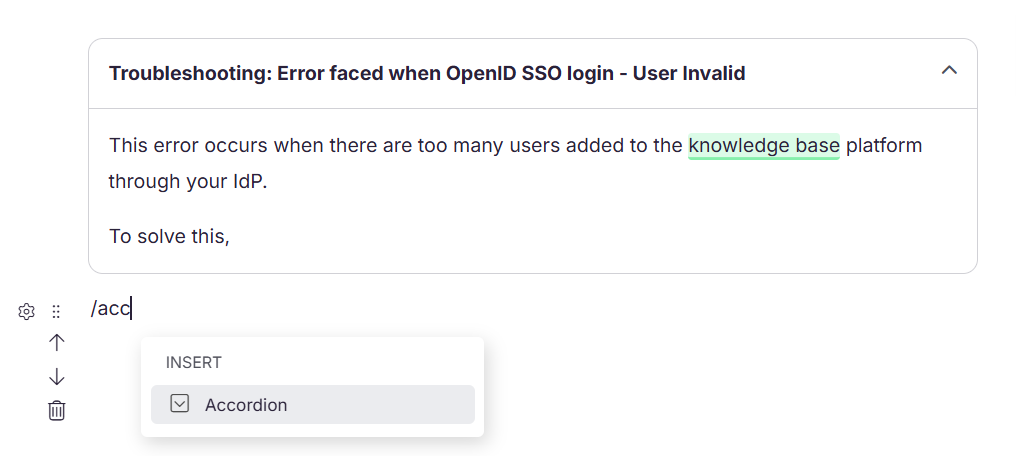
When to use Accordion
- Build a custom FAQ section anywhere within an article. Unlike the AI FAQ Generator, accordions give you full control over the questions and answers
- Hide advanced, optional, or technical details so readers who need them can expand them without distracting others
- Keep long reference articles with many sub-topics compact and scannable without requiring readers to scroll through everything
- Present each troubleshooting scenario as an accordion item so readers can jump directly to the issue they are experiencing
- Collapse older release note entries to keep the most recent content visible while preserving historical entries
Insert an accordion in the unified Editor
- Place your cursor where you want to insert the accordion.
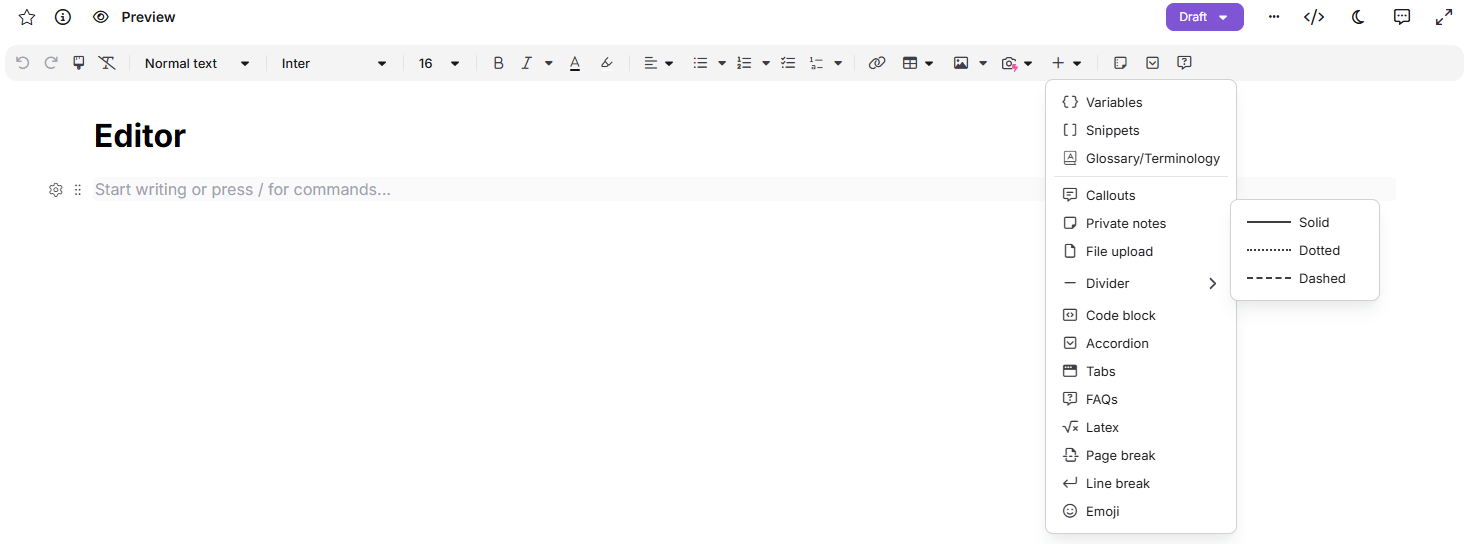
- Insert the accordion in any of these ways:
- In the toolbar above the content, select Insert (+) > Accordion.
- Type
/accordionand pressEnter. - Type
/and select Accordion on the Insert tab. On an empty line, you can also select More on the quick insert bar to open the same menu.
- Type the title in Give this accordion a title….
- Type the content below the title. To add lists, images, code, and other blocks inside the accordion, type
/in the content area.
Each accordion in the unified Editor holds one item. To add another section, insert another accordion below it.
To copy or delete the accordion, click it and use its bubble menu.
Insert an accordion in the Advanced WYSIWYG editor
- Place your cursor where you want to insert the accordion.
- Type
/accordionand pressEnter. - An accordion item is inserted with a header and a content area.
- Click the header to enter your title or question.
- Click the content area below to enter the body content.
To add another accordion item below an existing one, click the + icon that appears between or below accordion items.
Expand and collapse accordion items
- In the editor, click the accordion header to expand or collapse the content area while editing
- On the knowledge base site, readers click the header to expand or collapse each item individually
Delete an accordion block
- Unified Editor: Click the accordion and use the delete option in its bubble menu.
- Advanced WYSIWYG editor: Remove all content from the accordion and press the Backspace key. Or hover over the accordion block, click the drag handle (six dots on the left), then press Delete or use the delete option from the toolbar that appears on hover.
Tabs cannot be created inside accordions.
Accordions in Markdown view (unified Editor)
In the unified Editor's Markdown view, an accordion is written as an HTML <details> element. The <summary> holds the title, and the content goes after it. A plain accordion has no settings, so it needs no Document360 marker. Keep the blank lines.
<details>
<summary>What does the trial include?</summary>

Every feature of the Business plan for 14 days.

</details>
When you insert an accordion in Markdown view, the unified Editor adds a starter with one item. To add another section, copy the whole <details> … </details> block, including the blank lines around it, and change its text.
Accordion vs FAQ Templates vs AI FAQ Generator
All three use accordion-style formatting, but they differ in how content is added and managed.
| Accordion | FAQ Templates | AI FAQ Generator |
|---|---|---|
Insert using /accordion slash command |
Insert using /FAQs slash command |
Insert via the Eddy AI menu in the editor |
| Content is fully manual: you write both header and content | Structure provided, you fill in questions and answers | Content is AI-generated based on the article content |
| Can be placed anywhere in the article | Can be placed anywhere in the article | It is automatically placed at the end of the article |
| Expand/collapse control at each accordion item level | Expand/collapse control across the entire project via Settings | Expand/collapse control across the entire project via Settings |
| No predefined layout | Consistent layout reusable across articles | Regenerated per article based on content |
Best practices
- Keep accordion headers short and descriptive. Readers decide whether to expand based on the header alone.
- Use accordions for content that is optional or supplementary, not for content that all readers need to read. Critical information should always be visible by default.
- Avoid nesting accordions inside each other. Nested accordions are hard for readers to navigate.
- If you need consistent FAQ-style formatting with project-level expand/collapse control, use FAQ Templates or the AI FAQ Generator instead of manually built accordions.
- Limit the number of accordion items in a single block to keep the section manageable. Too many items can make even collapsible content hard to scan.
FAQ
Can I add formatting inside an accordion?
Yes. You can add headings, lists, images, code blocks, links, and other supported elements inside the accordion content area. In the unified Editor, type / inside the accordion to insert a block.
Can I use an accordion inside a tab?
Yes. Accordions can be added inside tabs.
Can I add an accordion in the Markdown editor?
Not as a block. Use the HTML <details> and <summary> tags instead. See How to add accordion in Markdown.
How do I add another accordion section in the unified Editor's Markdown view?
Copy the whole <details> … </details> block, including the blank lines around it, paste it below, and change the title and content.
Do headings inside an accordion appear in the table of contents?
Yes. Headings formatted as H2, H3, or H4 inside accordion items appear in the table of contents. However, clicking a TOC link for a heading inside a closed accordion does not expand the accordion or navigate to that heading. This is a known current limitation.
When a reader uses the article search and a matching term is found inside an accordion, the accordion expands automatically to show the result.