Add a video to an article or category page when a walkthrough is easier to follow than text. You can embed a video from a hosting platform such as YouTube, Wistia, or Vimeo, or insert one from Drive. The steps depend on your editor: the Advanced WYSIWYG editor or the Markdown editor.
Insert a video in the Advanced WYSIWYG editor
- Open the article in the Advanced WYSIWYG editor.
- Use the slash command
/videoand select Video. The Insert video panel appears. - Choose how to add the video:
- To embed a video from YouTube, Wistia, or Vimeo, select Embed URL and paste the platform's embed URL in Enter embed URL.
- To use a self-hosted video file, such as an
.mp4, select Embed URL and paste the file URL in Enter video URL. - To paste an embed code snippet from the hosting platform, select Embed code. Keep only the
<iframe>tag. For more information, see Vimeo embed code doesn't work. - To use a video already stored in Drive, select Drive and choose the video.
- Select Insert.
The video appears in the editor. If you used a self-hosted video URL, resize the video to set its height and width.

Add a caption to a video
Add a caption to tell readers what a video shows or which step it supports. The caption appears below the video. You can add captions in the Advanced WYSIWYG editor. The Markdown editor doesn't support video captions.
- Select the video in the article.
The floating menu appears. - Select Caption.
A caption field appears below the video. - Enter the caption.
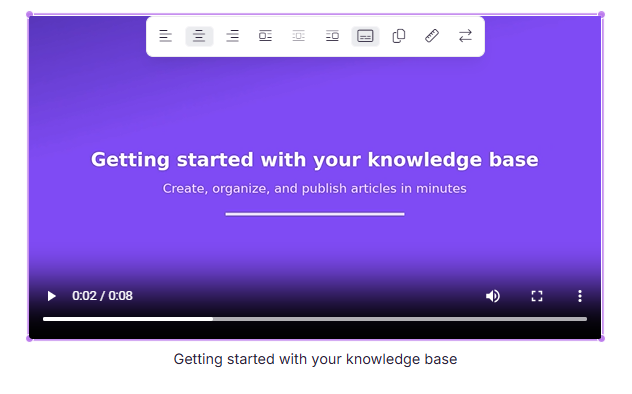
To remove the caption, select the video and select Caption again. This deletes the caption text.
You add a caption after you insert the video. The Insert video panel doesn't have a caption field.
A caption works with the other alignment options. When you change the alignment of a captioned video, the caption moves with it.
You can't use a caption and Inline block together. When a video has a caption, Inline block is unavailable, and when a video uses Inline block, Caption is unavailable. To switch, turn off the one you're using first.
Insert a video in the Markdown editor
In the Markdown editor, you can paste a video URL or select a video already stored in Drive.
Insert a video by URL
- Open the article in the Markdown editor.
- Select the Insert video () icon in the toolbar. The Insert video panel appears.
- Paste the video URL (YouTube, Wistia, or Vimeo) in the first text field.
- Enter alt text for the video in the Alt Text field.
- Select OK.

Insert a video from Drive
- Open the article in the Markdown editor.
- Select the Insert file () icon in the toolbar.
- Select the video from Drive and select Insert.
- Update the pixel height and width as needed.
Best practices
- In the Advanced WYSIWYG editor, use Enter embed URL for hosted videos (YouTube, Wistia, Vimeo) instead of pasting an embed snippet with wrapper tags. Only the
<iframe>tag is supported. - In the Advanced WYSIWYG editor, test any pasted embed code before you publish, to confirm that slash commands, image editing, and other content blocks still work in the article.
- Use link analytics to check for broken video links across your articles.
- Add descriptive alt text to every video, for accessibility and search.
- Add a short caption when a video needs context, such as what it demonstrates or which step it supports.
Troubleshooting
Vimeo embed code doesn't work
In the Advanced WYSIWYG editor, if you paste a Vimeo embed code and the video doesn't appear, or slash commands (/), image editing options, or content blocks stop working in the article, the embed code may contain unsupported tags. Vimeo embed codes often include <div> and <script> tags or styling wrappers. Document360 supports only the <iframe> tag for embedding videos.
To fix the embed code:
- Remove everything except the
<iframe>tag. - In the iframe's
styleattribute, changeposition:absolutetoposition:relativeand removetop:0;left:0;so the video displays correctly.
Before (unsupported code):
<div style="padding:56.25% 0 0 0;position:relative;">
  <iframe src="https://player.vimeo.com/video/<video-id>?badge=0&autopause=0&player_id=0&app_id=58479"
  frameborder="0" allow="autoplay; fullscreen; picture-in-picture; clipboard-write; encrypted-media"
  style="position:absolute;top:0;left:0;width:100%;height:100%;"
  title="Product walkthrough"></iframe>
</div>
<script src="https://player.vimeo.com/api/player.js"></script>
After (supported code):
<iframe src="https://player.vimeo.com/video/<video-id>?badge=0&autopause=0&player_id=0&app_id=58479"
frameborder="0" allow="autoplay; fullscreen; picture-in-picture; clipboard-write; encrypted-media"
style="position:relative;width:100%;height:100%;"
title="Product walkthrough"></iframe>
FAQ
Why is Inline block unavailable for my video?
The video has a caption. A caption can't be used with Inline block. Turn off Caption to use Inline block, or choose another alignment option.
Can I find broken video links in my articles?
Yes. Link analytics checks your project's links, including media files, videos, and images. For more information, see Link status.
Can I filter articles that contain embedded videos?
No. There's no built-in filter for articles with embedded videos. To find them, check the articles manually.