Converting a user to an SSO account switches their authentication method from Document360's native login to your organization's Single Sign-On (SSO) provider. After conversion, the user logs in through your SSO configuration instead of a Document360-managed password. This is useful when your organization adopts or enforces centralized identity management and you need existing portal users to authenticate through the same SSO provider as the rest of your team.
Why convert a user to an SSO account
Use this when:
- Your organization has set up SSO and wants all portal users to authenticate through a single identity provider.
- A user was originally created with a native Document360 login but should now be managed through your SSO configuration.
- You are migrating your team from Document360 native accounts to SSO as part of a broader identity management rollout.
WARNING
If you convert a user to an SSO account, all past article contributions will be credited to Anonymous. There is currently no built-in option to preserve historical authorship, bulk reassign authors, or fetch a consolidated contributor list before or after SSO migration. If you require contributor data before migrating, use the Export CSV option on the Users page to download a list of current users prior to conversion.
Before you begin
- You must have the Owner or Admin project role.
- At least one SSO configuration must already be set up in your Document360 project.
- Export the user list as CSV from the Users page before converting if you need to preserve contributor attribution records. Once converted, past contributions are attributed to Anonymous and this cannot be undone.
How to convert a user to an SSO account
-
Navigate to Settings () > Users and security in the left navigation bar in the knowledge base portal.
-
In the left navigation pane, navigate to Users and groups > Users.
-
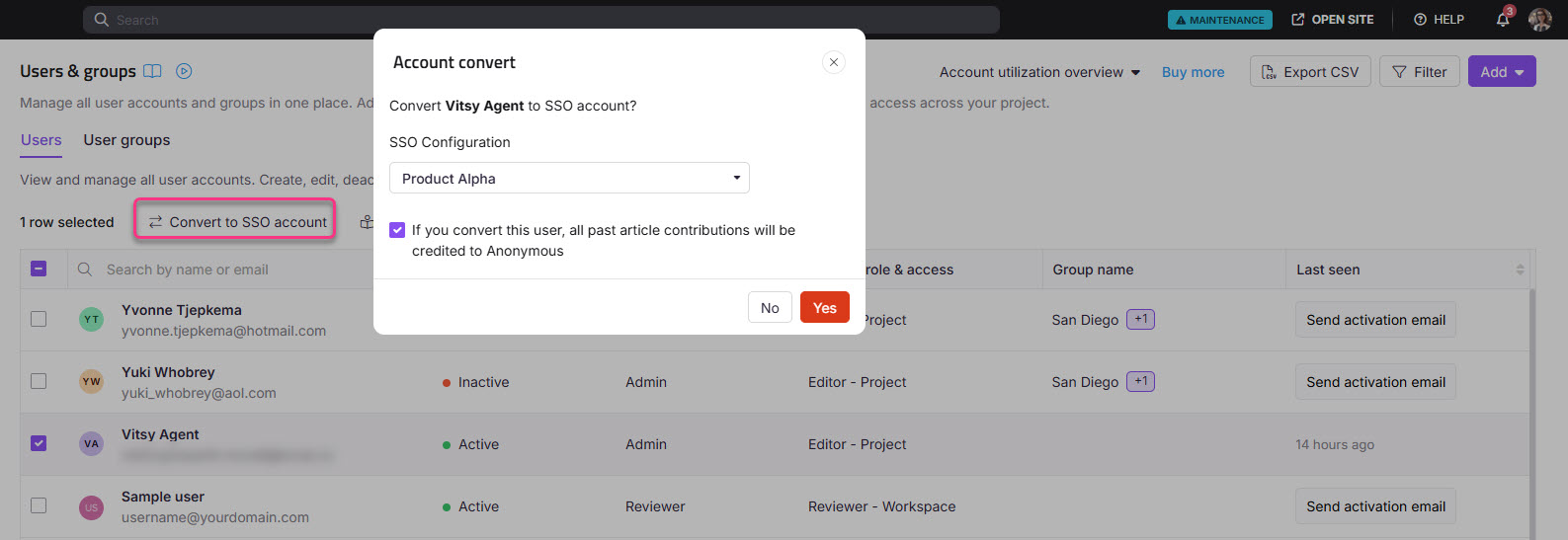
Select one or more Document360 users (non-SSO) and click Convert to SSO account.
-
From the Select SSO dropdown, choose an SSO configuration.
-
Click Proceed.
The SSO accounts are identified by an SSO badge displayed next to their name.
Limitations
| Limit | Detail |
|---|---|
| Eligible users | Only non-SSO users can be converted. Users already on SSO cannot be converted again. |
| Authorship attribution | All past article contributions made by the converted user are credited to Anonymous after conversion. This cannot be reversed or bulk-reassigned. |
| Historical contributor data | There is no built-in option to preserve or retrieve a consolidated contributor list after conversion. Export the user list as CSV before converting if you need this data. |
| SSO configuration | At least one SSO configuration must exist in the project before conversion is possible. |
Best practices
- Export the user list before converting. Use the Export CSV option on the Users page to download a record of current users and their contributions before performing any SSO conversion. This is the only way to preserve contributor data, as there is no built-in option to retrieve or reassign authorship after conversion.
- Convert in batches when migrating a large team. Convert a small group first to confirm the SSO configuration is working correctly before converting all remaining users.
- Communicate the change to affected users. After conversion, users must log in through the SSO provider. Ensure they know their login method has changed before the conversion takes place so they are not locked out unexpectedly.