Embed third-party content, such as diagrams, videos, forms, and interactive demos, directly in your articles so readers do not have to leave your knowledge base. You embed content with an HTML <iframe> tag. Where you add the iframe depends on your editor: in Markdown view in the unified Editor, in Code view in the Advanced WYSIWYG editor, or directly in the Markdown editor.
NOTE
The unified Editor is rolled out in phases and is currently available in projects created after November 23, 2026. Projects created earlier continue to use the Advanced WYSIWYG editor and the Markdown editor. We're working to make it available to all projects soon.
Draw.io diagrams
Embed flowcharts, UML diagrams, network diagrams, and more from Diagrams.net as an image tag or an exported image.
Learn more →Microsoft Stream videos
Embed SharePoint Stream and Microsoft Stream videos with the embed code from the Stream platform.
Learn more →Google Forms
Embed Google Forms to collect feedback, run surveys, or capture reader input on the page.
Learn more →When to embed content
- Embed a Draw.io flowchart or architecture diagram next to a technical procedure, so readers see the full system without switching tools.
- Embed a Microsoft Stream training video in an onboarding article, so internal users watch it without leaving the knowledge base.
- Embed a Google Form at the end of an article to collect feedback, ratings, or support requests.
- Embed a self-hosted tool or a third-party interactive demo on a single article page.
Before you begin
- You need edit permission on the article.
- Document360 supports the
<iframe>tag for embedded content. Embed codes
that include wrapper tags such as<div>or<script>may not render and
can interfere with the editor. Keep only the<iframe>tag.
Avoid using an iframe with the srcdoc attribute to embed custom HTML content.
When an iframe carries a srcdoc attribute, it contains a complete,
self-contained HTML document as its value. The Advanced WYSIWYG editor attempts
to render this embedded document as a live preview, which can cause unexpected
behavior: the editor may display the srcdoc content as a separate preview pane,
or show unrelated portal content in the editing area. The published article is
not affected - this issue is specific to the editor view.
If you want to embed a custom HTML layout such as a card grid, feature list, or
chip display, use one of these approaches instead:
- Host your HTML as a standalone page on a web server you control and embed it
with a standardsrc-based iframe. See Embed a self-hosted or custom HTML page. - Write the layout as inline HTML
<div>elements with inline CSS styles
directly in the article body using Code view. Nosrcdocattribute or iframe
is needed for layouts that do not rely on scripts.
Note: Inline CSS on <div> elements (such as display:grid or
display:flex) renders correctly on the published site. The editor view may
look different from the published version; this is expected and does not affect
the published output.
- Set the sharing permissions on the source content first. Readers who do not
have access to the diagram, video, or form see an error instead of the
content. - To add an iframe in Markdown view in the unified Editor, or in Code view in
the Advanced WYSIWYG editor, you must be the only contributor in the article.
In the unified Editor, Markdown view is read-only while others are editing.
In the Advanced WYSIWYG editor, only one contributor can have Code view open
at a time, but you can still add a video embed code from the Insert video panel while others are editing.
Add an iframe in your editor
Copy the embed code from the source first, then add it to your article with the steps for your editor.
| Editor | Where you add the iframe |
|---|---|
| Unified Editor | Markdown view |
| Advanced WYSIWYG editor | Code view, or the Embed code tab of the Insert video panel |
| Markdown editor | Directly in the editor |
Add an iframe in the unified Editor
In the unified Editor, you add an iframe in Markdown view. The unified Editor does not have Code view.
- Open the article in edit mode.
- In the article header, select Markdown view (<span class="fa-brands fa-markdown"></span>).
- Place your cursor on an empty line where you want the embedded content. Leave a blank line before and after it.
- Paste or type the
<iframe>tag, for example:
<iframe src="https://example.com/map" width="600" height="300" title="Office map"></iframe>
- Select Markdown view (<span class="fa-brands fa-markdown"></span>) again to return to Block view.
The embedded content appears in the article.
Embedded content in the unified Editor runs in a sandbox for security. Some sites do not allow themselves to be embedded and show a blank frame or an error instead.
Add an iframe in the Advanced WYSIWYG editor
In projects that use the Advanced WYSIWYG editor, you can add an iframe in Code view, or in the Insert video panel for video embed codes.
Use Code view when you want to place the iframe at an exact point in the markup:
- Open the article in the Advanced WYSIWYG editor.
- Select the Code view toggle.
- Paste the
<iframe>tag at the location you want. - Select the Code view toggle again to return to the visual editor.
Switching back saves your changes, and the embedded content appears.
Use the Insert video panel for a video embed code. This is the only route that works while other contributors are in the article.
- Type
/videoand press Enter.
The Insert video panel appears. - Select the Embed code tab and paste the embed code.
- Select Insert.
For more information about Code view, read Code view.
Add an iframe in the Markdown editor
In the Markdown editor, paste the <iframe> tag directly into the editor at the location you want. The preview pane shows the embedded content.
Embed a Draw.io diagram
Diagrams.net (commonly called Draw.io) is a web-based tool for flowcharts, UML diagrams, entity relationships, network diagrams, and mockups. You can embed a diagram as an image tag that stays linked to Diagrams.net, or export it as an image and upload it.
Diagrams stored on Google Drive, Dropbox, or other cloud storage are private by default. Set the diagram to public before you embed it, or readers cannot see it.
Embed as an image tag
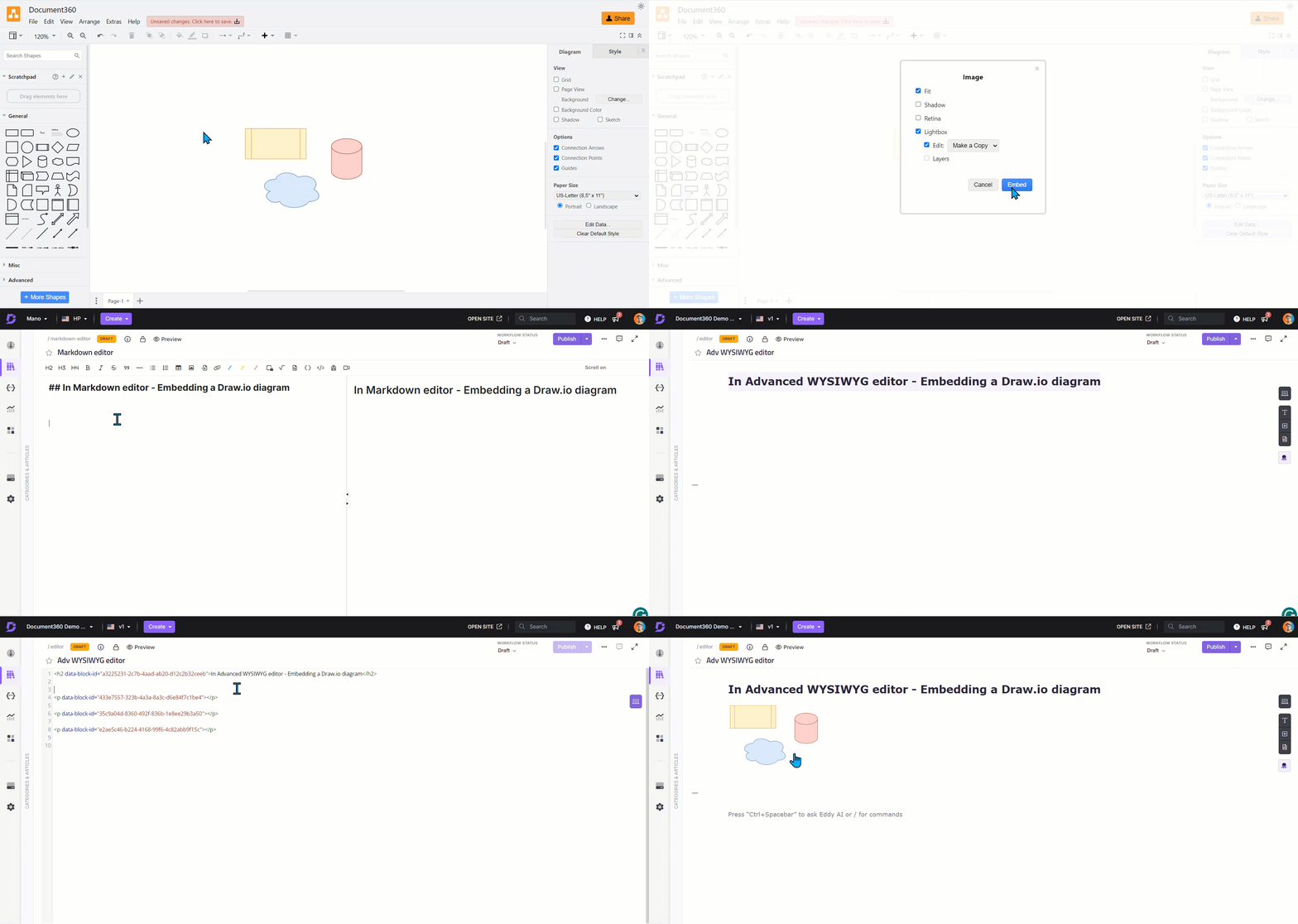
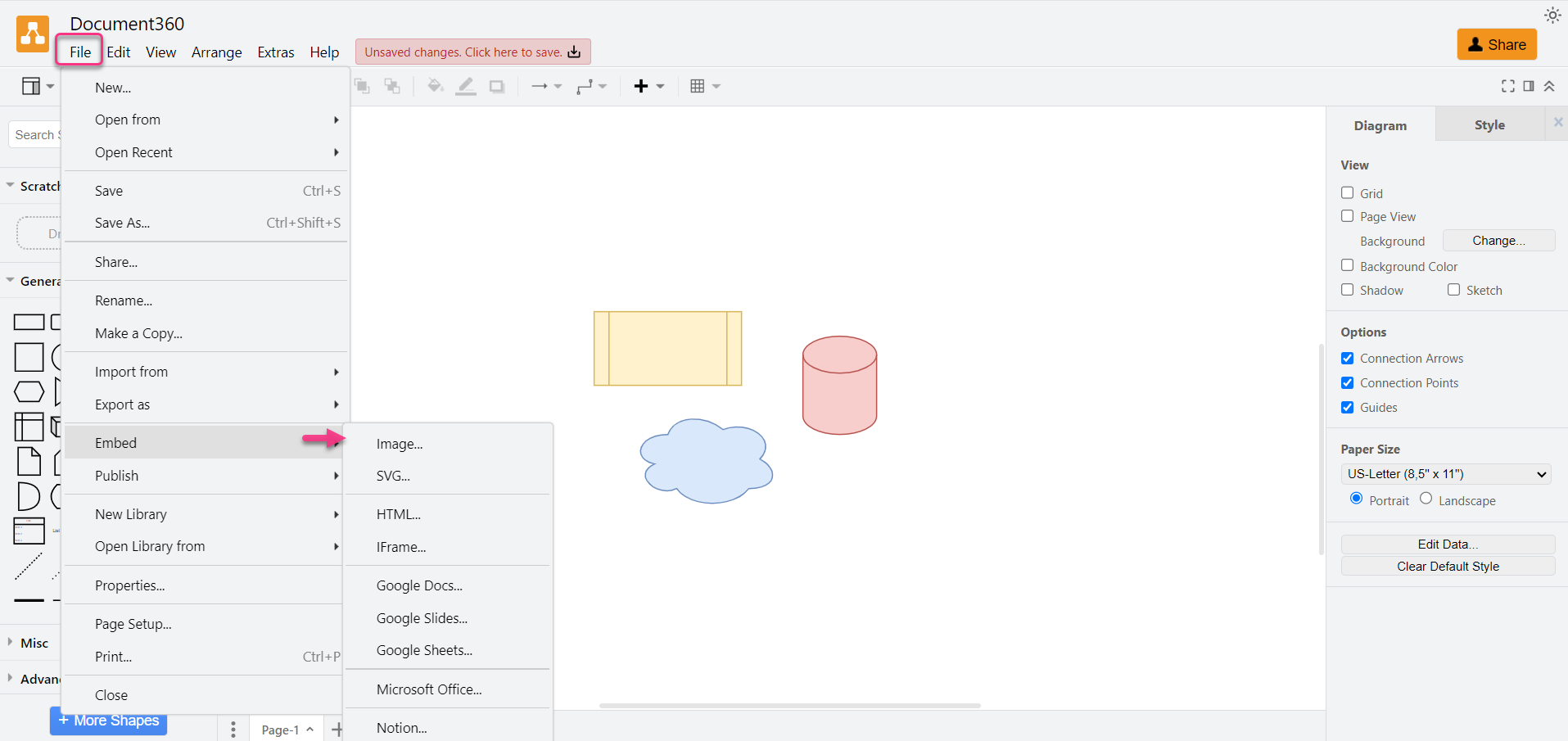
- In Diagrams.net, select File > Embed > Image.
- Select Embed.
- Select Copy to copy the image tag.
- Add the tag to your article:
- Unified Editor: Paste it in Markdown view.
- Advanced WYSIWYG editor: Paste it in Code view, then switch back to the visual editor.
- Markdown editor: Paste it directly in the editor.
You can adjust the height and width values in the tag.
Export as an image and upload it
Use this approach to keep the diagram in Document360 Drive instead of linking to an external service.
- In Diagrams.net, select File > Export as > PNG.
- Select Export, name the file, and save it.
- Insert the image in your article:
- Unified Editor: Select Insert image in the toolbar, then select Upload from my device.
- Advanced WYSIWYG editor: Select Insert image, then select From Upload/URL.
- Markdown editor: Select the image icon in the toolbar.
- Select the exported image and select Insert.
Embed Microsoft Stream videos
You can embed Microsoft SharePoint Stream and Microsoft Stream videos in all three editors.
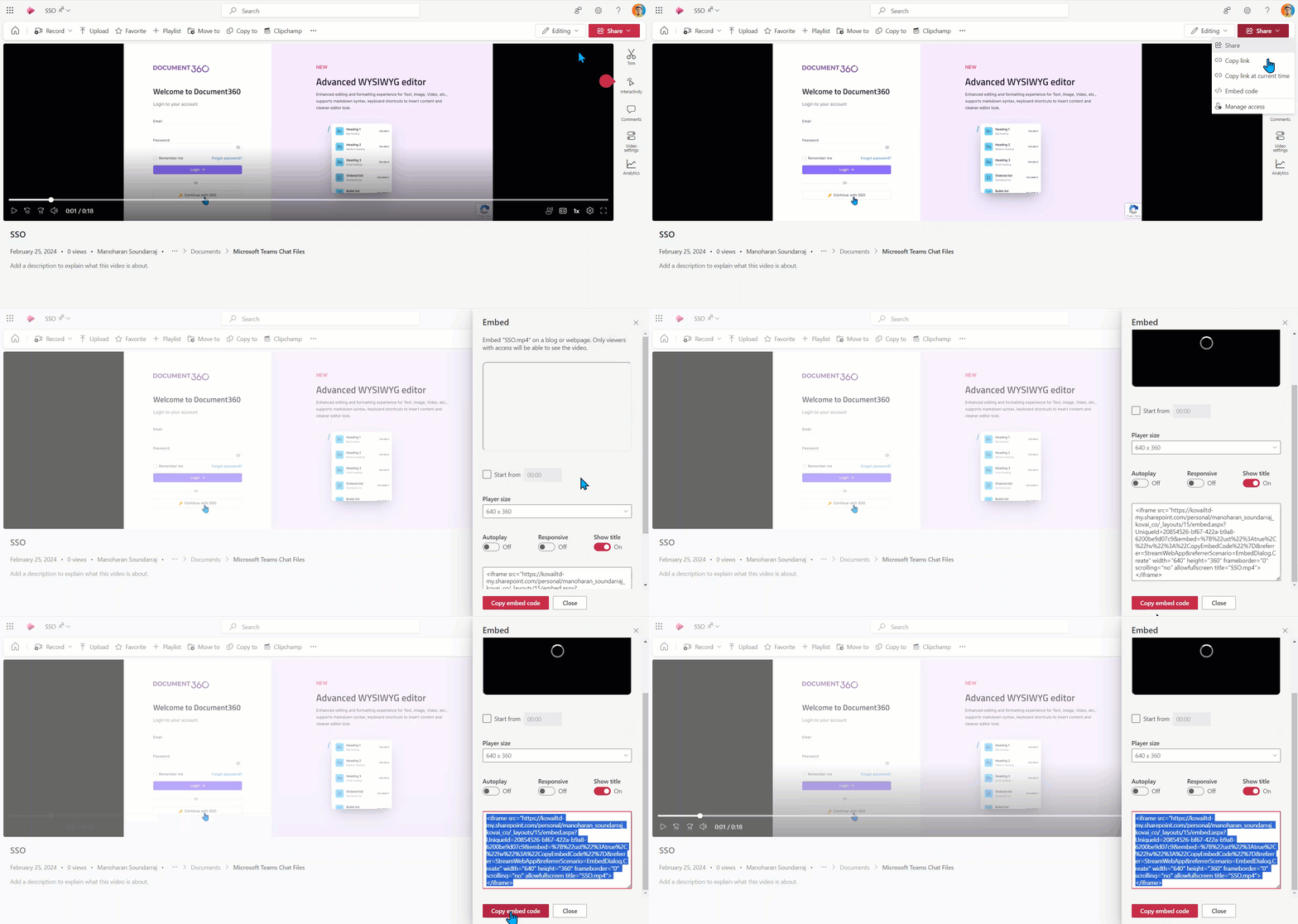
To get the embed code from Stream,
- Open the video on the Stream platform.
- Select Share > Embed code.
- Set Start from or Player size if needed.
- Select Copy embed code.
Then add the embed code to your article:
- Unified Editor: Paste it in Markdown view.
- Advanced WYSIWYG editor: Type
/video, select the Embed code tab, paste the code, and select Insert. Or paste it in Code view. - Markdown editor: Paste it directly in the editor.
Manage access permissions for the Stream video before you publish. Without the right permissions in Microsoft Stream, readers cannot view the video.
Embed Google Forms
Embed a Google Form so readers can fill out surveys, submit feedback, or enter data without leaving the article.
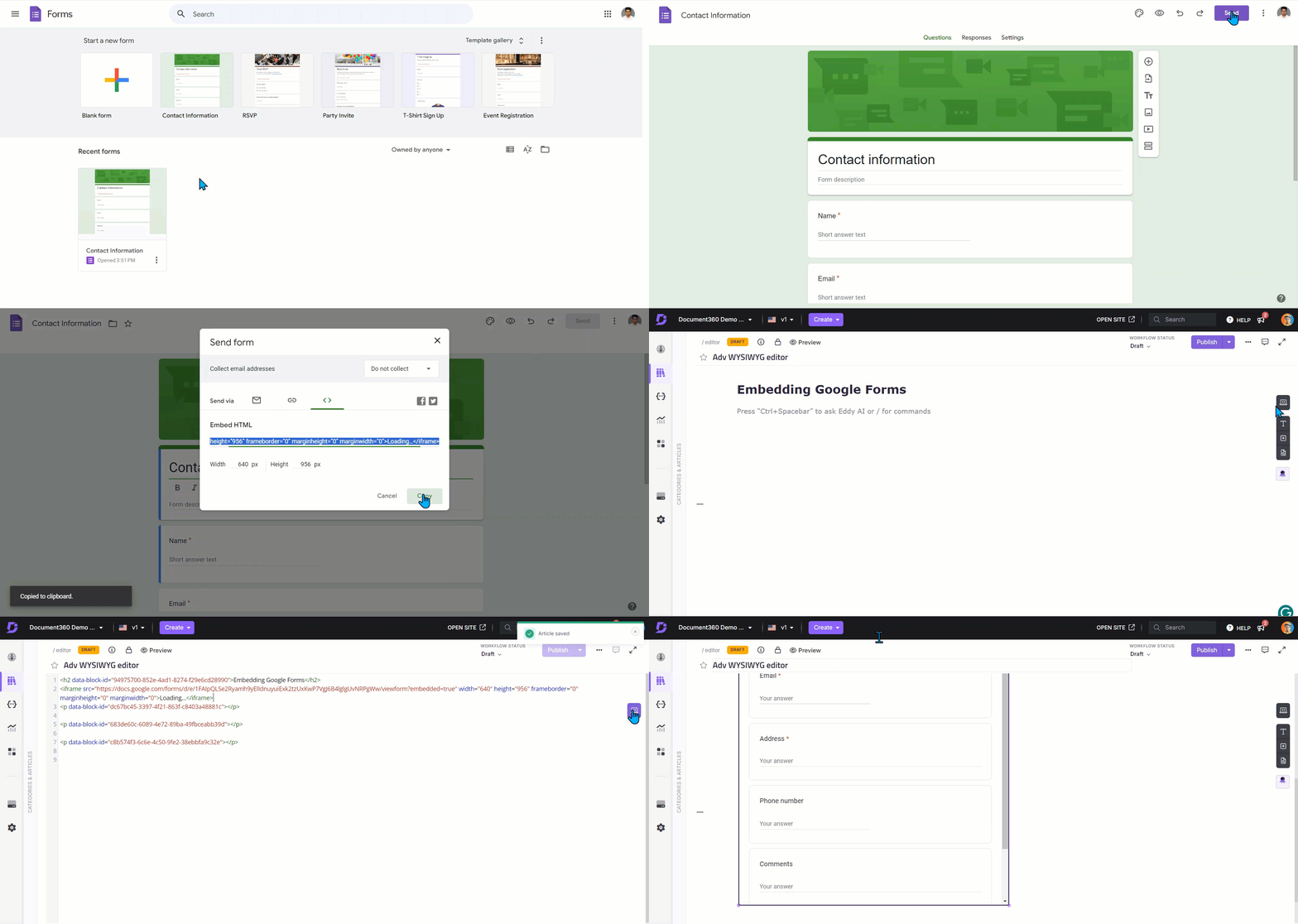
To get the embed code from Google Forms,
- Open the form in Google Forms.
- Select Send.
- In the Send form panel, select the < > (Embed) tab.
- Select Copy.
Then add the iframe to your article:
- Unified Editor: Paste it in Markdown view, then return to Block view.
- Advanced WYSIWYG editor: Paste it in Code view, then switch back to the visual editor.
- Markdown editor: Paste it directly in the editor.
Test the form after you publish to confirm that it renders and submits correctly.
Embed a self-hosted or custom HTML page
Embed a page you host yourself, such as a calculator or an interactive widget, when you want it on a single article instead of on every page through Custom HTML. Host your HTML, CSS, and JavaScript as a standalone page on a web server you control, and confirm the page loads on its own first.
Add an iframe that points to your page, for example:
<iframe src="https://yourdomain.com/your-tool.html" width="100%" height="600" frameborder="0"></iframe>
- Unified Editor: Add it in Markdown view.
- Advanced WYSIWYG editor: Add it in Code view.
- Markdown editor: Add it directly in the editor.
Only the content inside the iframe runs in its own context. Scripts or styles added directly to the article body, outside an iframe, are not supported and are removed for security in every editor. Host scripted content externally and embed it with an iframe.
Embed a third-party interactive demo or tool
Many platforms, such as Storylane, Arcade, or Navattic, provide product demos and walkthroughs as an iframe embed. Add their iframe the same way: in Markdown view in the unified Editor, in Code view in the Advanced WYSIWYG editor, or directly in the Markdown editor.
If your knowledge base site has Content Security Policy enabled, add the platform's domain to the Frame source directive, or the embed fails to load. See Content security policy and CSP directive reference.
If your knowledge base site has site-wide custom JavaScript, scripts tied to page-refresh or page-lifecycle events can interfere with how iframes load. See Content display and functionality issues.
Add a caption to embedded content
In the Advanced WYSIWYG editor, you can add a caption below embedded content, such as a Microsoft Stream video, a Google Form, a self-hosted page, or a third-party demo. Use the caption to tell readers what the embed shows or what to do with it. This works for iframes added in Code view and for embed codes added from the Insert video panel.
- Select the embedded content in the article.
The floating menu appears. - Select Caption.
A caption field appears below the embedded content. - Enter the caption.
To remove the caption, select the embedded content and select Caption again. This deletes the caption text.
You can't use a caption and Inline block together. To switch, turn off the one you're using first. For more information, see Videos.
A Draw.io diagram embedded as an image tag is an image, so it uses the image caption. For more information, see Images.
Iframes added in Markdown view in the unified Editor don't have a caption option.
Best practices
- Set Draw.io diagrams to public before you embed them. Private diagrams appear broken to readers.
- Export Draw.io diagrams as images when you do not want to depend on an external service link.
- Check Stream video permissions before you publish.
- Test embedded forms after you publish to confirm they render and submit.
- Keep one diagram or form per section. Many embeds in one article can slow the page.
- Serve self-hosted pages over HTTPS. Most browsers block iframes that point to an HTTP page from an HTTPS site.
- Preview the article after you embed content and before you publish.
- Tell your team before you open Markdown view in the unified Editor or Code view in the Advanced WYSIWYG editor on a shared article. Both are restricted while others are editing.
FAQ
Where is Code view in the unified Editor?
The unified Editor does not have Code view. To embed content, select Markdown view (<span class="fa-brands fa-markdown"></span>) in the article header and add the <iframe> tag there.
Why does my embedded page show a blank frame in the unified Editor?
Embedded content in the unified Editor runs in a sandbox, and some sites do not allow themselves to be embedded. Check the site's embedding policy. If your knowledge base site has Content Security Policy enabled, also add the site's domain to the Frame source directive.
Why can't I add an embed code while my teammates are editing?
In the unified Editor, Markdown view is read-only while other people are editing. In the Advanced WYSIWYG editor, only one person can have Code view open, but you can still use /video and the Embed code tab. Wait until you are the only contributor to edit the markup directly.