The Text element allows you to overlay custom text annotations to interactive videos, guides, and explainer videos. Use it to add context, instructions, labels, or callouts directly on a step without re-recording. Text elements are highly customizable, offering control over typography, color, alignment, rotation, background, shadow, outline, position, and animation.
Adding text element
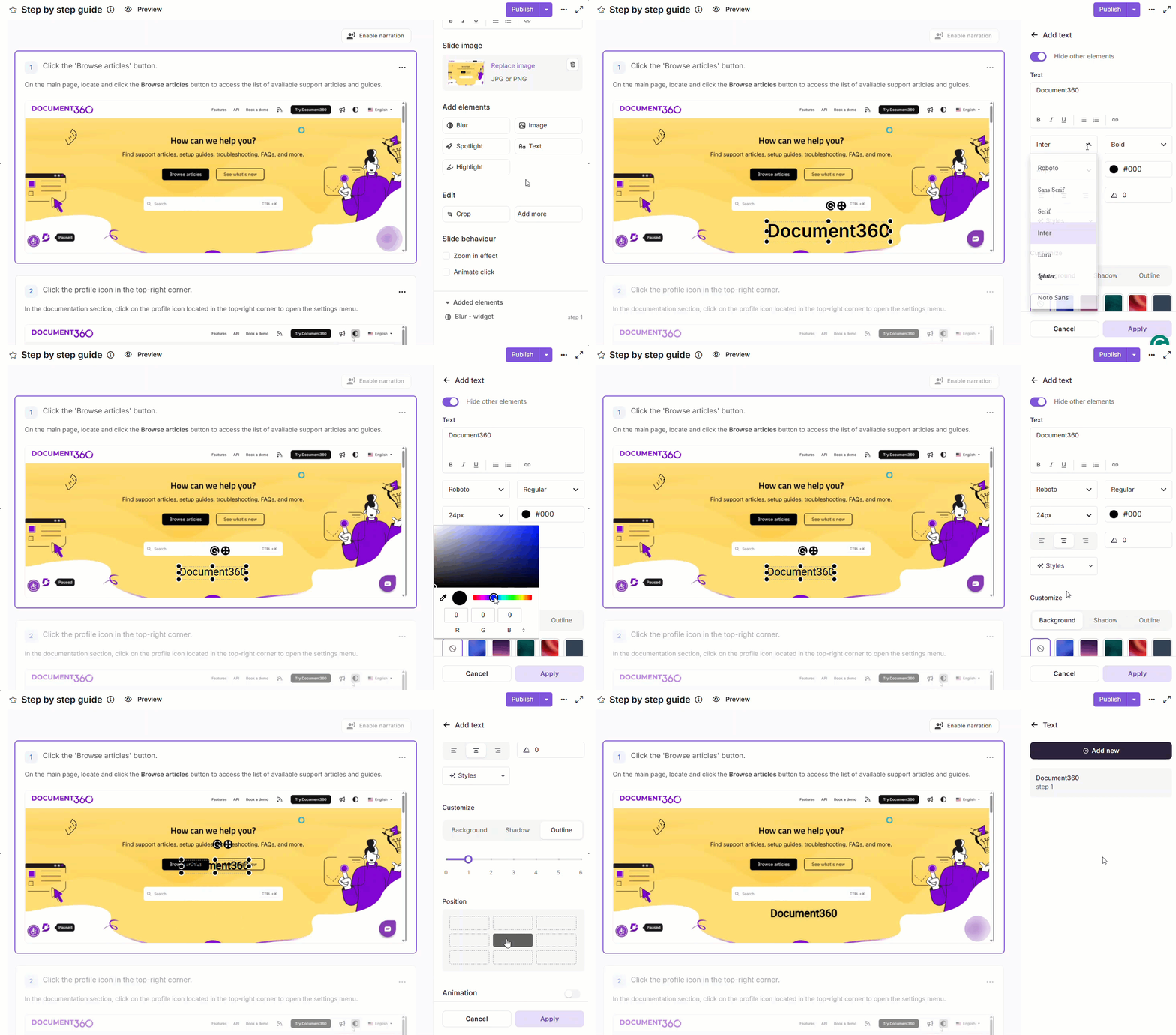
Add text element to step by step guide
- Navigate to the step where you want to add a text element.
- In the right pane, scroll to Add elements and click Text. Click Add new if one already exists.
- Enable Hide other elements to get a distraction-free editing view.
- In the Text field, enter your annotation. Use the toolbar to apply Bold, Italic, Underline, lists, or a Hyperlink.
- Configure typography as needed: Font, Font style, Font size, Color, Alignment, Rotation, and Styles.
- Under Customize, set the Background, Shadow (0–7), and Outline (0–6).
- Under Position, use the 3×3 grid to snap the text to a predefined area.
- Toggle Animation on and select a type: Fade, Slide up, Slide down, Typewriter, Zoom in, Rise up, Rise down, Circle, or Spin.
- Under Behaviour, set visibility duration:
- Stay for - visible for a set number of seconds.
- Show until - visible until a specified time.
- To add narration, enable AI voice over, select a voice, enter the content, and click Play to preview.
- Click Apply to save.
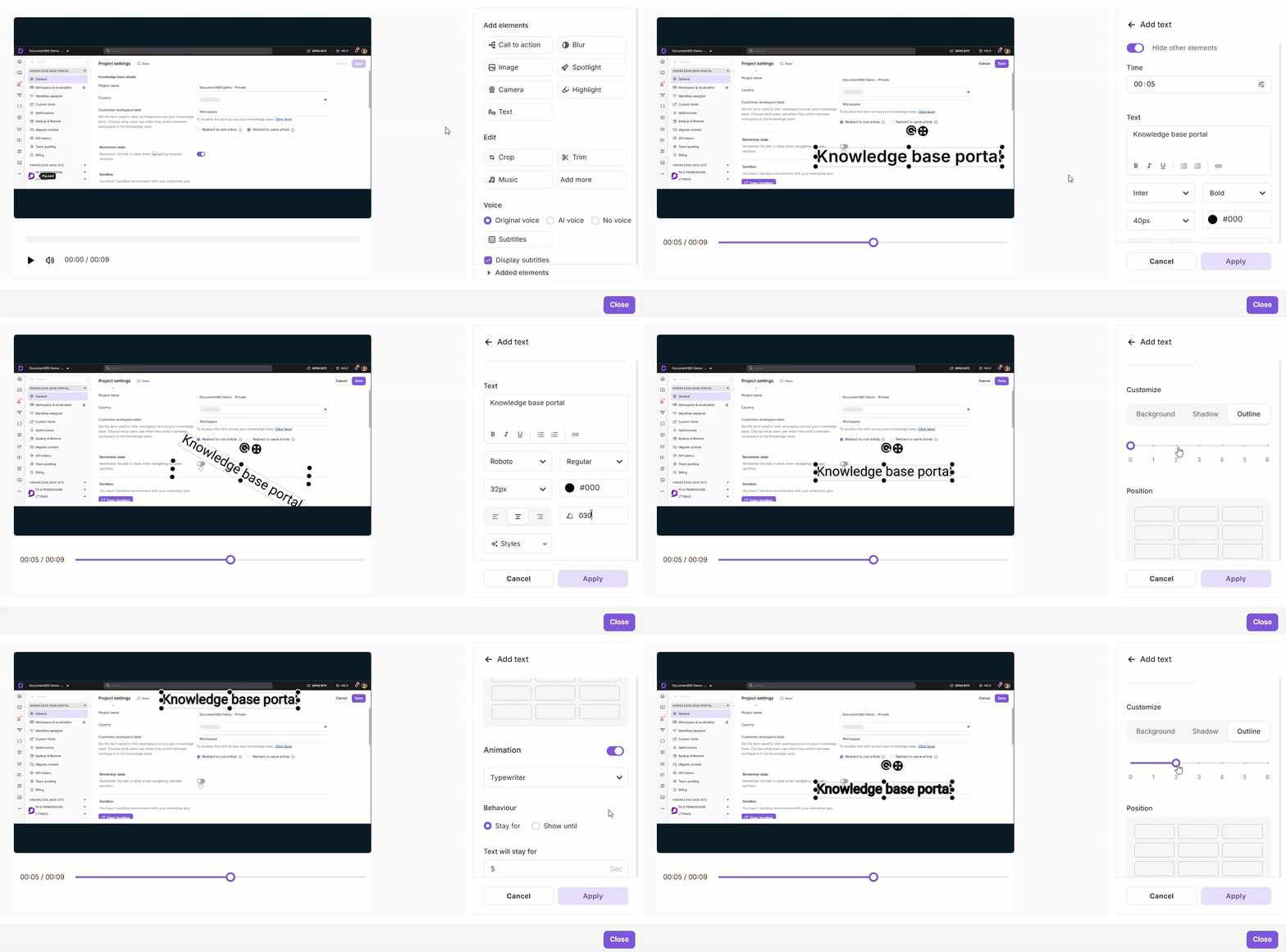
Add text element to explainer video / interactive video
- Navigate to the target step.
- In the right pane, go to Add elements and click Text (or Add new if one already exists).
- Enter your content in the Text field.
Select text in the field to access formatting options: Bold (), Italics(), Underline , Ordered list (), Unordered list (), and Hyperlink().
-
Configure typography:
- Font / Font style / Font size - Set family, weight, and size.
- Color - Pick from the palette or enter a hex value.
- Alignment - Left, center, or right.
- Rotation - Enter degrees or use the rotate controls.
- Styles - Apply a preset for quick, consistent formatting.
-
Under Customize, style the text container:
- Background - Choose a preset, custom color, or transparent.
- Shadow - Adjust intensity (0–7).
- Outline - Adjust thickness (0–6).
-
Under Position, click a zone in the 3×3 grid to snap the element into place.
-
Toggle Animation on and select a type: Fade, Slide up/down, Typewriter, Zoom in, Rise up/down, Circle, or Spin.
-
Under Behaviour, set visibility duration:
- Stay for - Visible for a set number of seconds.
- Show until - Visible until a specific time.
-
Enable AI voice over, select a voice, enter narration text, and click Play to preview.
-
Click Apply.
Managing text elements
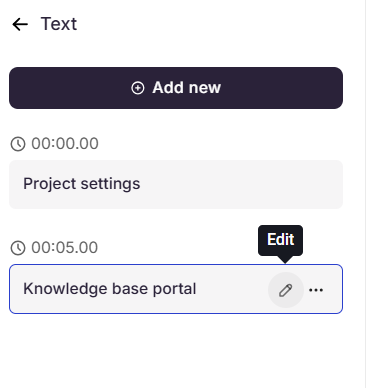
Once added, text elements are listed in the Text panel, each displaying the text content and the step it is applied to.
- Add another text element - Click Add new at the top of the panel to configure an additional text annotation.
- Edit a text element - Hover over any text element in the list and click the Edit icon to modify it. Click Apply to save changes, Cancel to return to the Text panel, or the Delete icon to delete it.
- Delete a text element - Hover over a text element, click the More icon, and select Delete to remove it.
Text elements in other languages
If you translate an explainer video, interactive video, or step by step guide into other languages, each language version has its own text content. Only the text and its AI voiceover script change by language. The typography, position, animation, and timing stay the same in every language.
- Explainer video and interactive video - Translate them from Document360 Engage. To adjust the translated text, open that language version in the editor and edit the text element as usual.
- Step by step guide - Text overlays are translated with the rest of the guide. For more information, see Managing Step by step guides.
When you translate, the AI voiceover script is translated and the voice changes to match the new language automatically. Translated text is often longer than the original, so check that it still fits its position after translation.
Best practices
- Use descriptive names - Label each text element clearly to make them easier to identify and manage, especially when multiple text elements are applied across different steps.
- Use the Angle field for precision - When the text overlay needs to be aligned at a specific angle, enter the value directly in the Angle field.
- Use text elements sparingly - Avoid applying text across too many consecutive steps to prevent visual clutter.
- Preview after applying - Verify that the annotations do not obscure other essential on-screen content.