You can export your Document360 project as an offline WebHelp package so readers can browse your documentation without an internet connection. The export generates a self-contained HTML site — with navigation, search, and media — that opens directly from a local folder, no server or login required.
When to use offline documentation export
Offline WebHelp export is built for situations where the live Knowledge Base site isn't reachable or isn't the right delivery format:
- Air-gapped or restricted networks — teams in secure environments (defense, healthcare, finance) where external network access isn't permitted.
- On-premise or embedded software — shipping help documentation alongside a desktop installer or an embedded/industrial system that runs without internet access.
- Low-connectivity fieldwork — field service technicians or site engineers who need reference docs where signal or wifi is unreliable.
- Events and kiosks — trade show booths or demo stations where you can't depend on venue wifi.
- Client or contractual handoff — delivering a static, self-contained copy of documentation as part of a contractual deliverable, instead of a live URL.
For migrating or backing up raw project content into another Document360 project, use the standard ZIP or JSON export instead — see Related articles. WebHelp is for end-user distribution; ZIP/JSON is for project-to-project transfer.
Before you begin
- You need access to Content tools in the Knowledge base portal to start an export.
- Exports are generated per project and can span multiple workspaces, languages, and categories in a single run.
User role/permission granularity for who can trigger an export is not currently specified in product documentation beyond general user access. Confirm the exact permission level required before publishing this as a hard prerequisite.
Export your project as a WebHelp (HTML) file for offline use
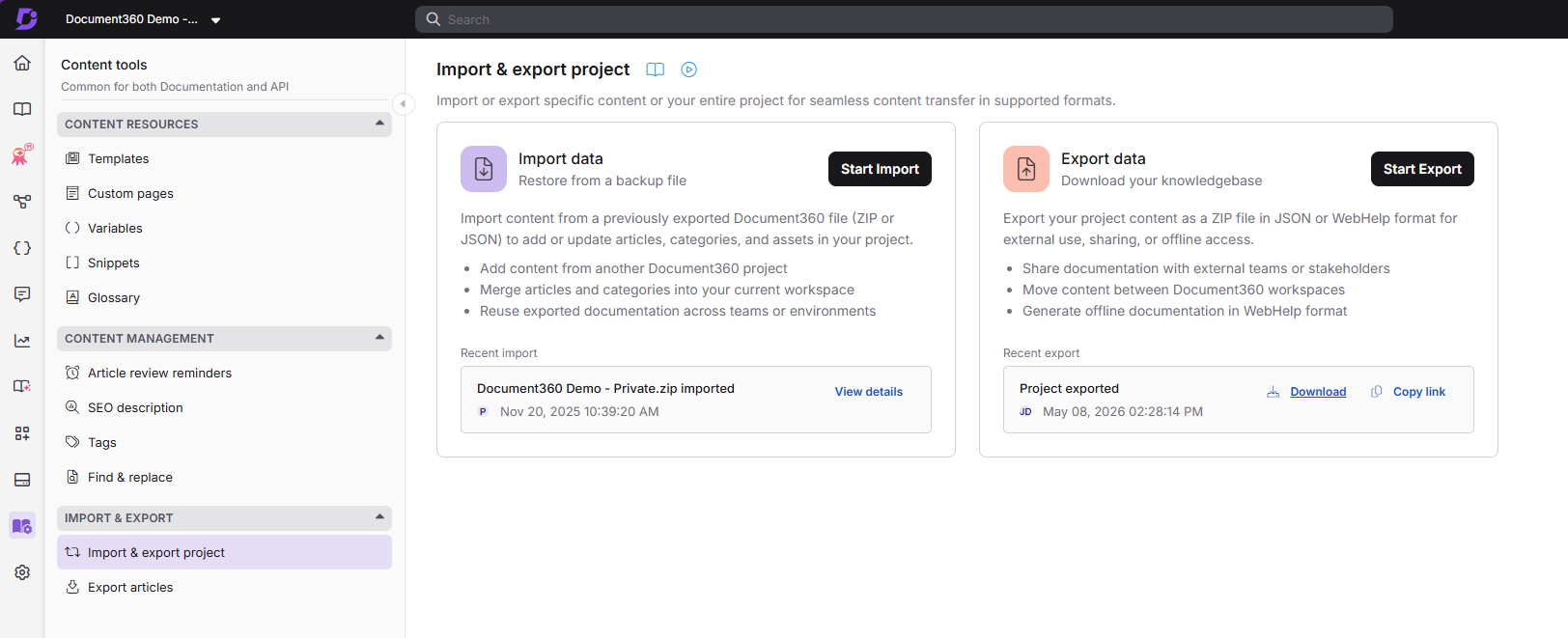
- In the left navigation bar, go to Content tools > Import and export project.
-
Click Export. The Export project dialog appears.
-
From the Format dropdown, select HTML (Offline Documentation).
-
In the Select categories search bar, find the content you want to export. Search applies across all workspaces, languages, and categories.
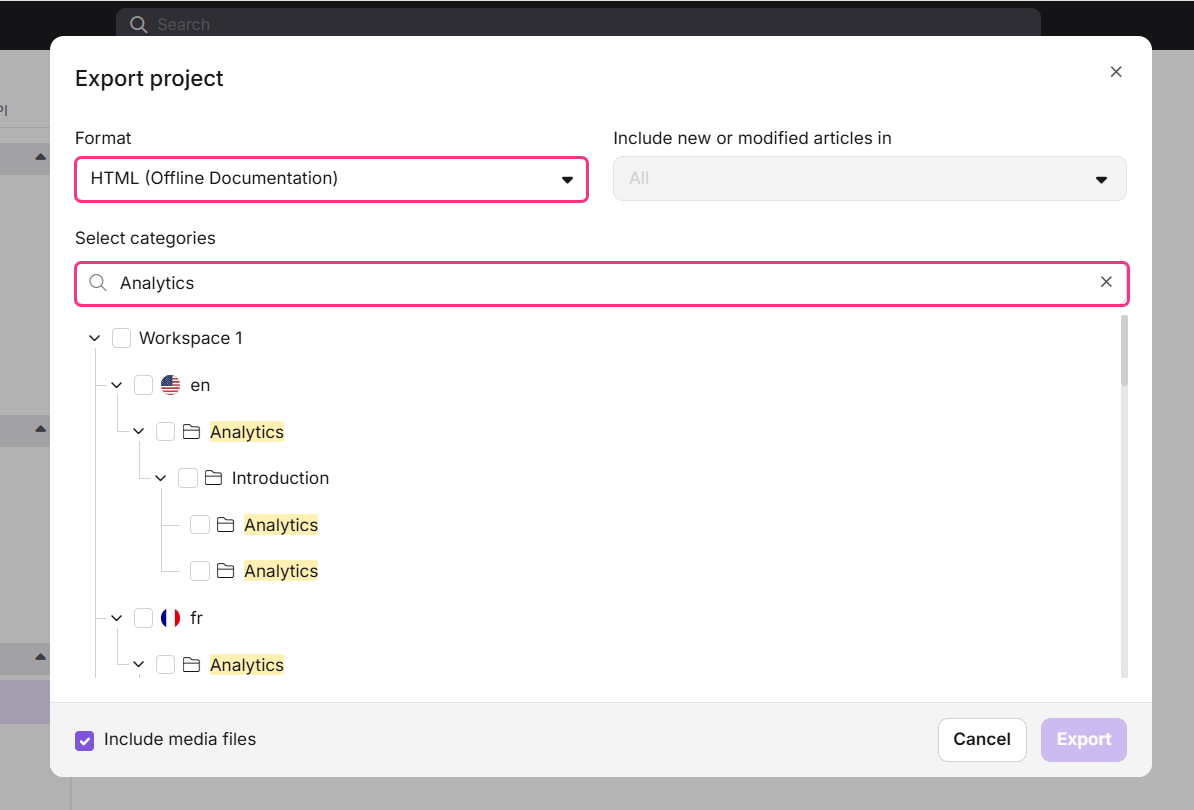
- Choose what to include using the selection tree:
| Goal | How to do it |
|---|---|
| Select an entire workspace | Select the checkbox next to the workspace. All languages and categories under it are selected automatically. Click the arrow to expand and review. |
| Select a category and all its subcategories | Click the arrow to expand the category, then select the checkbox next to it. All subcategories are selected automatically. |
| Select only a subcategory | Expand the parent category, then select the checkbox next to the subcategory. Only that subcategory and its articles are selected. |
| Select only a category (not its subcategories) | Hover over the category and click Select this category. Only the category's own articles are selected. |
| Unselect an entire workspace | Unselect the checkbox next to the workspace. All languages, categories, and subcategories under it are cleared. |
| Unselect only a main category's articles | Hover over the main category and click Unselect this category. Only the articles directly inside that category are removed; subcategories remain selected. |
| Unselect only a subcategory's articles | Hover over the subcategory and click Unselect this category. Only that subcategory's articles are removed; nested subcategories remain selected. |
A checkbox appears in an indeterminate (partially filled) state whenever a category has some, but not all, of its contents selected.
- Select the Include media files checkbox to include images and other media in the exported ZIP.
- Click Export.
.png)
The export runs in the background. A notification appears in the top-right corner when the export is complete and ready to download. You can navigate to other modules while it processes.
Your downloaded WebHelp file will include an index file to open the exported knowledge base in your browser or any embedded browser engine. You can search within your knowledge base, switch between workspaces and languages, and access all exported articles and categories, including media assets and internal links.
Download & access the exported ZIP file
- Hover over Content tools in the left navigation bar.
- Go to Import & export > Import and export project.
- Under Recent files, find the latest export (shown with export date and time).
- Select Download to save the ZIP to local storage, or Copy link to generate a downloadable link.
- Extract the ZIP to a local folder.
- Open index.html from the extracted folder in any web browser.
The offline site opens with full navigation and structure. Readers can browse articles and categories, switch between workspaces and languages, and use the built-in search, all without an internet connection.
Each new export overwrites the previously available ZIP file. Download the existing file before running a new export if you need to keep it.
What's included and what's not
The elements below reflect exports generated after your export pipeline has been updated to the latest offline rendering. If you're viewing an export downloaded earlier, re-export your project to get the latest fidelity.
| Element | Offline behavior |
|---|---|
| Articles, categories, workspaces, languages | Fully included and browsable |
| Built-in search | Fully functional offline |
| Workspace/language switching | Fully functional offline |
| Internal links between articles | Fully functional offline |
| Images and native media | Fully bundled and viewable offline only if Include media files was selected during export. If left unchecked, image tags remain in the HTML pointing to the original hosted URLs — images will only load if the viewing machine has internet access. |
| Embedded YouTube/Vimeo videos | Require an active internet connection to play, even within the offline package |
| External hyperlinks | Require an active internet connection to resolve |
| Dark theme | Fully functional offline |
| Previous/next article navigation | Fully functional offline |
| In-article table of contents | Fully functional offline |
| Inline comments | Not included |
| Glossary definitions | Fully functional offline |
| Breadcrumbs (article navigation path) | Fully functional offline |
| Code blocks | Fully functional offline |
| Heading hierarchy (H1/H2 styling) and Font family | Fully functional offline |
| Right-to-left (RTL) language support | Fully functional offline |
| Attachments | Not included |
| Private notes | Not included |
| Conditional content | Not included - Content is exported in the default (no-condition) state |
| Read Out Loud (audio player) | Not included |
Best practices
- Select Include media files whenever your content contains images, so nothing breaks once readers go offline.
- Re-export and redistribute periodically if your source content changes — the offline package is a static snapshot and does not update on its own.
- Avoid relying on embedded YouTube/Vimeo videos or external links in documentation meant primarily for offline distribution, since these will not work without a connection.
- Keep a copy of each exported ZIP outside of Document360's Recent files if you need version history, since new exports overwrite the previous file.
- Test the exported package by opening index.html in the same environment your end users will use (e.g., an air-gapped machine) before distributing it.
FAQ
Can I export only specific categories instead of the entire project?
Yes. When setting up the export, use the Select categories search bar to find and select individual categories, subcategories, or specific workspaces. You can mix selections across different workspaces and languages in the same export.
What is the difference between exporting as a ZIP file and as a WebHelp (HTML) file?
Both formats produce a ZIP archive for download. Selecting HTML (Offline Documentation) from the Format dropdown generates a WebHelp output — a fully browsable, self-contained help system you open via an index.html file. The standard ZIP format exports raw project content suitable for re-import into Document360. WebHelp is better suited for end-user distribution; ZIP is better for project migration or backup.
Will embedded videos work in the offline WebHelp output?
When the WebHelp file is accessed locally (file:///), YouTube and Vimeo videos will not play by default due to modern browser security restrictions. Browsers restrict local HTML files from communicating with external internet servers to prevent security vulnerabilities. If a reader double-clicks index.html on a local drive, the browser will likely block the video iframes or display a blank error box. All other content, including articles, images (when media files are included), navigation, and search, works fully offline.
Can I download a previous export after running a new one?
No. Each new export overwrites the previously available ZIP file under Recent files. If you need to retain an older export, download it before initiating a new export.
Can the exported ZIP file be imported back into Document360?
Yes. The exported project ZIP file is compatible with Document360's import feature and can be imported into another project. This makes it useful for content migration, project duplication, or backup workflows.