Use JWT reader groups to control which parts of your private knowledge base each reader sees when they sign in through JWT. You add reader group IDs to the JWT payload, and each reader can then view only the project versions, languages, categories and articles their groups allow.
A JWT reader group is a regular Document360 reader group with the same restriction settings. The only difference is how readers are assigned: instead of adding readers to the group in the portal, you pass their group IDs in the JWT payload.
When to use JWT reader groups
Use JWT reader groups when readers sign in through JWT and different readers must see different content.
Example: You sell a paid add-on with its own configuration and API docs. Only customers who bought the add-on should see those articles; everyone else sees the standard documentation. To set this up:
- Create a reader group in your private project that has access only to the add-on category.
- In your application, add that group's ID to the JWT payload for readers who have the add-on.
Other common scenarios:
- A partner integration guide that only readers from partner organizations can see.
- Beta feature documentation for customers enrolled in the beta program.
- Several customer segments, such as different regional product versions, that need different views of the same private knowledge base.
If your knowledge base is public, or all signed-in readers should see the same content, you don't need reader groups.
Before you begin
- You need the Owner or Admin project role to access reader group settings.
- Your project must have JWT configured. If you haven't set it up yet, see Configure JWT in Document360.
- At least one reader group must exist in your project. To create one, see Create reader group.
Reader group IDs are only available for JWT-configured projects. They are not visible on regular private knowledge base projects without JWT.
How to assign JWT readers to reader groups
Step 1: Get your reader group ID
Each reader group has a unique ID that you add to the JWT payload.
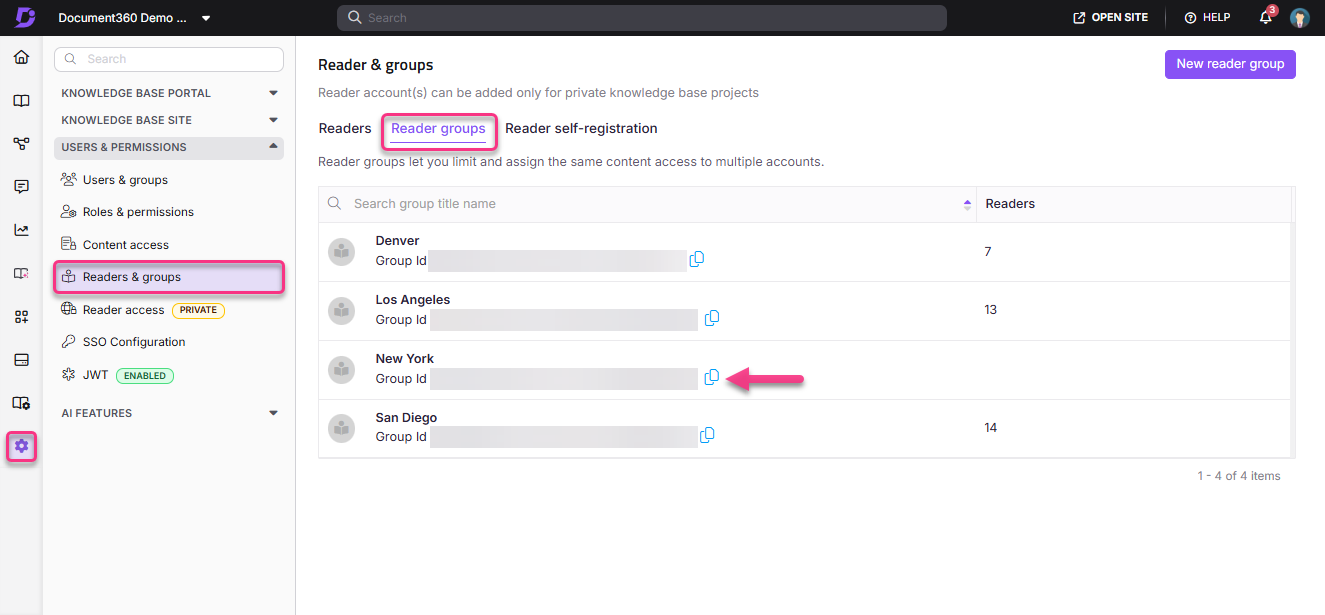
- Go to Settings () > Users & Permissions > Readers & groups.
- Select the Reader groups tab.
- Locate the reader group you want to use. The Group ID appears below the group name.
- Click the Copy icon to copy the Group ID to your clipboard.
Step 2: Add reader group IDs to your JWT payload
Add the Group ID to the readerGroupIds field of your JWT payload, in this format:
{
  "username": "john.doe",
  "firstName": "John",
  "lastName": "Doe",
  "emailId": "john.doe@example.com",
  "readerGroupIds": [
    "26b3812e-7879-4407-b1c9-5755c32b886a",
    "674eadcd-793f-4131-b1e0-c1f055cc83b7"
  ],
  "tokenValidity": 15,
  "providerName": "app.example.com"
}
To assign a reader to more than one group, add each Group ID as a separate entry in the array, separated by commas:
"readerGroupIds": ["26b3812e-7879-4407-b1c9-5755c32b886a", "674eadcd-793f-4131-b1e0-c1f055cc83b7"]
The other fields in the sample work as follows:
| Field | What it does |
|---|---|
tokenValidity |
How long the token stays valid, in minutes. The minimum is 5 minutes and the maximum is 1,440 minutes (24 hours). |
providerName |
Required only if your project has more than one JWT configuration. Set it to the domain of the matching JWT configuration. For details, see Re-authenticating readers with multiple JWT configurations. |
When the reader signs in, the restrictions of their reader groups apply automatically. The reader sees only the project versions, languages, categories and articles those groups allow.
Step 3: Check that it works
- Sign in to the knowledge base site as a test reader whose payload includes the Group ID.
- Confirm that the reader sees the content the group allows and doesn't see restricted categories or articles.
When reader group changes take effect
When you add or remove a Group ID in the payload, the change applies only after the reader's current token expires, based on the tokenValidity value.
Example: If tokenValidity is 30 minutes and you add a Group ID to the payload, the reader gets the new access only after those 30 minutes have passed. The same applies when you remove a Group ID.
If a reader needs an access change quickly, keep this delay in mind when you plan the change.
Use JWT reader groups with the knowledge base widget
If you also use JWT with the knowledge base widget, the widget shows a reader only the content allowed by both their reader groups and the widget's content access settings. This includes which languages the reader can see. For details, see Configure JWT for the knowledge base widget.
Considerations
- JWT readers aren't stored in Document360 because they authenticate in your application. They don't appear in the portal and can't be added to groups through the portal.
- If a reader group contains only JWT readers, the Export CSV button is disabled for all roles, including Admin and Owner. In groups that mix Normal, SSO and JWT readers, you can export Normal and SSO reader data but not JWT reader data. See Export reader group.
Best practices
- Keep token validity as short as is practical. Shorter validity means access changes take effect sooner.
- Review reader group assignments regularly so readers don't keep access to content they no longer need.
- Copy Group IDs with the Copy icon in the portal instead of typing them, to avoid errors.
- After any payload change, sign in as a test reader to confirm the access restrictions apply as expected.
Related articles
Implement JWT in your application
Build the JWT payload in your application and send readers to Document360.
Implement JWT →Managing JWT configurations
Turn JWT configurations on or off, rotate secret tokens and control the reader login page.
Manage JWT →FAQ
Can a reader belong to more than one reader group?
Yes. Add several Group IDs to the readerGroupIds array. The reader gets the combined access of all assigned groups.
Why can't I see the Group ID in my project?
Reader group IDs are only visible in JWT-configured projects. If your project doesn't have JWT configured, the Group ID doesn't appear on the Reader groups tab.
What happens if I add an invalid Group ID to the payload?
The token is still generated, but the invalid Group ID doesn't map to any group. The reader may not have the expected access restrictions applied. Always copy Group IDs directly from the portal.
Why is the Export CSV button disabled on my reader group page?
Document360 doesn't store details of readers who authenticate through JWT, so a group made up only of JWT readers has no reader data to export. See Export reader group.