LaTeX is a typesetting system for mathematical expressions, scientific notation, and equations. Use it in your articles to show formulas the way readers expect to see them, instead of as plain text. LaTeX is available in the unified Editor, the Advanced WYSIWYG editor, and the Markdown editor. Readers see the rendered formula on the knowledge base site, not the raw syntax.
NOTE
The unified Editor is rolled out in phases and is currently available in projects created after November 23, 2026. Projects created earlier continue to use the Advanced WYSIWYG editor and the Markdown editor. We're working to make it available to all projects soon.
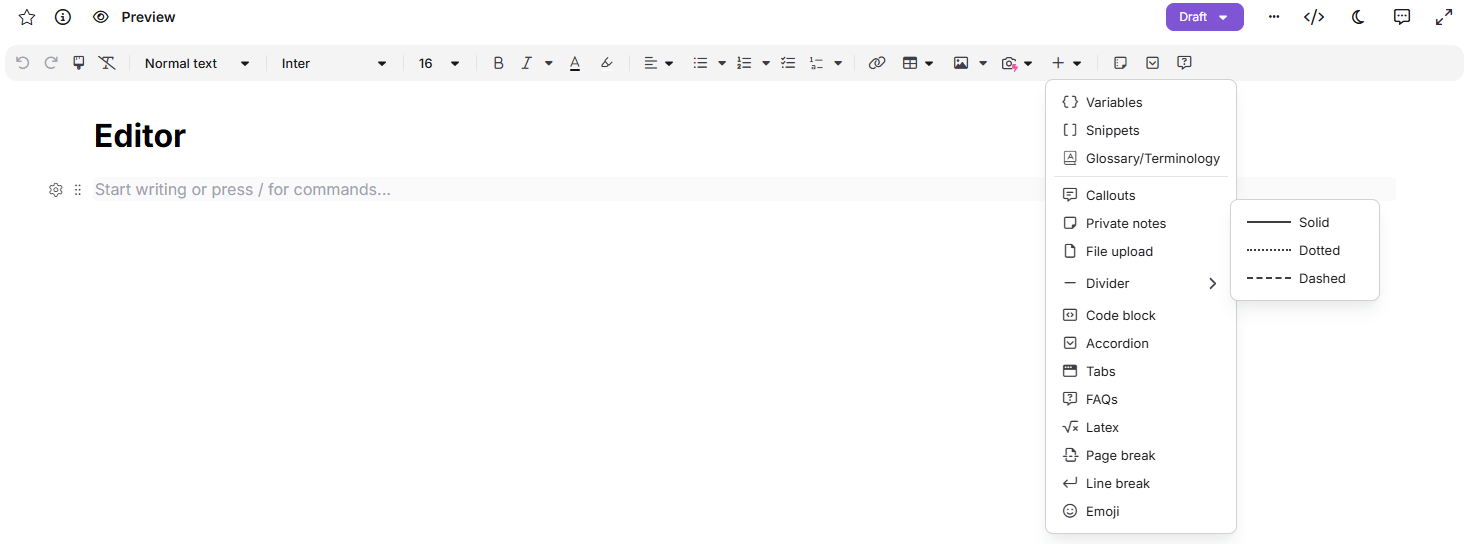
The way you insert a formula, and the delimiters you type around it, depend on your editor.
| Editor | How you insert a formula | Delimiters |
|---|---|---|
| Unified Editor | Insert (+) > Latex, or /latex |
None in Block view. In Markdown view, $$ lines for a formula on its own line and $…$ inside a sentence. |
| Advanced WYSIWYG editor | /LaTeX, then the Insert LaTeX expression panel |
None. Type the formula in the panel. |
| Markdown editor | LaTeX option in the toolbar, or type the syntax | A single $ for both inline and block formulas. $$ is not supported. |
When to use LaTeX
- Show equations in technical or academic knowledge bases, such as formula references, calculation guides, or physics documentation.
- Document chemical formulas, constants, and scientific expressions that plain text cannot represent accurately.
- Express mathematical models, statistical formulas, or algorithmic notation in developer or API documentation.
- Show step-by-step mathematical workings in training materials or educational content.
- Express financial formulas such as compound interest, depreciation, or risk models.
Insert a formula in the unified Editor
In the unified Editor, you insert a formula in Block view.
- Place your cursor where you want the formula.
- In the toolbar, select Insert (+) > Latex. You can also type
/latex, or type/and select Latex on the Insert tab. - In the Insert LaTeX dialog, type the formula in LaTeX source without delimiters, for example
E = mc^2. Check it in Preview, and then select Insert. The formula is inserted inline in the current paragraph.
Typing $...$ or $$...$$ directly in Block view doesn't create a formula. The text stays as you typed it.
To edit or copy the formula, click it. Its bubble menu opens.
In Markdown view in the unified Editor, a formula on its own line has $$ on the lines above and below it. A formula inside a sentence is wrapped in single $ signs.
$$
E = mc^2
$$

The ratio is $\frac{a}{b}$.
A formula you insert in Block view with Insert (+) > Latex appears in Markdown view as HTML, for example <span class="mathjax-expr" data-latex="E = mc^2">$E = mc^2$</span>, and its paragraph appears as an HTML <p> element.
Insert a formula in the Advanced WYSIWYG editor
- Open the article in the Advanced WYSIWYG editor.
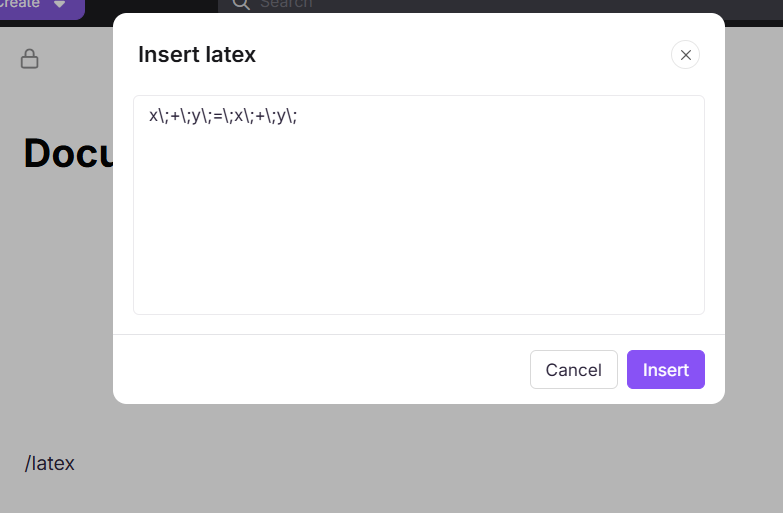
- Type
/LaTeXand press Enter.
The Insert LaTeX expression panel appears. - Enter the LaTeX syntax in the input field.
- Select Insert.
The rendered formula appears in the article.
Edit or delete a formula in the Advanced WYSIWYG editor
To edit a formula,
- Click the formula in the editor.
- Select the Edit (pencil) icon.
The Insert LaTeX expression panel opens with the existing syntax. - Make your changes and select Update.
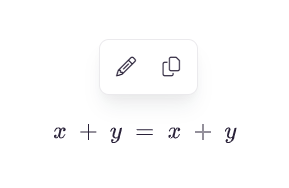
To delete a formula, click it and select the Remove (trash bin) icon.
Insert a formula in the Markdown editor
In the Markdown editor, select the LaTeX option in the toolbar, or type the formula between single $ signs, for example $E = mc^2$. Use a single $ for both inline and block formulas. Double dollar signs ($$) are not supported in the Markdown editor. Do not add a space between $ and the formula.
Common LaTeX syntax
The syntax inside the formula is the same in every editor.
| Expression | LaTeX syntax | Output |
|---|---|---|
| Fraction | \frac{a}{b} |
a/b as a fraction |
| Square root | \sqrt{x} |
√x |
| Superscript (exponent) | x^{2} |
x² |
| Subscript | x_{i} |
xᵢ |
| Sum | \sum_{i=1}^{n} |
Σ notation |
| Greek letters | \alpha, \beta, \gamma |
α, β, γ |
| Infinity | \infty |
∞ |
| Integral | \int_{a}^{b} |
∫ notation |
| Space between terms | \; |
A visible space |
For a full list of commands, refer to standard LaTeX documentation.
Best practices
- Preview the formula before you publish to confirm it renders correctly on the knowledge base site.
- Keep formulas short. Break multi-step equations into separate formulas with plain-text explanation between them.
- Add a plain-language explanation next to complex formulas for readers who don't read mathematical notation.
- Use
\;for spacing inside a formula. Keyboard spaces are ignored. - When you copy formulas between projects, check the delimiters. The unified Editor uses
$$in Markdown view for formulas on their own line, and the Markdown editor uses a single$.
FAQ
Why does my $$ formula not render?
You are in the Markdown editor, which supports only a single $ for both inline and block formulas. Replace $$ with $. In Markdown view in the unified Editor, $$ is correct for a formula on its own line.
How do I add spacing inside a formula?
Use \; between terms. Keyboard spaces are not recognized inside LaTeX syntax. This works the same way in every editor.
Can I use LaTeX inside tabs and snippets?
Yes. In the Advanced WYSIWYG editor, you can add formulas inside tabs and snippets. In the unified Editor, type / inside a tab to add blocks, including a formula.